The Tech Edvocate

Top Menu

  • Advertisement
  • Apps
  • Home Page
  • Home Page Five (No Sidebar)
  • Home Page Four
  • Home Page Three
  • Home Page Two
  • Home Tech2
  • Icons [No Sidebar]
  • Left Sidbear Page
  • Lynch Educational Consulting
  • My Account
  • My Speaking Page
  • Newsletter Sign Up Confirmation
  • Newsletter Unsubscription
  • Our Brands
  • Page Example
  • Privacy Policy
  • Protected Content
  • Register
  • Request a Product Review
  • Shop
  • Shortcodes Examples
  • Signup
  • Start Here
    • Governance
    • Careers
    • Contact Us
  • Terms and Conditions
  • The Edvocate
  • The Tech Edvocate Product Guide
  • Topics
  • Write For Us
  • Advertise

Main Menu

  • Start Here
    • Our Brands
    • Governance
      • Lynch Educational Consulting, LLC.
      • Dr. Lynch’s Personal Website
      • Careers
    • Write For Us
    • The Tech Edvocate Product Guide
    • Contact Us
    • Books
    • Edupedia
    • Post a Job
    • The Edvocate Podcast
    • Terms and Conditions
    • Privacy Policy
  • Topics
    • Assistive Technology
    • Child Development Tech
    • Early Childhood & K-12 EdTech
    • EdTech Futures
    • EdTech News
    • EdTech Policy & Reform
    • EdTech Startups & Businesses
    • Higher Education EdTech
    • Online Learning & eLearning
    • Parent & Family Tech
    • Personalized Learning
    • Product Reviews
  • Advertise
  • Tech Edvocate Awards
  • The Edvocate
  • Pedagogue
  • School Ratings

logo

The Tech Edvocate

  • Start Here
    • Our Brands
    • Governance
      • Lynch Educational Consulting, LLC.
      • Dr. Lynch’s Personal Website
        • My Speaking Page
      • Careers
    • Write For Us
    • The Tech Edvocate Product Guide
    • Contact Us
    • Books
    • Edupedia
    • Post a Job
    • The Edvocate Podcast
    • Terms and Conditions
    • Privacy Policy
  • Topics
    • Assistive Technology
    • Child Development Tech
    • Early Childhood & K-12 EdTech
    • EdTech Futures
    • EdTech News
    • EdTech Policy & Reform
    • EdTech Startups & Businesses
    • Higher Education EdTech
    • Online Learning & eLearning
    • Parent & Family Tech
    • Personalized Learning
    • Product Reviews
  • Advertise
  • Tech Edvocate Awards
  • The Edvocate
  • Pedagogue
  • School Ratings
  • A Visitors Guide to Long Beach (CA), United States

  • A Visitor’s Guide to Fresno (CA), United States

  • A Visitors Guide to New Orleans (LA), United States

  • A Visitors Guide to Sacramento (CA), United States

  • A Visitors Guide to Lyon, France

  • JisuLife Ultra2 Portable Fan: A Powerful Multi-Function Cooling Solution

  • A Visitors Guide to Viña del Mar, Chile

  • A Visitors Guide to Århus, Denmark

  • A Visitors Guide to Bakersfield (CA), United States

  • A Visitors Guide to Aurora (CO), United States

Digital & Mobile Technology
Home›Digital & Mobile Technology›How to Remove Bloatware from Windows

How to Remove Bloatware from Windows
By Matthew Lynch
May 3, 2023
0
Spread the love

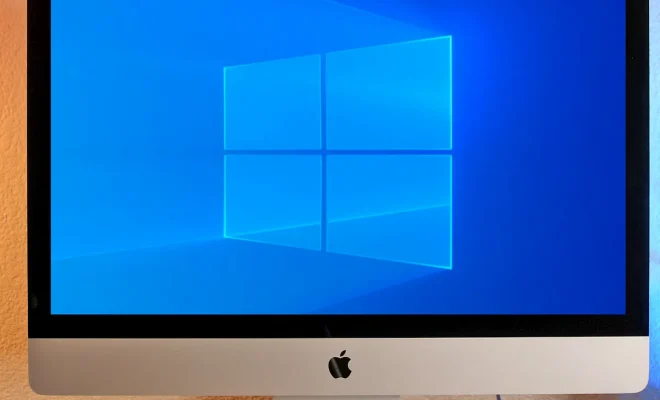
Bloatware, also known as crapware or trialware, is a term used to describe the preinstalled software that comes with a new Windows computer, smartphone or tablet. Bloatware can slow down your device, take up valuable storage space, and be a potential security risk, as some of these apps are known to collect and sell your data. Therefore, it’s essential to remove bloatware from your Windows computer to improve its performance and your privacy.

In this article, we’ll show you how to remove bloatware from Windows in several ways.

1. Uninstall through Control Panel

The easiest way to remove bloatware from Windows is to use the built-in uninstaller from the Control Panel. Here’s how:

1. Click on the Start menu and go to Control Panel.

2. Click on Programs > Uninstall a program.

3. Browse through the list of installed programs to identify the bloatware you want to remove.

4. Select the program and click Uninstall.

5. Follow the prompts to remove the app. Some apps may require a restart after uninstallation.

Note: Make sure you only uninstall the apps you’re sure you don’t need. Deleting important system files or drivers can cause your computer to malfunction.

2. Use a third-party uninstaller

If some stubborn bloatware apps can’t be removed through Control Panel or they leave behind files, folders or registry entries, you can use a third-party uninstaller software like Revo Uninstaller or IObit Uninstaller. These programs can force uninstall apps, remove leftovers, and optimize your PC performance.

1. Download and install a reputable uninstaller app. (You can find some free software online).

2. Launch the program and select the bloatware you want to uninstall.

3. Follow the instructions carefully.

4. The program will scan for leftover files and registry entries that can be safely deleted.

Note: Some third-party uninstallers may bundle other software or try to upsell you their premium version, so be careful when installing.

3. Disable apps through Task Manager

Some bloatware apps can’t be uninstalled or may reinstall themselves every time you restart your computer. In that case, you can disable them through the Task Manager. Here’s how:

1. Right-click on the Windows taskbar and select Task Manager.

2. Go to the Startup tab.

3. Right-click on the app you want to disable and click Disable.

Note: Disabling apps through Task Manager doesn’t actually uninstall them but prevents them from running in the background when your computer starts.

4. Use PowerShell

PowerShell is a powerful command-line tool that can be used to remove bloatware apps that are difficult to uninstall manually. Here’s how:

1. Type “PowerShell” in the Start menu search bar.

2. Right-click on Windows PowerShell and select Run as administrator.

3. Type in the command “Get-AppxPackage *appname* | Remove-AppxPackage.”

4. Replace “appname” with the name of the app you want to remove.

5. Press Enter to execute the command.

Note: Be careful not to remove important system apps or the wrong bloatware apps.

In conclusion, removing bloatware can help speed up your computer, reduce clutter, and improve your privacy. You can use the built-in uninstaller, a third-party uninstaller, disable apps through Task Manager, or PowerShell to remove unwanted apps from Windows. Just make sure to take precautions to avoid removing essential system files, drivers or critical apps that can cause errors or crashes.  

Previous Article

How to Remove an Old Satellite Dish

Next Article

How to Remove Credit Card Information From ...

Matthew Lynch

Related articles More from author

  • Digital & Mobile Technology

    How to Make an Internal Hard Drive External

    June 3, 2023
    By Matthew Lynch
  • Digital & Mobile Technology

    The Best DDR5 Motherboards

    June 23, 2023
    By Matthew Lynch
  • Digital & Mobile Technology

    What Are the Best Replacements for the Logitech Harmony Hub?

    June 8, 2023
    By Matthew Lynch
  • Digital & Mobile Technology

    What Is a Master Boot Record (MBR)?

    June 6, 2023
    By Matthew Lynch
  • Digital & Mobile Technology

    How to Silence a Noisy Laptop Fan: Things You Can Do

    August 5, 2023
    By Matthew Lynch
  • Digital & Mobile Technology

    List of Control Panel Applets in Windows

    June 14, 2023
    By Matthew Lynch

Search

Login & Registration

  • Register
  • Log in
  • Entries feed
  • Comments feed
  • WordPress.org

Newsletter

Signup for The Tech Edvocate Newsletter and have the latest in EdTech news and opinion delivered to your email address!

About Us

Since technology is not going anywhere and does more good than harm, adapting is the best course of action. That is where The Tech Edvocate comes in. We plan to cover the PreK-12 and Higher Education EdTech sectors and provide our readers with the latest news and opinion on the subject. From time to time, I will invite other voices to weigh in on important issues in EdTech. We hope to provide a well-rounded, multi-faceted look at the past, present, the future of EdTech in the US and internationally.

We started this journey back in June 2016, and we plan to continue it for many more years to come. I hope that you will join us in this discussion of the past, present and future of EdTech and lend your own insight to the issues that are discussed.

Newsletter

Signup for The Tech Edvocate Newsletter and have the latest in EdTech news and opinion delivered to your email address!

Contact Us

The Tech Edvocate
910 Goddin Street
Richmond, VA 23231
(601) 630-5238
[email protected]

Copyright © 2025 Matthew Lynch. All rights reserved.