The Tech Edvocate

Top Menu

  • Advertisement
  • Apps
  • Home Page
  • Home Page Five (No Sidebar)
  • Home Page Four
  • Home Page Three
  • Home Page Two
  • Home Tech2
  • Icons [No Sidebar]
  • Left Sidbear Page
  • Lynch Educational Consulting
  • My Account
  • My Speaking Page
  • Newsletter Sign Up Confirmation
  • Newsletter Unsubscription
  • Our Brands
  • Page Example
  • Privacy Policy
  • Protected Content
  • Register
  • Request a Product Review
  • Shop
  • Shortcodes Examples
  • Signup
  • Start Here
    • Governance
    • Careers
    • Contact Us
  • Terms and Conditions
  • The Edvocate
  • The Tech Edvocate Product Guide
  • Topics
  • Write For Us
  • Advertise

Main Menu

  • Start Here
    • Our Brands
    • Governance
      • Lynch Educational Consulting, LLC.
      • Dr. Lynch’s Personal Website
      • Careers
    • Write For Us
    • The Tech Edvocate Product Guide
    • Contact Us
    • Books
    • Edupedia
    • Post a Job
    • The Edvocate Podcast
    • Terms and Conditions
    • Privacy Policy
  • Topics
    • Assistive Technology
    • Child Development Tech
    • Early Childhood & K-12 EdTech
    • EdTech Futures
    • EdTech News
    • EdTech Policy & Reform
    • EdTech Startups & Businesses
    • Higher Education EdTech
    • Online Learning & eLearning
    • Parent & Family Tech
    • Personalized Learning
    • Product Reviews
  • Advertise
  • Tech Edvocate Awards
  • The Edvocate
  • Pedagogue
  • School Ratings

logo

The Tech Edvocate

  • Start Here
    • Our Brands
    • Governance
      • Lynch Educational Consulting, LLC.
      • Dr. Lynch’s Personal Website
        • My Speaking Page
      • Careers
    • Write For Us
    • The Tech Edvocate Product Guide
    • Contact Us
    • Books
    • Edupedia
    • Post a Job
    • The Edvocate Podcast
    • Terms and Conditions
    • Privacy Policy
  • Topics
    • Assistive Technology
    • Child Development Tech
    • Early Childhood & K-12 EdTech
    • EdTech Futures
    • EdTech News
    • EdTech Policy & Reform
    • EdTech Startups & Businesses
    • Higher Education EdTech
    • Online Learning & eLearning
    • Parent & Family Tech
    • Personalized Learning
    • Product Reviews
  • Advertise
  • Tech Edvocate Awards
  • The Edvocate
  • Pedagogue
  • School Ratings
  • The Rise of Lab-Grown Foods: A Sustainable Revolution in Global Agriculture

  • The Rise of Solo Living: A New Era of Independence Among Youth

  • A Heartfelt Lunar Tribute: Artemis II Crew Honors Commander Wiseman’s Late Wife

  • Pittsburgh Native Gary Jordan Takes Center Stage as Voice of NASA’s Artemis II Mission

  • NASA’s Artemis II: A Confident Leap in Space Exploration with Advanced Heat Shield Technology

  • Artemis II: A New Chapter in Human Space Exploration

  • Artemis II: A Historic Step Toward Lunar Exploration and Beyond

  • April 2026: Exciting Fashion Launches to Elevate Your Wardrobe

  • Marathon’s Struggles: A Month After Launch, Sony’s Shooter Falls from Steam’s Top 50 Sales

  • The Gaming Landscape of Late 2026: Top Releases to Watch

Assistive Technology
Home›Assistive Technology›How to Remotely Turn a PC On and Off

How to Remotely Turn a PC On and Off
By Matthew Lynch
June 23, 2023
0
Spread the love

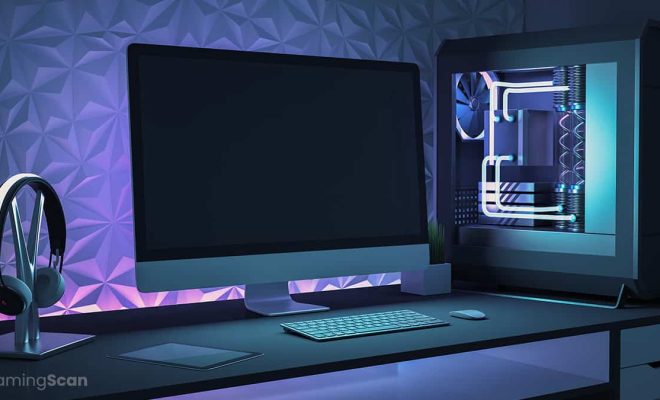
In today’s world, technology has advanced so much that remote control is possible in many areas of our lives. From home automation to virtual assistants, it’s all about being able to manage our devices and surroundings no matter where we are. One of the most useful things you can do remotely is turning your PC on and off. If you need to access your computer, or you simply want to shut it down for the night, you can do it from the comfort of your bed, office, or even the other side of the world. Here’s how to remotely turn a PC on and off.

First of all, you need to make sure that your computer supports remote wake-up from sleep or hibernation. This feature is not available on all devices, so it’s important to check. You can do this by going to the Control Panel, selecting the Hardware and Sound option, then selecting Power Options. From there, click on Change plan settings, then Change advanced power settings. Scroll down to find the Power buttons and lid option and expand it to see the options “When I press the power button” and “When I press the sleep button.” Ensure that both options are set to “Do Nothing.”

Next, set up your computer for remote access. You can do this through the Remote Desktop feature, which is included in all modern versions of Windows. To set up Remote Desktop, go to the Control Panel, select System and Security, and then click on Allow remote access. Check the box next to “Allow remote connections to this computer,” and then select “Select Users.” Add yourself or the user you want to have remote access to the computer.

Now, you need to set up a Wake-on-LAN (WoL) tool. WoL allows you to remotely turn on your computer using a magic packet. This packet is essentially a signal that wakes up the computer’s network adapter, which then wakes up the rest of the system. There are many WoL tools available online, such as Depicus Wake on LAN, Advanced IP Scanner, and WakeMeOnLan. Some of these tools require you to enter your computer’s MAC address, so make sure you have that information handy.

Once you have set up your WoL tool, you can use it to remotely wake up your computer. To do this, send it the magic packet, and your computer will turn on. You can then access it remotely using Remote Desktop or a similar tool. To remotely shut down your computer, simply use the Shutdown command within your remote access application.


Previous Article

Player Movement in Unity Explained: Rigidbody and ...

Next Article

Charging Habits That Will Prolong Your MacBook’s ...

Matthew Lynch

Related articles More from author

  • Assistive Technology

    Why Is My Apple Watch Touch Screen Not Working? How to Fix The Problem

    June 6, 2023
    By Matthew Lynch
  • Assistive Technology

    How to Use Zoom on Android

    June 23, 2023
    By Matthew Lynch
  • Assistive Technology

    How to Reset the Android Home Screen to Default Settings

    June 8, 2023
    By Matthew Lynch
  • Assistive Technology

    How to Uninstall Steam Games (and Reinstall Later)

    June 12, 2023
    By Matthew Lynch
  • Assistive Technology

    How to Use the Bookmarks Feature in Microsoft Word

    June 14, 2023
    By Matthew Lynch
  • Assistive Technology

    How to Install Windows 11 on VirtualBox 7.0

    June 23, 2023
    By Matthew Lynch

Search

Login & Registration

  • Register
  • Log in
  • Entries feed
  • Comments feed
  • WordPress.org

Newsletter

Signup for The Tech Edvocate Newsletter and have the latest in EdTech news and opinion delivered to your email address!

About Us

Since technology is not going anywhere and does more good than harm, adapting is the best course of action. That is where The Tech Edvocate comes in. We plan to cover the PreK-12 and Higher Education EdTech sectors and provide our readers with the latest news and opinion on the subject. From time to time, I will invite other voices to weigh in on important issues in EdTech. We hope to provide a well-rounded, multi-faceted look at the past, present, the future of EdTech in the US and internationally.

We started this journey back in June 2016, and we plan to continue it for many more years to come. I hope that you will join us in this discussion of the past, present and future of EdTech and lend your own insight to the issues that are discussed.

Newsletter

Signup for The Tech Edvocate Newsletter and have the latest in EdTech news and opinion delivered to your email address!

Contact Us

The Tech Edvocate
910 Goddin Street
Richmond, VA 23231
(601) 630-5238
[email protected]

Copyright © 2025 Matthew Lynch. All rights reserved.