Remap Keyboard Keys: Boost Your Productivity & Comfort
“`html
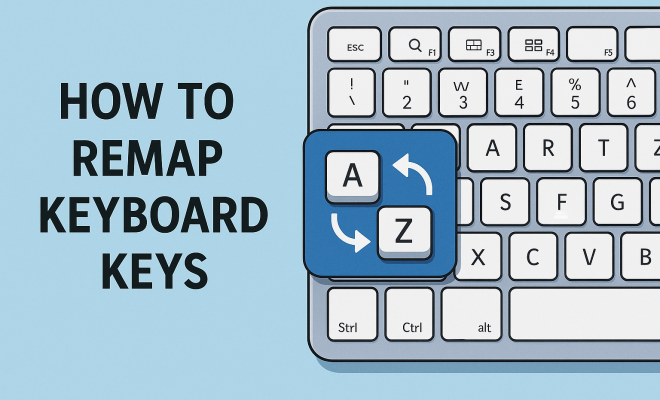
Have you ever found yourself frustrated with your keyboard layout? Whether it’s an awkward placement of often-used keys or a preference for different shortcuts, the good news is you can remap keyboard keys to suit your personal workflow. In this guide, we will explore the ins and outs of remapping, its benefits, and the practical steps you can take to customize your keyboard experience.
1. Understanding Keyboard Mapping
At its core, keyboard mapping refers to the way keys on your keyboard correspond to specific characters or functions in your operating system. Each key has a default setting, but this can be altered through remapping. The reasons for remapping keyboard keys can vary greatly from person to person. Some users may find certain keys more comfortable to use based on their typing style, while others might need to create shortcuts for software applications that they frequently use.
Historically, keyboard layouts have evolved from typewriters to modern computer keyboards, with various layouts emerging, such as QWERTY, AZERTY, and Dvorak. Each layout has its proponents, but even within a specific layout, individual preferences can lead to the need for remapping. This is particularly true in professional settings where productivity is paramount.
2. The Benefits of Remapping Keys
Remapping your keyboard can yield several benefits. Perhaps the most immediate advantage is comfort. If you find yourself consistently reaching for a key that is inconveniently placed, remapping can help streamline your typing process. For instance, if you frequently use copy (Ctrl+C) and paste (Ctrl+V), placing these functions on easier-to-reach keys can reduce strain on your hands and wrists.
Additionally, remapping can enhance your productivity. By customizing key functions to suit your workflow, you can reduce the time spent navigating through menus or using multiple keystrokes. For example, designers and developers often remap keys to facilitate quicker access to tools and commands that are essential to their work processes.
3. Tools for Remapping Keyboard Keys
There are numerous tools available today to help you remap keyboard keys. Some operating systems provide built-in functionality, while third-party software can offer even greater flexibility. Here are a few popular options:
- SharpKeys: This free utility allows you to remap keys in Windows easily. It modifies the Windows registry to change key assignments, making it a straightforward solution.
- KeyTweak: Another Windows-specific tool, KeyTweak provides a visual interface for remapping keys, which can be helpful for visual learners.
- Karabiner-Elements: For Mac users, this powerful remapping tool offers extensive options, including complex modifications and conditional key remapping.
- AutoHotkey: This versatile scripting language for Windows enables users to create custom scripts for remapping keys and automating tasks, making it ideal for power users.
- Microsoft PowerToys: This utility includes a Keyboard Manager that allows for key remapping and shortcut creation, adding to its functionality for Windows users.
4. How to Remap Keyboard Keys on Windows
Remapping keys on a Windows computer can be done through various methods. One of the simplest ways is using SharpKeys. After downloading and installing SharpKeys, follow these steps:
- Open SharpKeys and select the “Add” button.
- In the left column, choose the key you want to remap.
- In the right column, select the new key function.
- Click “OK” and then “Write to Registry” to save changes.
- Log out and back in, or restart your computer for the changes to take effect.
For those who prefer a more robust solution, AutoHotkey allows for more complex remapping. You can write a simple script like this:
^c::Send ^{Home} ; Remap Ctrl+C to Ctrl+Home
This script means that pressing Ctrl+C will instead perform the Ctrl+Home action, allowing for customized functionality as needed. (See: Keyboard layout variations and history.)
5. How to Remap Keyboard Keys on macOS
For Mac users, the process of remapping keys is slightly different. Using the built-in Keyboard preferences, you can easily modify some key assignments. To do this:
- Open “System Preferences” and select “Keyboard”.
- Click on the “Modifier Keys…” button at the bottom right.
- Choose the key you want to change and select the new function from the dropdown menu.
- Click “OK” to save your changes.
If you need more control, Karabiner-Elements is a powerful tool that allows for extensive remapping and can handle complex modifications. After installing Karabiner-Elements, you can easily set up profiles for different applications, which can greatly enhance your productivity.
6. Remapping Keys on Linux
Linux users have a wide range of options when it comes to remapping keyboard keys, thanks to its flexible architecture. One common method involves the use of the xmodmap utility. To use xmodmap, follow these steps:
- Open a terminal and type “xmodmap -e ‘keycode
= ‘” to map a key. - To find the keycode of the key you want to remap, run “xev” in the terminal.
- Once you have the keycode, you can replace
with the actual code you found and with the desired key function.
Depending on your Linux distribution, there may also be graphical tools available, such as GNOME Tweaks or KDE System Settings, that can simplify the remapping process without using the command line.
7. Common Use Cases for Remapping
Different users have various reasons for wanting to remap keyboard keys. Here are some common scenarios where remapping can be particularly beneficial:
- Gaming: Many gamers prefer to remap keys for better control over their characters or for quicker access to commands. For instance, switching the WASD keys to arrow keys or assigning specific abilities to more accessible keys can enhance gaming performance.
- Accessibility: Users with disabilities might remap keys to make their keyboard easier to use. For example, a user with limited mobility might choose to enlarge commonly used keys or assign frequently used commands to more accessible locations.
- Productivity Tools: Professionals who use software that requires complex keystrokes might remap keys to create shortcuts. For instance, a graphic designer could remap tools in Adobe Photoshop to easily accessible keys for a smoother workflow.
8. Potential Issues and Considerations
While remapping can greatly enhance your typing experience, there are a few potential issues to keep in mind. First, if you switch between computers frequently, you might find your remapping settings do not transfer, leading to confusion. To mitigate this, consider using portable remapping tools or creating scripts that can be easily transferred.
Another consideration is that some software applications may not recognize remapped keys. For instance, games that rely on specific key mappings may not function properly if the keys have been altered. In such cases, it may be wise to create different profiles or temporarily revert to the default settings for particular applications.
9. Best Practices for Remapping Keyboard Keys
To get the most out of your keyboard remapping experience, consider these best practices:
- Start Small: If you’re new to remapping, begin with just one or two keys. This way, you can assess how the changes impact your workflow without overwhelming yourself.
- Document Changes: Keep track of your remapped keys, especially if you implement multiple modifications. This can help you revert changes if needed and allows you to replicate your settings on other devices.
- Test Thoroughly: After making changes, take your time to test how the new mappings feel. You may find certain remappings are less ergonomic than you initially thought, and adjustments may be necessary.
10. Advanced Remapping Techniques
If you’re looking to take your keyboard remapping a step further, there are some advanced techniques you can consider. These methods allow for more customization and functionality:
- Layered Key Mappings: Many remapping tools allow you to create layers of key mappings. This means you can have a different set of key functions based on the context or the application you are using. For instance, you could have one set of shortcuts in a game and a completely different set in a design application. This flexibility can dramatically improve productivity.
- Macro Commands: Some remapping software supports macros, which are sequences of actions triggered by a single keypress. For instance, you could set a single key to perform a series of tasks such as opening applications, sending emails, or even typing long phrases. This can save a significant amount of time in repetitive tasks.
- Conditional Remapping: Certain tools allow for conditional remapping, where the behavior of a key can change based on specific conditions, such as the active application or a certain modifier key being pressed. This can streamline workflows even further by tailoring keyboard behavior dynamically.
11. Statistics on Keyboard Usage
Understanding how we use keyboards can help inform your remapping strategy. According to a study by the Bureau of Labor Statistics, individuals in office jobs spend an average of 2-4 hours per day typing. Additionally, research from the University of Cambridge indicates that repetitive strain injuries (RSI) are common among people who type frequently, emphasizing the importance of comfort and ergonomics in keyboard design. (See: Ergonomics and comfort in computer use.)
Interestingly, a survey conducted by Keychron revealed that about 65% of users who remap their keyboard keys reported an increase in typing speed. This suggests that remapping can be a practical method to enhance efficiency in typing tasks.
12. Expert Perspectives on Keyboard Remapping
Experts in ergonomics and productivity often recommend remapping as a means to improve both comfort and efficiency. Dr. Jennifer K. Smith, an ergonomics specialist, emphasizes that “customizing your keyboard layout can significantly reduce the risk of repetitive strain injuries. An ergonomic setup is not just about the chair or desk height; it’s about optimizing every element you interact with, including your keyboard.”
Similarly, productivity consultant Mark Thompson states, “In a world where every second counts, the keyboard should be your ally. Remapping keys to suit your workflow can shave off precious time, allowing you to focus on the creative aspects of your work rather than navigating through clunky key sequences.” These insights reinforce the idea that remapping is not merely a personal preference but can be a necessity for some users.
13. Frequently Asked Questions (FAQ)
What is the difference between remapping and creating shortcuts?
Remapping involves changing the function of a key to another key’s function, while creating shortcuts usually involves assigning a combination of keys to perform a specific function. For example, remapping the “Caps Lock” key to function as “Escape” is different from setting “Ctrl + Alt + N” to open a new document.
Can I remap my keyboard keys back to default settings?
Yes, most remapping tools offer the option to revert changes and restore the original key functions. Always check the tool’s documentation for specific instructions on how to do this.
Is it possible to remap keys on a laptop keyboard?
Absolutely! You can use the same tools and methods mentioned for desktop keyboards to remap laptop keys. Just keep in mind that the layout and key availability may differ slightly.
Can remapping keys improve my typing speed?
Many users report an increase in typing speed after remapping their keys due to more efficient access to commonly used functions. By tailoring your keyboard to your specific needs, you can streamline your workflow and reduce unnecessary keystrokes.
What if I want to remap keys for different applications?
Some advanced remapping tools allow you to create profiles for different applications. This means that you can have unique key mappings that activate when you switch to a certain application, giving you the flexibility to adapt your keyboard layout based on your task.
14. Common Misconceptions about Keyboard Remapping
Despite the advantages, several misconceptions surround keyboard remapping. One common myth is that remapping is only for tech-savvy users or programmers. In reality, user-friendly tools like SharpKeys and Microsoft PowerToys make it accessible for anyone to modify their keyboard layout without any coding knowledge. (See: Impact of keyboard design on productivity.)
Another misconception is that remapping can lead to confusion or errors in typing. While it might take a bit of time to adjust to new key placements, many find that the short learning curve is worth the long-term benefits, especially when comfort and efficiency are at stake.
15. Real-Life Examples of Keyboard Remapping
Many users have shared their success stories with remapping keyboard keys, often highlighting how it has transformed their daily tasks. For instance, graphic designers frequently remap keys in Adobe Creative Suite to speed up their workflow. One designer remapped the “F” key to trigger a frequently used brush tool, allowing quicker access while maintaining focus on the design rather than searching for tools through menus.
Gamers also illustrate the impact of remapping. A popular case involves remapping the “Shift” key to perform a sprint action in first-person shooters. This allows players to execute faster movements without the awkward finger gymnastics often required to reach traditional key setups. The result? Improved performance and a more enjoyable gaming experience.
16. The Future of Keyboard Customization
As technology progresses, the ability to customize keyboards continues to evolve. With the rise of mechanical keyboards and customizable key switches, users have more options than ever. Companies are beginning to integrate software solutions directly into their hardware, allowing for seamless remapping without the need for additional software.
Furthermore, adaptive keyboards that learn and adapt to the user’s preferences are becoming a reality. These keyboards may utilize machine learning algorithms to suggest key remappings based on usage patterns, enhancing both accessibility and productivity in ways we are just beginning to explore.
17. Conclusion
In summary, remapping keyboard keys can be a powerful way to enhance your computer experience, improve productivity, and increase comfort while typing. Whether you’re a gamer, a professional, or someone who simply wants a keyboard that works better for them, taking the time to remap your keys can lead to a more enjoyable and efficient interaction with your device. So, why not give it a try and unlock the full potential of your keyboard?
“`
Trending Now
Frequently Asked Questions
How do I remap my keyboard keys?
To remap your keyboard keys, you can use built-in operating system settings or third-party software. For Windows, go to Settings > Devices > Typing. For macOS, use System Preferences > Keyboard. Third-party tools like SharpKeys or KeyTweak provide more customization options.
What are the benefits of remapping keyboard keys?
Remapping keyboard keys can enhance comfort and productivity. It allows you to place frequently used keys in easier-to-reach locations, reducing strain on your hands. Additionally, it can streamline your workflow by customizing shortcuts that suit your specific tasks.
Can I remap keys for specific applications?
Yes, many remapping tools allow you to set key functions that apply only to specific applications. This is particularly useful for software that requires unique shortcuts. Check your remapping software's documentation for instructions on how to set application-specific key mappings.
Is it possible to revert keyboard remapping?
Yes, you can easily revert keyboard remapping. Most remapping tools have an option to restore default settings. Additionally, if you used operating system settings to remap, you can return to the original configuration in the same settings menu.
What tools can I use to remap keyboard keys?
There are several tools available for remapping keyboard keys. For Windows, options include SharpKeys and AutoHotkey. On macOS, you can use Karabiner-Elements. Built-in settings in Windows and macOS also provide basic remapping capabilities.
What’s your take on this? Share your thoughts in the comments below — we read every one.