Fix Sticky Keyboard Keys: A Comprehensive 2024 Guide
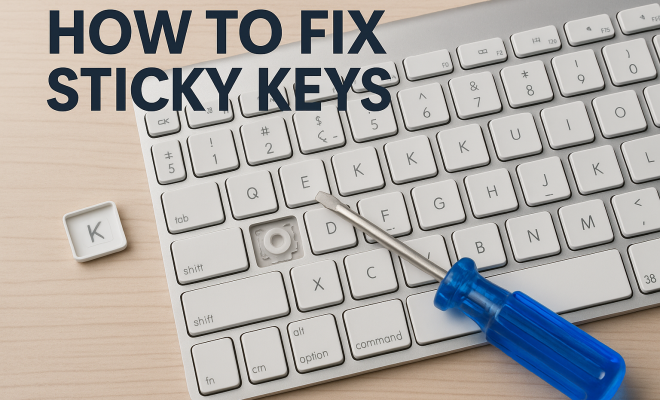
“`html
Sticky keys can be a frustrating issue for anyone who relies on their keyboard for work or play. Often, this problem arises from dirt, debris, or even mechanical wear that prevents keys from functioning properly. If you find yourself dealing with unresponsive or overly sensitive keys, it’s time to learn how to fix sticky keys and get back to a smooth typing experience. Here’s a comprehensive guide that covers everything from basic troubleshooting to more in-depth repairs.
1. Understand the Problem: What Causes Sticky Keys?
Sticky keys can arise from various sources. Understanding the underlying causes is crucial to effectively address the issue. The most common reasons include:
- Dirt and Debris: Food crumbs, dust, and hair can accumulate under the keys, leading to obstruction.
- Moisture: Spills can cause keys to stick if they penetrate beneath the keycap.
- Mechanical Wear: Over time, keys may lose their elasticity or break down due to constant use.
Diagnosing the issue is the first step. If specific keys are sticking, pinpointing where the buildup has occurred will help in applying the correct solution. A visual inspection often reveals the presence of debris or moisture, which can be easily addressed.
2. Initial Cleaning: How to Keep Your Keyboard Free of Debris
If you want to learn how to fix sticky keys, starting with a good cleaning is essential. Here’s how you can do it effectively:
- Power Down: Ensure your device is turned off before you start cleaning to avoid any accidental key presses.
- Shake It Out: Gently turn your keyboard upside down and shake it to dislodge any loose debris.
- Use Compressed Air: A can of compressed air can effectively blow out dirt hiding beneath the keys. Aim the nozzle at the spaces between the keys and short bursts to dislodge dust.
This simple cleaning process can often resolve sticky keys related to dirt and debris. If the keys still stick after cleaning, it might be time to dive deeper.
3. Deep Cleaning: Removing Keycaps for Thorough Maintenance
Sometimes, a surface-level clean isn’t enough. If your keyboard allows it, consider removing the keycaps for a thorough cleaning:
- Gather Your Tools: You will need a keycap puller and some cleaning supplies (like isopropyl alcohol and cotton swabs).
- Remove Keycaps: Use the keycap puller to gently remove the keycaps of the affected keys. Be cautious not to damage the switches underneath.
- Clean Thoroughly: Wipe down the exposed area with a damp cloth and clean the keycaps separately with soap and water or isopropyl alcohol. Make sure everything is dry before reassembling.
After reassembling the keyboard, test the keys to see if the issue persists. Deep cleaning can often restore functionality to sticky keys that were previously unresponsive.
4. Check for Moisture Damage: How to Handle Spills
If you suspect that moisture might be the culprit behind your sticky keys, you’ll need to address it carefully:
- Immediate Action: If you spill liquid on your keyboard, turn it off immediately and disconnect it. This can prevent further damage.
- Dry It Out: Place the keyboard in a dry area or use silica gel packets to absorb moisture. Don’t use heat directly, as it could warp or damage components.
- Inspect Internals: If you’re comfortable doing so, remove the keycaps and inspect for any liquid residue. Cleaning with isopropyl alcohol can help remove any sticky residue left behind.
Moisture can corrode internal components, so addressing spills promptly is crucial for the longevity of your keyboard.
5. Software Solutions: Adjusting Settings to Fix Sticky Keys
Sometimes, sticky keys can be a software issue rather than a mechanical one. If you’re using Windows, consider checking your accessibility settings:
- Sticky Keys Feature: Go to Settings > Ease of Access > Keyboard. Make sure Sticky Keys is turned off, as this feature can cause unintended behavior.
- Keyboard Layout: Verify that your keyboard layout matches the physical keyboard you’re using, as mismatched layouts can lead to functionality issues.
- Update Drivers: Outdated keyboard drivers might cause issues. Check your device manager for any available updates.
Adjusting software settings can resolve issues that manifest as sticky or unresponsive keys, saving you from more extensive repairs. (See: Cleaning and disinfecting surfaces.)
6. Replace Faulty Key Switches: When to Go for Hardware Repairs
If cleaning and software adjustments don’t fix sticky keys, you may need to look at hardware replacements:
- Identifying the Problematic Key: When keys remain unresponsive or stick despite cleaning, it’s likely a hardware problem.
- Replacing the Switch: If you have a mechanical keyboard, you can often replace individual switches. Make sure to consult your keyboard’s manual for the correct procedure.
- Professional Repair: If unsure about replacing components yourself, consult a professional. They can assess and repair any underlying issues with minimal risk to your device.
Replacing faulty switches can restore your keyboard to its optimal condition, ensuring reliable performance.
7. Consider a Keyboard Upgrade: When All Else Fails
If you’ve tried everything and still can’t fix sticky keys, it might be time to consider investing in a new keyboard. Here are some factors to think about:
- Usage Needs: Assess how often you use your keyboard and for what purposes. Gaming keyboards, for example, might have features beneficial for heavy users.
- Mechanical vs. Membrane: Mechanical keyboards generally offer more durability and a better typing experience, while membrane keyboards are often quieter and more affordable.
- Budget: Determine how much you’re willing to spend. There are quality keyboards available at various price points.
Investing in a high-quality keyboard can not only resolve the sticky key issue but also enhance your overall typing experience.
8. Regular Maintenance: How to Prevent Sticky Keys in the Future
Once you’ve resolved your sticky keys, consider adopting regular maintenance habits to prevent future problems:
- Routine Cleaning: Clean your keyboard every few weeks to prevent dirt buildup. Regularly use compressed air and a damp cloth.
- Avoid Eating or Drinking: Try to keep food and drinks away from your keyboard to minimize the risk of spills and residue.
- Use Keyboard Covers: Investing in a keyboard cover can protect against dust and spills, prolonging the life of your device.
Taking a proactive approach will help ensure your keyboard remains in top shape and reduce the likelihood of experiencing sticky keys in the future.
9. Understanding Different Keyboard Types: Which One is Right for You?
When it comes to keyboards, understanding the differences between types can help you choose one that suits your needs. Here are a few common keyboard types:
- Mechanical Keyboards: These keyboards utilize individual mechanical switches for each key. They offer tactile feedback and are favored by gamers and typists for their responsiveness and durability.
- Membrane Keyboards: These are typically quieter and use a pressure pad system. They are often more affordable but may not provide the same durability or feedback as mechanical options.
- Scissor Switch Keyboards: Often found in laptops, these keyboards have a mechanism that combines features of both mechanical and membrane types. They provide a low profile and smooth typing experience.
- Ergonomic Keyboards: Designed to reduce strain and improve posture, these keyboards may have a split design or a curved shape. They can help prevent repetitive strain injuries if used consistently.
Considering the type of keyboard that best fits your typing style and preferences can help prevent issues like sticky keys in the first place.
10. Expert Tips for Long-term Keyboard Care
To ensure your keyboard remains in good condition, consider these expert-endorsed tips:
- Keep Your Hands Clean: Regularly washing your hands before using your keyboard can significantly reduce the amount of dirt and oil transferred to the surface.
- Store Properly: If you’re not using your keyboard for an extended period, store it in a dust-free environment or cover it with a cloth.
- Avoid Heavy Pressure: When typing, avoid hitting the keys too hard. Gentle pressure can help prolong the lifespan of your keyboard.
- Regularly Update Software: Keeping your operating system and drivers updated can help minimize software-related issues that may lead to sticky keys.
These practices will help maintain the integrity of your keyboard, reducing the chances of sticky keys and other common issues.
11. Frequently Asked Questions (FAQ)
Q1: What are the signs of sticky keys?
A: Signs include keys that don’t respond when pressed, keys that require a lot of pressure to register, or keys that stick down after being pressed. You may also hear a clicking or popping sound when typing.
Q2: How often should I clean my keyboard?
A: It’s a good practice to clean your keyboard every few weeks. If you eat or drink near your keyboard, consider cleaning it more frequently. (See: Cleaning and disinfection guidelines.)
Q3: Can I use water to clean my keyboard?
A: Water can cause more harm than good if it seeps into the keyboard. If you must use a liquid, opt for isopropyl alcohol, as it evaporates quickly and is less likely to cause damage.
Q4: How do I know if a key switch is broken?
A: If a key is consistently unresponsive even after cleaning and troubleshooting, it may be damaged. You can test this by swapping the keycap with a known working key. If the problem persists, the switch is likely faulty.
Q5: Are there any products specifically designed to fix sticky keys?
A: Yes, there are keyboard cleaning kits that include tools to remove keycaps, cleaning solutions, and even compressed air. These can be very helpful in maintaining your keyboard.
Q6: How do I prevent moisture damage to my keyboard?
A: Avoid drinking near your keyboard, and clean up any spills immediately. Consider using a keyboard cover for added protection against accidental spills.
Q7: Can sticky keys affect my typing speed?
A: Absolutely! Sticky keys can slow you down as they disrupt your typing flow. Fixing the issue can help restore your efficiency.
Q8: Is it worth repairing an old keyboard with sticky keys?
A: It depends on the keyboard’s value and your attachment to it. If it’s a high-quality mechanical keyboard, repairs might be worth it. If it’s an inexpensive model, replacing it may be a better option.
Q9: What is the best way to remove stubborn debris from keys?
A: For stubborn debris, a soft brush or a toothbrush can be effective. Gently scrubbing around the keycaps can help dislodge trapped dirt without risking damage to the keyboard.
Q10: Can I fix sticky keys on a laptop keyboard?
A: Yes, the same cleaning principles apply to laptop keyboards. You can use compressed air and, if necessary, carefully remove keycaps to clean underneath, but be cautious as laptop keycaps can be more fragile.
Q11: Are some keyboards more prone to sticky keys than others?
A: Yes, certain keyboard designs and materials can be more prone to sticky keys. For example, keyboards with a lot of moving parts or those made of softer materials may accumulate grime faster than others.
Q12: How can I tell if my keyboard needs to be replaced?
A: If you’ve tried cleaning and replacing switches, but keys still stick or are unresponsive, it might be time to replace the keyboard. Additionally, physical wear, like missing keycaps or broken hinges, can indicate it’s time for a new one. (See: How to clean your keyboard.)
In summary, addressing sticky keys involves a combination of cleaning, hardware inspection, and possibly upgrading your keyboard for a better experience. Regular maintenance and understanding the type of keyboard you own can significantly help in preventing this frustrating issue in the future.
12. Advanced Solutions: When Nothing Else Works
For those particularly stubborn sticky keys, there are advanced solutions you can consider:
- Disassemble the Keyboard: If you’re comfortable with electronics, disassembling your keyboard can allow you to clean it thoroughly. Be sure to take pictures during disassembly to guide reassembly.
- Lubricate Key Switches: For mechanical keyboards, applying a small amount of lubricant to the switches can improve their responsiveness. However, this should be done with caution and only if you know what you’re doing.
- Replace the Entire Keyboard: If the keyboard is still malfunctioning after extensive cleaning and repairs, replacing the entire keyboard may be the most straightforward solution.
Before attempting any advanced repairs, ensure that you’re comfortable with the process, as it may void your warranty or cause further damage if done incorrectly.
13. Community Resources: Where to Get Help
If you’re struggling to fix sticky keys, don’t hesitate to reach out to community resources. Many forums and websites are dedicated to keyboard maintenance and repair:
- Reddit Communities: Subreddits like r/MechanicalKeyboards and r/techsupport can provide advice and support from fellow keyboard enthusiasts.
- Manufacturer Support: Check the customer support section of your keyboard manufacturer’s website for troubleshooting guides and warranty information.
- YouTube Tutorials: Many YouTubers specialize in tech repairs and can provide visual step-by-step guides for cleaning and repairing various keyboard models.
Utilizing these resources can provide you with new insights and methods for fixing sticky keys that you may not have considered.
14. Real-life Experiences: User Stories
Hearing about others’ experiences can be motivating and informative. Here are a few stories from users who successfully fixed their sticky keys:
- Emily’s Gaming Keyboard: Emily, who is an avid gamer, found that her mechanical gaming keyboard began to stick during intense gaming sessions. After cleaning it with compressed air and replacing a faulty switch, she noticed a significant improvement in her gameplay.
- John’s Work Keyboard: John works in an office and noticed sticky keys developing over time due to coffee spills. He used isopropyl alcohol to clean the keyboard internally, and it worked wonders, bringing his productivity back to normal.
- Sarah’s Laptop Challenge: Sarah faced a tough challenge when her laptop keyboard started to malfunction. After a careful disassembly and deep cleaning, she managed to restore it to working order, saving her the cost of a new laptop.
These stories highlight the importance of proper maintenance and the potential for recovery from keyboard issues.
15. Conclusion: Your Keyboard’s Health Matters
Fixing sticky keys is a manageable task with the right tools and knowledge. Regular maintenance, prompt cleaning after spills, and understanding your keyboard type can go a long way in ensuring your keyboard remains functional and pleasant to use. Remember, addressing issues early can prevent more significant problems down the line. Whether through troubleshooting, repairs, or upgrades, keeping your keyboard healthy is essential for a seamless typing experience.
“`
Trending Now
Frequently Asked Questions
What causes sticky keys on a keyboard?
Sticky keys can be caused by dirt and debris accumulation, moisture from spills, or mechanical wear over time. Identifying the source of the problem is essential for effective troubleshooting and repair.
How can I clean my keyboard to fix sticky keys?
To clean your keyboard, power it down, gently shake it upside down to dislodge debris, and use compressed air to blow out dust from between the keys. This initial cleaning can often resolve issues related to sticky keys.
What should I do if my keyboard keys are still sticky after cleaning?
If keys remain sticky after cleaning, further troubleshooting may be necessary. This could include checking for more significant mechanical issues or considering professional repairs if the problem persists.
Can moisture damage my keyboard and cause sticky keys?
Yes, moisture from spills can cause keys to stick by penetrating beneath the keycap. It's important to address spills immediately to prevent long-term damage to your keyboard.
Is there a way to prevent sticky keys in the future?
To prevent sticky keys, regularly clean your keyboard by removing debris and avoiding eating or drinking near it. Additionally, keeping your workspace dry can help mitigate moisture-related issues.
What did we miss? Let us know in the comments and join the conversation.