How to print from iPhone
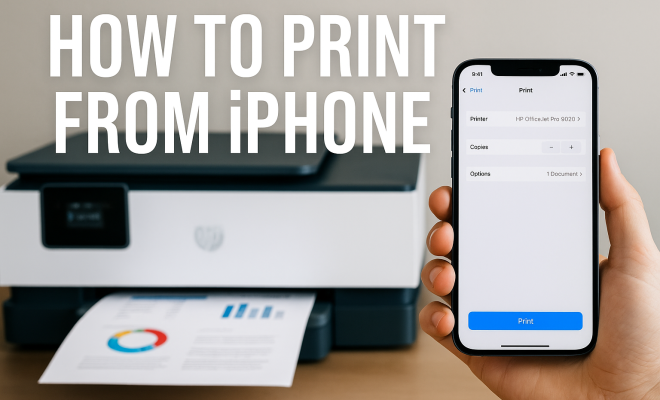
“`html
In an increasingly digital world, we often find ourselves needing tangible copies of our documents, photos, or notes. If you’re wondering how to print from iPhone, you’re in luck! This comprehensive guide will walk you through the various methods available for printing directly from your iPhone, ensuring you can easily get those essential prints without a hassle.
1. Understanding AirPrint: The Apple Printing Solution
AirPrint is Apple’s built-in wireless printing technology that allows users to print from their iOS devices without needing to install additional drivers or software. Introduced back in 2010, AirPrint has become a staple feature for many iPhone users who want to seamlessly connect to printers. To use AirPrint, you need an AirPrint-enabled printer connected to the same Wi-Fi network as your iPhone.
Most modern printers from manufacturers like HP, Canon, and Epson come with AirPrint compatibility. To check if your printer supports this feature, you can visit the manufacturer’s website or consult the user manual. If you own an older printer that lacks AirPrint capability, there are ways to work around this, which we’ll explore further in this guide.
2. Setting Up Your Printer: The First Step to Printing
Before you can print from iPhone, you need to ensure your printer is ready. Begin by connecting your printer to the same Wi-Fi network as your iPhone. This can usually be done through the printer’s control panel or mobile app. Once connected, print a test page from your computer or the printer itself to confirm the connection is stable.
If your printer does not support Wi-Fi, you can connect it to your network using a USB cable, but this will require additional setup and may not support AirPrint. Depending on the model, you may also be able to connect using Bluetooth, which can be particularly useful for portable printers.
3. How to Print Photos from Your iPhone
Printing photos directly from your iPhone is incredibly straightforward. First, open the Photos app and select the images you want to print. After choosing your desired photos, tap the share icon, usually represented by a square with an upward arrow. From the sharing options, select “Print.”
You will then be prompted to choose your printer. After selecting your AirPrint-enabled printer, you can set options such as the number of copies and the paper size. Once everything looks good, hit “Print.” Your photo will be sent to the printer, ready for you to enjoy in physical form!
4. Printing Documents from iPhone: A Step-by-Step Approach
Whether it’s a PDF, Word document, or a webpage, you can easily print documents from your iPhone. Start by opening the document in the corresponding app (such as Pages for Word documents or Safari for web content). Like with photos, tap the share icon to access the printing option.
If you’re printing a document from an email, simply open the email, tap the attachment, then tap the share icon. Select “Print” from the list of options, choose your printer, and adjust settings if required. This method works for most document types, making it an efficient way to print files on-the-go.
5. Using Third-Party Printing Apps: Alternatives to AirPrint
If your printer isn’t AirPrint compatible, don’t worry. There are several third-party apps available that can facilitate printing from your iPhone. Apps like Printer Pro and PrintCentral Pro can help bridge the gap between your iPhone and non-AirPrint printers.
Each app typically offers user-friendly interfaces for managing print jobs. They’ll often allow you to print PDFs, photos, emails, and even web pages, giving you a range of printing options similar to AirPrint. Be sure to check the app’s compatibility with your printer and whether it requires a paid subscription for full functionality.
6. Printing via Bluetooth: A Convenient Option
Bluetooth printing is another method worth considering if you’re looking to print from iPhone. Many portable printers come with Bluetooth capabilities, allowing for a direct connection without needing Wi-Fi. Start by turning on Bluetooth on your iPhone and ensuring your printer is in pairing mode. (See: CDC's guidelines on printing and documents.)
Once paired, you can select print options in the same way you would with AirPrint. However, keep in mind that Bluetooth connections might have limitations in terms of range and speed compared to Wi-Fi connections. This can be particularly relevant if you’re trying to print larger documents or photos.
7. Troubleshooting Common Printing Issues
Even with the best setups, you might encounter issues while trying to print from your iPhone. Here are some common problems and their solutions:
- Printer not found: Ensure your printer is on and connected to the same Wi-Fi network as your iPhone.
- Print job stuck in queue: Restart both your iPhone and printer. This often clears any temporary glitches.
- Poor print quality: Check your ink or toner levels and ensure the printer is not in draft mode.
Many printer manufacturers also offer troubleshooting tools within their apps or websites, which can guide you through resolving specific issues you may face.
8. Current Trends in Mobile Printing: What’s Next?
As technology progresses, the landscape of mobile printing continues to evolve. With the rise of cloud-based printing solutions and the integration of mobile apps, printing from your iPhone is becoming more accessible and versatile. Services like Google Cloud Print, though now discontinued, have paved the way for similar innovations that allow printing from anywhere with an internet connection.
Moreover, many printer manufacturers are focusing on improving mobile functionality, ensuring their devices are user-friendly and compatible with a variety of apps. As this trend continues, iPhone users can look forward to even more seamless and efficient printing experiences in the near future.
9. Advanced Printing Features on iPhone
Beyond basic printing, many apps provide advanced printing features that can enhance the overall experience. For instance, you can adjust print settings such as color options, scaling, and layout. If you’re printing a document, you might want to choose double-sided printing or set specific margins for a more professional finish.
Some applications also allow you to print in different formats such as booklets or posters. For example, Adobe Acrobat lets you print PDFs as booklets that can easily fold into smaller, manageable sections. This is particularly useful if you’re creating educational materials or presentations.
Furthermore, printing labels or stickers has become increasingly popular. Apps like Avery Design & Print can help you design and print labels directly from your iPhone, making organization effortless. So whether you’re printing for business or for home, utilizing these advanced features can significantly streamline your tasks.
10. Print from iPhone to Cloud Printers
Cloud printing services have changed the game when it comes to printing remotely. These services allow you to send documents to a printer over the internet. Many modern printers come equipped with this functionality, meaning you can print from anywhere as long as the printer is connected to the internet.
To use cloud printing, you generally need to set up your printer with a cloud service. For example, HP offers HP Smart, which connects your printer to the cloud. Once set up, you can send documents from your iPhone via email or through a dedicated app. This is incredibly useful for those who are often on the move or those who work in different locations.
Just ensure that your printer is registered with the cloud service and that you have the necessary apps installed on your iPhone. The convenience of printing from virtually anywhere cannot be overstated, especially in our fast-paced world.
11. FAQs about Printing from iPhone
1. Can I print from my iPhone without AirPrint?
Yes, you can use third-party apps like Printer Pro or connect via Bluetooth if your printer supports it. These options can provide similar functionality to AirPrint.
2. What types of documents can I print from my iPhone?
You can print various types of documents, including PDFs, Word documents, spreadsheets, and images. Most apps that handle these file types will have a print option available.
3. Is there a limit to the number of copies I can print from my iPhone?
Generally, there’s no strict limit on the number of copies you can print. However, it’s good to check your printer’s specifications, as some models may have specific restrictions. (See: New York Times guide on printing from iPhone.)
4. What should I do if my printer is offline?
If your printer is showing as offline, check your Wi-Fi connection and ensure that the printer is turned on. Restarting both the printer and your iPhone can also help resolve connectivity issues.
5. Can I print from my iPhone to a printer that’s connected to a computer?
Yes, as long as the computer is set up to share the printer over the network and the necessary software is installed. You may need a specific app to facilitate this setup.
6. How can I ensure the best print quality from my iPhone?
To achieve the best print quality, ensure that your printer is using the correct settings for the type of document you’re printing, such as photo mode for images. Additionally, check your ink levels and paper quality.
7. Can I print emails directly from my iPhone?
Absolutely! You can open the email, select the attachment, and use the share icon to find the print option. This makes it easy to get hard copies of important communications.
8. Are there any costs associated with printing from my iPhone?
While printing itself may not incur direct costs, keep in mind that paper, ink, or toner will contribute to your overall printing expenses. If you’re using a third-party app, some may require a one-time purchase or subscription fee.
9. Can I print wirelessly from my iPhone while traveling?
Yes, as long as you have access to a Wi-Fi network and a compatible printer, you can print wirelessly. This is especially useful for business travelers or anyone who needs to print important documents on the go.
10. What types of printers are best for printing from an iPhone?
Generally, inkjet and laser printers that support AirPrint are considered the best options for printing from an iPhone. Brands like HP, Canon, and Brother have a good reputation for compatibility and quality. When selecting a printer, look for features that meet your specific needs, such as photo printing, scanning, or duplex printing.
11. Can I print documents saved in cloud services like Google Drive or Dropbox?
Yes, you can print documents stored in cloud services directly from your iPhone. Simply open the respective app, select the document you want to print, tap the share icon, and choose the print option. Make sure that your printer is connected to the same Wi-Fi network and is AirPrint enabled.
12. Conclusion
In summary, whether you’re printing photos, documents, or presentations, knowing how to print from iPhone can significantly enhance your productivity. With the right tools and knowledge, you can easily produce high-quality prints directly from your device, making it easier than ever to share your work or cherished memories in physical form.
13. Comparing Printing Technologies
When considering how to print from iPhone, it’s essential to understand the various printing technologies available. While we’ve discussed AirPrint, Bluetooth, and third-party apps, let’s break down a few more printing technologies that might come into play:
Wireless Printing Technologies
Aside from AirPrint, other wireless printing technologies like Google Cloud Print (now discontinued) and Wi-Fi Direct have made their mark. Wi-Fi Direct allows devices to connect directly to the printer without needing a router, which can be useful in certain settings where Wi-Fi is unavailable.
This technology is increasingly supported by modern printers and can simplify connections, especially when traveling or in a temporary workspace.
Traditional USB Printing
While not as common for mobile devices, traditional USB printing is still an option. If you have a USB adapter for your iPhone, you can connect directly to certain printers. However, this method is less convenient for on-the-go printing, and most users prefer wireless options.
Impact of Ink Types and Printers on Quality
The type of ink and printer you choose can dramatically impact print quality. Inkjet printers are known for vibrant colors and are often preferred for photo printing, while laser printers excel in producing sharp text and handle high-volume printing efficiently.
For users who print frequently, a laser printer may be more economical in the long run due to lower cost-per-page compared to inkjet printers. Consider your primary printing needs when deciding which technology best suits you.
14. Environmental Considerations in Printing
As we strive to reduce our environmental footprint, it’s essential to consider the ecological impact of printing. Here are a few practices you can adopt to ensure responsible printing:
Eco-Friendly Printing Options
Many printers now offer eco-friendly modes that reduce ink usage or allow for double-sided printing, which can cut paper use in half. Additionally, consider using recycled paper or paper made from sustainable sources to lessen your environmental impact.
Some companies, like HP and Epson, have introduced programs that allow you to return used cartridges for recycling or receive discounts on future purchases. Participating in these programs can benefit your wallet and the planet.
Digital Alternatives to Printing
Before hitting the print button, consider whether a digital copy would suffice. Using PDF files or sharing documents through cloud services can significantly reduce paper waste. Digital tools like note-taking apps or project management software can often eliminate the need for printed documents altogether.
15. Final Thoughts on Printing from iPhone
Learning how to print from iPhone opens up a world of convenience, whether you’re a student, professional, or simply looking to share memories. With advancements in technology, printing has never been easier or more accessible. By utilizing AirPrint, third-party apps, or Bluetooth connections, you can ensure that your printing needs are met efficiently and effectively.
As you explore the different options and features available, remember to stay mindful of the impact of your printing habits. Choosing eco-friendly practices where possible can make a difference in preserving the environment while still enjoying the convenience of printing from your iPhone.
“`
Trending Now
Frequently Asked Questions
How do I print from my iPhone using AirPrint?
To print from your iPhone using AirPrint, ensure your iPhone and AirPrint-enabled printer are connected to the same Wi-Fi network. Open the document or photo you want to print, tap the share icon, select 'Print', and choose your printer. Adjust settings as needed, then tap 'Print' to complete.
What printers are compatible with iPhone printing?
Most modern printers from brands like HP, Canon, and Epson support AirPrint, allowing for easy printing from your iPhone. To confirm compatibility, check the printer's specifications on the manufacturer's website or refer to the user manual.
Can I print from my iPhone without AirPrint?
Yes, if your printer does not support AirPrint, you can still print from your iPhone by using a USB connection or a third-party printing app compatible with your printer. Additionally, Bluetooth connectivity may be an option for portable printers.
What do I need to set up to print from my iPhone?
To print from your iPhone, you need an AirPrint-enabled printer connected to the same Wi-Fi network as your iPhone. Ensure your printer is set up correctly, and perform a test print to confirm connectivity before attempting to print from your device.
How can I print photos from my iPhone?
To print photos from your iPhone, open the Photos app, select the photo you want to print, tap the share icon, then choose 'Print'. Select your AirPrint-enabled printer, adjust any settings, and tap 'Print' to produce your photo.
Have you experienced this yourself? We’d love to hear your story in the comments.