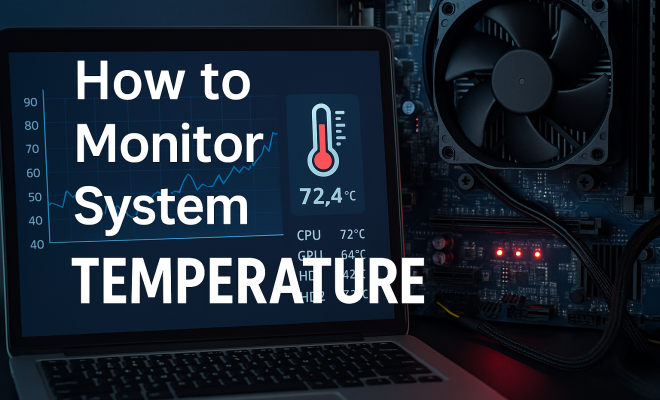
How to monitor system temperature
“`html
When it comes to maximizing your computer’s performance, one of the most overlooked aspects is system temperature. Overheating can lead to hardware failure, system crashes, and reduced efficiency. Learning how to monitor system temperature is crucial for maintaining a stable and efficient computing environment. In this guide, we’ll explore the importance of monitoring system temperature, the tools available for this purpose, and practical steps you can take to ensure your system runs cool and efficiently.
1. Understanding the Importance of System Temperature
Monitoring system temperature is vital to prevent overheating, which can damage components like the CPU, GPU, and motherboard. Each of these components operates within a specific temperature range. When temperatures soar beyond this range, you risk throttling performance or, worse, causing permanent damage.
For instance, CPUs are typically designed to operate safely under 80°C. If your CPU frequently reaches temperatures above this threshold, you may start experiencing thermal throttling, where the CPU reduces its clock speed to cool down. This not only affects performance but can also lead to system instability and crashes.
2. The Risks of Ignoring Temperature Monitoring
Failing to monitor system temperature can lead to severe consequences. Overheating can result in physical damage to hardware components, which often necessitates expensive repairs or complete replacements. Furthermore, you might face data loss or corruption if your system crashes due to excessive heat.
The long-term effects of ignoring temperature can also lead to a shorter lifespan for your computer. Hardware that regularly operates at higher temperatures will degrade faster than those maintained at optimal levels. Therefore, proactive monitoring can save you from costly repairs and extend the life of your system.
3. Types of Components to Monitor
When you set out to monitor system temperature, understanding which components are critical is essential. The primary components that require temperature monitoring include:
- CPU: As the brain of your computer, it generates the most heat. Monitoring CPU temperature is crucial for performance and longevity.
- GPU: Graphics cards also generate significant heat, especially during intensive tasks like gaming or video editing.
- Motherboard: The motherboard manages all components and can be affected by high temperatures, leading to system instability.
- Power Supply Unit (PSU): An overheating PSU can lead to catastrophic failures, including electrical fires.
- Hard Drive/SSD: While they are less sensitive to temperature than other components, overheating can still lead to data loss and decreased performance.
By monitoring these components, you can gain a comprehensive view of your system’s thermal health.
4. Tools for Monitoring System Temperature
There are a variety of tools available for monitoring system temperature, ranging from built-in BIOS/UEFI features to third-party software solutions. Here are some popular options:
- HWMonitor: A free and comprehensive tool that provides real-time temperature readings for various components. It’s user-friendly and offers detailed stats on voltages and fan speeds.
- Core Temp: This lightweight application focuses on CPU temperatures. It’s straightforward and gives you an overview of each core’s temperature status.
- MSI Afterburner: Primarily used for GPU monitoring and overclocking, it also provides CPU temperature readings and can manage fan speeds for cooling.
- Open Hardware Monitor: An open-source tool that supports various hardware monitoring tasks including temperature, fan speed, and voltage, across multiple platforms.
- Speccy: A tool by Piriform that offers an overview of your system’s specifications, including temperature readings, making it easy to monitor various components at a glance.
Choosing the right tool often depends on your specific needs and the complexity of the information you require. For basic monitoring, free tools usually suffice, while those who need detailed insights may consider more advanced options. (See: importance of monitoring temperature.)
5. How to Set Up Temperature Monitoring
Setting up temperature monitoring doesn’t have to be complicated. Whether you’re using a built-in BIOS feature or third-party software, the process is generally straightforward. Here’s how to get started:
1. **Accessing BIOS/UEFI:** Restart your computer and enter the BIOS/UEFI settings (usually by pressing Del, F2, or Esc during startup). Navigate to the hardware monitor section, which will display real-time temperature readings for various components.
2. **Installing Third-Party Software:** Download and install the monitoring software of your choice. Once installed, launch the program. The software will automatically detect your hardware and provide temperature readings for each component.
3. **Configuring Alerts:** Many temperature monitoring tools allow you to set temperature thresholds for alerts. Configure these settings to receive notifications when temperatures exceed safe limits. This proactive approach can help prevent overheating before it becomes a serious issue.
6. Interpreting Temperature Readings
Understanding what the temperature readings mean is essential for effective monitoring. It’s not just about knowing the numbers but being able to interpret them correctly. Here’s a basic guide:
- Normal Operating Range: For most CPUs, the safe temperature range is typically 30°C to 75°C under load, while GPUs usually operate under similar conditions. Motherboards should ideally stay below 70°C.
- Warning Signs: If temperatures consistently approach the upper limits (e.g., 80°C for CPUs), this is a warning sign that something is wrong. You may need to clean your system, improve ventilation, or check cooling solutions.
- Critical Levels: Temperatures above 85°C are alarming and can lead to thermal throttling and potential hardware damage. If you find your system running at these temperatures, immediate action is necessary.
Regularly checking these temperatures can help you maintain optimal performance and take corrective actions when needed.
7. Best Practices for Maintaining Optimal Temperatures
To ensure your system runs cool and efficiently, here are some best practices:
- Regular Cleaning: Dust buildup can obstruct airflow and trap heat. Periodically clean your system’s internals, including fans and heatsinks. Use compressed air to remove dust from hard-to-reach areas.
- Improve Airflow: Make sure your computer case has adequate airflow. Organize cables neatly to prevent airflow obstruction and consider adding extra fans if necessary.
- Monitor Ambient Temperature: Keep your computer in a cool, well-ventilated area. High room temperatures can contribute to overheating, so consider moving your setup if you notice frequent overheating.
- Use Quality Cooling Solutions: Invest in good quality CPU coolers and thermal paste. High-performance coolers can greatly enhance your system’s ability to dissipate heat.
- Manage Overclocking: If you overclock your CPU or GPU, be vigilant about temperature monitoring. Overclocking increases heat output, so ensure your cooling solutions can handle the additional load.
By following these best practices, you can significantly reduce the risk of overheating and keep your system running smoothly.
8. The Role of System Temperature in Gaming
For gamers, monitoring system temperature becomes even more critical. High-performance gaming puts a heavy load on your hardware, significantly increasing heat output. Keeping an eye on temperatures can mean the difference between smooth gameplay and frustrating lag or crashes.
Many gaming enthusiasts use dedicated software that not only monitors temperatures but also helps adjust fan speeds for optimal cooling during intense sessions. For example, MSI Afterburner allows you to tweak settings in real-time based on temperature readings, ensuring your GPU remains cool under heavy load.
Moreover, adequate cooling can enhance gaming performance. When temperatures remain in check, your system can maintain higher clock speeds, resulting in improved frame rates and overall gameplay experience. (See: risks of computer overheating.)
9. Advanced Cooling Solutions
If you’re serious about keeping your system cool, consider investing in advanced cooling solutions. These options can provide superior temperature management compared to standard air cooling methods.
- Liquid Cooling Systems: Liquid cooling solutions, like all-in-one (AIO) coolers, can offer lower temperatures compared to traditional air coolers. They work by circulating coolant through a radiator and using fans to dissipate heat. While more expensive, liquid cooling can provide significant performance benefits, especially for overclocked systems.
- Custom Loop Cooling: For enthusiasts, custom water cooling loops can be built to fit specific needs. This involves using water blocks for the CPU and GPU, a reservoir, pump, and radiators. Though complex and costly, this method is highly efficient and can be visually stunning with RGB lighting.
- Phase Change Cooling: For extreme cooling needs, phase change systems, similar to refrigerators, can cool components below ambient temperatures. These are typically reserved for extreme overclocking and are not practical for everyday use due to their cost and complexity.
These advanced cooling systems can drastically reduce temperatures and improve overall performance, especially in high-stress environments like gaming and video editing.
10. Statistics on System Temperature and Hardware Lifespan
Research has shown that temperature has a direct correlation with the lifespan of electronic components. According to studies, for every 10°C increase in temperature, the lifespan of electronic components can halve. This statistic highlights the importance of maintaining optimal temperatures.
Additionally, during testing, hardware that operates at lower temperatures (below 70°C) outperforms those that run hotter. For example, a 2018 study by Intel found that keeping CPU temperatures consistently below 70°C could extend the component’s lifespan by an average of 30% compared to those that peaked over 80°C. This emphasizes how critical it is to implement proper cooling and monitoring techniques.
11. Common Myths About System Temperature
There are several myths regarding system temperature that can mislead users. Understanding these can help you make informed decisions about your computer’s cooling needs.
- Myth 1: “Higher temperatures are a sign of better performance.” It’s a common misconception that running hotter means a system is working harder. In reality, high temperatures can lead to throttling that decreases performance.
- Myth 2: “You don’t need to worry about temperatures unless the system crashes.” This is risky thinking. Damage from overheating can occur well before a crash, leading to gradual hardware degradation.
- Myth 3: “Cooling pads or external fans are just marketing gimmicks.” While they may not be necessary for every system, they can help improve airflow and cooling in laptops that might otherwise struggle with heat.
By debunking these myths, you can approach system temperature management with a clearer understanding of what truly matters.
12. FAQs About Monitoring System Temperature
What is a safe temperature for my CPU?
Most CPUs operate safely below 80°C under load, but it’s best to aim for temperatures between 60-75°C for optimal performance without risking damage.
How often should I check my system temperature?
It’s a good idea to monitor your system temperature regularly, especially during heavy use like gaming or video editing. Daily checks can help catch overheating issues before they become serious.
Can I monitor temperature from my smartphone?
Yes, some monitoring tools offer mobile applications that allow you to check system temperatures remotely. Applications like HWMonitor and MSI Afterburner provide mobile access to readings. (See: thermal throttling in computing.)
What can I do if my computer is overheating?
If you notice your computer is overheating, first check for dust buildup and clean your system. Ensure all fans are working, improve airflow by rearranging cables, and consider upgrading your cooling solution if necessary.
Are there any built-in tools in Windows for monitoring temperatures?
Windows does not have built-in temperature monitoring tools, but you can access the Task Manager to monitor performance indirectly. For temperature readings, third-party applications are necessary.
13. Advanced Techniques for Monitoring Temperature
As technology advances, so do the techniques and tools used for monitoring system temperature. For those who want to take their monitoring to the next level, here are a few advanced strategies:
- Using Multiple Sensors: Some motherboards come with additional temperature sensors that can be placed around the case to monitor hotspots. This allows you to identify areas where airflow might be obstructed and helps you optimize cooling.
- Network Monitoring: If you have multiple systems, consider implementing a network monitoring solution. Tools like PRTG Network Monitor can track temperatures across various computers, providing centralized oversight.
- Setting Up Custom Alerts: Advanced software tools can allow you to create custom alerts based on specific temperatures or trends over time. This capability enables early intervention before overheating becomes a critical issue.
- Logging Temperature Data: Some monitoring tools allow you to log temperature data over time. Analyzing this data can help you identify trends, such as seasonal temperature changes, and observe how the performance of your cooling system fluctuates.
14. Comparing Air vs. Liquid Cooling Systems
When it comes to keeping your system cool, many users wonder whether air cooling or liquid cooling is the better option. Here’s a comparison of the two methods:
Air Cooling
- Cost-Effective: Air coolers are generally less expensive and easier to install compared to liquid coolers.
- Maintenance: They usually require less maintenance since there are no pumps or liquid involved that could leak or fail.
- Performance: Modern air coolers can be quite efficient and may even outperform some lower-end liquid coolers.
Liquid Cooling
- Superior Cooling Performance: Liquid cooling can provide more effective heat dissipation, especially under heavy loads, making it ideal for overclockers and gamers.
- Better Aesthetics: Many liquid cooling solutions come with RGB lighting and sleek designs, appealing to those who prioritize aesthetics in their builds.
- Noise Levels: Liquid coolers often operate quieter than air coolers, particularly under load, due to the efficiency of the cooling systems.
Ultimately, the choice between air and liquid cooling depends on your specific needs, budget, and preferences. If you’re a casual user, air cooling might suffice, while avid gamers and overclockers may benefit from the performance of liquid cooling systems.
15. Conclusion: Taking Control of Your System’s Temperature
Learning how to monitor system temperature is a crucial aspect of maintaining optimal computer performance. By understanding the risks associated with overheating, utilizing the right tools, and following best practices for cooling, you can protect your hardware and extend its lifespan. Whether you’re a casual user or a hardcore gamer, keeping temperatures in check will ensure that your system runs smoothly and efficiently. Make temperature monitoring a regular part of your computer care routine, and you’ll reap the benefits in performance and reliability.
“`
Trending Now
Frequently Asked Questions
Why is it important to monitor system temperature?
Monitoring system temperature is crucial to prevent overheating, which can lead to hardware failure, system crashes, and reduced efficiency. Keeping components like the CPU and GPU within their safe operating temperature ranges ensures stable performance and prolongs the lifespan of your computer.
What can happen if you ignore system temperature?
Ignoring system temperature can result in severe consequences, including physical damage to hardware components, costly repairs, and potential data loss or corruption due to system crashes. Overheating can also significantly reduce the lifespan of your computer.
What components should I monitor for temperature?
When monitoring system temperature, it's essential to focus on critical components such as the CPU, GPU, and motherboard. Each of these components has specific safe temperature ranges, and exceeding them can lead to throttling and potential damage.
How can I monitor my computer's temperature?
You can monitor your computer's temperature using various tools and software applications designed for this purpose. Popular options include HWMonitor, Core Temp, and MSI Afterburner, which provide real-time temperature readings for your system's components.
What is thermal throttling and how does it relate to temperature?
Thermal throttling occurs when a CPU or GPU reduces its clock speed to prevent overheating. This typically happens when temperatures exceed safe operating limits, leading to decreased performance and potential system instability. Monitoring temperature helps prevent this issue.
What did we miss? Let us know in the comments and join the conversation.