The Tech Edvocate

Top Menu

  • Advertisement
  • Apps
  • Home Page
  • Home Page Five (No Sidebar)
  • Home Page Four
  • Home Page Three
  • Home Page Two
  • Home Tech2
  • Icons [No Sidebar]
  • Left Sidbear Page
  • Lynch Educational Consulting
  • My Account
  • My Speaking Page
  • Newsletter Sign Up Confirmation
  • Newsletter Unsubscription
  • Our Brands
  • Page Example
  • Privacy Policy
  • Protected Content
  • Register
  • Request a Product Review
  • Shop
  • Shortcodes Examples
  • Signup
  • Start Here
    • Governance
    • Careers
    • Contact Us
  • Terms and Conditions
  • The Edvocate
  • The Tech Edvocate Product Guide
  • Topics
  • Write For Us
  • Advertise

Main Menu

  • Start Here
    • Our Brands
    • Governance
      • Lynch Educational Consulting, LLC.
      • Dr. Lynch’s Personal Website
      • Careers
    • Write For Us
    • The Tech Edvocate Product Guide
    • Contact Us
    • Books
    • Edupedia
    • Post a Job
    • The Edvocate Podcast
    • Terms and Conditions
    • Privacy Policy
  • Topics
    • Assistive Technology
    • Child Development Tech
    • Early Childhood & K-12 EdTech
    • EdTech Futures
    • EdTech News
    • EdTech Policy & Reform
    • EdTech Startups & Businesses
    • Higher Education EdTech
    • Online Learning & eLearning
    • Parent & Family Tech
    • Personalized Learning
    • Product Reviews
  • Advertise
  • Tech Edvocate Awards
  • The Edvocate
  • Pedagogue
  • School Ratings

logo

The Tech Edvocate

  • Start Here
    • Our Brands
    • Governance
      • Lynch Educational Consulting, LLC.
      • Dr. Lynch’s Personal Website
        • My Speaking Page
      • Careers
    • Write For Us
    • The Tech Edvocate Product Guide
    • Contact Us
    • Books
    • Edupedia
    • Post a Job
    • The Edvocate Podcast
    • Terms and Conditions
    • Privacy Policy
  • Topics
    • Assistive Technology
    • Child Development Tech
    • Early Childhood & K-12 EdTech
    • EdTech Futures
    • EdTech News
    • EdTech Policy & Reform
    • EdTech Startups & Businesses
    • Higher Education EdTech
    • Online Learning & eLearning
    • Parent & Family Tech
    • Personalized Learning
    • Product Reviews
  • Advertise
  • Tech Edvocate Awards
  • The Edvocate
  • Pedagogue
  • School Ratings
  • The Shocking Truth: ESG Training Programs Are Quietly Reshaping Your Career Path

  • Why Millions of People Are Switching to These Green Energy Certifications Right Now

  • The green skills gap in 2026: How to address this growing problem

  • The Shocking Truth: Your Degree Won’t Land You the Best IT Jobs in 2026

  • The Brutal Truth About Degrees: Why Micro-Credentials Are Quietly Dominating Careers by 2026

  • Why 96% of Employers Now Prefer Skills Over Degrees: The Micro-Credential Revolution

  • This Crucial Mistake With AI Is Stunting Student Minds: Here’s How to Fix It

  • The AI ‘Cognitive Surrender’ Crisis: 7 Tools Every Educator Needs NOW

  • This Crucial Mistake Is Quietly Killing Students’ Brains, Says MIT

  • The Sneaky Truth About RTO: How to Negotiate Flexible Work Without Losing Your Job

Assistive Technology
Home›Assistive Technology›How to Manage Your Windows Clipboard Like a Pro

How to Manage Your Windows Clipboard Like a Pro

By Matthew Lynch
June 6, 2023
0
Spread the love

As we all know, the clipboard is a handy tool that stores copied or cut data temporarily, allowing you to paste it elsewhere. However, managing your clipboard can be a daunting task, especially when dealing with numerous items.

In this article, we’ll show you how to manage your Windows clipboard like a pro using built-in features and third-party tools.

1. Clipboard History

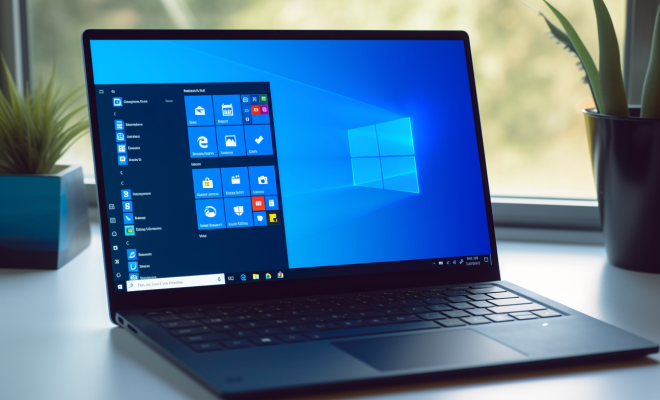
Windows 10 introduced the Clipboard History feature, which saves up to 25 items, including text and images, that you’ve copied or cut. You can access the clipboard history by pressing Windows key + V. From there, you can select an item and paste it.

To enable Clipboard History, go to Settings > System > Clipboard, and toggle on the Clipboard History option. You can also clear the history or disable it entirely from the same settings menu.

2. Clipboard Managers

If you’re dealing with a large number of copied or cut items, a clipboard manager can help. These tools save your clipboard history and allow you to organize and search for items easily.

One popular clipboard manager is Ditto, a free and open-source software that supports text, images, and file types. You can also create custom labels for items or mark them as favorites for quick access. Ditto also has a hotkey feature that allows you to paste items without switching between applications.

ClipClip is another clipboard manager that stores up to 1,000 clips and has a powerful search function. It also includes a built-in text editor with advanced functions like auto-complete and text snippets.

3. Clipboard Extensions

Clipboard extensions add extra functionalities to your clipboard, such as formatting text or syncing clipboard content across different devices.

PhraseExpress is a free clipboard extension that can save frequently used phrases or templates and paste them with customizable shortcuts. It can also correct spelling errors and create email signatures.

Syncfusion Clipboard is a paid extension that enables you to sync your clipboard across different devices and platforms, including Windows, Mac, iOS, and Android. You can access your clipboard history from any device and share items with colleagues or friends.

In conclusion, managing your clipboard can be a simple and painless task, thanks to the built-in features of Windows and the various third-party tools available. With these tips, you can boost your productivity and streamline your workflow by mastering your clipboard like a pro.


Previous Article

CleanMem – A Windows Memory Cleaner That ...

Next Article

How to Change Your MAC Address on ...

Matthew Lynch

Related articles More from author

  • Assistive Technology

    How to Check the Version Number of Apple Safari Browser

    June 8, 2023
    By Matthew Lynch
  • Assistive Technology

    How to Fix a Computer That Won’t Start in Safe Mode

    June 12, 2023
    By Matthew Lynch
  • Assistive Technology

    How to Inspect an Element on a Mac

    June 6, 2023
    By Matthew Lynch
  • Assistive Technology

    How to Turn off Screen Lock on Android

    June 8, 2023
    By Matthew Lynch
  • Assistive Technology

    How to Fix Call of Duty: Vanguard Not Starting on Windows 11

    June 12, 2023
    By Matthew Lynch
  • Assistive Technology

    How to Stop Your Webcam Flickering in Windows 11

    June 6, 2023
    By Matthew Lynch

Search

Login & Registration

  • Log in
  • Entries feed
  • Comments feed
  • WordPress.org

Newsletter

Signup for The Tech Edvocate Newsletter and have the latest in EdTech news and opinion delivered to your email address!

About Us

Since technology is not going anywhere and does more good than harm, adapting is the best course of action. That is where The Tech Edvocate comes in. We plan to cover the PreK-12 and Higher Education EdTech sectors and provide our readers with the latest news and opinion on the subject. From time to time, I will invite other voices to weigh in on important issues in EdTech. We hope to provide a well-rounded, multi-faceted look at the past, present, the future of EdTech in the US and internationally.

We started this journey back in June 2016, and we plan to continue it for many more years to come. I hope that you will join us in this discussion of the past, present and future of EdTech and lend your own insight to the issues that are discussed.

Newsletter

Signup for The Tech Edvocate Newsletter and have the latest in EdTech news and opinion delivered to your email address!

Contact Us

The Tech Edvocate
910 Goddin Street
Richmond, VA 23231
(601) 630-5238
[email protected]

Copyright © 2026 Matthew Lynch. All rights reserved.