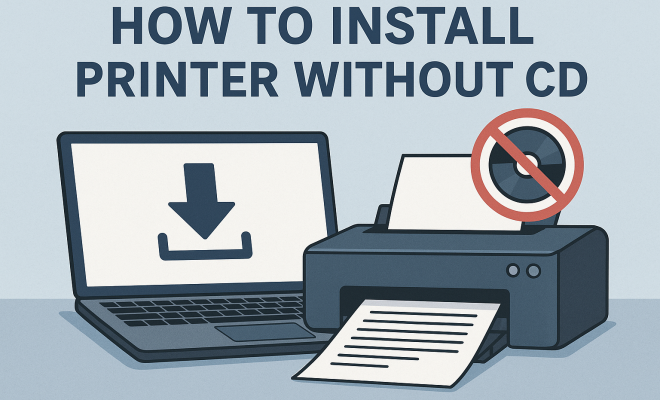
How to install printer without CD
“`html
Installing a printer can often feel like a daunting task, especially if you find yourself without the installation CD. However, in today’s digital age, there are multiple ways to install a printer without CD, making the process simpler than ever. This guide will walk you through various methods to get your printer up and running, whether you’re using Windows, macOS, or even mobile devices. Let’s explore these methods step by step.
1. Understanding Printer Installation Basics
Before diving into the methods, it’s essential to grasp the basic concepts behind printer installation. Traditionally, printers came with installation CDs that contained drivers and software necessary for connecting the printer to your computer. These drivers are crucial because they facilitate communication between your printer and the operating system.
In the absence of a CD, you can still acquire the necessary drivers online. Most manufacturers host their drivers on their official websites, allowing users to download the most recent versions. This shift towards digital resources means that you can install a printer without a CD, and often with a better driver version than what was previously on the CD.
2. Installing a Printer via USB Connection
The most direct method to install a printer without CD is through a USB connection. Here’s how to do it:
- Step 1: Connect the printer to your computer using a USB cable.
- Step 2: Turn on the printer.
- Step 3: Your computer should automatically recognize the printer. If prompted, allow Windows or macOS to search for and install the necessary drivers.
- Step 4: If the automatic installation does not occur, visit the printer manufacturer’s website to download the required drivers.
USB connections are typically the easiest method. However, ensure that you have a suitable cable, as many newer printers use USB-C connections instead of the traditional USB-A.
3. Using Built-in Operating System Drivers
Another effective method to install a printer without CD is by using the built-in drivers that come with your operating system. Here’s how you can do that on different systems:
Windows
1. Open the Control Panel.
2. Click on Devices and Printers.
3. Select Add a Printer.
4. Windows will search for available printers. Select your printer and click Next.
5. Follow the prompts to complete the installation.
macOS
1. Open System Preferences.
2. Click on Printers & Scanners. (See: Understanding printers in computing.)
3. Click the + (plus) button to add a printer.
4. Select your printer from the list and click Add.
Both systems have excellent support for many printer models, making the setup process relatively straightforward.
4. Downloading Drivers from the Manufacturer’s Website
If your operating system doesn’t automatically find the driver, you can manually download it. This is often necessary for certain printer models, especially older or more specialized ones. Follow these steps:
- Step 1: Identify your printer model. This is usually found on the front of the printer or in the user manual.
- Step 2: Go to the manufacturer’s website (e.g., HP, Canon, Epson).
- Step 3: Navigate to the support or downloads section.
- Step 4: Enter your printer model and download the latest driver compatible with your operating system.
- Step 5: Open the downloaded file and follow the on-screen instructions to install the driver.
By downloading the driver directly from the manufacturer, you ensure that you have the most up-to-date version, which can improve printer performance and compatibility.
5. Using Wireless Network Setup
Many modern printers come equipped with wireless capabilities, allowing you to install a printer without CD using Wi-Fi. Wireless setup is particularly useful for multi-device households or offices. Here’s how to do it:
- Step 1: Ensure your printer is connected to the same Wi-Fi network as your computer or mobile device.
- Step 2: On the printer’s control panel, navigate to the network settings and select your Wi-Fi network. Enter the password if prompted.
- Step 3: On your computer, go to the Control Panel or System Preferences and add the printer as described earlier.
Wireless printing can greatly enhance your workflow, allowing you to print documents from multiple devices without the hassle of cords.
6. Utilizing Mobile Applications for Printer Installation
Almost every major printer manufacturer has a mobile app designed for easy management and setup of printers. This is particularly handy for users who want to install a printer without CD using their smartphones or tablets. Here’s a general guide to using these apps:
- Step 1: Download the printer’s dedicated app from the App Store or Google Play.
- Step 2: Follow the prompts to create an account or log in.
- Step 3: The app will search for available printers. Select your printer and connect it to your Wi-Fi network if necessary.
- Step 4: Once connected, you can print directly from your mobile device.
These applications often offer additional functionalities, such as scanning and monitor ink levels, making them a valuable tool for any printer user.
7. Using Universal Printer Drivers
If you’re struggling to find the correct driver for your printer model, consider using universal printer drivers. These drivers are designed to work with a wide range of printer models and can be a reliable alternative when the specific driver is unavailable. Here’s how to utilize them:
- Step 1: Search for a universal printer driver for your printer model online.
- Step 2: Download and install the driver, following the on-screen prompts.
- Step 3: Connect your printer via USB or through the network.
While universal drivers may not support all features of your specific printer model, they are often sufficient for basic printing tasks.
8. Troubleshooting Common Installation Issues
Even with all these methods, you may still encounter issues when trying to install a printer without CD. Here are some common problems and their solutions:
- Printer not recognized: Make sure the printer is turned on and properly connected (USB or Wi-Fi).
- Drivers not installing: Check that you’re downloading the correct drivers for your operating system version (32-bit or 64-bit).
- Print jobs stuck in queue: Restart both your computer and printer to clear the queue.
- Connection issues: Verify that your Wi-Fi network is functioning correctly and that the printer is connected to it.
By following these troubleshooting tips, you can resolve most issues that arise during printer installation.
9. Advanced Printer Setup Options
For those looking to customize their printing experience, there are advanced setup options available that can enhance functionality. For example, you can configure your printer for duplex printing, which allows for automatic double-sided printing, saving paper and reducing waste.
Another advanced feature is cloud printing. Services like Google Cloud Print (although officially deprecated, alternatives exist) allow you to print documents from anywhere, on any device, as long as you have internet access. Some printers come with built-in cloud printing capabilities, which you can set up through the manufacturer’s app or web interface.
To configure duplex printing in Windows, follow these steps: (See: Ergonomics and printer use.)
- Go to Devices and Printers in the Control Panel.
- Right-click your printer and select Printer properties.
- Navigate to the Device Settings tab.
- Under Duplex Printing Unit, select Installed.
- Click OK to confirm.
For macOS users, duplex printing can be enabled in the print dialog box when you select your printer. Look for a checkbox for Two-Sided printing, and check it before sending your print job.
10. Comparing Wired and Wireless Connections
When deciding how to install a printer without CD, one of the key considerations is whether to go with a wired or wireless connection. Each method has its pros and cons, so let’s take a closer look.
Wired Connections
Wired connections, typically through USB, are generally faster and more stable. They offer a lower chance of interference compared to wireless connections, resulting in faster print jobs and less lag. However, the limitation is mobility; your printer must remain close to the computer, which can be inconvenient in larger spaces.
Wireless Connections
On the other hand, wireless connections provide flexibility and convenience. You can place the printer anywhere within the Wi-Fi range, allowing multiple devices to access it simultaneously. This is particularly useful in homes or offices where multiple users need to print from various devices. However, wireless connections can sometimes be prone to interference from other electronic devices and may experience lag during heavy network traffic.
11. Frequently Asked Questions
Can I install a printer without the manufacturer’s app?
Yes, you can install a printer without the manufacturer’s app by using the built-in drivers on your operating system or downloading the drivers from the manufacturer’s website. However, the app may provide additional functionalities that enhance your printing experience.
What should I do if my printer is not listed when adding a printer?
If your printer doesn’t appear in the list, ensure that it’s turned on and connected to the same network as your computer. For USB connections, check that the cable is securely connected. Restarting both the printer and computer may also help.
Are there any risks in using universal printer drivers?
While universal printer drivers can simplify installation, they may not support all features of your printer model. If you rely on specific functionalities (like high-quality photo printing), it’s better to use the manufacturer’s specific driver when possible.
Why is my printer printing slowly after installation?
Slow printing can be caused by various factors, including a weak Wi-Fi signal, high-resolution print settings, or a lack of available memory in the printer. Switching to a wired connection or adjusting print settings can help improve speed.
What if my printer requires an update after installation?
It’s common for printers to require firmware updates after installation. You can check for updates through the printer settings menu or the manufacturer’s app. Keeping your printer’s software current ensures optimal performance and access to the latest features.
12. Understanding Printer Types
When you install a printer without CD, it helps to understand the different types of printers available and their specific installation requirements. Here’s a brief overview:
Inkjet Printers
Inkjet printers are popular for home and small office use due to their ability to print high-quality color images and documents. These printers typically use individual color cartridges, which can be economical when replacing just the colors that run out. Installation of inkjet printers is usually straightforward, often requiring only the USB connection or wireless setup.
Laser Printers
Laser printers are favored for high-volume printing environments because they produce sharp text and graphics quickly. They utilize toner cartridges, which last longer than ink cartridges. Installing a laser printer might involve downloading specific drivers tailored for the printer model, especially for network connections. (See: Setting up printers without CDs.)
All-in-One Printers
All-in-one printers combine the functions of printing, scanning, copying, and sometimes faxing. These versatile devices can be a bit more complex to install due to the additional functions they offer. Users might need to install software that enables scanning and copying capabilities alongside standard printing drivers.
Photo Printers
Photo printers are specialized for high-quality photo printing and often require specific drivers to utilize all features, such as borderless printing. They can be either inkjet or dye-sublimation printers. Installation typically involves downloading drivers from the manufacturer’s website for best results.
13. Best Practices for Printer Maintenance
Once you’ve successfully installed your printer, it’s essential to follow best practices for maintenance to ensure longevity and optimal performance:
- Regularly check ink or toner levels: This can prevent unexpected print jobs from stopping midway due to low supplies.
- Perform routine cleaning: Most printers come with a cleaning cycle that can help remove ink build-up and maintain print quality.
- Keep the printer firmware updated: Manufacturers frequently release updates to fix bugs and improve functionalities.
- Use quality paper: Using the right type of paper can reduce the risk of jams and improve print quality.
Adhering to these maintenance tips can save you time and money in the long run by preventing common issues that lead to costly repairs or replacements.
14. Common Errors During Installation and How to Fix Them
It’s not unusual to face hurdles during printer installation. Here are some common errors and straightforward fixes:
Driver Not Compatible
When attempting to install the printer, you might encounter messages indicating that the driver is not compatible. Ensure you are downloading the correct version of the driver for your specific printer model and operating system (32-bit vs. 64-bit).
Network Connection Error
If your printer fails to connect wirelessly, check your Wi-Fi settings. Ensure the printer is connected to the same network as your computer. Rebooting the router can sometimes resolve connectivity issues.
Print Jobs Stuck in Queue
Print jobs may get stuck in the queue, preventing new jobs from processing. Clear the queue by navigating to the printer settings on your computer, canceling the stuck jobs, and trying again.
Printer Offline Issue
Sometimes, your printer may show as offline. This can often be resolved by restarting both the printer and computer. Additionally, check the printer’s connection, whether USB or network, to ensure everything is secure.
15. Conclusion
Installing a printer without a CD is not only possible but can also be straightforward when you utilize the right methods. Whether you choose to connect via USB, download drivers online, or set up a wireless connection, technology has made the entire process more accessible than ever. Understanding the various printer types and their specific requirements can help you navigate the installation process more effectively. With the steps outlined in this guide, you should now feel confident in your ability to set up your printer hassle-free. So go ahead, grab your printer, and let’s get printing!
“`
Trending Now
Frequently Asked Questions
How do I install a printer without a CD?
You can install a printer without a CD by connecting it via USB and allowing your computer to automatically recognize and install the necessary drivers. If this doesn't happen, visit the printer manufacturer's website to download the drivers directly.
Where can I find printer drivers if I lost the CD?
If you've lost the installation CD, you can find printer drivers on the manufacturer's official website. Most companies provide the latest drivers for download, ensuring you have the most up-to-date software for your printer.
Can I install a printer wirelessly without a CD?
Yes, you can install a printer wirelessly without a CD. Access your printer's wireless setup options, connect it to your Wi-Fi network, and then add the printer through your computer's settings or control panel.
What if my computer doesn't recognize the printer?
If your computer doesn't recognize the printer, check the USB connection or verify that the printer is powered on. You might also need to download and install the appropriate drivers from the manufacturer's website.
Do I need special software to install a printer?
Typically, you don't need special software to install a printer. Most operating systems come with built-in drivers. However, for advanced features, downloading specific software or drivers from the manufacturer's website may be necessary.
What’s your take on this? Share your thoughts in the comments below — we read every one.