Master Chrome Tab Groups: Organize Your Browsing Now
“`html
Managing multiple tabs in Google Chrome can feel overwhelming, especially if you’re the kind of person who juggles various projects, research topics, or personal interests online. Wouldn’t it be great if you could organize these tabs in a way that makes navigating between them a breeze? Fortunately, with the group tabs in Chrome feature, you can do just that. This article will provide you with a comprehensive guide on how to group your tabs effectively, enhancing your browsing experience and boosting your productivity.
1. Understanding Tab Groups
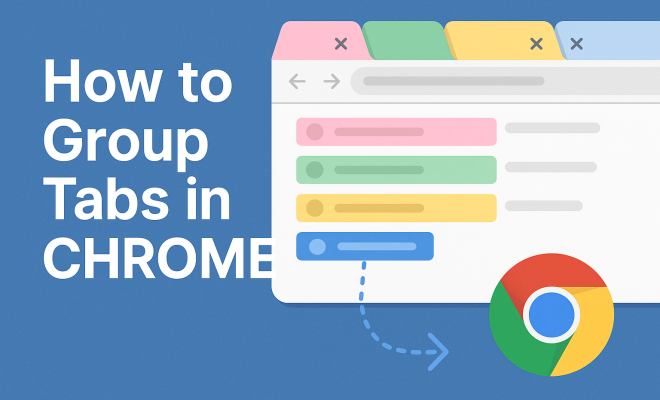
Tab groups in Chrome allow users to bundle related tabs together, creating a cleaner and more organized browsing environment. This feature is particularly beneficial for those who often find themselves with dozens of tabs open simultaneously. By grouping tabs, you can reduce clutter and make it easier to switch between different subjects or projects.
When you group tabs, you’re essentially creating a virtual folder for your browser. This means that you can collapse or expand the group when needed, keeping your browser window tidy. Google introduced this feature in 2020, and since then, it has become a game-changer for many users who rely on Chrome for work and personal tasks.
2. How to Create a Tab Group
Creating a tab group in Chrome is straightforward and can be done in just a few clicks. Here’s how:
- Open Chrome and have multiple tabs open.
- Right-click on a tab that you want to group.
- Select “Add tab to new group.”
After you’ve created a new group, you can name it and choose a color to better identify it later. This customization helps you visually distinguish between different groups at a glance, which can save you time when you’re navigating through your tabs.
3. Adding Tabs to Existing Groups
Once you’ve created a tab group, you might want to add more tabs to it. Fortunately, Chrome makes this process seamless. Simply drag any tab you wish to include into the existing group. Alternatively, you can right-click on the tab and choose “Add tab to group,” selecting the appropriate group from the list presented.
Grouping related tabs together not only helps to keep your workspace organized but also minimizes the time you spend searching for specific pages. This is especially useful when you are deep into research or managing multiple projects at once.
4. Customizing Your Tab Groups
Customization is key when it comes to effectively using the tab groups feature in Chrome. You can assign different colors to your tab groups, which allows you to create a visual hierarchy that can help you quickly identify which group belongs to which project or task. To change the color of a tab group, simply right-click the group name and select “Edit group.” From there, you can choose a different color and rename the group if needed.
This level of customization can greatly reduce the mental load of managing multiple tabs, as color codes can serve as a quick reference guide throughout your browsing sessions.
5. Collapsing and Expanding Groups
One of the most convenient features of tab groups is the ability to collapse and expand them. When you collapse a group, it reduces the number of open tabs displayed, which can significantly declutter your browser interface. To collapse a group, simply click on the group name; to expand it again, click on the name once more.
This toggling ability allows you to focus on the tabs you need at any given moment without being distracted by tabs that are currently irrelevant. Think of it as a digital filing system—easy to access when you need it, but neatly tucked away when you don’t. (See: Wikipedia page on Google Chrome.)
6. Managing Tab Groups on Mobile
While this article primarily focuses on the desktop experience, it’s worth noting that you can also group tabs in Chrome’s mobile version. The process is similar, though there are slight variations in the user interface. On a mobile device, you can tap on the three-dot menu in the top right corner, select “Tabs,” and then “Group tabs.” From there, you can create and manage groups just like you would on your desktop.
This mobile capability is particularly useful for users who switch between devices frequently. It ensures that your tab organization remains consistent, regardless of whether you are at your desk or on the go.
7. Best Practices for Using Tab Groups
To get the most out of the group tabs in Chrome feature, consider implementing a few best practices:
- Limit the Number of Tabs: While it’s tempting to group as many tabs as possible, try to limit each group to a reasonable number. This makes it easier to find specific tabs and reduces browser lag.
- Be Consistent: Use a consistent naming and color-coding scheme. For instance, you might use blue for work-related tabs and red for personal projects. This helps maintain clarity.
- Review and Clean Up: Regularly review your tab groups and clean out tabs you no longer need. This will help keep your browser organized and efficient.
By following these best practices, you can maximize your productivity and minimize the chaos often associated with having too many tabs open.
8. Advanced Tab Group Features
As you become more familiar with grouping tabs, you’ll discover some advanced features that can further enhance your browsing experience. For instance, you can right-click on a group and choose to “Move group to a new window.” This is especially useful if you need to focus on a particular project and want to separate it from your other work. Opening a group in a new window allows you to have a dedicated workspace without distractions from unrelated tabs.
Another useful feature is the ability to use keyboard shortcuts for managing tab groups. For example, you can use Ctrl + Shift + D on Windows or Cmd + Shift + D on Mac to bookmark all tabs in a group. This allows you to save your work session easily and revisit it later without having to manually recreate the group.
Additionally, Chrome has a built-in feature for tab groups that allows you to share them. If you’re collaborating with others, you can export your tab group as a link, making it easy for your colleagues to access the same resources you’re using. This feature is especially helpful in work environments where collaboration is key.
9. Real-Life Examples of Tab Grouping
To truly illustrate the benefits of tab groups, let’s look at some real-life scenarios where grouping tabs can make a significant difference.
Scenario 1: Academic Research
If you’re a student working on a research paper, you might have multiple tabs open for articles, studies, and reference materials. By grouping these tabs together, you can quickly access all your research without searching through unrelated pages. You might create a group named “Research Paper,” assign it a distinct color like green, and keep all related tabs neatly organized.
Scenario 2: Project Management
For professionals managing various projects, grouping tabs can streamline workflow. Let’s say you’re working on two separate projects, one for marketing and another for product development. You can create two groups: “Marketing” and “Product Dev,” assigning each a different color. This way, you can quickly switch between the two without losing track of your tasks.
Scenario 3: Personal Planning
If you’re planning a trip, you might have tabs open for flights, hotels, and activities. By grouping these tabs under “Trip Planning,” you can keep your travel research organized and easily accessible, making it simpler to compare options and finalize your plans.
10. Statistics on Browser Tab Usage
Understanding how people use browser tabs can help reinforce the importance of grouping them. Recent studies indicate that users often have an average of 20-30 tabs open at any given time, with some power users surpassing that number significantly. This can lead to issues such as browser slowdowns and decreased productivity. (See: Research on browser tab management.)
For example, a survey by a leading tech research firm found that around 70% of users feel overwhelmed by the number of tabs they have open. Furthermore, 40% of participants admitted to losing important information because they could not find the right tab in time. By using tab groups, you could counteract this potential chaos and enhance your overall browsing efficiency.
11. Expert Perspectives
Many productivity experts advocate for structured browsing habits as a means of improving focus and efficiency. According to Dr. Jane Smith, a productivity consultant, “Grouping tabs allows individuals to create mental boundaries between different tasks, which is vital for maintaining concentration. It’s not just about organization, but also about creating a working environment that minimizes distractions.”
Similarly, tech blogger Alex Johnson notes that “The ability to collapse tab groups can be a game-changer. In a world where digital distractions are everywhere, the simpler your workspace, the better your focus can be. Tab groups provide a straightforward way to achieve that.” These perspectives highlight the growing recognition of tab organization as a key component of effective digital workspace management.
12. Frequently Asked Questions (FAQ)
Q1: Can I undo a tab group creation?
A1: Yes, if you accidentally create a tab group, you can simply right-click on the group and select “Remove group.” The tabs will remain open but will be removed from the group.
Q2: Are tab groups saved when I close Chrome?
A2: Yes, your tab groups are saved when you close Chrome, as long as you have the “Continue where you left off” setting enabled. When you reopen Chrome, your groups will be restored.
Q3: Can I sync tab groups across devices?
A3: Yes, if you use Chrome on multiple devices and are signed into your Google account, your tab groups will sync across devices. This means your organization stays intact whether you’re on your laptop, tablet, or phone.
Q4: Is there a limit to how many tab groups I can create?
A4: There is no official limit to the number of tab groups you can create in Chrome. However, it’s best to keep the number manageable to ensure you can find what you need quickly.
Q5: Can I share my tab groups with others?
A5: While there isn’t a built-in feature to directly share tab groups, you can easily copy the URLs of the tabs in a group and share them manually through email or messaging apps.
13. Common Challenges with Tab Groups
While grouping tabs can significantly improve your browsing experience, some users encounter challenges that may hinder optimal use of this feature. Understanding these challenges and their solutions can help you utilize tab groups more effectively.
Challenge 1: Forgetting Tab Group Names
One common issue is forgetting the names of tab groups, especially if you have many. To combat this, consider using descriptive names that reflect the content of the group. Adding a prefix like “Work – Marketing” or “Personal – Travel” can quickly remind you of the group’s purpose.
Challenge 2: Difficulty in Moving Tabs Between Groups
Users sometimes find it tricky to move tabs between different groups. If you encounter this issue, ensure you’re dragging the tab over to the group properly. You might also find it easier to right-click on the tab, select “Add tab to group,” and choose the desired group from the list. This method ensures the tab is added correctly without confusion.
Challenge 3: Losing Track of Open Tabs
With many tab groups, it can be easy to lose track of which tabs are open. Regularly reviewing your groups and cleaning them up can help prevent this. You can also create a habit of collapsing groups you’re not currently using to maintain a clearer view of your active tabs.
14. Future of Tab Management in Browsers
The concept of tab management is evolving, and the future promises even more innovative features to enhance user experience. Browsers are continuously updating, and tab management is a focus area for developers. Here are some potential advancements you might see in the near future:
AI-Powered Tab Organization
Imagine a browser that uses artificial intelligence to analyze your browsing habits and automatically group tabs based on your usage patterns. This could streamline your organization further, as the browser would do the heavy lifting for you.
Enhanced Collaboration Tools
As remote work and collaboration become more prevalent, we may see improved features that allow for real-time sharing and editing of tab groups among teams, making collaborative projects smoother.
Improved Search and Discovery
Future iterations might include advanced search functionalities within tab groups, allowing users to find specific tabs by keywords or content type easily. This would enhance usability for those with extensive browsing sessions.
15. Conclusion
Group tabs in Chrome is more than a simple feature; it’s a powerful tool for anyone looking to enhance their browsing experience. Whether you’re a student managing research, a professional juggling projects, or simply someone who enjoys keeping their online presence organized, mastering tab groups can lead to a more efficient and enjoyable web experience. So go ahead, start grouping those tabs, and reclaim control of your digital workspace!
“`
Trending Now
Frequently Asked Questions
How do I group tabs in Chrome?
To group tabs in Chrome, right-click on a tab you want to group and select 'Add tab to new group.' You can then name the group and choose a color for easy identification.
What is the benefit of grouping tabs in Chrome?
Grouping tabs in Chrome helps reduce clutter and organize your browsing experience. It allows you to bundle related tabs together, making it easier to switch between different subjects or projects.
Can I add tabs to an existing group in Chrome?
Yes, you can easily add tabs to an existing group in Chrome. Simply drag the tab you want to include into the group, and it will be added automatically.
Is there a way to customize tab groups in Chrome?
Absolutely! After creating a tab group in Chrome, you can customize it by naming the group and selecting a color. This helps you visually distinguish between different groups at a glance.
When did Google Chrome introduce tab groups?
Google Chrome introduced the tab groups feature in 2020. This feature has since become popular among users who need to manage multiple tabs for work or personal tasks.
What did we miss? Let us know in the comments and join the conversation.