Master Chrome: Pin Tabs for Ultimate Productivity
“`html
1. Understanding Tab Management in Chrome
When you work with multiple tabs in Google Chrome, it can quickly become chaotic. Whether you’re researching for a project, juggling social media, or streaming videos, managing your tabs efficiently is crucial for a streamlined experience. This is where the ability to pin tabs in Chrome comes into play. By pinning tabs, you can keep your most important websites accessible while minimizing clutter. But what does it mean to pin a tab, and why should you consider this feature?
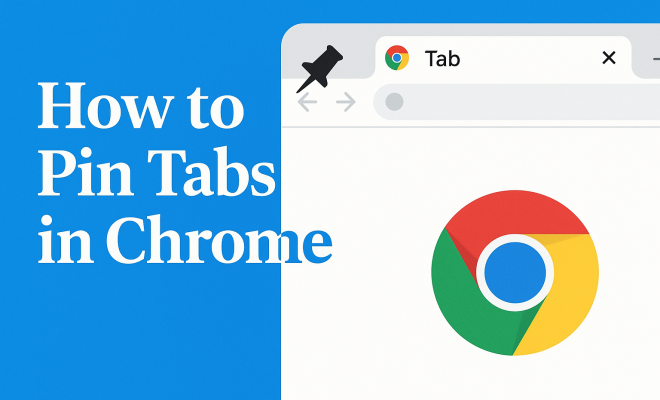
Pinned tabs are smaller versions of regular tabs, positioned to the left of your browser window. They take up less space and are designed to stay in place even when you open and close other tabs. This feature is particularly beneficial for users who frequently visit the same sites, as it allows for quicker access without needing to search for them each time.
2. How to Pin Tabs in Chrome: A Step-by-Step Guide
Getting started with pinning tabs in Chrome is straightforward. Here’s how you can do it:
- Open Google Chrome and navigate to the website you want to pin.
- Right-click on the tab of that website.
- Select the “Pin” option from the context menu.
Once you pin a tab, you’ll notice it shrinks and moves to the left side of the tab bar. It’s essential to understand that pinned tabs cannot be closed accidentally; you must right-click again to unpin them. This feature adds a layer of security, ensuring you don’t accidentally lose access to your preferred sites.
3. Unpinning Tabs: How to Manage Your Pinned Tabs
While pinning tabs is an excellent way to keep your essential sites accessible, there may come a time when you want to unpin them. The process is just as simple as pinning:
- Right-click the pinned tab you wish to unpin.
- Select the “Unpin” option from the context menu.
After unpinning, the tab will revert to its standard size and position. This flexibility allows you to manage your workflow effectively, adapting your tab organization to your current needs.
4. Benefits of Pinning Tabs in Chrome
The advantages of pinning tabs in Chrome go beyond mere aesthetics. Here are several key benefits:
- Reduced Clutter: Pinned tabs take up less visual space, making your tab bar far more organized.
- Quick Access: You can access your most-used sites at a moment’s notice without searching through multiple open tabs.
- Browser Performance: While pinned tabs use minimal resources, it can help improve overall browser performance by reducing the number of active tabs.
These benefits can lead to a more efficient browsing experience, especially for power users who often navigate between various tasks.
5. Using Extensions for Enhanced Tab Management
If you find yourself managing numerous tabs regularly, Chrome offers several extensions that can enhance your tab management experience. Some popular options include:
- OneTab: This extension converts all of your open tabs into a list, allowing you to restore them later while saving memory.
- Tab Wrangler: Automatically closes inactive tabs after a set period, keeping your workspace clean.
- The Great Suspender: Suspends tabs you’re not using to free up system resources.
While these extensions don’t directly affect the pinning functionality, they can complement your workflow and improve how you manage open tabs, especially if you often find yourself overwhelmed by numerous open pages.
6. Pinning Tabs on Mobile Chrome: Is It Possible?
As of now, the ability to pin tabs in Chrome is limited to the desktop version. Chrome’s mobile app does not support tab pinning. However, this limitation doesn’t mean you can’t organize your mobile browsing experience. You can use bookmarks to quickly access your favorite sites on mobile, or consider using Chrome’s “Recently visited” feature to revisit pages without scrolling through endless tabs. (See: Wikipedia page on Google Chrome.)
For users who frequently switch between mobile and desktop, it’s crucial to maintain an organized approach to online navigation. You can keep your bookmarks synchronized across devices using your Google account, providing a workaround for the lack of tab pinning on mobile.
7. Current Relevance and Future of Tab Management in Browsers
Tab management continues to evolve as we navigate increasingly complex online environments. With the rise of remote work and digital collaboration, effective tab management tools are more relevant than ever. Google Chrome, as one of the most widely used browsers, frequently updates its features based on user feedback and emerging trends.
Looking ahead, it’s likely that Chrome will integrate more advanced tab management features, including additional options for pinning, organizing, and even grouping tabs. As users demand more functionality, the future of browsers will likely focus on enhancing user experience by making navigation as intuitive and efficient as possible.
In conclusion, while pinning tabs in Chrome is a simple yet powerful feature, understanding its full potential can significantly improve your browsing efficiency. By mastering this feature along with other tab management strategies, you can focus on what truly matters in your online endeavors.
8. Advanced Tab Management Techniques
While pinning tabs in Chrome can dramatically streamline your browsing experience, there are several advanced techniques you might consider implementing for even better tab management. These techniques are particularly useful for users who deal with many tabs daily, such as researchers, developers, or content creators.
8.1. Tab Grouping
Tab grouping is a feature that allows you to organize your tabs into clusters based on specific themes or projects. This can be incredibly useful for managing various tasks without overwhelming your browser interface. Here’s how to create a tab group:
- Right-click on a tab and select “Add tab to new group.”
- Name your group and assign it a color.
- Drag other tabs into this group to keep them organized.
Grouping tabs can significantly reduce clutter, especially if you frequently switch between different topics. You may have a group for “Work,” another for “Research,” and a third for “Entertainment.” This method keeps related tabs together and allows for quicker navigation between them.
8.2. Utilizing Chrome Profiles
Chrome profiles are another powerful way to manage your browsing experience. By creating different profiles, you can separate your work activities from personal browsing. Each profile has its own set of bookmarks, history, and extensions, allowing for a tailored browsing experience for different contexts.
To create a new profile:
- Click on your profile picture in the top right corner of Chrome.
- Select “Add” to create a new profile.
- Follow the prompts to set up a new profile.
Using multiple profiles can help you maintain focus by minimizing distractions and keeping your work environment organized.
9. Statistics on Browser Tab Usage
Understanding how users interact with browser tabs can provide valuable insights into why features like pinning are essential. Recent studies indicate that:
- Approximately 70% of users keep more than 10 tabs open at any time.
- Users often report feeling overwhelmed when they have more than 15 tabs open.
- Over 40% of users have accidentally closed a tab they didn’t intend to, highlighting the importance of features like pinning.
These statistics underline the need for effective tab management solutions like pinning and grouping to improve user experience and productivity.
10. Expert Perspectives on Tab Management
Experts in productivity and digital organization suggest that managing your tabs can significantly enhance your online experience. Dr. Sarah Johnson, a digital ergonomics specialist, states, “The way we organize our digital workspaces can affect our cognitive load. Fewer distractions lead to better focus and increased productivity.” (See: Web browser features and management.)
Similarly, tech consultant Mark Lee highlights the importance of tab management in modern browsing. “With the increasing reliance on browsers for both work and leisure, mastering tab management is now crucial. Features like pinning can minimize chaos and help users stay organized.”
11. FAQs About Pinning Tabs in Chrome
Here are some frequently asked questions about pinning tabs in Chrome, along with their answers:
11.1. Can I pin multiple tabs at once?
No, currently, Chrome doesn’t support pinning multiple tabs simultaneously. You’ll need to pin each tab individually, but it’s a quick process once you get the hang of it.
11.2. Do pinned tabs remain across sessions?
Yes, pinned tabs will remain even after you close and reopen Chrome. This feature ensures that your essential tabs are always accessible when you launch your browser again.
11.3. What happens to pinned tabs when I clear my browser history?
Clearing your browser history does not affect your pinned tabs. They will remain intact, allowing you to continue accessing them without interruption.
11.4. Are there keyboard shortcuts for pinning tabs?
While there isn’t a direct keyboard shortcut for pinning tabs in Chrome, you can use a combination of keyboard shortcuts to manage tabs efficiently. For example, you can use Ctrl + W to close a tab quickly and Ctrl + Shift + T to reopen the last closed tab. This can help you manage your workflow while using pinned tabs.
11.5. Is tab pinning available in other browsers?
Yes, other major browsers like Firefox and Microsoft Edge also offer tab pinning functionality, though the specific process may vary slightly. If you switch between browsers, you can utilize this feature across different platforms for consistent tab management.
11.6. Can I sync pinned tabs across devices?
Currently, pinned tabs are not synced across devices in Chrome. If you pin a tab on your desktop, it won’t appear as pinned on your mobile device. However, you can bookmark important sites to access them easily on both devices.
11.7. What is the impact of pinned tabs on browser performance?
Pinned tabs generally consume fewer resources than regular tabs because they are designed to stay inactive until you click on them. This can lead to improved browser performance, especially when running multiple tabs at once. However, it’s important to note that while pinned tabs help reduce clutter, having too many active tabs—even if pinned—can still impact performance, so it’s wise to manage your overall tab usage.
11.8. Can I customize the appearance of pinned tabs?
Currently, Chrome does not offer extensive customization options for pinned tabs. Pinned tabs are meant to be uniform in size and appearance for consistency. However, you can organize them using tab groups, which allow for color coding and naming, helping you visually differentiate between various projects or tasks.
11.9. Are there any limitations to pinning tabs?
The main limitation of pinning tabs is that you cannot pin an incognito tab. Incognito mode is designed to provide private browsing, and once you close the incognito window, all tabs are removed, including any you might want to pin. This can restrict users who wish to maintain a specific workflow while using incognito. (See: New York Times article on tab management.)
11.10. How can I keep my pinned tabs organized?
To keep your pinned tabs organized, consider using tab groups to categorize them by project or interest. You can create separate groups for work-related tabs, social media, or research topics. This way, even though your pinned tabs are always on the left, the groups help in visually distinguishing between different functionalities while keeping your tab bar streamlined.
12. Conclusion: Mastering Your Chrome Tabs
Pinning tabs in Chrome is more than just a convenient feature; it’s a vital tool for anyone looking to enhance their productivity and online experience. By understanding the benefits and various management techniques, you can navigate the digital landscape more effectively. As browsers continue to evolve, mastering tab management will undoubtedly remain a key skill for users across the globe.
13. Future of Tab Management Features in Chrome
As technology advances, it’s clear that user needs are evolving as well. Google is consistently analyzing usage patterns and feedback to enhance the user interface and overall functionality of Chrome. Some potential future features that could revolutionize tab management include:
- Intelligent Tab Suggestions: Imagine Chrome being able to analyze your browsing habits and suggest which tabs you might want to pin based on your routine or frequent usage. This AI-driven approach could streamline the way you interact with your browser.
- Integrated Task Management: Future updates may introduce task management features directly within Chrome. This could mean allowing you to pin tabs related to specific tasks and assigning due dates or reminders, making your browsing experience not just about viewing content but actively managing your tasks.
- Enhanced Syncing Across Devices: Improved syncing features could mean that if you pin a tab on your desktop, it automatically appears pinned on your mobile device, ensuring you have access to your most important sites wherever you are.
- Customizable Tab Bar: Users may eventually be able to customize the appearance of their tab bar, including options for colors, themes, or even animations, making the browsing experience more visually appealing.
With these potential innovations, Google Chrome aims to not only keep up with the demands of modern users but to lead the pack in providing a seamless browsing experience.
14. How Different Work Environments Influence Tab Management
Different work environments greatly influence how users manage their tabs. For instance, a remote worker who juggles various projects might prefer a more organized system with pinned tabs, tab groups, and bookmarks, while someone who mainly uses Chrome for casual browsing might have fewer tabs open and utilize pinning less.
Additionally, team collaboration tools are becoming increasingly popular in remote work scenarios. Users can benefit from pinning tabs related to shared documents or project management tools, keeping these resources readily accessible during meetings or brainstorming sessions. This access can significantly improve efficiency and teamwork.
For educators and students, pinning tabs to frequently visited educational resources or online libraries can streamline research efforts and study sessions. With a focused approach to tab management, these users can enhance their learning experience.
15. Conclusion: The Evolving Nature of Browsing
As we navigate through the digital age, browsing habits are continually evolving. The ability to pin tabs in Chrome is just one of the many tools that can help improve productivity and organization. By combining pinning with other features, such as tab grouping and Chrome profiles, users can craft a browsing experience that caters specifically to their needs. As Chrome continues to innovate and adapt to user feedback, mastering these features will be essential for anyone looking to thrive in an increasingly complex online world.
“`
Trending Now
Frequently Asked Questions
How do you pin a tab in Chrome?
To pin a tab in Chrome, first open the website you want to pin. Then, right-click on the tab and select the 'Pin' option from the context menu. The tab will shrink and move to the left side of the tab bar, making it easier to access your favorite sites.
What happens when you pin a tab in Chrome?
When you pin a tab in Chrome, it becomes a smaller version of the regular tab and is positioned to the left of the tab bar. Pinned tabs stay in place even when opening or closing other tabs, making it easier to access frequently visited websites without clutter.
Can you unpin a tab in Chrome?
Yes, you can unpin a tab in Chrome easily. Simply right-click on the pinned tab you wish to unpin and select the 'Unpin' option from the context menu. The tab will revert to its standard size and position afterward.
Why should I pin tabs in Chrome?
Pinning tabs in Chrome helps you manage your browser efficiently by keeping your most important websites easily accessible. This feature minimizes clutter and allows for quicker access to frequently visited sites, enhancing your overall browsing experience.
Are pinned tabs secure in Chrome?
Yes, pinned tabs in Chrome are secure as they cannot be closed accidentally. To close a pinned tab, you must right-click on it and select the 'Unpin' option, adding a layer of protection against losing access to your essential websites.
Have you experienced this yourself? We’d love to hear your story in the comments.