How to force quit on Mac
“`html
Whether you’re a seasoned Mac user or a newcomer, you’ve likely faced an unresponsive application at some point. The frustration mounts as you click, tap, and swipe, only to be met with that infamous spinning beach ball. Thankfully, knowing how to force quit Mac applications can save you from this headache. In this guide, we’ll explore the ins and outs of force quitting on a Mac, offering both straightforward methods and deeper insights into why applications freeze in the first place.
1. Understanding the Force Quit Command
Before we dive into the mechanics of how to force quit Mac, it’s essential to understand what this command does. When you force quit an application, you’re essentially telling your Mac to immediately close a program that’s no longer responding. This action bypasses the usual termination sequence, which can be crucial when an app is frozen or malfunctioning.
The force quit command is particularly useful during stressful moments, like when you’re in the middle of an important project and an application decides to freeze. Instead of waiting indefinitely for the app to respond, you can regain control and continue working. It’s important to note that while this is an effective solution, any unsaved work in the application may be lost.
2. How to Force Quit Using Keyboard Shortcuts
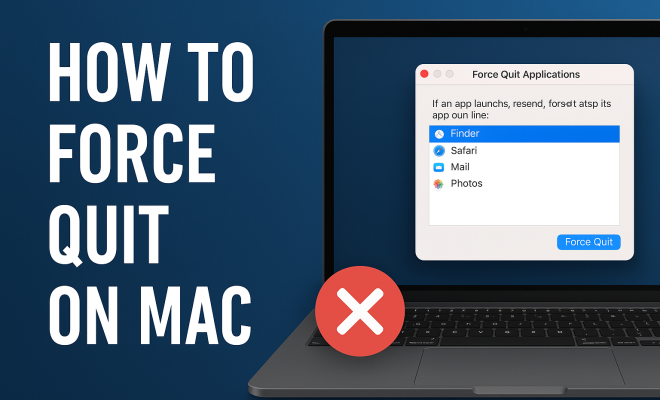
One of the quickest ways to force quit Mac applications is through keyboard shortcuts. Simply press Command (⌘) + Option (⌥) + Esc simultaneously. This brings up the Force Quit Applications dialog box, where you can select the app that’s causing trouble. Once you’ve highlighted the unresponsive application, click on the Force Quit button to close it.
This method is not only fast, but it also allows you to see all running applications at a glance, making it easy to identify which one needs immediate attention. If you prefer a mouse-based approach, you can also access the same dialog by clicking the Apple menu in the top-left corner of your screen and selecting Force Quit….
3. Using the Activity Monitor for Advanced Control
For those who want more control over their Mac’s operations, the Activity Monitor is an invaluable tool. You can find it in the Utilities folder within the Applications directory or by using Spotlight Search (Command (⌘) + Space). Once open, you’ll see a comprehensive list of all running processes and applications.
To force quit Mac applications via Activity Monitor, locate the app you wish to close, select it, and click on the X button in the upper-left corner of the window. This method is useful for identifying processes that may not show up in the Force Quit Applications dialog and can be particularly helpful for troubleshooting performance issues.
4. Force Quit a Non-Responsive App from the Dock
If you’re a fan of keeping things simple, another method for force quitting Mac applications involves the Dock. Locate the icon of the unresponsive app in your Dock, then right-click (or Control-click) on the icon. In the menu that appears, hold down the Option key, and the Quit option will change to Force Quit.
This method is particularly handy for quick access without navigating through menus or keyboard shortcuts. It’s also a great way to close an application that might not have been launched in the traditional sense, as some apps do run in the background and may not be visible in the Force Quit dialog.
5. Common Reasons Applications Freeze: What You Need to Know
Understanding why applications freeze can help you address issues proactively. There are several common reasons behind a frozen app. First, insufficient system resources can lead to performance bottlenecks. Running too many applications at once or using resource-intensive software can strain your Mac’s CPU and RAM. (See: Understanding the Force Quit Command.)
Another significant factor is software conflicts. Sometimes, newly installed software can conflict with existing applications, causing one or more programs to freeze. Lastly, outdated software can also contribute to performance issues. Regularly updating your MacOS and installed applications can help prevent these frustrating scenarios.
6. Preventing Application Freezes: Best Practices
Prevention is always better than cure, and adopting a few best practices can minimize the need to force quit Mac applications. Start by managing your applications wisely; avoid opening too many at once, especially if they’re known to be resource-hungry.
Additionally, keeping your Mac updated is crucial. Regular updates not only introduce new features but also fix bugs and improve compatibility. Finally, consider using lighter alternatives for tasks that don’t require heavy processing power. For instance, if you’re using a graphics-intensive app to edit simple images, you might find a less demanding program that performs the task more smoothly.
7. What Happens After You Force Quit?
When you force quit Mac applications, it’s natural to wonder what happens next. Generally, the application stops running immediately, freeing up system resources. However, this abrupt termination can lead to lost data if you haven’t saved your work recently. In most cases, applications will offer a recovery option if you reopen them after being force quit.
Moreover, if you routinely experience the need to force quit certain applications, it may be a sign of underlying issues that need addressing. Keeping a close eye on these patterns can help you identify if a particular app is misbehaving or if your overall system needs optimization.
8. Alternatives to Force Quitting: What You Should Know
While knowing how to force quit Mac applications is essential, there are also alternative methods to regain control without resorting to this command. For example, you can try waiting a little longer to see if the application resolves itself. This is particularly effective for certain tasks like file downloads or rendering processes.
You might also want to minimize the application instead of quitting it. This can sometimes alleviate the issues if the problem stems from excessive resource consumption. Another alternative is to restart your Mac entirely, which can clear temporary files and refresh system resources.
9. Seeking Help: When to Contact Support
If you find yourself frequently needing to force quit Mac applications, this may warrant further investigation. Before reaching out to Apple Support, try some troubleshooting steps, such as resetting your NVRAM/PRAM or running Disk Utility to check for errors on your hard drive.
If these methods do not resolve the issue, it’s advisable to contact Apple Support for guidance. They can assist in diagnosing hardware problems or software conflicts that could be causing the persistent freezing issues. Remember, proactive maintenance can prevent many issues before they necessitate a force quit.
10. Understanding Application Management on macOS
Managing applications effectively can play a significant role in minimizing instances of unresponsiveness. Unlike Windows, where applications often run in a more straightforward manner, macOS involves a more complex interaction between applications and the system. Applications can run in the background, utilize various system resources, and sometimes interact with each other in ways that may lead to conflicts.
Familiarizing yourself with macOS’s built-in tools, such as the System Preferences and the App Store, can help you manage applications better. For example, you can control which apps launch at startup, thereby reducing the load on your system from the moment you boot up your Mac. You can also manage application permissions to ensure that only necessary applications have access to system resources.
11. Statistics on Application Freezes
While experiencing application freezes can feel like a common occurrence, it’s helpful to look at statistics that quantify the issue. According to recent surveys conducted by tech analysts, around 30% of Mac users reported encountering application freezes at least once a month. Among those, 50% stated that they often have to force quit applications to regain control of their workflow.
Interestingly, users of graphic-intensive applications such as video editing software or 3D modeling programs reported a higher frequency of freezes. Approximately 40% of users in these categories experienced application freezes on a weekly basis. Keeping your software updated and optimizing your Mac’s performance can significantly reduce these occurrences.
12. Expert Perspectives on Troubleshooting Freezes
Experts in the tech field often emphasize that understanding the root cause of application freezes is essential for effective troubleshooting. Many recommend starting with basic checks, such as ensuring that your Mac has enough free disk space. It’s suggested that at least 10% of your total storage should be free for optimal performance. Over time, a lack of space can lead to system slowdowns and application malfunctions.
Another common piece of advice is to regularly monitor your Activity Monitor. Experts warn against allowing too many applications to run simultaneously, particularly if they are resource-intensive. For example, running a video editor alongside a web browser with multiple tabs open can quickly strain your RAM, leading to potential freezes.
Finally, reaching out to user communities or forums can provide insights into specific applications known for causing issues. Often, other users have encountered similar frustrations and may have found unique workarounds or solutions to improve stability.
13. Frequently Asked Questions (FAQ)
What should I do if an application keeps freezing?
If an application frequently freezes, consider uninstalling and reinstalling it. This can resolve any corrupted files that may be causing the issue. Additionally, check for updates or patches provided by the developer to improve stability.
Can I recover lost data after a force quit?
While it’s not guaranteed, many applications offer auto-save features that can help you recover lost data after a force quit. Upon reopening the application, check for any recovery options that may allow you to restore your previous session.
Is force quitting harmful to my Mac?
Force quitting is generally safe and can help you regain control. However, it may lead to lost unsaved data and, in rare cases, may cause issues with application settings or preferences. Regularly saving your work can mitigate these risks.
What if I can’t force quit an application?
If you cannot force quit an application using standard methods, you may need to restart your Mac. If the issue persists, consider checking for underlying software conflicts or hardware issues that could be causing the problem.
How can I check if my Mac is running out of resources?
Open Activity Monitor to check CPU and memory usage. If you notice certain applications consuming excessive resources, consider closing or uninstalling them to optimize your system’s performance.
14. How to Diagnose Application Freezes
When applications freeze frequently, it can be a sign of deeper issues. Start by checking the Console application, which logs system messages and can provide insights into errors or problematic applications. Open Console from the Utilities folder and look for any crash reports related to the frozen app.
Additionally, running a hardware diagnostic can help identify any underlying hardware problems that may be affecting performance. Restart your Mac and hold down the D key to enter diagnostics mode. Follow the on-screen instructions to check for memory issues, failing drives, or other hardware conflicts.
15. Managing Background Applications
Many Mac users might not realize that background applications can consume significant resources, contributing to application freezes. By managing these background processes, you can enhance your Mac’s performance. You can check which apps are running in the background using Activity Monitor. Look for apps that you don’t need running and close them to free up resources.
Some applications, like cloud storage clients or messaging apps, tend to run continuously. You might consider disabling them from startup or quitting them when they’re not in use. This simple step can drastically improve your system’s responsiveness.
16. Key Takeaways: Effective Application Management
Mastering the techniques of application management and troubleshooting unresponsive software can significantly enhance your Mac experience. Remember these key takeaways: Regularly update your software, manage your applications wisely, and utilize tools like Activity Monitor to keep an eye on system performance. Being proactive about maintenance and addressing potential issues before they escalate can save you from the frustrations of frequent application freezes.
In summary, mastering the art of force quitting on a Mac not only equips you with a handy troubleshooting tool but also enhances your overall user experience. By understanding the different methods, causes of freezes, and preventative measures, you’ll be better prepared to handle any hiccups that come your way.
“`
Trending Now
Frequently Asked Questions
How do I force quit an app on a Mac?
To force quit an application on a Mac, press Command (⌘) + Option (⌥) + Esc simultaneously. This opens the Force Quit Applications dialog box. Select the unresponsive app and click the Force Quit button to close it immediately.
What happens when you force quit an application on a Mac?
When you force quit an application on a Mac, it bypasses the usual closing process, immediately terminating the program. This can help you regain control of your system, but be aware that any unsaved work in the application may be lost.
Is there a keyboard shortcut to force quit on Mac?
Yes, the keyboard shortcut to force quit an application on a Mac is Command (⌘) + Option (⌥) + Esc. This brings up the Force Quit Applications dialog, allowing you to select and close the unresponsive app quickly.
Why do applications freeze on a Mac?
Applications can freeze on a Mac due to various reasons, including software bugs, insufficient memory, or conflicts with other applications. Understanding these factors can help you prevent future freezes and maintain smoother performance.
Can I recover unsaved work after a force quit on Mac?
Unfortunately, if you force quit an application on a Mac, any unsaved work is typically lost. It's advisable to save your work frequently to avoid losing progress in case an application becomes unresponsive.
What did we miss? Let us know in the comments and join the conversation.