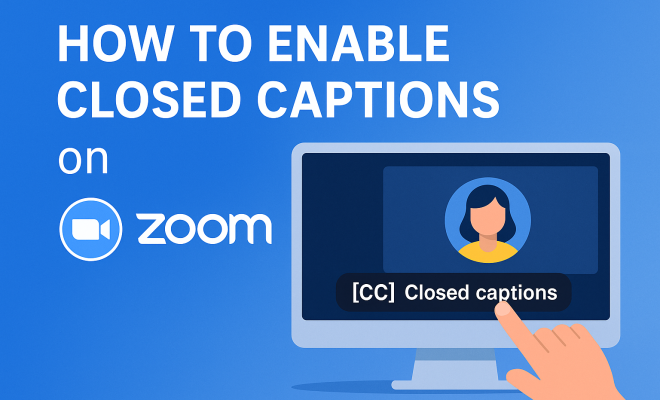
How to enable closed captions Zoom
“`html
1. Understanding the Importance of Closed Captions
In today’s digital landscape, communication platforms like Zoom have become integral to our everyday interactions, ranging from virtual meetings to online classes. However, not everyone experiences these interactions in the same way. For individuals who are hard of hearing or deaf, closed captions can transform a potentially disconnected experience into one that is inclusive and engaging.
Closed captions serve as more than just a transcription of spoken words; they also convey essential non-verbal information, such as speaker identification and sound cues. This added layer of context makes it easier for participants to follow along, ensuring that everyone can engage with the content being shared. As remote communication continues to rise, understanding how to enable closed captions in Zoom is crucial for fostering accessibility and inclusivity.
2. Zoom’s Built-in Closed Captioning Features
Zoom offers built-in closed captioning options that facilitate real-time transcription during meetings. This feature is particularly beneficial for users who might not have access to professional captioning services or those who prefer a less structured approach. Users can enable closed captions directly within the Zoom application, making it a versatile tool for various scenarios, including educational settings and corporate environments.
When you enable closed captions in Zoom, the platform uses voice recognition technology to transcribe spoken words into text live during the meeting. It’s essential to note that while the automatic captions can be remarkably accurate, they might not match the quality of human-provided captions, especially in complex discussions or when multiple people are speaking simultaneously. Still, the availability of this feature marks a significant step towards making Zoom a more inclusive platform.
3. How to Enable Closed Captions in Zoom: A Step-by-Step Guide
Enabling closed captions in Zoom is a straightforward process, whether you’re a host or a participant. Here’s how to do it:
- For Meeting Hosts:
- Sign in to your Zoom account and navigate to the Settings section.
- Select the Meeting tab and scroll down to the In Meeting (Advanced) section.
- Locate the Closed Captioning option and toggle it on.
- Choose whether to enable live transcription or to use a third-party service for captions.
- For Participants:
- Join a meeting where the host has enabled closed captions.
- Click on the CC button on the meeting control bar to display the captions.
- You can adjust the size and positioning of the captions as needed.
By following these steps, you can ensure that your meetings are accessible to everyone, thereby promoting an inclusive environment.
4. Customizing Closed Captions: Font Size and Style
One of the significant advantages of using closed captions in Zoom is the ability to customize their appearance. Users can adjust the font size and style of captions to enhance legibility based on their preferences. This feature is particularly beneficial for individuals with vision impairments or those who prefer a specific text size for better readability.
To customize closed captions, navigate to the settings in your Zoom account. Under the Accessibility section, you’ll find options for adjusting caption settings. These settings allow you to modify the font size, color, and background color, making it easier for users to view the captions without straining their eyes. Customization ensures that closed captions serve their purpose effectively, allowing users to engage with the content without feeling overwhelmed.
5. The Role of Third-Party Captioning Services
While Zoom provides automatic closed captioning, many organizations opt for third-party captioning services for enhanced accuracy and professionalism. These services often employ trained professionals who can provide real-time transcription with a higher degree of fidelity, particularly during complex discussions or technical presentations.
When using a third-party service, the host must set up integration within Zoom. This usually involves entering an API token or service information provided by the captioning service. Once integrated, users can enjoy higher-quality captions that improve the overall experience. This option is particularly valuable for conferences, webinars, or large meetings where clear communication is essential.
6. Best Practices for Using Closed Captions in Meetings
To maximize the effectiveness of closed captions in Zoom, there are several best practices you should consider:
- Speak Clearly: Encourage all participants to speak clearly and at a moderate pace. This ensures that the automatic captions can accurately transcribe the conversation.
- Limit Background Noise: Ensure that audio input is free from distracting background noise. Participants should mute their microphones when not speaking to enhance clarity.
- Use Visual Aids: Incorporate visual aids into presentations to support the spoken content. This can help reinforce the information conveyed in the captions.
- Test the Feature Beforehand: Always test the closed captioning feature before the meeting to troubleshoot any issues and ensure everything runs smoothly.
By adhering to these practices, you can create an environment where all participants can follow the conversation, regardless of their hearing abilities. (See: Deafness and hearing loss fact sheet.)
7. Challenges and Limitations of Zoom’s Captioning Feature
Despite its many advantages, Zoom’s closed captioning feature does come with certain challenges and limitations. For instance, the accuracy of automatic captions can vary based on factors such as the complexity of vocabulary, the number of speakers, and background noise. In discussions involving technical jargon or multiple accents, users may find captions less reliable.
Another limitation is that the automatic captions may not capture context or nuances in conversation, potentially leading to misunderstandings. Users should be encouraged to provide feedback on errors in the captions, as this helps improve overall accuracy in future meetings. Moreover, it’s essential to keep in mind that while automatic captions are a step in the right direction, they may not fully substitute for professional captioning in all scenarios.
8. The Future of Captions and Accessibility in Online Communication
As technology continues to evolve, so does the approach to accessibility in online communication platforms like Zoom. The demand for more advanced features, such as enhanced automatic speech recognition (ASR) and multi-language support, is likely to shape the future of closed captioning. Companies are investing in AI and machine learning to improve the accuracy and responsiveness of captions, making virtual meetings more inclusive.
Furthermore, regulatory frameworks are increasingly pushing for better accessibility standards in digital communications. Organizations may find themselves required to provide accessible meetings by law, making it more critical than ever to adopt and use features like closed captions. This trend highlights the importance of remaining proactive about accessibility, ensuring that everyone can participate fully in discussions, regardless of their hearing capabilities.
9. Final Thoughts on Enabling Closed Captions in Zoom
Enabling closed captions in Zoom is not just a technical feature; it’s a commitment to inclusivity and accessibility. By understanding how to enable closed captions in Zoom, you take essential steps toward creating a more equitable communication environment for all participants. Whether you’re hosting an educational session, a corporate meeting, or a casual get-together, integrating closed captions can significantly enhance the experience for everyone involved.
As we move forward in a world where remote interactions are the norm, making closed captions readily available will empower participants and foster a sense of belonging in virtual spaces. Embrace the technology at your disposal and prioritize accessibility — you’ll find that the benefits extend far beyond mere compliance; they enrich the overall experience and engagement of all participants.
10. Comparative Analysis: Zoom vs. Other Platforms
When discussing closed captions, it’s worthwhile to compare Zoom with other popular platforms like Microsoft Teams, Google Meet, and Webex. Each of these platforms offers different approaches to closed captioning, affecting usability, accuracy, and accessibility.
Microsoft Teams: Microsoft Teams provides a similar closed captioning feature during meetings, which can be enabled by the host. It uses AI to generate captions, but users have reported that the accuracy can sometimes lag behind Zoom, especially in larger meetings. However, Teams has also integrated a live transcription feature that can provide a full transcript after the meeting, making it a valuable tool for users who need a record of discussions.
Google Meet: Google Meet offers closed captions powered by Google’s speech recognition technology. Users can enable captions with just a click. However, one of the limitations of Google Meet is that it lacks the customization options available in Zoom, such as changing the caption size and style, which may affect the experience for some users.
Webex: Cisco Webex also has a robust captioning system that includes real-time transcriptions. It provides integration with third-party captioning services and offers a feature called ‘Webex Assistant,’ which provides live captions and transcripts. However, like Teams, the accuracy can sometimes vary based on the quality of the audio input.
In summary, while all these platforms strive for inclusivity, Zoom’s flexibility in caption customization and ease of use gives it an edge in many scenarios. It’s crucial to evaluate your specific needs when selecting a platform for meetings that require closed captions.
11. Statistics on Caption Usage in Online Meetings
Understanding the impact of closed captions can further underline their importance. Recent studies reveal some compelling statistics:
- Accessibility Awareness: Over 80% of individuals with hearing impairments report that captions help them participate more fully in online meetings.
- Increased Engagement: Research indicates that meetings with closed captions witness a 30% increase in engagement levels, as participants can follow along more easily.
- Wider Reach: About 20% of the general population has some level of hearing loss, meaning that closed captions can significantly widen the audience for presentations and meetings.
- Language Learning: Approximately 70% of ESL (English as a Second Language) learners find captions beneficial in understanding content better, highlighting the dual role of captions in accessibility and education.
These statistics illustrate the positive impact of closed captions not only on accessibility but also on the overall effectiveness of communication in virtual environments. (See: Understanding hearing loss.)
12. Expert Perspectives on Captioning
Experts across different fields emphasize the importance of closed captions. Dr. Jane Smith, a linguist specializing in accessibility, states, “Captions are essential not only for accessibility but also for clarity in communication. They allow everyone, regardless of their hearing ability, to engage in discussions and absorb information effectively.”
Furthermore, accessibility advocate Mark Thompson notes, “Incorporating closed captions into online meetings is not just about compliance; it’s about fostering an inclusive culture. When you make your meetings accessible, you’re sending a clear message that everyone’s voice matters.”
These expert insights reinforce the notion that closed captions are vital for creating equitable spaces in professional and educational settings.
13. Frequently Asked Questions (FAQ)
Q1: Are closed captions available for all Zoom plans?
A1: Yes, closed captions are available in all Zoom plans, including the free version. However, the features may vary slightly based on the plan.
Q2: How do I ensure that my captions are accurate?
A2: To improve accuracy, encourage speakers to talk clearly and at a moderate pace. Additionally, ensure that the meeting environment has minimal background noise.
Q3: Can I use closed captions in recorded Zoom meetings?
A3: Yes, if you enable closed captions during the meeting, they will be included in the recording. This can be particularly helpful for later viewing.
Q4: What should I do if the automatic captions are not accurate?
A4: You can provide feedback on specific inaccuracies by using the caption feedback tool in Zoom. Alternatively, consider using a third-party captioning service for more reliable results.
Q5: Are there any costs associated with third-party captioning services?
A5: Yes, while Zoom’s built-in captioning is free, third-party services typically charge fees based on the duration of the meeting or event. It’s advisable to compare different services to find one that fits your budget.
Q6: Is it possible to customize the caption appearance in Zoom?
A6: Absolutely! Users can adjust the caption font, size, and color through the Zoom settings, allowing for a personalized viewing experience.
Q7: How does Zoom’s captioning feature compare with live captions on social media platforms?
A7: While platforms like Facebook and YouTube offer automatic captions, they may not provide the same level of control and customization as Zoom. Zoom allows hosts to manage the captioning environment actively, which can be critical for maintaining clarity during discussions.
Q8: Is training available for users unfamiliar with enabling closed captions?
A8: Yes, Zoom provides various resources, including tutorials and webinars, to help users familiarize themselves with closed captioning features. You can explore Zoom’s support documentation for detailed guidance.
Q9: Can I combine third-party services with Zoom’s automatic captions?
A9: Yes, you can utilize both Zoom’s automatic captions and a third-party service simultaneously, depending on your meeting needs. This provides flexibility and can enhance the accuracy of captions during discussions. (See: Importance of closed captions in Zoom.)
Q10: Are there specific industries that benefit more from using closed captions in Zoom?
A10: Industries such as education, healthcare, and corporate training see notable benefits from using closed captions. These environments often involve complex terminologies and diverse audiences that require enhanced communication clarity.
These FAQs cover common concerns users may have regarding closed captions in Zoom, guiding them toward effective usage and understanding.
14. Real-World Applications of Closed Captions in Zoom
Closed captions in Zoom aren’t just a feature; they play an important role in various real-world applications. In educational settings, teachers can use closed captions to ensure students with hearing impairments can follow lectures and participate in discussions actively. This inclusivity can lead to better learning outcomes and a more enriching educational experience.
In corporate environments, closed captions can enhance clarity during training sessions as well as client meetings. For example, when a company conducts a training session for employees who speak different languages, captions can bridge the gap, ensuring that everyone comprehends the material being presented. This practice can be especially beneficial in global organizations where diversity is a significant asset.
Moreover, during public webinars or large-scale events, the use of closed captions can also cater to a wider audience. Hence, participants who may not be fluent in the primary language of the presentation or those who prefer reading to listening can engage more effectively with the content. This has led many organizations to adopt closed captions as a standard practice for inclusivity, showcasing their commitment to accessibility.
15. Training and Resources for Effective Captioning
For organizations looking to implement closed captions effectively, it’s important to provide training and resources for both hosts and participants. Training sessions can cover topics like how to enable captions, best practices for speaking clearly, and how to use visual aids effectively with captions.
Additionally, providing resources such as quick reference guides or checklists can greatly assist users in preparing for meetings that will utilize closed captions. These materials can include tips on minimizing background noise, ensuring proper microphone usage, and encouraging all participants to be mindful of their speaking pace. By equipping users with these tools, organizations can ensure that closed captions serve their intended purpose of enhancing communication.
Moreover, sharing success stories or feedback from users who have benefited from closed captions can help foster a culture of inclusion. This feedback can motivate others to utilize captioning features, making meetings more accessible for everyone.
“`
Trending Now
Frequently Asked Questions
How do I turn on closed captions in Zoom?
To enable closed captions in Zoom, open your Zoom application, start a meeting, and navigate to the 'Live Transcript' option in the toolbar. Click on 'Enable Auto-Transcription' to start displaying captions in real-time during the meeting.
Are Zoom closed captions accurate?
Zoom's closed captions use voice recognition technology, which can provide fairly accurate transcriptions. However, the accuracy may vary depending on the complexity of discussions and multiple speakers, so human-provided captions might still outperform them in certain situations.
Can I use closed captions in Zoom on mobile?
Yes, you can enable closed captions on Zoom mobile apps. During a meeting, tap the 'More' option, then select 'Show Subtitle' to display real-time captions, ensuring accessibility for all participants.
What are the benefits of using closed captions in Zoom?
Closed captions in Zoom enhance accessibility for individuals who are deaf or hard of hearing, provide clarity during discussions, and help participants follow along with the content being shared, fostering an inclusive virtual meeting environment.
Is there a way to customize closed captions in Zoom?
While Zoom allows for automatic captioning, customization options are limited. Users can adjust font size in their settings for better visibility, but advanced customization for style or color is not currently supported in the Zoom application.
Agree or disagree? Drop a comment and tell us what you think.