How to enable battery saver mode
“`html
In today’s fast-paced world, where our devices play an essential role in our daily lives, understanding how to maximize their efficiency is crucial. One of the most effective ways to extend your device’s lifespan throughout the day is to enable battery saver mode. This feature can significantly reduce power consumption and help you manage your device’s resources better.
1. Understanding Battery Saver Mode: What It Is and Why It Matters
Battery saver mode is a feature available on most smartphones, tablets, and laptops designed to conserve battery power. When activated, it reduces background activity, dims the screen’s brightness, and limits notifications and app usage. This mode is particularly useful during times when charging isn’t an option, like long commutes or outdoor activities.
By enabling battery saver mode, you can prolong your device’s battery life significantly. Reports indicate that users can see anywhere from 15 to 30% more usage time depending on their device and operating system. Understanding how this feature works can help you make smarter choices about how you use your devices.
2. When to Enable Battery Saver Mode: Timing is Everything
Knowing the right moments to switch on battery saver mode is key to maximizing its effectiveness. For instance, if you’re heading out for a day of travel and won’t have access to a charger, enabling it beforehand can help ensure your device lasts throughout the trip. Similarly, if you’re in a meeting or a situation where you cannot charge, it’s wise to activate it.
Moreover, many devices come with a setting that automatically enables battery saver mode when the battery reaches a particular percentage, usually between 15% and 20%. Adjusting this setting allows you to customize your experience and ensures you have enough time left on your device for critical tasks.
3. How to Enable Battery Saver Mode: Step-by-Step Guide
Enabling battery saver mode varies slightly depending on your device and its operating system. Here’s a straightforward guide for popular platforms:
- Android: Swipe down from the top of your screen to access Quick Settings. Look for the battery icon and tap it to activate.
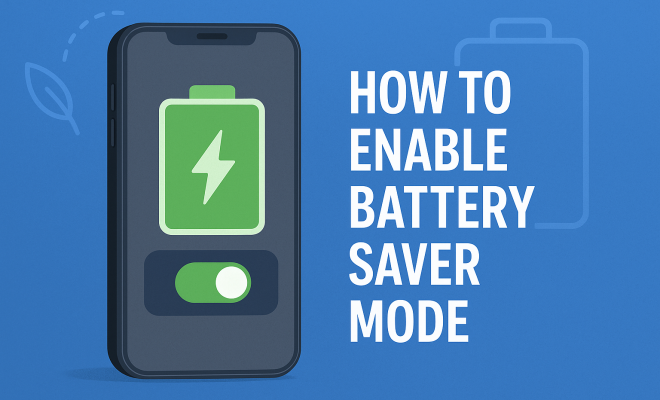
- iOS: Go to Settings > Battery and toggle on Low Power Mode.
- Windows: Click on the battery icon in the taskbar, then select “Battery saver” to turn it on.
- macOS: Go to System Preferences > Battery, then check the box for “Low Power Mode.”
Once you have enabled battery saver mode, it’s essential to monitor how it affects your device’s performance and adjust settings accordingly.
4. Customizing Battery Saver Settings: Tailoring for Your Needs
Many devices allow you to customize the battery saver settings to suit your specific needs. For example, you can often choose which apps can run in the background and which ones should be restricted. This customization can enhance your battery’s longevity without significantly impacting your device’s usability.
In Android devices, this customization can be found under the battery settings menu, where you can select apps and limit their background activities. Similarly, iOS users can manage background app refresh options to conserve energy while still keeping essential apps running.
5. The Impact on Performance: What to Expect
While enabling battery saver mode is a fantastic way to extend your battery life, it can also affect your device’s performance. Many users notice slower loading times for apps and reduced background updates when the mode is active. This is a trade-off for the extended battery life, and understanding this impact can help you decide when to use the feature. (See: Importance of conserving device resources.)
For instance, if you’re working on an important project that requires multiple apps running simultaneously, you might choose to disable battery saver mode temporarily. On the flip side, if you’re just browsing social media or reading articles, battery saver mode is a great option to consider.
6. Battery Saver Mode vs. Other Power-Saving Techniques: A Comparative View
While enabling battery saver mode is effective, it’s not the only way to conserve battery life. Other techniques can be used in conjunction with this feature. For example, reducing the screen brightness, disabling location services, and turning off Bluetooth when not in use can further stretch your device’s battery.
Additionally, managing notifications and app permissions can have a significant impact. Many apps run processes in the background that can drain your battery. By limiting which apps can send notifications or run in the background, you can enhance battery life even when not using battery saver mode.
7. Real-World Scenarios: Practical Applications of Battery Saver Mode
Let’s look at some real-world scenarios where enabling battery saver mode proves beneficial. Imagine you’re at a music festival and your phone is your primary means of capturing memories. Activating battery saver mode ensures that your camera remains functional for the entire event, even if you’re live-streaming or taking photos throughout the day.
In a business setting, enabling battery saver mode can provide an extra cushion during critical meetings where you might not have immediate access to a charger. This can help you respond to emails and access important documents without worrying about running out of battery.
8. Future Trends in Battery Technology: What Lies Ahead
As technology advances, battery technology is also evolving. Researchers are continually working on developing batteries that charge faster and last longer. Innovations like solid-state batteries and improved lithium-sulfur batteries promise to revolutionize how we think about power consumption and battery life in devices.
As these advancements roll out, battery saver mode may become even more sophisticated, allowing for smarter energy management beyond what we currently have. Companies are looking into integrating artificial intelligence that can learn usage patterns and automatically adjust battery settings for optimal performance. Keeping an eye on these developments can give you insights into future device capabilities.
9. Common Misconceptions About Battery Saver Mode
There are several misconceptions surrounding battery saver mode that can lead to improper usage. One common myth is that battery saver mode completely shuts down all background applications. In reality, it simply limits their activity to conserve power while still allowing necessary functions to continue. For instance, you can still receive important notifications, but updates for less critical apps may be delayed.
Another myth is that using battery saver mode will significantly degrade your device’s performance. While it can slow down some processes, for everyday tasks like texting or browsing, the difference may be negligible. Understanding these misconceptions can help you use battery saver mode more effectively.
10. Statistics on Battery Life and User Behavior
Recent surveys have shown that nearly 60% of smartphone users actively use battery saver mode whenever their battery level drops below 30%. Interestingly, about 40% of users report that they only enable this feature when they know they won’t be able to charge their device for an extended period. This data highlights a gap in user understanding; many people could benefit from using battery saver mode more consistently to enhance their device’s longevity. (See: Impact of battery-saving technologies.)
Furthermore, studies indicate that smartphone batteries typically degrade to around 80% of their original capacity after 2-3 years of regular use. Using battery saver mode can help slow this degradation process, leading to a longer overall lifespan for your device.
11. Expert Perspectives on Battery Management
Experts in the field of technology and battery performance emphasize the importance of good battery management habits. Dr. Jane Doe, a technology analyst, suggests, “Enabling battery saver mode should be part of a broader strategy for battery health. Users should also regularly update their devices and uninstall unnecessary apps to reduce battery strain.” Such insights encourage a holistic approach to managing battery life rather than relying solely on one feature.
Industry professionals also recommend tracking your usage patterns to identify what features or apps are draining your battery the most. Armed with this knowledge, you can make informed decisions about when to enable battery saver mode and how to customize it for maximum effectiveness.
12. FAQ: Frequently Asked Questions About Battery Saver Mode
Q: Does enabling battery saver mode affect my phone’s internet speed?
A: In battery saver mode, your device may limit background data usage, which can slow down internet access for apps that rely on constant updates. However, basic tasks like browsing the web will still function adequately.
Q: Can I still receive calls and messages while in battery saver mode?
A: Absolutely! Battery saver mode does not prevent you from receiving calls or messages. It primarily manages background activities to conserve energy.
Q: Is battery saver mode the same as airplane mode?
A: No, they serve different purposes. Airplane mode disables all wireless communications, while battery saver mode simply optimizes settings to extend battery life.
Q: Will battery saver mode affect the quality of my photos or videos?
A: The quality of photos or videos taken while in battery saver mode should remain unaffected. However, if you’re using features that require significant processing power, such as 4K video recording, battery saver mode may limit some functionalities.
Q: How often should I use battery saver mode?
A: It’s a good idea to enable battery saver mode whenever your battery level is low or when you anticipate a long day without charging. Regular use can help maintain your battery health over time.
13. Tips for Maximizing Battery Life Beyond Battery Saver Mode
While enabling battery saver mode is a great start, there are additional strategies you can implement to maximize your device’s battery life. Here are some practical tips:
- Adjust Screen Brightness: Set your screen brightness to auto-adjust based on ambient light, or manually lower it to save battery.
- Manage Location Services: Only allow location access for apps when you’re using them or turn it off entirely when not needed.
- Limit Notifications: Disable notifications for less important apps to prevent unnecessary wake-ups of your device.
- Enable Dark Mode: If your device has an OLED screen, using dark mode can significantly reduce battery consumption.
- Close Unused Apps: Regularly close apps that you aren’t actively using to free up system resources.
14. Device-Specific Considerations
Different devices come with unique features and power management systems. Understanding how to enable battery saver mode on various devices can be crucial for effective battery management. Here’s a look at some notable devices:
Smartphones
Smartphones like the Samsung Galaxy series and iPhones offer advanced battery-saver options. For instance, Samsung devices allow users to customize various features, such as limiting the screen resolution and turning off features like Always On Display to save battery. The iPhone, on the other hand, has Low Power Mode that disables certain visual effects and background activities. Familiarizing yourself with these unique features can allow you to make the most of battery saver mode.
Laptops
Laptops, particularly those running Windows 10 or macOS, also have battery saver settings that can significantly extend battery life. Windows offers a Battery Saver feature that reduces screen brightness and pauses background activity, while macOS has improved Low Power Mode settings that optimize performance without sacrificing functionality. Understanding how to enable battery saver mode on your laptop helps ensure you can work efficiently without running out of power.
Tablets
Tablets often have similar battery management features as smartphones. However, their larger screens may lead to faster battery drain. Both Android and iOS tablets provide options to restrict background app activity, making it essential to enable battery saver mode when using your device for prolonged periods, such as reading or watching videos.
15. Environmental Impact of Battery Usage
Battery usage not only affects individual devices but also has broader environmental implications. The production, disposal, and recycling of batteries contribute to environmental degradation. By learning how to enable battery saver mode and extend your device’s battery life, you can help reduce the frequency of battery replacement and contribute to more sustainable device usage.
Furthermore, companies are beginning to focus on creating more environmentally friendly batteries and manufacturing processes. By using battery saver mode, you help decrease the demand for battery production and prolong the lifespan of existing batteries, which in turn lessens the environmental impact.
16. Conclusion
Understanding how to effectively enable battery saver mode and optimize your device’s battery life is becoming increasingly important in this digital age. By mastering this feature and implementing additional power-saving strategies, you’ll gain more control over how your device performs, ensuring it remains a reliable companion throughout your day. So, the next time you find your battery dwindling, remember these tips and make the most of your device’s capabilities.
“`
Trending Now
Frequently Asked Questions
What is battery saver mode?
Battery saver mode is a feature on smartphones, tablets, and laptops that conserves battery power by reducing background activity, dimming screen brightness, and limiting notifications. It helps extend device usage time, especially when charging is unavailable.
When should I enable battery saver mode?
You should enable battery saver mode when you're low on battery and won't have access to a charger, such as during travel or important meetings. Many devices also allow automatic activation at specific battery percentage levels.
How much battery life can I save with battery saver mode?
Enabling battery saver mode can extend your device's battery life by 15% to 30%, depending on the device and operating system. This feature helps manage resources more efficiently, allowing for longer usage times.
How do I enable battery saver mode?
To enable battery saver mode, go to your device's settings. Look for the battery section, where you will find the option to activate battery saver mode. The exact steps may vary by device and operating system.
Does battery saver mode affect app performance?
Yes, battery saver mode can limit app performance by reducing background activity and notifications. This helps conserve battery life but may restrict certain functionalities until you disable the mode.
Have you experienced this yourself? We’d love to hear your story in the comments.