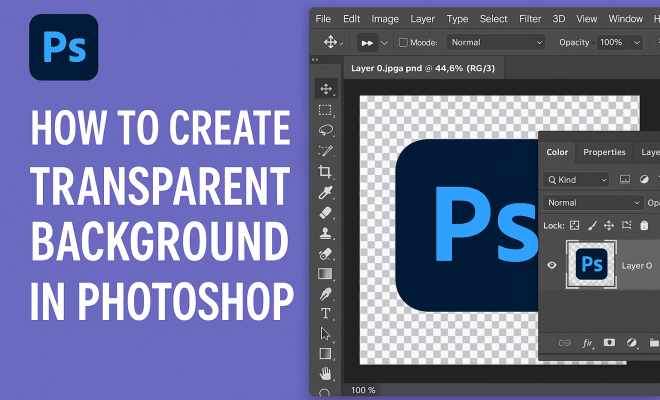
How to create transparent background in Photoshop
“`html
Creating a transparent background in Photoshop is a skill that countless designers, photographers, and digital artists need to master. Whether you’re working on product images, logos, or any graphic element, knowing how to isolate subjects with a transparent background allows for seamless integration into various projects. In this article, we’ll explore the process of achieving transparent backgrounds in Photoshop through seven essential steps, offering tips and tricks along the way.
1. Understanding Transparent Backgrounds
Before diving into the technical steps, it’s crucial to grasp what a transparent background actually entails. Simply put, a transparent background means that the image has no background color or design—it allows whatever is behind the image (like a web page or another graphic) to show through.
Common formats that support transparency include PNG and GIF. JPEG, on the other hand, does not support transparent backgrounds. Given this context, you’ll want to ensure you choose the right file format after processing your images to retain transparency.
2. Preparing Your Image
Before you can create a transparent background, you need to open your image in Photoshop. Start by launching Adobe Photoshop and loading the image file you want to edit. It’s best to use high-resolution images to ensure that the final product looks professional.
Once your image is open, take a moment to assess its edges and determine how much of it you want to keep. This assessment will guide you in selecting the appropriate tools for creating that transparent background effectively.
3. Using the Magic Wand Tool
One of the simplest methods to create a transparent background in Photoshop is by using the Magic Wand Tool. This tool allows you to select a specific color range in your image, which is particularly useful when the background is a solid color.
To use the Magic Wand Tool, select it from the toolbar on the left. Click on the background area you wish to remove. If the selection isn’t perfect, you can adjust the ‘Tolerance’ level in the options bar to include more or fewer colors in your selection. Once you’ve selected the background, simply hit the Delete key to remove it, leaving you with a transparent background.
4. Utilizing the Quick Selection Tool
If your background is more complex or not a solid color, the Quick Selection Tool may serve you better. This tool works by allowing you to ‘paint’ over the areas you wish to select, making it easier to grab intricate edges.
Select the Quick Selection Tool from the toolbar, and then start clicking and dragging over the areas of the image you want to keep. Once you’ve made your selection, you can refine the edges using the ‘Select and Mask’ feature in the options bar. This feature will help you smooth or feather the edges for a more natural transition into transparency.
5. Refining Selections with Layer Masks
Layer masks are an essential part of advanced photo editing and can provide a non-destructive way to create a transparent background. By using a layer mask, you can hide the background rather than deleting it, allowing for easy adjustments later. (See: Understanding transparency in computer graphics.)
To apply a layer mask, first create your selection using either the Magic Wand or Quick Selection tool. Then, navigate to the ‘Layers’ panel and click on the ‘Add Layer Mask’ icon at the bottom. Now, your selection will be masked, and the background will become transparent. You can paint on the mask with black to hide more areas or white to reveal them, giving you greater control over the final output.
6. Saving Your Image with Transparency
After your image is ready, it’s crucial to save it in a format that maintains the transparent background. The most common formats for images with transparency are PNG and GIF. JPEG files won’t retain transparency, so avoid that format if you want to preserve your work.
To save your image, go to File > Save As. In the dialog box, select PNG from the format dropdown menu. Make sure to check any options that pertain to transparency, and then click Save. Your image is now ready to be used in any project with a transparent background.
7. Practical Applications of Transparent Backgrounds
Understanding how to create a transparent background in Photoshop opens up numerous possibilities for your designs. From web design to marketing materials, the ability to isolate elements without a background enhances visual clarity and professionalism.
For instance, product images with transparent backgrounds can be easily placed on different backgrounds, making them versatile for e-commerce sites. Logos can float seamlessly over any color or pattern, maintaining brand integrity without distraction. Additionally, transparent images are essential for creating visually appealing presentations, social media content, and much more.
8. Common Mistakes to Avoid
Even seasoned Photoshop users can fall into traps when trying to create transparent backgrounds. One common mistake is overusing the Magic Wand Tool on intricate images, which can lead to harsh edges and a lack of detail. Always consider using the Quick Selection Tool for complex images where edges matter.
Another frequent error is forgetting to save in the correct format, leading to frustration when transparency disappears. Always double-check your file type before finalizing your project.
9. Learning Resources and Tutorials
To further enhance your skills in creating transparent backgrounds, consider exploring additional tutorials and resources available online. Adobe’s official website offers an array of instructional videos and guides that break down techniques step-by-step.
YouTube also hosts countless tutorials from various creators, covering everything from basic to advanced techniques in Photoshop. Implementing these resources can help you master not just transparent backgrounds, but also a multitude of other Photoshop features.
10. Advanced Techniques for Transparent Backgrounds
Once you have the basics down, advancing your skills with transparent backgrounds can take your projects to the next level. Consider experimenting with features like the ‘Pen Tool’ for clean, precise cuts around complex shapes. This method is particularly useful for images with intricate details that the Magic Wand or Quick Selection tools might struggle with.
Another technique worth exploring is the use of Color Range. This tool allows you to select an area of the image based on color, which can be helpful when working with backgrounds that are not a single solid color. By going to Select > Color Range, you can fine-tune your selection using the fuzziness slider to include or exclude colors, making it easier to achieve the transparency you desire. (See: Photo editing techniques and tips.)
11. Examples of Transparent Background Use Cases
Transparent backgrounds find applications in various fields, enhancing visual communication. For instance, in e-commerce, brands often utilize transparent backgrounds for product images to ensure consistency across different platforms. According to a report from Shopify, products with transparent backgrounds see a 15% increase in conversion rates compared to those with solid backgrounds.
Graphic designers frequently create marketing materials such as posters and social media graphics with transparent elements, allowing for layered visuals that catch the viewer’s eye. A study by HubSpot revealed that visuals retain 65% of information compared to text alone, emphasizing the importance of high-quality, transparent images in effective marketing strategies.
12. Expert Insights on Transparent Backgrounds
Understanding the significance of transparent backgrounds is not just about technical execution; it’s also about recognizing their impact in the design world. Expert graphic designer Clara B. emphasizes, “A transparent background is essential in modern design. It offers flexibility and allows for a cleaner, more professional appearance in branding and marketing materials.” She advocates for practicing with different tools and techniques to find what works best for individual styles.
Marketing expert John D. echoes this sentiment, stating, “Visual consistency across all platforms is crucial. Brands that utilize transparent backgrounds are able to maintain their identity and messaging without distraction, enhancing consumer trust and recognition.” These perspectives highlight the broader implications of mastering transparent backgrounds in Photoshop.
13. Frequently Asked Questions (FAQ)
Q1: Can I create a transparent background from a photo with a busy background?
A1: Yes! While it might take more time, using the Quick Selection Tool or the Pen Tool can help isolate your subject effectively. Zoom in to ensure you capture all the details, and refine your selection using the ‘Select and Mask’ feature.
Q2: What’s the best file format for saving images with a transparent background?
A2: The best formats for maintaining transparency are PNG and GIF. Avoid JPEG as it does not support transparent backgrounds.
Q3: Can I use transparent images in all graphics software?
A3: Most modern graphic software supports transparent images, especially PNG files. However, be sure to check the software’s documentation to verify compatibility.
Q4: How do I ensure the edges of my subject look clean after removing the background?
A4: To achieve clean edges, use the ‘Select and Mask’ feature to refine your selections. You can also use layer masks to adjust areas without permanently deleting parts of your image.
Q5: Is there a way to create a transparent background on mobile applications?
A5: Yes, several mobile apps like Adobe Photoshop Express or Procreate offer tools to remove backgrounds and create transparent images, though the features may not be as robust as desktop versions.
14. Use Cases and Industry Impacts
Transparent backgrounds have transformed how images are utilized across various industries. In advertising, for example, brands often design ads with transparent backgrounds to allow for seamless overlays on different media. This flexibility is not only aesthetically pleasing but also crucial for maintaining brand consistency across diverse channels. (See: Photography and image quality considerations.)
In the film and gaming industries, transparent images are vital for creating realistic special effects. Characters or objects can be superimposed onto different backgrounds without the distraction of an unwanted background, enhancing immersion and viewer engagement.
15. Statistics on the Importance of Transparent Backgrounds in Marketing
Research indicates that images play a significant role in consumer decision-making. According to a survey conducted by Adobe, 67% of consumers say that quality images are crucial in their decision-making process, with 21% going as far as saying they would pay more for a product presented with a professional image. Transparent backgrounds facilitate this quality by allowing products to appear more versatile and appealing.
Additionally, a study by EyeView found that using colored backgrounds can reduce conversion rates in e-commerce by up to 40%, highlighting the importance of transparent images in driving sales. Clear and attractive product images can lead to greater customer trust and loyalty.
16. Future Trends in Transparent Background Usage
As technology evolves, the use of transparent backgrounds is becoming increasingly sophisticated. With the rise of augmented reality (AR) and virtual reality (VR), the demand for high-quality transparent images is surging. AR applications often require images to interact seamlessly with their surroundings, making transparency crucial for realism.
Moreover, artificial intelligence (AI) is starting to play a role in enhancing how we create transparent backgrounds. Tools powered by AI can automatically detect and remove backgrounds with remarkable accuracy, simplifying the process for users. As these technologies become more accessible, even those with minimal graphic design experience can create stunning visuals efficiently.
17. Tips for Non-Designers Creating Transparent Backgrounds
If you’re not a professional designer, creating transparent backgrounds can still be within your reach. Here are a few tips to help you get started:
- Use Tutorials: Numerous resources are available online, including video tutorials, blog posts, and forums. Take advantage of these to learn at your own pace.
- Practice: The more you practice using Photoshop tools, the more comfortable you will become. Start with simple images before moving on to more complex projects.
- Leverage Templates: Sites like Canva provide templates that allow you to create graphics with transparent backgrounds without extensive design skills.
18. Conclusion
With these 18 sections, you’re now equipped to tackle creating transparent backgrounds in Photoshop with confidence. Whether you’re working on personal projects or professional designs, mastering this skill will significantly elevate your graphic design capabilities and open up new creative avenues. A transparent background not only enhances aesthetic appeal but also plays a crucial role in effective communication, marketing, and branding efforts in today’s visually driven world.
“`
Trending Now
Frequently Asked Questions
How do I make a background transparent in Photoshop?
To create a transparent background in Photoshop, open your image and use the Magic Wand Tool to select the background. Adjust the tolerance if necessary, then delete the selected area. Finally, save your image in a format that supports transparency, such as PNG.
What file formats support transparent backgrounds?
File formats that support transparent backgrounds include PNG and GIF. JPEG does not support transparency, so ensure you save your images in the appropriate format after editing in Photoshop to retain the transparent effect.
What is the Magic Wand Tool used for in Photoshop?
The Magic Wand Tool in Photoshop is used to select areas of an image based on color similarity. It’s particularly effective for isolating solid color backgrounds, allowing you to create a transparent background by selecting and deleting the unwanted areas.
Can I create a transparent background from any image?
Yes, you can create a transparent background from most images in Photoshop. However, images with complex backgrounds may require more advanced selection techniques, such as using the Pen Tool or Layer Masks, to achieve a clean result.
What steps are involved in preparing an image for a transparent background?
To prepare an image for a transparent background in Photoshop, open the image, assess its edges, and determine how much of the background to remove. This preparation will help you choose the right tools and methods for effective editing.
Have you experienced this yourself? We'd love to hear your story in the comments.