How to create smart playlist iTunes
“`html
Creating a smart playlist in iTunes can transform your listening experience. Whether you want a collection of your favorite tracks or a list perfectly tailored to your mood, smart playlists allow for dynamic and automated organization of your music library. In this guide, we’ll explore how to create smart playlists in iTunes step by step, alongside insights and tips that will help you enjoy your music like never before.
1. Understanding Smart Playlists
Before diving into the mechanics of creating smart playlists in iTunes, let’s first talk about what they are. Smart playlists are collections of songs that automatically update based on the criteria you set. This means you don’t have to manually adjust your playlists every time you add new music.
For example, you can create a smart playlist that includes only songs released in the last year or tracks that you’ve rated five stars. This dynamic capability makes it easier for you to curate your music library without the hassle of constant updates. No matter your musical preferences, smart playlists offer a practical solution for keeping your library organized and relevant.
2. Getting Started: Setting Up iTunes
Before you get your hands dirty with creating smart playlists in iTunes, make sure that your software is up to date. iTunes is available on both macOS and Windows, and having the latest version ensures that you have access to all the features.
Once you have iTunes installed and updated, open the application. You’ll see your music library on the left side of the window. Familiarize yourself with the interface, as you’ll be navigating through different menus to set up your smart playlist.
3. Creating Your First Smart Playlist
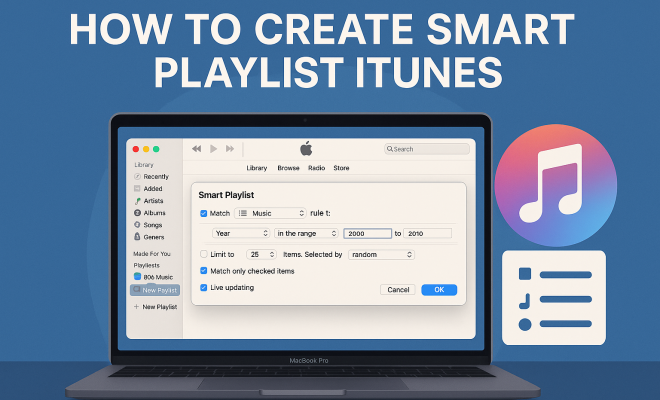
To create a smart playlist in iTunes, click on the “File” menu at the top of the window. From there, select “New” and then click on “Smart Playlist.” A dialog box will appear, giving you multiple options to define the criteria for your playlist.
You can set rules based on various parameters such as the artist, album, genre, play count, and even the date added. For example, if you want a playlist consisting of your favorite rock songs from the last five years, you would set the criteria to include tracks where the genre contains “Rock” and were added within the last five years. This flexibility allows you to mix and match various parameters to create playlists that truly reflect your music tastes.
4. Utilizing Multiple Rules
One of the powerful features of creating smart playlists in iTunes is the ability to use multiple rules. You can combine different criteria to narrow down your selections more precisely. When you set up your smart playlist, you’ll notice an option to add additional rules.
For instance, let’s say you want a playlist that includes songs by a specific artist that you’ve also rated highly. You can add a rule for the artist’s name and another for the rating threshold. You can also choose whether the combination of rules is based on “Any” or “All.” Selecting “Any” means that if a song meets any one of the criteria, it will be included, whereas “All” requires that every criterion be fulfilled. This allows for more nuanced playlist creation tailored to your specific listening habits.
5. Exploring Playlist Options
When creating a smart playlist, you can further customize your experience by exploring various options available in the dialog box. For example, you can limit the number of songs in the playlist or set a duration limit. These features can be particularly useful if you want a playlist for a specific occasion, such as a workout or a road trip. (See: iTunes overview on Wikipedia.)
Another option is checking the box for “Match the following rules,” which allows you to see a live update of the song count based on the criteria you set. This way, you can immediately see how your choices affect the playlist composition, helping you to fine-tune your selections in real time.
6. Saving and Editing Your Smart Playlist
Once you’re satisfied with the criteria and options you’ve set for your smart playlist, it’s time to save it. After hitting the “OK” button in the dialog box, your new smart playlist will appear in your library alongside your other playlists. You can easily access and listen to it whenever you want.
If you decide that you want to tweak your smart playlist later—whether it’s changing the criteria or adding new rules—simply right-click on the playlist in the sidebar and select “Edit Smart Playlist.” This flexibility allows you to keep your playlists fresh as your music preferences evolve.
7. Best Practices and Tips for Smart Playlists
As with any tool, getting the most out of your smart playlists involves a bit of strategy. First, consider regularly reviewing and updating your playlists. Music tastes can fluctuate, so adjusting the parameters periodically ensures that your playlists remain relevant.
You might also experiment by creating themed smart playlists for different moods or activities. For instance, you could have a “Chill Vibes” playlist that includes soft rock and acoustic tracks, or an “Upbeat Workout” playlist featuring high-energy tracks. The possibilities are endless, and the more you play around with different combinations, the more personalized your listening experience will become.
Lastly, don’t hesitate to share your smart playlists with friends or family. You never know who might appreciate a curated collection of your favorite tracks, and sharing can often lead to discovering new music together.
8. Advanced Smart Playlist Techniques
Once you get the hang of creating basic smart playlists, you can use advanced techniques to take your playlists to the next level. One interesting method is to incorporate the “Last Played” rule, which allows you to create playlists of songs you haven’t heard in a while. For instance, you could set a rule to include songs that haven’t been played in over a month.
This can be a great way to rediscover tracks that you might have forgotten about, keeping your listening experience fresh. By curating playlists that fluctuate based on your listening habits, you can maintain an engaging music library that reflects both your past favorites and current preferences.
9. Statistics and Insights on Music Consumption
Music consumption patterns have evolved rapidly with the rise of streaming services. According to a report from the Recording Industry Association of America (RIAA), digital music consumption increased by 12% in 2022 alone, with streaming accounting for over 80% of all music revenue in the U.S. This shift has led to a growing need for tools like smart playlists that help listeners navigate their vast music libraries.
Moreover, studies show that personalized playlists, such as those created through smart playlists, enhance user engagement. A survey found that 70% of respondents felt that customized playlists improved their overall music experience, making them more likely to explore new artists and genres. With smart playlists in iTunes, you can leverage these insights to curate collections that not only resonate with you but also help you discover fresh sounds.
10. Expert Perspectives on Playlist Curation
Music curators and industry experts emphasize the importance of thoughtful playlist creation. According to renowned music blogger Sarah Jones, “The art of playlisting is about storytelling. Each playlist should take the listener on a journey, whether it’s a nostalgic trip down memory lane or an exploration of new sounds.” (See: New York Times on Apple Music playlists.)
Incorporating this perspective into your smart playlists means thinking about the emotional connections you want to evoke. For example, consider creating playlists around significant life events, like a playlist for summer road trips filled with upbeat tracks or a cozy winter playlist filled with softer melodies. This approach adds a layer of meaning to your music library.
11. Creating Smart Playlists for Specific Events
Smart playlists can also be tailored for specific occasions. If you’re planning a party, consider creating a playlist that includes high-energy tracks that get people dancing. Use criteria like genre, tempo, and play count to curate your selections. If it’s a more relaxed gathering, you might want to focus on acoustic tracks or soft rock.
For workouts, you can create a playlist that’s all about getting your heart rate up. Set the criteria to include songs that match a certain BPM (beats per minute), ensuring you have a high-energy selection to keep you motivated. By customizing playlists for various events, you ensure that your music enhances the overall atmosphere, creating memorable experiences.
12. FAQ: Frequently Asked Questions About Smart Playlists in iTunes
What is a smart playlist in iTunes?
A smart playlist in iTunes is a dynamic collection of songs that automatically updates based on specific criteria you set, such as genre, play count, or date added.
How do I create a smart playlist in iTunes?
To create a smart playlist, go to the “File” menu, select “New,” and then choose “Smart Playlist.” You can then set your criteria in the dialog box that appears.
Can I edit my smart playlist after I create it?
Yes, you can edit your smart playlist at any time. Just right-click on the playlist in the sidebar and select “Edit Smart Playlist” to make changes to the criteria or rules.
What types of criteria can I use for smart playlists?
You can use various criteria, including artist, album, genre, play count, rating, and more. This allows for highly customized playlists that match your listening preferences.
Are there limits to how many songs can be in a smart playlist?
You can set a maximum number of songs or a duration limit while creating your smart playlist, but there’s no strict limit on how many songs can be included if you don’t set these restrictions.
How can I share my smart playlists with others?
You can share your smart playlists by exporting them or by sharing them through iTunes or Apple Music. This way, your friends can enjoy the curated collections you’ve created!
13. Utilizing Smart Playlists for Mood-Based Listening
One of the most appealing aspects of smart playlists in iTunes is their adaptability for mood-based listening. Whether you’re feeling energetic, nostalgic, or relaxed, you can design playlists that perfectly suit your current mood.
For example, if you’re looking to unwind after a long day, you can create a smart playlist that pulls from genres like ambient, classical, or soft jazz. Set the criteria to include songs with lower BPMs (beats per minute) or those you’ve marked as favorites within a specific genre, creating a serene auditory experience. On the other hand, if you’re gearing up for a workout, you might prefer high-energy tracks with a faster tempo, ensuring that your playlist keeps you motivated and engaged throughout your session.
14. Integrating Smart Playlists with Other Applications
If you’re using multiple music applications or services, consider how you can integrate your smart playlists for a seamless listening experience. For instance, if you use Apple Music in conjunction with iTunes, you can sync your smart playlists across devices, making your curated collections accessible whether you’re at home or on the go.
Additionally, third-party applications like Musicolet or SongShift can allow you to transfer your playlists between different music services, so you can take your favorite smart playlists wherever you choose to listen. This integration makes it easier to maintain a cohesive music library that aligns with your preferences and lifestyle.
15. Comparing Smart Playlists with Regular Playlists
While regular playlists require manual updates, smart playlists in iTunes automatically adjust based on the criteria you set. This fundamental difference highlights the efficiency of smart playlists. Let’s break down some key comparisons:
- Maintenance: Smart playlists require little to no maintenance compared to regular playlists, which need to be updated as your music library evolves.
- Flexibility: Smart playlists allow you to set dynamic rules, making them adaptable to your tastes as they change, whereas regular playlists remain static unless manually adjusted.
- Discovery: With smart playlists, you’re more likely to discover long-forgotten tracks or new favorites that align with your specified criteria as your music library grows.
These comparisons illustrate how smart playlists offer a more dynamic and organized approach to music management, ensuring that your listening experience is always fresh and relevant.
16. Conclusion
Creating a smart playlist in iTunes is a straightforward yet powerful way to enhance your music experience. By understanding the features available and applying thoughtful criteria, you can enjoy a tailored collection of your favorite tunes that evolve with your tastes. So, roll up your sleeves, open iTunes, and start creating smart playlists that resonate with you.
“`
Trending Now
Frequently Asked Questions
How do I create a smart playlist in iTunes?
To create a smart playlist in iTunes, open the application, click on the 'File' menu, select 'New', and then choose 'Smart Playlist'. A dialog box will appear where you can set the criteria for your playlist, allowing it to automatically update based on your preferences.
What are smart playlists in iTunes?
Smart playlists in iTunes are dynamic collections of songs that automatically update based on specific criteria you set, such as song ratings or release dates. This feature helps you organize your music library without needing to manually adjust playlists every time you add new music.
Can I customize the criteria for my smart playlist in iTunes?
Yes, you can customize the criteria for your smart playlist in iTunes. When creating a playlist, you can choose various parameters like song ratings, play counts, or genre, allowing for a personalized music experience tailored to your tastes.
Do I need the latest version of iTunes to create smart playlists?
Yes, it's recommended to have the latest version of iTunes to create smart playlists. Updating ensures you have access to all features and improvements, making the playlist creation process smoother and more efficient.
What are some examples of smart playlists I can create in iTunes?
You can create various smart playlists in iTunes, such as one for songs released in the last year, tracks you've rated five stars, or a collection of your most played songs. This versatility allows you to enjoy a customized music experience.
Have you experienced this yourself? We’d love to hear your story in the comments.