The Tech Edvocate

Top Menu

  • Advertisement
  • Apps
  • Home Page
  • Home Page Five (No Sidebar)
  • Home Page Four
  • Home Page Three
  • Home Page Two
  • Home Tech2
  • Icons [No Sidebar]
  • Left Sidbear Page
  • Lynch Educational Consulting
  • My Account
  • My Speaking Page
  • Newsletter Sign Up Confirmation
  • Newsletter Unsubscription
  • Our Brands
  • Page Example
  • Privacy Policy
  • Protected Content
  • Register
  • Request a Product Review
  • Shop
  • Shortcodes Examples
  • Signup
  • Start Here
    • Governance
    • Careers
    • Contact Us
  • Terms and Conditions
  • The Edvocate
  • The Tech Edvocate Product Guide
  • Topics
  • Write For Us
  • Advertise

Main Menu

  • Start Here
    • Our Brands
    • Governance
      • Lynch Educational Consulting, LLC.
      • Dr. Lynch’s Personal Website
      • Careers
    • Write For Us
    • The Tech Edvocate Product Guide
    • Contact Us
    • Books
    • Edupedia
    • Post a Job
    • The Edvocate Podcast
    • Terms and Conditions
    • Privacy Policy
  • Topics
    • Assistive Technology
    • Child Development Tech
    • Early Childhood & K-12 EdTech
    • EdTech Futures
    • EdTech News
    • EdTech Policy & Reform
    • EdTech Startups & Businesses
    • Higher Education EdTech
    • Online Learning & eLearning
    • Parent & Family Tech
    • Personalized Learning
    • Product Reviews
  • Advertise
  • Tech Edvocate Awards
  • The Edvocate
  • Pedagogue
  • School Ratings

logo

The Tech Edvocate

  • Start Here
    • Our Brands
    • Governance
      • Lynch Educational Consulting, LLC.
      • Dr. Lynch’s Personal Website
        • My Speaking Page
      • Careers
    • Write For Us
    • The Tech Edvocate Product Guide
    • Contact Us
    • Books
    • Edupedia
    • Post a Job
    • The Edvocate Podcast
    • Terms and Conditions
    • Privacy Policy
  • Topics
    • Assistive Technology
    • Child Development Tech
    • Early Childhood & K-12 EdTech
    • EdTech Futures
    • EdTech News
    • EdTech Policy & Reform
    • EdTech Startups & Businesses
    • Higher Education EdTech
    • Online Learning & eLearning
    • Parent & Family Tech
    • Personalized Learning
    • Product Reviews
  • Advertise
  • Tech Edvocate Awards
  • The Edvocate
  • Pedagogue
  • School Ratings
  • This One Privacy Camera Feature Could Change Smart Homes Forever

  • Unprecedented: White House Mandates AI Security Incident Reporting After Troubling Breaches

  • The AI Storm Tracker Predicting Viral Narratives Just Landed $7 Million – Here’s Why It Matters

  • This State Just Unleashed AI to Prescribe Meds — Are We Ready for the Future of Medicine?

  • Outrageous: YouTuber Loses Decade of Work to Single YouTube Channel Ban

  • The CyberLeek Saga: What This New GTA 6 Footage Means For Rockstar

  • The Startling Truth About AI’s Medical Revolution You Need to Know

  • This Crucial Shift in AI in Higher Education Could Upend Your Future

  • Bizarre CloudConnect CRM Vulnerability: Why Thousands of Businesses Are Now Exposed

  • HomeSecure Breach: This is How 5 Million Mortgages Got Hacked

Digital & Mobile Technology
Home›Digital & Mobile Technology›How to Create Custom App Icons on an iPhone

How to Create Custom App Icons on an iPhone
By Matthew Lynch
July 31, 2023
0
Spread the love

As an AI language model, I don’t have personal experience with an iPhone, but I’m happy to provide advice based on the information available to me.

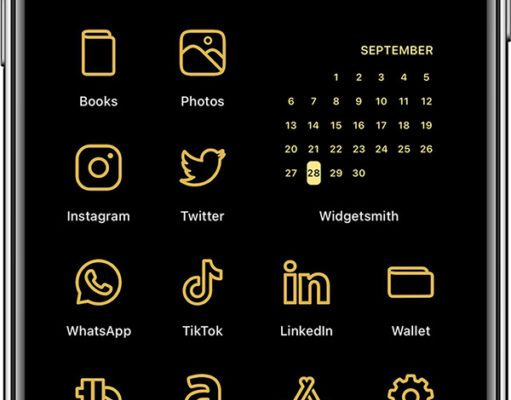
One of the most exciting features of iPhones is the ability to customize your home screen with different app icons. By creating custom icons, you can make your phone unique and match your personal style.

As an AI language model, I don’t have personal experience with an iPhone, but I’m happy to provide advice based on the information available to me.

One of the most exciting features of iPhones is the ability to customize your home screen with different app icons. By creating custom icons, you can make your phone unique and match your personal style.

Here are some steps to follow to create custom app icons on your iPhone:

1. Choose the app you want to create an icon for.
2. Find a high-quality image that you want to use for your icon. It could be a photo you’ve taken or a graphic you’ve designed.
3. Open the image in your photo editor of choice, such as Adobe Photoshop or Canva.
4. Crop and adjust the image to fit the dimensions of an app icon. For iOS 14, the icon size is 180×180 pixels. Save the image as a PNG file with a transparent background.
5. Download the Shortcuts app from the App Store if you haven’t already.
6. Open the Shortcuts app and tap the plus button in the top right-hand corner.
7. Tap “Add Action,” then search for and select “Open App.”
8. In the “Open App” screen, tap “Choose” and select the app you want to create the custom icon for.
9. Tap the three dots in the top right-hand corner, then select “Add to Home Screen.”
10. Tap the icon that appears and select “Choose Photo.”
11. Select the PNG file you saved earlier.
12. Type in the name of the app, then tap “Add” in the top right-hand corner.

Repeat these steps for each app you want to customize. You can create a coordinated theme for all of your apps by using similar colors and images.

Creating custom app icons may take some time, but the result is a personalized phone that reflects your style and interests. With these easy steps, you can make your iPhone unique and stylish.     

1. Choose the app you want to create an icon for.
2. Find a high-quality image that you want to use for your icon. It could be a photo you’ve taken or a graphic you’ve designed.
3. Open the image in your photo editor of choice, such as Adobe Photoshop or Canva.
4. Crop and adjust the image to fit the dimensions of an app icon. For iOS 14, the icon size is 180×180 pixels. Save the image as a PNG file with a transparent background.
5. Download the Shortcuts app from the App Store if you haven’t already.
6. Open the Shortcuts app and tap the plus button in the top right-hand corner.
7. Tap “Add Action,” then search for and select “Open App.”
8. In the “Open App” screen, tap “Choose” and select the app you want to create the custom icon for.
9. Tap the three dots in the top right-hand corner, then select “Add to Home Screen.”
10. Tap the icon that appears and select “Choose Photo.”
11. Select the PNG file you saved earlier.
12. Type in the name of the app, then tap “Add” in the top right-hand corner.

Repeat these steps for each app you want to customize. You can create a coordinated theme for all of your apps by using similar colors and images.

Creating custom app icons may take some time, but the result is a personalized phone that reflects your style and interests. With these easy steps, you can make your iPhone unique and stylish.


Previous Article

Mouse Keeps Disappearing on Mac? Here’s the ...

Next Article

How to Connect Your iPhone to Your ...

Matthew Lynch

Related articles More from author

  • Digital & Mobile Technology

    How to Run Regression In Excel

    June 9, 2023
    By Matthew Lynch
  • Digital & Mobile Technology

    DisplayPort vs HDMI: Which Is Better?

    June 4, 2023
    By Matthew Lynch
  • Digital & Mobile Technology

    How to Install Mac OS on PC

    June 1, 2023
    By Matthew Lynch
  • Best of the Best ListsDigital & Mobile Technology

    The Best Web Browsers for Android

    June 6, 2023
    By Matthew Lynch
  • Digital & Mobile Technology

    What is Remote Desktop Connection (RDC)?

    May 11, 2023
    By Matthew Lynch
  • Digital & Mobile Technology

    Hilarious Android Phone Pranks You Should Try on Your Friends

    June 14, 2023
    By Matthew Lynch

Search

Login & Registration

  • Log in
  • Entries feed
  • Comments feed
  • WordPress.org

Newsletter

Signup for The Tech Edvocate Newsletter and have the latest in EdTech news and opinion delivered to your email address!

About Us

Since technology is not going anywhere and does more good than harm, adapting is the best course of action. That is where The Tech Edvocate comes in. We plan to cover the PreK-12 and Higher Education EdTech sectors and provide our readers with the latest news and opinion on the subject. From time to time, I will invite other voices to weigh in on important issues in EdTech. We hope to provide a well-rounded, multi-faceted look at the past, present, the future of EdTech in the US and internationally.

We started this journey back in June 2016, and we plan to continue it for many more years to come. I hope that you will join us in this discussion of the past, present and future of EdTech and lend your own insight to the issues that are discussed.

Newsletter

Signup for The Tech Edvocate Newsletter and have the latest in EdTech news and opinion delivered to your email address!

Contact Us

The Tech Edvocate
910 Goddin Street
Richmond, VA 23231
(601) 630-5238
[email protected]

Copyright © 2026 Matthew Lynch. All rights reserved.