How to connect laptop to TV with HDMI
“`html
In today’s digital landscape, the ability to connect a laptop to a TV via HDMI is increasingly important for various tasks, whether it’s streaming your favorite shows, giving a presentation, or enjoying a gaming experience on a larger screen. This guide will provide you with all the essential information and practical steps to effectively connect your laptop to your TV using HDMI.
1. Understanding HDMI Technology
HDMI, or High-Definition Multimedia Interface, is a standard for transmitting audio and video data from a source device to a display. This technology has become the go-to for connecting various devices, such as laptops, TVs, gaming consoles, and more. The key advantages of HDMI include high-definition video, multi-channel audio, and a single-cable solution that simplifies connections.
Developed in 2003, HDMI has undergone several revisions, with the current version being HDMI 2.1. This version supports higher resolutions (up to 8K), enhanced refresh rates, and additional features like Variable Refresh Rate (VRR) for smoother gameplay. Understanding these advancements can help you make the most of your connection when projecting your laptop screen onto your TV.
2. Check Your Laptop and TV Compatibility
Before attempting to connect your laptop to your TV, it’s crucial to ensure that both devices have HDMI ports. Most modern laptops and TVs come equipped with HDMI, but it’s always good to verify. Look for a port labeled “HDMI”—it resembles a trapezoid shape and should be located on the side or back of your devices.
If your laptop doesn’t have an HDMI port, don’t fret! Many laptops come equipped with alternative connections such as USB-C or Mini DisplayPort. In this case, you can use adapters to convert these outputs to HDMI. Make sure to check the specifications of your laptop and the adapter to ensure compatibility.
3. Gather the Required Equipment
To connect your laptop to your TV, you’ll need a few essential items. Firstly, an HDMI cable is a must-have. These cables are widely available and come in various lengths; choose one that suits your setup. Additionally, if you’re using an adapter, verify that it supports the required resolution and refresh rate for your display.
Furthermore, you might want to consider the distance between your laptop and your TV. For longer distances, you may require an HDMI extension cable or a wireless HDMI transmitter, which can eliminate the hassle of dealing with cables altogether. With the right equipment in hand, you’re ready to make the connection.
4. Connecting the HDMI Cable
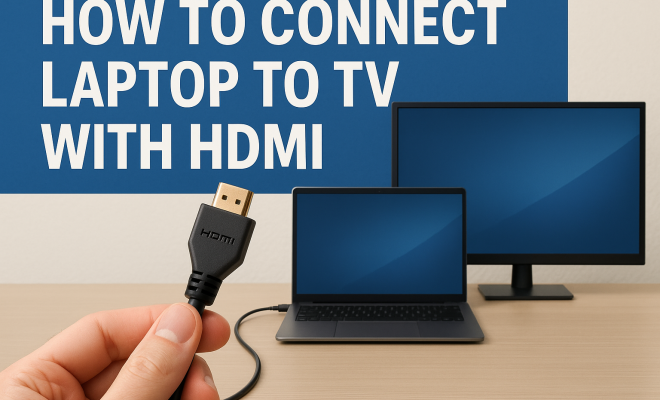
Now that you have everything you need, it’s time to connect your laptop to your TV. Start by powering off both devices. Plug one end of the HDMI cable into your laptop’s HDMI port and the other end into one of the HDMI ports on your TV. Take note of which port you use, as you’ll need to select this input on your TV later.
Once everything is connected, power on your TV, and then your laptop. Your TV might automatically detect the HDMI connection, but if it doesn’t, you can manually change the input source using your TV remote. Look for a button labeled “Input,” “Source,” or something similar. Select the HDMI port you just used, and you should see your laptop screen mirrored on your TV.
5. Adjust Display Settings on Your Laptop
After connecting your laptop to the TV, you may need to adjust the display settings to optimize your viewing experience. On Windows laptops, right-click on the desktop and select “Display settings.” Here, you can choose to duplicate your laptop screen on the TV or extend your display for multitasking purposes.
If you’re using a Mac, navigate to “System Preferences” and then select “Displays.” From there, you can choose to mirror or extend the display as well. Adjust the resolution settings if necessary to match the TV’s specifications, ensuring a crisp and clear image.
6. Troubleshooting Common Issues
Sometimes, even with the correct setup, things can go awry. One common issue is hearing sound from the laptop but not from the TV. This can often be resolved by changing the audio output settings. On a Windows machine, right-click the sound icon in the taskbar, select “Playback devices,” and choose your TV as the default output. For Mac users, go to “System Preferences,” then “Sound,” and select your TV under the Output tab. (See: HDMI technology overview.)
Another potential problem is the display not appearing at all. If you encounter a black screen, double-check that the HDMI cable is securely connected at both ends. Additionally, ensure that you’ve selected the correct input source on your TV. If the issue persists, testing the HDMI cable on another device can help determine if the cable is faulty.
7. Using Wireless HDMI Alternatives
As technology advances, wireless HDMI solutions are becoming increasingly popular. Devices like the Google Chromecast, Amazon Fire Stick, and Apple TV allow you to stream content from your laptop to your TV without the need for physical cables. These devices typically require you to install specific apps on your laptop, making them easy to use for streaming videos, playing music, or mirroring your screen.
While wireless solutions offer convenience, they may also introduce latency or lower video quality compared to wired connections. If you’re planning to stream high-definition video or use your laptop for gaming, a wired HDMI connection is often the best option. However, for casual viewing and presentations, wireless HDMI alternatives can be an effective solution.
8. Practical Use Cases for Connecting Your Laptop to a TV
Connecting your laptop to a TV via HDMI opens up a world of possibilities. You can easily stream films and TV shows from platforms like Netflix or Hulu on a larger screen, enhancing your viewing experience. For gamers, playing games on a TV can bring a whole new level of immersion.
Moreover, it’s a handy solution for professionals needing to present slideshows or demonstrations. Connecting your laptop to a bigger screen allows for better visibility among larger audiences. This connectivity can also be beneficial for educational purposes, where interactive lessons can be projected onto a TV for enhanced learning.
9. Exploring Future HDMI Technologies
As HDMI technology continues to evolve, new features and capabilities are being introduced that enhance the user experience. HDMI 2.1 supports features like Dynamic HDR and enhanced Audio Return Channel (eARC), which provide better sound quality and more vibrant visuals. As new devices are released, they will likely adopt these advanced features, making future connections even more dynamic.
Keeping an eye on these developments can help you stay ahead in the tech game. As devices become smarter and more interconnected, knowing how to connect your laptop to a TV via HDMI will be an invaluable skill. Whether for entertainment, work, or education, this knowledge empowers you to utilize your technology to its fullest potential.
10. Benefits of Using HDMI to Connect Your Laptop to TV
Using HDMI to connect your laptop to a TV offers numerous advantages. First, the audio-visual quality is exceptional. HDMI transmits high-definition video and multi-channel audio, which means you can enjoy your content in the best possible quality. This is particularly noticeable when watching movies or playing video games, where graphics and sound play a vital role in the experience.
Another significant benefit is the simplicity of the connection. HDMI is a universal standard, meaning most devices come equipped with HDMI ports. This eliminates the need for multiple cables and devices, streamlining your setup. Just one HDMI cable can deliver both audio and video, keeping your space tidy and organized.
Additionally, HDMI supports various formats and resolutions, allowing users to leverage the capabilities of their devices. Whether streaming 4K content or playing games, HDMI can handle it all. This versatility ensures that your setup can adapt to your needs as technology evolves.
11. Comparing HDMI with Other Connection Methods
While HDMI is the most popular method for connecting laptops to TVs, it’s worth considering other options. VGA and DVI are older standards, primarily used for video only. They do not transmit audio, so you’d need an additional connection for sound. This makes HDMI a more convenient option for most users.
Another alternative is DisplayPort, which is often found on high-end laptops and gaming setups. DisplayPort can also send audio and video data and supports higher refresh rates and resolutions compared to HDMI 2.0. However, HDMI is generally more widely accepted across various devices, making it a more user-friendly choice for the average consumer.
USB-C is another emerging standard that offers versatility. Many laptops now include USB-C ports that can transmit video and audio signals. However, this requires compatible cables and sometimes adapters to connect to a TV. For users seeking simplicity and compatibility, HDMI remains the preferred choice.
12. Expert Perspectives on HDMI Connections
Experts in the field of home entertainment often emphasize the importance of using HDMI cables that meet the appropriate specifications. High-Speed HDMI cables are recommended for 4K video and above, ensuring that users can enjoy high-definition content without lag or quality loss. Some experts even suggest investing in premium cables, as they may offer enhanced durability and better shielding against interference. (See: ergonomics of remote work.)
Audio/video technicians also stress the importance of cable length. Longer cables can sometimes lead to signal degradation, so it’s advisable to keep cable runs as short as possible. For those needing longer distances, active HDMI cables or signal boosters can maintain quality over longer setups.
Industry insiders encourage users to stay updated on HDMI specifications. Knowing the differences between HDMI versions can help users select the right cable and devices to ensure compatibility and performance. This knowledge can be especially beneficial for gamers and filmmakers who require the latest technology for the best experience.
13. FAQ: Common Questions About Connecting Laptop to TV via HDMI
Q1: Can I connect my laptop to a TV wirelessly?
A: Yes, there are several wireless solutions available such as Chromecast, Apple TV, and Miracast. These devices allow you to project your laptop screen without needing an HDMI cable. However, for the best quality and responsiveness, a wired connection is usually recommended.
Q2: What should I do if my TV doesn’t recognize the HDMI connection?
A: Firstly, ensure that the HDMI cable is securely connected. Check that the correct input source is selected on your TV. If issues persist, try restarting both the laptop and the TV, then reconnecting the HDMI cable.
Q3: Can I use an HDMI splitter to connect multiple devices to my TV?
A: Yes, an HDMI splitter allows you to connect multiple devices to a single HDMI port on your TV. However, ensure that the splitter supports the required resolutions and refresh rates for optimal performance.
Q4: What are the differences between HDMI 1.4 and HDMI 2.1?
A: HDMI 2.1 supports higher resolutions (up to 8K) and faster refresh rates, as well as features like Variable Refresh Rate (VRR) and Dynamic HDR. HDMI 1.4, on the other hand, is limited to 4K and lacks many of the advanced features found in HDMI 2.1.
Q5: Is it safe to connect my laptop to a TV while the TV is powered on?
A: Yes, it is generally safe to connect your laptop to a powered-on TV. However, to avoid any potential issues, it can be good practice to connect the devices while they are turned off.
Q6: What if I only see a black screen after connecting my laptop to the TV?
A: If you see a black screen, check if the HDMI cable is properly connected. Ensure the correct source/input is selected on your TV. You may also need to adjust your laptop’s display settings to detect the external display.
Q7: Does HDMI carry audio as well as video?
A: Yes, HDMI transmits both audio and video signals. This is one of its primary advantages over older connection standards, which often required separate audio cables.
Q8: Can I use HDMI to connect my laptop to a projector?
A: Absolutely! Many projectors come equipped with HDMI ports, allowing you to connect your laptop in the same way you would a TV. Just ensure that the projector settings are adjusted correctly to detect the HDMI input.
Q9: Are there any risks associated with using third-party HDMI cables?
A: While many third-party HDMI cables work just fine, it’s essential to choose reputable brands. Poor-quality cables can lead to signal degradation, resulting in lower video and audio quality. Investing in a high-quality cable is often a wise choice. (See: guide to HDTV connections.)
Q10: How can I optimize my laptop’s performance when connected to a TV?
A: You can optimize performance by ensuring that your laptop’s resolution matches the TV’s capabilities. Close unnecessary applications to free up resources and adjust display settings for either mirroring or extending the screen, depending on your needs.
14. Tips for Maintaining Your HDMI Connection
To keep your HDMI connection working smoothly, consider these practical tips. Regularly check your cables for damage or wear, as frayed cables can lead to signal loss. It’s also a good idea to avoid bending or twisting the cable excessively, as this can create internal breaks that may not be visible.
Additionally, when not in use, store your HDMI cables in a cool, dry place to prevent any moisture damage. Avoid exposing them to extreme temperatures or direct sunlight, which can also lead to deterioration over time. With proper care, your cables can last for many years without issues.
15. How HDMI Enhances Gaming Experiences
For gamers, connecting a laptop to a TV via HDMI can significantly enhance the gaming experience. Many modern games are designed to be played in high-definition, and the larger screen size of a TV can provide more immersive gameplay. Features like HDMI 2.1’s Variable Refresh Rate (VRR) mean that frame rates can sync better with the display, reducing screen tearing and providing smoother visuals.
Many gaming consoles and PCs now use HDMI for their output, and connecting to a TV can provide better audio-visual performance than using a monitor. Additionally, with 4K capability, gamers can experience sharper images and more vivid colors, which can be crucial in fast-paced games where visual fidelity makes a difference.
16. Exploring Additional HDMI Features
Beyond just transmitting video and audio, HDMI technology includes several features that enhance the user experience. For instance, HDMI CEC (Consumer Electronics Control) allows users to control multiple devices through a single remote, making it easy to switch between devices without multiple remotes cluttering your space.
Another feature, HDMI ARC (Audio Return Channel), allows audio to be sent back from the TV to the audio system, eliminating the need for additional audio cables. This is especially useful for setups that use external sound systems, enabling a more streamlined and organized approach to home entertainment.
17. Conclusion: Making the Most of Your HDMI Connection
Connecting your laptop to your TV via HDMI opens a multitude of opportunities for entertainment, productivity, and enhanced experiences. With the right tools and techniques, you can enjoy everything from streaming shows at high definition to engaging in immersive gaming sessions.
Staying informed about the capabilities of your devices and the latest HDMI technology ensures that you can fully utilize your setup. Whether you’re a casual viewer or a serious gamer, understanding how to optimize your HDMI connection is essential for a seamless experience every time you connect your devices.
“`
Trending Now
Frequently Asked Questions
How do I connect my laptop to my TV using HDMI?
To connect your laptop to your TV using HDMI, first locate the HDMI port on both devices. Use an HDMI cable to connect them. Once connected, switch your TV to the appropriate HDMI input, and your laptop screen should be mirrored on the TV. If it doesn't appear, adjust the display settings on your laptop.
What do I need to connect my laptop to a TV?
To connect your laptop to a TV, you will need an HDMI cable and ensure both devices have HDMI ports. If your laptop lacks an HDMI port, you may need an adapter, such as USB-C to HDMI or Mini DisplayPort to HDMI, depending on your laptop's output options.
Can I use a USB-C port to connect my laptop to a TV?
Yes, you can use a USB-C port to connect your laptop to a TV if your laptop supports video output through USB-C. You'll need a USB-C to HDMI adapter to convert the signal. Ensure that the adapter is compatible with your laptop to achieve the best results.
What should I do if my laptop doesn't have an HDMI port?
If your laptop doesn't have an HDMI port, check for alternative ports like USB-C or Mini DisplayPort. You can use an appropriate adapter to convert these outputs to HDMI, allowing you to connect your laptop to your TV without issues.
Is HDMI better than VGA for connecting a laptop to a TV?
Yes, HDMI is generally better than VGA for connecting a laptop to a TV. HDMI transmits both high-definition video and audio through a single cable, providing superior quality and convenience. VGA, on the other hand, only carries video signals and often requires separate audio connections.
Have you experienced this yourself? We’d love to hear your story in the comments.