Clean Your PC: A Comprehensive Guide to Dust Removal
“`html
Dust accumulation in your computer can lead to overheating, decreased performance, and even hardware failures. If you’ve ever wondered how to clean a computer effectively and safely, you’re in the right place. Regular maintenance not only prolongs the lifespan of your machine but can also keep it running smoothly. This comprehensive guide covers everything you need to know about cleaning dust from your computer.
1. Understanding the Importance of Cleaning Your Computer
Keeping your computer clean is vital for both performance and longevity. Dust, dirt, and debris can clog fans and vents, creating a barrier that prevents proper airflow. This can lead to overheating, which is one of the leading causes of hardware failure. Over time, excessive heat can damage components such as the CPU and GPU.
Moreover, dust buildup can trap moisture, leading to corrosion of electronic parts. Regular cleaning not only minimizes these risks but also enhances the overall performance of your computer. You’ll notice a more responsive machine with better speeds and fewer crashes when you take the time to maintain it properly.
2. Gathering the Right Tools for the Job
To clean your computer effectively, you’ll need some essential tools. Here’s a list of what you should have on hand:
- Microfiber cloths: These are excellent for wiping surfaces without scratching.
- Compressed air canister: Perfect for blowing dust out of hard-to-reach areas.
- Screwdrivers: To open your computer case, depending on the type of screws used.
- Isopropyl alcohol: For cleaning delicate surfaces and electronic components.
- Anti-static wrist strap: To prevent static electricity from damaging components.
Having these tools ready will make the cleaning process smoother and more efficient. It’s also wise to wear gloves to prevent oils from your skin from transferring to surfaces.
3. Preparing Your Computer for Cleaning
Before diving into the cleaning process, you must prepare your computer. Start by turning off the machine and unplugging it from the power source. This is critical for your safety and helps prevent damage. If you’re cleaning a laptop, remove the battery if possible.
Next, transfer any essential data or pinpoint the location of important files. While cleaning, there’s always a slight risk of accidental damage. Taking these precautions can save you from headaches later. Also, consider taking pictures of your cable arrangements before disconnecting anything to make reassembly easier.
4. Cleaning the Exterior of Your Computer
With your computer powered down and unplugged, it’s time to start cleaning the exterior. Begin with the case itself, using a microfiber cloth lightly dampened with a mixture of water and isopropyl alcohol. Wipe down the surfaces, paying attention to areas that collect more dust, such as the top and sides.
For laptops, don’t forget to clean the keyboard and touchpad. You can use compressed air to blow out debris from between the keys and then follow up with a slightly damp cloth. This helps remove fingerprints and grime that accumulate from daily use.
5. Cleaning the Interior Components
Once the exterior is clean, it’s time to tackle the interior. Carefully open the case using your screwdriver. If you’re unsure how to do this, refer to your manufacturer’s instructions to avoid damaging clips or screws. (See: Importance of cleaning and maintenance.)
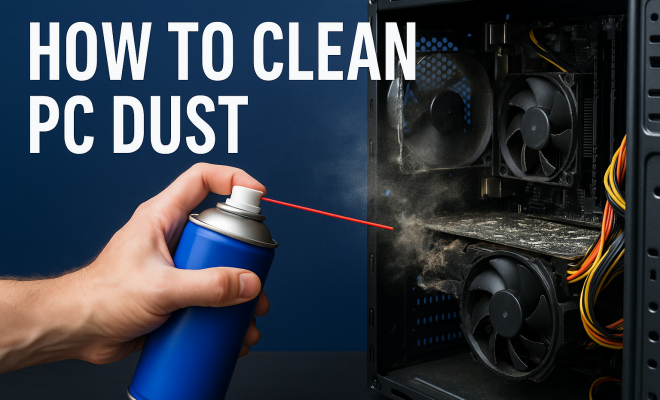
Utilize compressed air to blow away dust from components such as the CPU cooler, graphics card, and fans. Hold the canister upright to prevent moisture from escaping into your computer’s interior. Aim for short bursts of air, and make sure to keep a safe distance to avoid damaging delicate components.
6. Dealing with Fan and Heat Sink Issues
The fans and heat sink are critical for maintaining optimal temperatures within your computer. Dust can accumulate here quickly, so you must ensure these parts are clean. Use compressed air to blow out dust from the fan blades and heat sink fins.
If you notice that the dust buildup is particularly stubborn, you might need to disassemble the fans for a more thorough clean. Just remember to document the process with pictures, so you can easily reassemble everything later. After cleaning, check that the fans are working correctly by observing them while the computer is running.
7. Reassembling Your Computer
After you’ve finished cleaning the interior components, it’s time to put everything back together. Double-check that all connections are secure and that no cables are pinched. Reattach the side panel or case cover, ensuring you’ve replaced all screws properly.
Before powering on your machine, take a moment to clean the workspace. Dust and debris can easily end up back inside your computer if any particles are left behind. Once everything is back in place, plug your computer back in and power it on.
8. Setting Up a Regular Maintenance Schedule
Cleaning your computer isn’t a one-time task; it should be part of your regular maintenance routine. Depending on your environment, consider cleaning your computer every three to six months. If you live in a particularly dusty area or have pets, you may need to do it more frequently.
In addition to physical cleaning, consider monitoring your computer’s temperature using software tools. This will help you identify any overheating issues early on. By setting up reminders for cleaning, you can keep your computer in peak condition for years to come.
9. Common Mistakes to Avoid When Cleaning Your Computer
While cleaning your computer, it’s easy to make mistakes that could lead to damage or ineffective cleaning. Here are some common pitfalls to watch out for:
- Using the Wrong Cleaner: Avoid using household cleaners that contain ammonia or other harsh chemicals. These can damage screens and plastic components. Stick with isopropyl alcohol for electronics.
- Forgetting to Ground Yourself: Always use an anti-static wrist strap or periodically touch a grounded metal object to prevent static discharge, which can harm sensitive parts.
- Blowing Dust Deeper: When using compressed air, ensure you’re not just pushing dust further into the components. Aim for proper angles and short, controlled bursts.
- Neglecting Software Maintenance: Cleaning isn’t just physical. Regularly uninstall unused applications, run disk cleanup programs, and check for malware to keep your system running smoothly.
10. When to Seek Professional Help
While most cleaning tasks can be done by you, there are times when it’s better to seek professional help. If you notice any physical damage, such as a burnt smell, unusual noises, or if your computer won’t power on, it’s best to consult a technician. Additionally, if you’re uncomfortable opening your computer or lack the necessary tools, hiring a professional can save you time and prevent potential damage.
11. The Benefits of Regular Computer Cleaning
Regularly cleaning your computer offers numerous benefits beyond just aesthetics. Here’s how a clean computer can positively impact your experience:
- Enhanced Performance: A clean system runs cooler and faster, which can improve your overall productivity. Tasks that once lagged can become smoother and more efficient.
- Extended Lifespan: Minimizing dust buildup reduces wear and tear on components, allowing your computer to last longer.
- Improved Aesthetics: A clean computer looks better on your desk, which can enhance your workspace environment.
- Better Health: Dust can be a health hazard, especially if you’re allergic. Keeping your workspace clean contributes to a healthier environment.
12. Statistics on Computer Maintenance
Understanding the statistics surrounding computer maintenance can highlight its importance. Here are some key figures: (See: How to clean your computer effectively.)
- According to a survey by a leading tech magazine, 60% of computer users reported experiencing performance issues due to dust buildup.
- Research shows that devices that undergo regular maintenance can last up to 30% longer than those that are neglected.
- Data from IT professionals indicates that cleaning can reduce overheating incidence by over 50%, significantly lowering repair costs.
13. Frequently Asked Questions (FAQ)
How often should I clean my computer?
It’s generally recommended to clean your computer every three to six months. However, if you live in a dusty area, have pets, or use your computer heavily, consider cleaning it more frequently.
Can I use water to clean my computer?
Water can be used cautiously on surfaces with a microfiber cloth, but it’s important to avoid getting any moisture inside the computer. Use isopropyl alcohol for cleaning electronic components.
Is it safe to use a vacuum cleaner to clean my computer?
Using a vacuum cleaner is not advisable. The suction can create static electricity, which can damage components. Instead, use compressed air to remove dust safely.
What should I do if my computer is still overheating after cleaning?
If your computer continues to overheat after you’ve cleaned it, consider checking the thermal paste on your CPU, ensuring fans are functioning properly, and monitoring for any potential hardware failures.
Can dust affect my computer’s performance?
Absolutely! Dust can block airflow, causing overheating and performance lags. Regular cleaning helps maintain optimal performance levels.
14. Advanced Cleaning Techniques
If you’re looking to take your cleaning regimen to the next level, consider these advanced techniques that can help restore your computer’s performance even further:
1. Thermal Paste Replacement
Replacing the thermal paste on your CPU and GPU can significantly improve heat transfer, leading to better cooling performance. Over time, thermal paste can dry out, which reduces its effectiveness. If you notice that your temperatures are still high even after a thorough cleaning, this could be a vital next step. Make sure to carefully remove the old paste and apply a new, high-quality thermal compound.
2. Cleaning Internal Cables
Don’t overlook internal cables. Dust can accumulate on cables and connectors, which can result in poor connections. Use a microfiber cloth to gently wipe down cables, or use compressed air to blow dust away. Keeping these connections clean can enhance signal integrity and overall system performance.
3. Checking and Replacing Filters
If your computer has air filters, check them regularly for dust buildup. Clean or replace them as needed to ensure optimal airflow. Some setups, especially gaming PCs, come equipped with dust filters that can be easily removed and cleaned. Regularly maintaining these filters can greatly reduce the amount of dust entering your system. (See: Impact of dust on electronic devices.)
15. How to Clean Peripherals
While cleaning the computer itself is important, don’t forget about its peripherals. Here’s how to clean your keyboard, mouse, and monitor effectively:
Keyboard
- Turn it upside down and gently shake it to dislodge debris.
- Use compressed air to blow out dust and crumbs from between the keys.
- Dampen a microfiber cloth with isopropyl alcohol and gently wipe down the keys.
Mouse
- Use a microfiber cloth to clean the surface and underside.
- For optical mice, ensure the sensor area is clean; use compressed air if necessary.
- If your mouse has removable parts, clean those separately.
Monitor
- Use a microfiber cloth to gently wipe the screen, avoiding paper towels that may scratch.
- For tougher smudges, use a screen-safe cleaner on the cloth, not directly on the screen.
16. Understanding Computer Components and Their Maintenance
Each component inside your computer plays a crucial role in its overall performance. Here’s a deeper look at some key parts and how maintenance can impact them:
CPU (Central Processing Unit)
The CPU is the brain of your computer, and keeping it cool is essential for performance. As mentioned, replacing thermal paste can help. Additionally, ensure the CPU cooler is dust-free and functioning properly.
GPU (Graphics Processing Unit)
For gamers and graphic designers, the GPU is vital. Dust can accumulate on the fans here as well, leading to overheating during intensive tasks. Regularly check and clean your GPU, and consider monitoring its temperature using software to catch issues early.
Power Supply Unit (PSU)
The PSU is often overlooked but can harbor a lot of dust. Dust can block the fan, leading to overheating and failure. Most power supplies have a fan that needs to be kept clean. If your PSU is particularly dirty, consider removing it for a thorough cleaning.
17. Regular Software Maintenance
Cleaning your computer isn’t just about physical dust; software maintenance is equally crucial. Here’s how to keep your system in top shape:
- Update your Operating System: Keeping your OS up to date ensures you have the latest security patches and performance enhancements.
- Uninstall Unused Programs: Regularly assess the programs you have installed and remove any that you no longer use. This can free up valuable space and resources.
- Run Disk Cleanup: Use built-in tools to clean up temporary files, empty the recycle bin, and clear out unnecessary system files.
- Check for Malware: Run regular scans with reputable antivirus software to ensure your computer isn’t being slowed down by malicious software.
18. Conclusion: Enjoying a Dust-Free Computing Experience
Understanding how to clean a computer effectively is an invaluable skill for any computer user. Regular maintenance can prevent performance issues and extend the life of your machine. With the right tools and a bit of time, you can keep your computer dust-free and running smoothly. So, roll up your sleeves, grab your cleaning gear, and give your computer the care it deserves. You’ll be amazed at the difference it makes!
“`
Trending Now
Frequently Asked Questions
How often should you clean your computer?
It's recommended to clean your computer every 3 to 6 months, depending on your environment. If you notice dust accumulation or overheating, clean it more frequently. Regular maintenance helps prolong the lifespan of your machine and ensures optimal performance.
What tools do I need to clean my computer?
To effectively clean your computer, gather microfiber cloths, a compressed air canister, screwdrivers, isopropyl alcohol, and an anti-static wrist strap. These tools will help you safely remove dust without damaging components.
Can dust damage my computer?
Yes, dust can significantly damage your computer by clogging fans and vents, leading to overheating. This heat can harm critical components like the CPU and GPU, potentially causing hardware failures and decreased performance.
Is it safe to use compressed air to clean a PC?
Yes, using compressed air is safe and effective for cleaning a PC. It helps blow dust out of hard-to-reach areas without direct contact, minimizing the risk of damaging sensitive components. Just ensure to hold the can upright.
What should I do before cleaning my computer?
Before cleaning your computer, turn it off and unplug it from the power source. Ground yourself to prevent static electricity damage and gather your cleaning tools. This preparation ensures a safe and effective cleaning process.
What’s your take on this? Share your thoughts in the comments below — we read every one.