Restore Mouse Precision: Clean Your Mouse Sensor Effectively
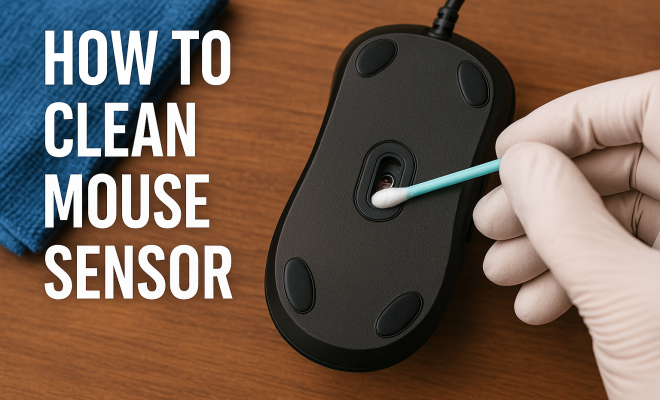
“`html
In the digital age, a responsive and accurate mouse is indispensable for both gamers and office workers alike. Yet, many of us overlook one critical component that directly influences our mouse’s performance: the sensor. If you’ve ever experienced erratic cursor movements, it might be time to clean your mouse sensor. In this guide, we’ll explore how to clean mouse sensors effectively, delve into the importance of maintenance, and provide tips to ensure your device remains in top condition.
1. Understanding Mouse Sensors
Mouse sensors are the eyes of your device, translating every movement into cursor action on your screen. There are primarily two types of sensors: optical and laser. Optical sensors use a light-emitting diode (LED) to detect movement, while laser sensors utilize a laser for precision tracking on various surfaces.
Each type has its pros and cons. Optical sensors are generally more effective on opaque surfaces, while laser sensors work on a broader range of materials. However, both types can accumulate dirt and smudges over time, leading to a decline in performance. Thus, understanding how to clean a mouse sensor is crucial for maintaining its functionality.
2. Why Cleaning Your Mouse Sensor Matters
A dirty mouse sensor can lead to a host of problems, including inaccurate tracking, erratic cursor movement, and an overall frustrating user experience. Dust, debris, and even oils from your hands can accumulate on the sensor, causing it to misinterpret movement inputs.
Regular cleaning not only enhances your mouse’s performance but can also extend its lifespan. A clean mouse sensor ensures that the device operates smoothly, which is particularly important for gamers who rely on precision and responsiveness. Additionally, maintaining your mouse can save you from the expenses of premature replacement.
3. Gathering the Right Cleaning Supplies
Before you embark on the cleaning process, make sure you have the necessary supplies. Here’s a quick checklist of what you’ll need:
- Microfiber cloth or soft lint-free cloth
- Cotton swabs (Q-tips)
- Isopropyl alcohol (preferably 70% or higher)
- Compressed air (optional)
- Small screwdriver (for mice with removable covers)
Using the right materials is essential to avoid damaging your mouse. For instance, avoid using paper towels or rough fabrics that could scratch the sensor or surface of the mouse. Instead, opt for a microfiber cloth, which is gentle yet effective.
4. Step-by-Step Guide to Clean Your Mouse Sensor
Now that you’re equipped with the right supplies, let’s go through the step-by-step process of how to clean your mouse sensor:
- Power Down: First and foremost, make sure your mouse is turned off or unplugged from your computer. If it’s a wireless mouse, remove the batteries.
- Remove Surface Debris: Use a dry microfiber cloth to wipe down the surface of the mouse, paying special attention to the areas around the sensor. This will help remove any larger particles before you move on to cleaning the sensor itself.
- Clean the Sensor: Dampen a cotton swab with isopropyl alcohol (do not soak it) and gently rub it over the sensor lens. Be cautious not to apply too much pressure as this could damage the sensor.
- Air It Out: If you have compressed air, give the mouse a few short bursts to dislodge any remaining dust or debris around the sensor area.
- Final Wipe: Use a clean, dry part of the microfiber cloth to give the sensor another gentle wipe, ensuring it’s clean and free of any moisture.
- Reassemble (if needed): If you disassembled your mouse for cleaning, carefully reattach any parts you removed.
- Power On: Turn your mouse back on or reinsert the batteries and reconnect it to your computer to test its performance.
Following these steps will help ensure that your mouse sensor remains clean and functions optimally.
5. Common Mistakes When Cleaning Mouse Sensors
When cleaning your mouse sensor, it’s easy to make mistakes that could lead to damage. Here are some common errors to avoid:
- Using Harsh Chemicals: Avoid using window cleaners or any products containing ammonia, as these can damage the plastic components of your mouse.
- Excessive Pressure: Applying too much pressure when cleaning the sensor can lead to scratches or malfunction. Always be gentle.
- Neglecting Other Areas: While the sensor is important, don’t forget to clean other parts of the mouse, such as the buttons and wheel, which can also collect grime and affect performance.
Being aware of these pitfalls can help you maintain your mouse better and avoid costly mistakes. (See: Overview of computer mouse technology.)
6. Frequency of Cleaning
How often should you clean your mouse sensor? The answer largely depends on your usage. For heavy gamers or users who spend long hours on their computers, it’s advisable to clean the sensor every couple of weeks. Casual users, however, might get away with cleaning their mouse once a month or even quarterly.
Keep an eye on the performance; if you notice any irregular cursor movements or tracking issues, it’s time for a cleaning session. An effective cleaning routine not only enhances performance but also instills a sense of care for your hardware.
7. Upgrading Your Mouse: When Is It Time?
While cleaning can significantly enhance your mouse’s performance, there comes a time when it might be necessary to invest in a new device. Signs that it might be time for an upgrade include:
- Persistent Tracking Issues: If cleaning and maintenance don’t resolve tracking problems, it could indicate that the sensor is degraded or damaged.
- Physical Damage: Breaks or cracks in the mouse casing can affect functionality and performance, making it time to look for a replacement.
- Technology Advancements: Newer mice often come with advanced features like better sensors, customizable weights, and programmable buttons that enhance the user experience.
Investing in a new mouse can significantly improve your productivity and gaming experience, especially if your current device is several years old.
8. Expert Tips for Maintenance
Maintaining your mouse doesn’t end with cleaning the sensor. Here are some expert tips to keep your device in excellent condition:
- Keep Your Workspace Clean: A clutter-free environment reduces the chances of dust and debris accumulating on your mouse.
- Use a Mouse Pad: A quality mouse pad can significantly enhance tracking performance and protect the sensor from dirt.
- Store Safely: When not in use, store your mouse in a clean, dry place to prevent dust buildup.
Regular maintenance and careful handling can prolong the life of your mouse and keep it performing at its best.
9. Common Mouse Sensor Issues and Fixes
Even with regular cleaning, you might encounter issues with your mouse sensor from time to time. Here’s a breakdown of some common problems and potential fixes:
- Cursor Lag: If you notice a delay between your mouse movement and cursor response, check if your mouse surface is clean and free from obstructions. Additionally, try using a different surface or mouse pad to see if the issue persists.
- Inaccurate Tracking: If the cursor seems to jump or drift, even after cleaning the sensor, it may be an issue with the mouse’s surface calibration. Many gaming mice come with software that allows you to adjust settings; check if recalibrating helps.
- Unresponsiveness: If the mouse isn’t responding at all, ensure it is powered on and properly connected to your computer. Try a different USB port or replace the batteries if it’s wireless.
10. Statistics on Mouse Usage and Maintenance
Understanding the impact of proper mouse maintenance can be illustrated with some compelling statistics:
- According to a survey conducted by TechRadar, nearly 70% of users reported improved performance after cleaning their mouse sensors regularly.
- A study by MouseReview found that over 50% of gamers experience performance issues due to dirty mouse sensors.
- Another report by CleanTech indicated that up to 30% of users do not clean their mice regularly, leading to potential replacements that could have been avoided with simple maintenance.
These statistics highlight the significance of a clean mouse sensor not just for individual performance, but for the longevity of the device itself.
11. Frequently Asked Questions (FAQ)
What should I do if my mouse sensor is still not working after cleaning?
If your mouse sensor is still unresponsive after cleaning, consider checking the mouse on another computer to rule out connection issues. If it still doesn’t work, you may need to replace the mouse.
Can I use water to clean my mouse sensor?
It’s best to avoid using water directly on your mouse sensor. Instead, opt for isopropyl alcohol, which evaporates quickly and won’t leave moisture behind.
How can I prevent my mouse sensor from getting dirty?
Using a quality mouse pad, keeping your workspace clean, and storing your mouse properly can help minimize dust and debris accumulation on your mouse sensor. (See: Importance of cleaning computer peripherals.)
Is it necessary to clean my gaming mouse sensor more often than a regular mouse?
Yes, gamers often experience higher usage rates and different conditions that lead to more dirt and debris. Therefore, it’s wise to clean a gaming mouse sensor more frequently, ideally every couple of weeks.
Can I use baby wipes to clean my mouse?
While baby wipes are gentle, they often contain additives that can leave a residue. It’s safer to stick with isopropyl alcohol and a microfiber cloth to avoid potential damage.
12. Advanced Mouse Sensor Technology
The evolution of mouse sensor technology has dramatically improved the performance and accuracy of mice over the years. Modern mice utilize advanced sensor technology such as PixArt and PMW sensors, which offer high DPI settings and enhanced precision and tracking capabilities.
For instance, high-end gaming mice can have DPI settings that range from 200 to over 20,000, allowing for extremely fine control. This is particularly beneficial for professional gamers who require quick and precise movements. The latest laser sensors also provide better tracking on a wider variety of surfaces, making them versatile for different gaming or working environments.
In addition to DPI improvements, manufacturers are implementing features such as adjustable polling rates. This means users can change how often their mouse reports its position to the computer, resulting in smoother cursor movements and less lag. These advancements highlight the ongoing innovation in mouse technology, making regular cleaning even more critical to ensure optimal performance.
13. Impact of Sensor Quality on Gaming Performance
The quality of a mouse sensor can significantly impact gaming performance. Many competitive gamers often emphasize the importance of having a reliable sensor to ensure accurate tracking and responsiveness. A high-quality sensor reduces input lag and enhances tracking speed, which can be pivotal in fast-paced gaming scenarios.
Research indicates that in FPS (First Person Shooter) games, for example, even the slightest delay can result in losing a match. A study from the Gaming Performance Institute found that players using high-quality sensors had a 25% higher win rate compared to those using standard sensors. This shows that investing in a mouse with a superior sensor can be a game-changer for serious gamers.
Moreover, the way a mouse interacts with different surfaces can affect its performance. Gaming mice often come equipped with features that adapt to various surfaces, optimizing performance depending on the material. Users may find that their mouse performs exceptionally well on a mouse pad designed for gaming but may falter on a glossy surface.
14. Comparing Optical vs. Laser Sensors
Understanding the differences between optical and laser sensors can help you choose the right mouse for your needs. Optical sensors utilize a light source, typically an LED, to detect movement. They perform well on a variety of surfaces, particularly opaque ones. On the other hand, laser sensors use a laser to track movement, allowing for higher accuracy and the ability to work on a broader range of surfaces, including glass.
Here’s a quick comparison of both sensor types: (See: Scientific understanding of mouse sensors.)
| Feature | Optical Sensors | Laser Sensors |
|---|---|---|
| Surface Compatibility | Best on opaque surfaces | Works on more surfaces, including glass |
| Accuracy | Less precise on shiny surfaces | More precise across various materials |
| Power Consumption | Generally lower | Higher, depending on DPI settings |
| Price | Typically more affordable | Can be more expensive due to technology |
Ultimately, the choice between optical and laser sensors will depend on your specific needs and preferences. Gamers may prefer the precision of laser sensors, while casual users may find optical sensors sufficient for everyday tasks.
15. Long-Term Care and Maintenance Tips
To ensure your mouse continues to function well over time, consider these long-term care tips:
- Regular Inspections: Periodically check for signs of wear and tear, especially on the cable and buttons. Address any issues early to prevent further damage.
- Update Drivers: Keeping your mouse drivers updated can enhance performance and fix existing bugs that might affect functionality.
- Temperature Considerations: Avoid exposing your mouse to extreme temperatures or direct sunlight, as this can degrade the materials and affect sensor performance.
- Professional Cleaning: If you’re unsure about cleaning your mouse yourself, consider professional cleaning services, especially for high-end gaming mice.
By incorporating these practices into your routine, you can maximize the lifespan of your mouse and maintain its performance at a high level.
16. The Future of Mouse Sensors
The future of mouse sensor technology looks promising, with continuous innovations aimed at enhancing user experience. Emerging technologies such as 3D tracking and gesture recognition are on the horizon. These advancements could allow users to control their devices with simple hand movements or gestures, moving beyond traditional mouse usage.
Additionally, the integration of AI into mouse technology may enable sensors to learn users’ behavior and automatically adjust settings for optimal performance based on tasks or gaming styles. The inclusion of smart features can revolutionize the way we interact with our devices, making the importance of keeping your mouse sensor clean and functional even more critical.
17. Conclusion: The Importance of a Clean Mouse Sensor
In summary, knowing how to clean a mouse sensor is an essential skill for anyone who relies on a mouse for work or play. Keeping your sensor clean improves performance, accuracy, and longevity, ensuring a smooth user experience. By following the steps outlined in this guide and avoiding common cleaning mistakes, you can maintain your mouse effectively. Remember, a little care goes a long way in preserving the functionality of your devices.
So, the next time you notice your cursor acting up, don’t forget to give that mouse sensor a proper clean. You’ll be amazed at the difference a clean mouse sensor can make!
“`
Trending Now
Frequently Asked Questions
How do I clean my mouse sensor?
To clean your mouse sensor, first turn off the mouse and unplug it. Use a microfiber cloth slightly dampened with water or isopropyl alcohol to gently wipe the sensor area. Avoid using excessive liquid and ensure the sensor is dry before reconnecting the mouse.
Why is my mouse cursor jumping?
A jumping cursor is often caused by a dirty mouse sensor. Dust, debris, or oils can interfere with the sensor's ability to track movement accurately. Regular cleaning can help resolve this issue and improve overall performance.
What supplies do I need to clean my mouse?
To clean your mouse, gather a microfiber cloth, isopropyl alcohol or water, and possibly a soft brush for hard-to-reach areas. These supplies will help you effectively remove dirt and grime from the mouse sensor and surface.
How often should I clean my mouse sensor?
It's a good practice to clean your mouse sensor every few weeks, especially if you notice any tracking issues. Regular maintenance can help ensure optimal performance and extend the lifespan of your mouse.
Can a dirty mouse sensor affect gaming performance?
Yes, a dirty mouse sensor can significantly impact gaming performance by causing erratic cursor movements and inaccurate tracking. For gamers who rely on precision, maintaining a clean sensor is crucial for an optimal gaming experience.
Have you experienced this yourself? We’d love to hear your story in the comments.