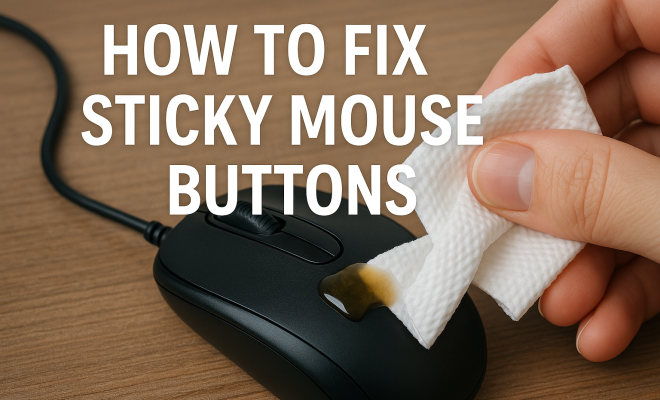
How to fix sticky mouse buttons
“`html
Experiencing issues with sticky mouse buttons can be incredibly frustrating, particularly for those who rely on their devices for work or gaming. Not only can it disrupt productivity, but it can also lead to inaccurate clicks and a general sense of annoyance. If you’re looking to fix sticky mouse buttons, you’re in the right place. In this guide, we’ll explore the causes of this issue, practical solutions, and preventive measures to ensure your mouse performs as expected.
1. Understanding the Causes of Sticky Mouse Buttons
Before jumping into solutions, it’s essential to understand what causes mouse buttons to become sticky. A number of factors can contribute to this issue:
- Dirt and Debris: Over time, dust, food particles, and other debris can accumulate under and around the mouse buttons, creating resistance when you click.
- Wear and Tear: Mechanical wear can lead to misalignment of the button components, making them less responsive or causing them to stick.
- Moisture: Spills or humidity can cause internal components to swell or malfunction, contributing to sticky behavior.
Understanding these causes helps users identify whether a simple cleaning or more significant repairs are necessary.
2. Basic Cleaning Techniques
The first step in resolving sticky mouse buttons is a thorough cleaning. Here’s how to effectively clean your mouse:
- Gather Your Supplies: You’ll need a microfiber cloth, cotton swabs, isopropyl alcohol (at least 70%), and a can of compressed air.
- Unplug Your Mouse: For safety, disconnect your mouse from your computer or turn it off if it’s wireless.
- Wipe Down the Surface: Dampen the microfiber cloth with isopropyl alcohol and gently wipe the entire mouse surface, including the buttons and underside.
- Clean the Crevices: Use cotton swabs dipped in alcohol to clean around the buttons and in hard-to-reach areas. Be careful not to saturate these areas.
- Use Compressed Air: Blow air around the buttons and in the crevices to dislodge any trapped debris.
A proper cleaning can make a significant difference and might solve the problem entirely.
3. Disassembling the Mouse
If cleaning didn’t resolve the issue, disassembling the mouse might be necessary. Here’s how to do it safely:
- Prepare Your Workspace: Choose a flat surface and gather the right tools, typically a small screwdriver.
- Remove the Screws: Look for screws under the mouse’s base or beneath the stickers. Carefully remove them.
- Gently Open the Mouse: Use a plastic prying tool to separate the two halves of the mouse. Take care not to damage any internal components.
Once disassembled, you can inspect the internal mechanisms for any visible debris or damage that may be causing the sticky buttons.
4. Inspecting Internal Components
After disassembling your mouse, it’s time to check the internal components. Here’s what to look for:
- Button Mechanism: Examine the button assembly for dirt or wear. If you notice significant wear, it might be time to replace the switch.
- Wiring: Ensure that no wires are pinched or damaged, as this can affect button functionality.
- Spring Mechanism: Some mice have springs that may become misaligned. If they appear bent or out of place, they need to be repositioned or replaced.
These inspections can help pinpoint the exact cause of the stickiness and are critical for effective repairs. (See: Learn about computer mouse technology.)
5. Replacing Faulty Components
If your internal inspection reveals that components need replacement, here’s how to proceed:
- Purchase Replacement Parts: Look for compatible parts for your specific mouse model online or through electronic component suppliers.
- Follow Installation Instructions: Many vendors provide installation guides. Make sure to follow them closely for a successful replacement.
- Reassemble the Mouse: Once you’ve replaced any faulty components, carefully put your mouse back together, ensuring all screws are tightened.
Replacing faulty components can breathe new life into your mouse and resolve any persistent sticking issues.
6. Utilizing Software Solutions
Sometimes, the issue with sticky mouse buttons may not be mechanical but rather software-related. Here are some steps to troubleshoot:
- Update Drivers: Make sure your mouse drivers are up to date. Visit the manufacturer’s website for the latest software.
- Adjust Mouse Settings: Check your mouse settings for any configuration that could be causing issues. For instance, adjusting sensitivity or click speed may alleviate the problem.
- Check for Conflicting Software: Sometimes, third-party software can interfere with mouse performance. Consider disabling or uninstalling unnecessary programs to troubleshoot.
Using software solutions can sometimes resolve issues without the need for physical repairs or cleaning.
7. Preventative Measures for Longevity
Once you’ve successfully fixed your sticky mouse buttons, consider taking steps to prevent future issues:
- Regular Cleaning: Make it a habit to clean your mouse periodically, especially if you work in dusty environments or frequently snack while using it.
- Use a Mouse Pad: A good quality mouse pad can help reduce debris build-up and provide a better surface for your mouse.
- Limit Exposure to Moisture: Be cautious of spills and humidity. Keeping your workspace clean and dry can prolong the life of your mouse.
By implementing these preventative measures, you’ll enhance the lifespan of your mouse and avoid sticky button issues in the future.
8. When to Seek Professional Help
While many sticky mouse button issues can be resolved at home, there are times when seeking professional help is the best option. Here are some signs it might be time to consult a technician:
- No Improvement: If you’ve tried cleaning and inspecting the mouse without success, a professional may have the tools and experience to diagnose deeper issues.
- Complex Repairs: If your mouse requires soldering or specialized parts that you can’t source, it’s best to leave it to the professionals.
- Warranty Considerations: If your mouse is still under warranty, DIY repairs could void it. Contact the manufacturer for guidance instead.
Knowing when to seek a professional can save you time and potentially prevent further damage to your mouse.
9. Common Myths About Sticky Mouse Buttons
There are several myths surrounding sticky mouse buttons that can mislead users. Here are a few to clarify:
- Myth: Sticky buttons are always due to dirt. While dirt is a common cause, sticky buttons can also stem from mechanical failure or software issues.
- Myth: All mice are the same and can be fixed the same way. Mice come in various designs and constructions, impacting how you should approach repairs. Always refer to the specific model’s guidelines.
- Myth: It’s cheaper to buy a new mouse than to fix one. This can be true, but if your mouse is high-end or has sentimental value, repairs can be worthwhile.
10. Statistics on Mouse Usage and Maintenance
Understanding how often people face issues with their mice can help emphasize the importance of maintenance. According to recent studies: (See: Ergonomics and computer use.)
- About 60% of computer users experience problems with their mouse at least once a year, with sticky buttons being one of the most reported issues.
- Over 30% of users neglect regular maintenance, leading to more significant issues over time.
- Interestingly, users who regularly clean their mice report a 50% decrease in performance-related complaints.
These statistics reflect the importance of understanding and addressing mouse maintenance before it becomes a larger problem.
11. Comparing Different Types of Mice
Not all mice are created equal. Understanding the differences between various types can help in choosing a mouse that may be less prone to issues like sticky buttons:
- Wired vs. Wireless: Wired mice often have fewer issues with battery-related failures, while wireless mice are more susceptible to moisture from spills.
- Optical vs. Laser Mice: Optical mice are generally more resistant to dirt but may struggle on glossy surfaces. Laser mice are better on various surfaces but can be more sensitive to physical wear.
- Gaming vs. Standard Mice: Gaming mice typically have more robust components designed for frequent use, reducing the likelihood of sticky buttons compared to standard office mice.
Choosing the right mouse for your needs can significantly reduce the likelihood of encountering sticky button issues.
12. Frequently Asked Questions (FAQs)
Here are some common questions people have regarding sticky mouse buttons:
- Q: How often should I clean my mouse?
A: It’s recommended to clean your mouse at least once a month, or more frequently if you notice debris accumulation. - Q: Can I use water to clean my mouse?
A: It’s best to avoid using water. Instead, stick with isopropyl alcohol to prevent moisture damage. - Q: What should I do if my mouse buttons are still sticky after cleaning?
A: If cleaning doesn’t help, consider disassembling your mouse to inspect internal components or seek professional assistance. - Q: Are there any quick fixes for sticky buttons?
A: Sometimes, applying a small amount of silicone lubricant can help temporarily, but this is not a permanent solution. - Q: Does using a mouse pad make a difference?
A: Yes, using a mouse pad can help reduce wear and tear and prevent debris build-up around the mouse buttons.
13. Advanced Cleaning Techniques
If basic cleaning methods don’t fully resolve the sticky button issue, consider these advanced techniques:
- Ultrasonic Cleaning: This method uses ultrasonic waves to create millions of microscopic bubbles that gently clean even the most complex components without damaging them. Many professional repair shops offer ultrasonic cleaning.
- Vacuum Cleaning: A mini vacuum designed for electronics can help suck out debris from under the mouse buttons more thoroughly than compressed air alone.
- Cleaning Gel: This is a sticky substance that can mold into the crevices of your mouse and pick up dust and debris without leaving behind residues.
These methods can be especially useful for users who frequently encounter sticky button issues and want to maintain optimal performance.
14. Understanding Mouse Button Mechanisms
To fully grasp why mouse buttons become sticky, it’s essential to understand how they work. Most mice utilize one of two mechanisms for their buttons:
- Mechanical Switches: These are traditional push-button switches that rely on physical contact to register clicks. Over time, they can wear out, leading to sticking or unresponsive clicks. Understanding the type of switch used in your mouse can help determine if a replacement is necessary.
- Capacitive Touch Sensors: Found in more modern mice, these sensors rely on electrical fields to detect clicks. While they may be less prone to sticking due to wear, they can still malfunction if moisture or debris interferes with the sensor’s performance.
Familiarizing yourself with the internal mechanisms of your mouse can help you make informed decisions about maintenance and repairs.
15. Mouse Maintenance for Gamers
If you’re a gamer, maintaining your mouse is crucial for performance. Sticky buttons can severely impact gameplay, leading to missed clicks or delayed actions. Here are some tailored maintenance tips: (See: Latest technology news and updates.)
- Frequent Cleaning: Gamers often use their mice for extended periods. Clean your mouse weekly if you play regularly, focusing on button areas where sweat and dust can accumulate.
- Invest in Quality: Consider purchasing a gaming mouse designed for durability and ease of maintenance. Many gaming mice have modular designs that make cleaning and repairs easier.
- Monitor Performance: Keep an eye on how your mouse performs during gameplay. If you notice any lag or sticking, address it immediately before it affects your gaming experience.
Staying proactive about your mouse’s condition can enhance your gaming experience and prolong the device’s lifespan.
16. Expert Perspectives on Mouse Maintenance
Industry experts often share valuable insights into maintaining your mouse. Here’s what some professionals recommend:
- Tech Repair Specialist: “Regular maintenance is key. Just like any tool, your mouse needs care. Make it a routine.”
- Gaming Coach: “Having a reliable mouse boosts your performance. Don’t let a simple issue like sticky buttons ruin your game. Invest in a good cleaning kit.”
- Ergonomics Consultant: “Beyond performance, a clean mouse contributes to better ergonomics. Dirt and wear can lead to discomfort in your hand, impacting your overall health.”
Listening to professionals in the field can provide you with practical advice for keeping your mouse in top shape.
17. Future-Proofing Your Mouse Choice
When purchasing a new mouse, consider future-proofing your choice to avoid sticky button issues down the line. Here are some features to look for:
- Modular Design: Some mice come with interchangeable parts that allow for easy replacement of buttons and switches.
- High-Quality Materials: Look for mice made with durable materials that resist wear and tear, including reinforced buttons and sturdy housings.
- Water-Resistant Features: Consider mice with design elements that prevent moisture from entering, particularly if you often consume drinks while using your computer.
Investing in a quality mouse designed for longevity can save you headaches and expenses in the future.
By following these steps, you can effectively fix sticky mouse buttons and restore your device to optimal performance. Remember, regular maintenance and good habits will keep your mouse functioning smoothly for years to come.
“`
Trending Now
Frequently Asked Questions
What causes sticky mouse buttons?
Sticky mouse buttons can be caused by a buildup of dirt and debris, mechanical wear and tear, or moisture from spills and humidity. Identifying the cause is crucial for determining the appropriate solution.
How do I clean sticky mouse buttons?
To clean sticky mouse buttons, gather supplies like a microfiber cloth, cotton swabs, and isopropyl alcohol. Unplug the mouse, wipe down the surface, clean around the buttons with swabs, and use compressed air to remove debris.
Can moisture damage my mouse buttons?
Yes, moisture can damage mouse buttons by causing internal components to swell or malfunction. Spills or high humidity can lead to sticky behavior, so keeping your mouse dry is essential for its longevity.
How can I prevent sticky mouse buttons?
To prevent sticky mouse buttons, regularly clean your mouse to remove dust and debris, avoid eating near your device, and store it in a dry environment to minimize moisture exposure.
What should I do if cleaning doesn't fix my mouse buttons?
If cleaning doesn't resolve the issue, the problem may be due to mechanical wear or misalignment. In such cases, consider disassembling the mouse for repairs or replacing it if necessary.
What did we miss? Let us know in the comments and join the conversation.