The Tech Edvocate

Top Menu

  • Advertisement
  • Apps
  • Home Page
  • Home Page Five (No Sidebar)
  • Home Page Four
  • Home Page Three
  • Home Page Two
  • Home Tech2
  • Icons [No Sidebar]
  • Left Sidbear Page
  • Lynch Educational Consulting
  • My Account
  • My Speaking Page
  • Newsletter Sign Up Confirmation
  • Newsletter Unsubscription
  • Our Brands
  • Page Example
  • Privacy Policy
  • Protected Content
  • Register
  • Request a Product Review
  • Shop
  • Shortcodes Examples
  • Signup
  • Start Here
    • Governance
    • Careers
    • Contact Us
  • Terms and Conditions
  • The Edvocate
  • The Tech Edvocate Product Guide
  • Topics
  • Write For Us
  • Advertise

Main Menu

  • Start Here
    • Our Brands
    • Governance
      • Lynch Educational Consulting, LLC.
      • Dr. Lynch’s Personal Website
      • Careers
    • Write For Us
    • The Tech Edvocate Product Guide
    • Contact Us
    • Books
    • Edupedia
    • Post a Job
    • The Edvocate Podcast
    • Terms and Conditions
    • Privacy Policy
  • Topics
    • Assistive Technology
    • Child Development Tech
    • Early Childhood & K-12 EdTech
    • EdTech Futures
    • EdTech News
    • EdTech Policy & Reform
    • EdTech Startups & Businesses
    • Higher Education EdTech
    • Online Learning & eLearning
    • Parent & Family Tech
    • Personalized Learning
    • Product Reviews
  • Advertise
  • Tech Edvocate Awards
  • The Edvocate
  • Pedagogue
  • School Ratings

logo

The Tech Edvocate

  • Start Here
    • Our Brands
    • Governance
      • Lynch Educational Consulting, LLC.
      • Dr. Lynch’s Personal Website
        • My Speaking Page
      • Careers
    • Write For Us
    • The Tech Edvocate Product Guide
    • Contact Us
    • Books
    • Edupedia
    • Post a Job
    • The Edvocate Podcast
    • Terms and Conditions
    • Privacy Policy
  • Topics
    • Assistive Technology
    • Child Development Tech
    • Early Childhood & K-12 EdTech
    • EdTech Futures
    • EdTech News
    • EdTech Policy & Reform
    • EdTech Startups & Businesses
    • Higher Education EdTech
    • Online Learning & eLearning
    • Parent & Family Tech
    • Personalized Learning
    • Product Reviews
  • Advertise
  • Tech Edvocate Awards
  • The Edvocate
  • Pedagogue
  • School Ratings
  • The Hidden Cost of EVs: Why Your Battery Could Cost More Than Your Car in 2026

  • Jensen Huang’s Shock Exit: This Unbelievable Scandal Just Rocked Nvidia and the AI World

  • Big Walk developer House House Confirms ‘Sparing’ Use of Gen AI – Press Start

  • Baffling: How a Cyber Breach at South Korea’s Top Security Watchdog Exposed Millions

  • Wenn Ordnung den Bildschirm beruhigt: Warum klare Abläufe Casino-Unterhaltung einladender machen

  • Reddit AI Reviews: The Quiet Reshaping of Online Opinion

  • The Chilling Truth: Iran Cyberattacks Europe’s Food and Blood Supplies

  • Anthropic’s $3.4 Billion Bet on Gas: The Unseen Cost of AI’s Future

  • Tribit FlyBuds C3 Earbuds: Premium Features at a Budget-Friendly Price

  • Is AuraCam Pro’s Emotional AI a Privacy Nightmare or Security Breakthrough?

Digital & Mobile Technology
Home›Digital & Mobile Technology›How to Change the Alarm Sound on Your iPhone

How to Change the Alarm Sound on Your iPhone
By Matthew Lynch
June 12, 2023
0
Spread the love

As an iPhone user, setting alarms is essential to stay on track with your daily schedule. While the default alarm sound does the job, it can quickly become monotonous and not motivate you to wake up. Fortunately, the iPhone allows you to customize the alarm sound to a tone that suits you best. In this article, we will take you through the steps to change the alarm sound on your iPhone.

Step 1: Open your Clock App

The first step is to locate your Clock app on your iPhone. It’s usually found on your home screen, and it’s recognizable by an analog clock icon. After opening the app, select the “Alarm” tab at the bottom of your screen.

Step 2: Edit your Alarm

If you already have an alarm set, tap on the “Edit” option located at the top-left corner of your screen. For those creating a new alarm, tap on the plus sign in the top right-hand corner of your screen.

Step 3: Tap on your Alarm Sound

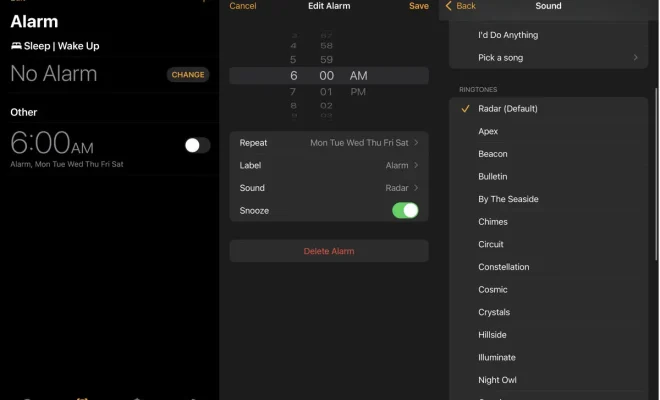
After selecting the “Edit” option or creating a new alarm, you will see a screen that shows the time and other details, including the sound. Tap on the “Sound” option.

Step 4: Browse and Choose a new Alarm Sound

iPhone offers several alarm sound options, ranging from classic to playful sounds. You can also select a tone from your music library by tapping on the “Pick a Song” option. To browse through the sounds, swipe up, and scroll through the list. You can click on a sound to hear a preview of it. When you find one you like, tap on it to apply it to your alarm.

Step 5: Save your New Alarm Sound

After selecting the alarm sound, tap on the “Back” option at the top of your screen. You will then be redirected to the previous screen, where you can save your newly edited alarm or new alarm sound by tapping on the “Save” option.

In conclusion, customizing the sound of your iPhone alarm is an easy process that allows you to select a tone that resonates with your personality or frequent tasks. With these five steps provided, changing your alarm sound has never been more straightforward, so go ahead and switch it up!


Previous Article

Could Not Find or Load Main Class ...

Next Article

How to Use Bookmarks in Google Docs

Matthew Lynch

Related articles More from author

  • Digital & Mobile Technology

    Camera Not Working or Available on Mac? Here’s How to Fix It

    March 13, 2023
    By Matthew Lynch
  • Digital & Mobile Technology

    How to Play Fall Guys Cross-Platform

    June 30, 2023
    By Matthew Lynch
  • Digital & Mobile Technology

    Electronic Stability Control and ESC Failure

    June 10, 2023
    By Matthew Lynch
  • Digital & Mobile Technology

    What Makes the Crypto Currency Market Volatile? Key Reasons

    June 23, 2023
    By Matthew Lynch
  • Digital & Mobile Technology

    How to Open Your Outlook.com Address Book

    June 4, 2023
    By Matthew Lynch
  • Digital & Mobile Technology

    Defining the Digital Single Lens Reflex (DSLR) Camera

    June 4, 2023
    By Matthew Lynch

Search

Login & Registration

  • Log in
  • Entries feed
  • Comments feed
  • WordPress.org

Newsletter

Signup for The Tech Edvocate Newsletter and have the latest in EdTech news and opinion delivered to your email address!

About Us

Since technology is not going anywhere and does more good than harm, adapting is the best course of action. That is where The Tech Edvocate comes in. We plan to cover the PreK-12 and Higher Education EdTech sectors and provide our readers with the latest news and opinion on the subject. From time to time, I will invite other voices to weigh in on important issues in EdTech. We hope to provide a well-rounded, multi-faceted look at the past, present, the future of EdTech in the US and internationally.

We started this journey back in June 2016, and we plan to continue it for many more years to come. I hope that you will join us in this discussion of the past, present and future of EdTech and lend your own insight to the issues that are discussed.

Newsletter

Signup for The Tech Edvocate Newsletter and have the latest in EdTech news and opinion delivered to your email address!

Contact Us

The Tech Edvocate
910 Goddin Street
Richmond, VA 23231
(601) 630-5238
[email protected]

Copyright © 2026 Matthew Lynch. All rights reserved.