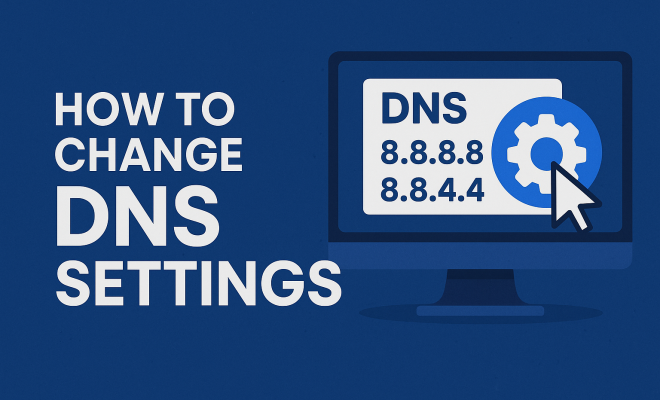
How to change DNS settings
“`html
In today’s digital world, the speed and security of your internet connection are paramount. One often-overlooked aspect that can significantly enhance both is your Domain Name System (DNS) settings. Changing DNS settings may sound technical, but it’s a straightforward process that can lead to faster browsing, improved security, and better overall connectivity. This guide will walk you through everything you need to know about how to change DNS settings, why you might want to, and what options are available.
1. What is DNS and Why Does It Matter?
The Domain Name System (DNS) is essentially the phonebook of the internet. When you type a web address into your browser, your device uses DNS to translate that human-readable address into an IP address that computers use to identify each other on the network. Without DNS, you’d have to remember a series of numbers instead of simple names like www.example.com.
Having the right DNS settings can influence your internet experience significantly. A faster DNS server can reduce the time it takes to resolve domain names, leading to quicker access to websites. Additionally, some DNS services offer enhanced security features, such as blocking malicious sites and preventing phishing attacks, making your browsing experience safer.
2. When Should You Change Your DNS Settings?
There are several scenarios where changing your DNS settings could be beneficial. If you’re experiencing slow internet speeds, changing to a faster DNS provider might help. Alternatively, if you find that certain websites are blocked or inaccessible, utilizing a different DNS server could bypass these restrictions. Furthermore, if privacy is a concern, switching to a DNS provider that emphasizes user privacy can enhance your online security.
It’s also worth considering a DNS change if you’re facing frequent connectivity issues or timeouts. An unreliable DNS server can lead to frustrating browsing experiences, so switching to a more reliable option can make a world of difference.
3. How to Find Your Current DNS Settings
Before you can change DNS settings, you need to know what they currently are. For most devices, this can be done easily through the network settings menu. On Windows, you can open the Command Prompt and type ‘ipconfig /all’ to see your DNS server addresses. For Mac users, going to System Preferences > Network and selecting your active connection will show your DNS settings under the ‘Advanced’ section.
On mobile devices, navigating to the Wi-Fi settings will allow you to view DNS information. Understanding your current settings is essential as it helps you to identify changes accurately when switching to a new DNS provider.
4. Popular DNS Providers to Consider
When you decide to change your DNS settings, you have multiple options. Here are a few popular DNS providers:
- Google Public DNS: (8.8.8.8 and 8.8.4.4) – Known for its speed and reliability.
- Cloudflare: (1.1.1.1 and 1.0.0.1) – Emphasizes privacy and security, claiming not to log your data.
- OpenDNS: (208.67.222.222 and 208.67.220.220) – Offers customizable filtering options and enhanced security features.
- Quad9: (9.9.9.9) – Focuses on security by blocking access to malicious domains.
Choosing a DNS provider can depend on your specific needs. If you prioritize speed, Google or Cloudflare may be the best options. If security is your primary concern, consider Quad9 or OpenDNS.
5. Changing DNS Settings on Windows
Changing DNS settings on a Windows computer is quite straightforward:
- Open the Control Panel.
- Select ‘Network and Internet’ and then click on ‘Network and Sharing Center.’
- Click on ‘Change adapter settings’ on the left pane.
- Right-click on your active network connection (Wi-Fi or Ethernet) and select ‘Properties.’
- Select ‘Internet Protocol Version 4 (TCP/IPv4)’ and hit ‘Properties.’
- In the new window, select the option to ‘Use the following DNS server addresses’ and input your preferred and alternate DNS servers.
- Click ‘OK’ to save your changes.
After making these changes, it’s a good practice to restart your connection or your computer to ensure the new settings take effect. (See: Domain Name System overview.)
6. Changing DNS Settings on Mac
For Mac users, the steps are slightly different but equally simple:
- Go to ‘System Preferences’ and select ‘Network.’
- Choose your active network connection from the list on the left.
- Click on the ‘Advanced’ button.
- Navigate to the ‘DNS’ tab.
- Here, you can remove existing DNS addresses and add new ones by clicking the ‘+’ button.
- Click ‘OK’ and then ‘Apply’ to save your changes.
Your Mac should now be using the new DNS settings. Again, a quick restart of your network or device can help ensure everything is functioning smoothly.
7. Changing DNS Settings on Mobile Devices
Changing DNS settings on mobile devices can vary slightly between Android and iOS. Here’s how to do it on both:
iOS Devices
- Open ‘Settings’ and select ‘Wi-Fi.’
- Tap on the information icon (i) next to your connected network.
- Scroll down to ‘DNS’ and tap ‘Configure DNS.’
- Switch from ‘Automatic’ to ‘Manual’ and add your preferred DNS servers.
- Tap ‘Save’ to apply the changes.
Android Devices
- Go to ‘Settings’ and tap on ‘Network & internet.’
- Choose ‘Wi-Fi’ and select your connected network.
- Tap ‘Advanced’ to find DNS settings.
- Change the DNS setting to ‘Private DNS’ or manually adjust it based on your provider’s details.
- Save your changes.
On mobile devices, it’s worth noting that changing DNS settings will only apply to the current Wi-Fi network you’re connected to. You may need to repeat the process for different networks.
8. Common Issues and Troubleshooting
While changing DNS settings is usually a straightforward process, you may encounter some issues. One common problem is not being able to access the internet after changing the settings. This might indicate that the DNS servers you chose are down or incompatible with your network.
If you run into connectivity issues, here are a few troubleshooting steps:
- Double-check the DNS addresses you entered to ensure there are no typos.
- Try switching back to your original DNS settings to see if connectivity improves.
- Flush your DNS cache. On Windows, you can do this by typing ‘ipconfig /flushdns’ in the Command Prompt.
- Restart your router and device to refresh network settings.
If problems persist, consider reverting to the default DNS settings provided by your internet service provider (ISP).
9. Benefits of Changing DNS Settings
The benefits of changing DNS settings extend beyond just speed. A faster DNS can reduce latency, which means you’ll experience less lag when loading websites. Additionally, many alternative DNS providers offer built-in security enhancements that can protect you from malware and phishing attacks. Some also provide parental controls, allowing you to restrict access to certain content.
Choosing a DNS provider that prioritizes user privacy, such as Cloudflare, can significantly enhance your online anonymity. Unlike some ISPs that log user data, these providers often have strict privacy policies that can safeguard your browsing habits from prying eyes.
10. Final Thoughts on Changing DNS Settings
Changing your DNS settings is a powerful tool at your disposal for optimizing your internet experience. Whether you’re looking for faster load times, enhanced security, or greater privacy, the benefits are clear. The process is simple, and with just a few clicks or taps, you can unlock a better browsing experience.
Always remember to choose a reputable DNS provider that aligns with your needs, whether that’s speed, security, or privacy. As you navigate the ever-evolving digital landscape, having control over your DNS settings empowers you to take charge of your online experience.
11. Advanced DNS Features You Might Not Know About
Once you’ve changed your DNS settings, you might be interested in some advanced features offered by select DNS providers. These features can further enhance your browsing experience and provide additional layers of security. (See: CDC on DNS security features.)
- DNSSEC (Domain Name System Security Extensions): This is a suite of extensions to DNS that provides authentication for DNS responses, helping to protect against attacks like DNS spoofing.
- DNS Filtering: Some DNS services offer customizable filtering options that allow users to block access to specific categories of websites, such as adult content, gambling sites, or malware-infected domains.
- Content Delivery Networks (CDN): Certain DNS providers integrate CDN capabilities, meaning they can direct users to the nearest server hosting the requested content, improving load times significantly.
- Geo-blocking Solutions: Some DNS services offer geo-blocking features, which allow you to access content that may be region-locked, enabling a more global internet experience.
Understanding and utilizing these advanced features can take your internet experience to another level, especially if you’re concerned about security or content accessibility.
12. Statistics on DNS Performance and Security
According to various studies, the choice of DNS provider can significantly impact internet speed and security. For instance, a study by Cloudflare revealed that switching to their DNS service can reduce average DNS lookup times from 30-60 milliseconds to as low as 10 milliseconds, resulting in faster webpage loading times overall.
Furthermore, a report by OpenDNS highlighted that users who switched to their service experienced a reduction in phishing attacks by over 40% due to proactive filtering of malicious domains. This illustrates how changing your DNS settings not only improves speed but can also be a crucial aspect of your online safety.
13. Expert Perspectives on DNS Settings
Many tech experts advocate for changing DNS settings as a part of overall internet hygiene. Cybersecurity analyst Jane Doe states, “Switching to a trusted DNS provider is one of the simplest yet most effective ways to enhance your online security. It’s an easy step that everyone should consider.”
Another expert, network engineer John Smith, emphasizes speed: “DNS speed is often overlooked, but it’s a critical part of your browsing experience. Users should test different providers to see which one offers the best performance for their specific location and internet service.” This advice is particularly relevant for users in regions where internet connectivity is less stable or slower.
14. Frequently Asked Questions (FAQ)
What is the easiest way to change my DNS settings?
The simplest way to change your DNS settings is through the network settings on your device. For most people, this involves a few steps on their operating system or mobile device as outlined in this guide.
Can changing DNS settings improve my internet speed?
Yes, switching to a faster DNS provider can improve your internet speed by reducing the time it takes to resolve domain names. Many people notice a significant improvement in webpage loading times.
Will changing my DNS settings affect my email access?
Changing DNS settings should not affect your email access as long as the DNS servers are operational and correctly configured. However, if you experience issues, check with your email provider for any specific DNS settings they may recommend.
Are there any risks associated with changing DNS settings?
While changing DNS settings is generally safe, choosing an unreliable DNS provider can expose you to risks such as slower speeds or security vulnerabilities. Always opt for reputable providers known for speed and security.
How often should I check my DNS settings?
It’s a good idea to review your DNS settings periodically, especially if you’re experiencing internet issues or if you hear about new, reputable DNS services that could enhance your experience. (See: New York Times on changing DNS settings.)
Can I use different DNS settings for different devices?
Yes, you can configure different DNS settings on each device you own. This allows you to customize your internet experience based on the needs of each device, such as prioritizing speed on your gaming console while using a privacy-focused DNS on your smartphone.
15. Understanding DNS Propagation
When you change your DNS settings, it’s essential to understand the concept of DNS propagation. This refers to the time it takes for changes to your DNS settings to be updated across the entire internet. While you may see changes immediately on your local device, it can take anywhere from a few minutes to 48 hours for those changes to propagate fully throughout the internet.
This delay can affect how quickly others can access your website (if you’re a website owner) or how quickly your new DNS settings take effect. During this period, some users might still be directed to the old IP addresses associated with your previous DNS settings.
16. How to Test DNS Settings
After changing your DNS settings, it’s good practice to test them to ensure they’re working correctly. There are several tools available for this:
- DNS Leak Test: This online tool checks for DNS leaks to ensure your DNS requests are being routed through the correct servers. It helps confirm that your new settings are active.
- Ping Command: Use the command prompt or terminal and type ‘ping [your website]’ to see how quickly your DNS resolves the address. If you notice faster response times, your new DNS settings are likely effective.
- Traceroute Command: This command shows the path your connection takes to reach a specific server, allowing you to identify any potential issues along the route.
Utilizing these testing methods can help you assess whether the changes made to your DNS settings have the desired impact.
17. Future Trends in DNS Technology
As the internet continues to evolve, so do DNS technologies. Future trends include:
- Increased Focus on Security: With rising concerns over privacy and security, expect more DNS providers to implement robust security measures such as DNSSEC and DoH (DNS over HTTPS) to encrypt DNS requests.
- Decentralization: Projects like the Ethereum Name Service (ENS) and other blockchain-based DNS systems are emerging, aiming to reduce reliance on traditional DNS systems and enhance control over domain names.
- Smart DNS Services: These services are likely to gain popularity, offering dynamic DNS routing based on user behavior and preferences, optimizing for speed and access to preferred content.
Staying informed about these trends can help you make better decisions regarding your DNS settings and overall internet experience in the future.
“`
Trending Now
Frequently Asked Questions
What is DNS and why is it important?
DNS, or Domain Name System, acts as the internet's phonebook, translating human-readable domain names into IP addresses. It is crucial for a seamless browsing experience as it directly impacts the speed and security of your internet connection.
When should I change my DNS settings?
Consider changing your DNS settings if you're experiencing slow internet speeds, facing website accessibility issues, or concerned about privacy. Switching to a faster or more secure DNS provider can enhance your overall browsing experience.
How do I change my DNS settings?
Changing your DNS settings involves accessing your device's network settings and entering the preferred DNS server addresses. The process varies slightly depending on your operating system, but generally, it's straightforward and can lead to improved internet performance.
What are the benefits of changing DNS settings?
Changing your DNS settings can lead to faster browsing speeds, improved security features like blocking malicious sites, and enhanced privacy. It also helps in bypassing restrictions on certain websites, providing a more reliable internet experience.
Can changing DNS settings improve internet speed?
Yes, using a faster DNS server can significantly reduce the time it takes to resolve domain names, leading to quicker access to websites. This can enhance your overall internet speed and browsing experience.
What did we miss? Let us know in the comments and join the conversation.