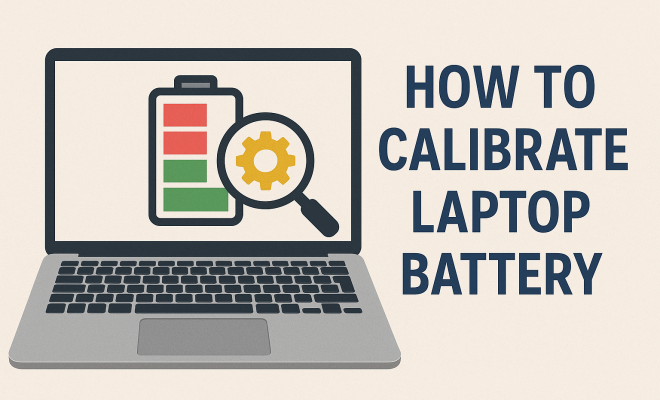
How to calibrate laptop battery
“`html
When it comes to keeping your laptop running smoothly, one often overlooked aspect is the battery. Over time, you might notice your laptop isn’t holding a charge as well as it used to. This could be due to a variety of issues, but one technique that can help restore your battery’s health is to calibrate your laptop battery. Not only does this process improve battery accuracy, but it can also extend your laptop’s life. In this guide, we’ll dive deep into what battery calibration is, how to do it effectively, and why it matters.
1. Understanding Laptop Batteries
Before we delve into the calibration process, it’s important to grasp how laptop batteries function. Most laptops utilize lithium-ion batteries, which are known for their efficiency and lightweight properties. However, over time, these batteries can experience what is known as capacity fade.
Capacity fade refers to the gradual loss of a battery’s ability to hold a charge. This can happen due to a variety of reasons, including age, temperature extremes, and charging habits. If you’ve noticed your laptop battery draining faster than it used to or if the percentage indicator seems inaccurate, it’s likely time to consider calibration.
2. What is Battery Calibration?
Battery calibration is the process of recalibrating the software that monitors your battery’s charge. This involves fully charging the battery, then discharging it completely to ensure the operating system accurately reports the battery’s capacity. Calibration helps align the battery’s actual performance with the metrics that software uses to display battery life.
Why is this important? If your laptop thinks the battery is at 50% when it’s actually closer to 30%, you could find yourself abruptly losing power. Calibration restores the accuracy of these readings, allowing you to better manage your usage and avoid unexpected shutdowns.
3. When to Calibrate Your Laptop Battery
You might wonder how often you should calibrate your laptop battery. While there’s no one-size-fits-all answer, a general guideline is to calibrate your battery every few months or whenever you notice discrepancies in battery life readings. Other indicators that calibration is needed include:
- Unexpected shutdowns or restarts.
- Battery percentage readings that jump inconsistently.
- A drop in battery performance during regular usage.
By regularly calibrating your battery, you can maintain accurate readings and prolong your laptop’s battery life.
4. Step-by-Step Guide to Calibrating Your Laptop Battery
Now that you understand the why behind battery calibration, let’s get into how to actually calibrate your laptop battery. Follow these steps for a thorough calibration:
- Fully Charge Your Battery: Connect your laptop to the charger and let it charge to 100%. Keep it plugged in for an additional two hours after reaching a full charge.
- Change Power Settings: Disable any power-saving features that could interfere with the calibration process. For Windows, go to Control Panel > Power Options, and choose the High Performance plan. For macOS, go to System Preferences > Battery and adjust settings accordingly.
- Disconnect and Discharge: Unplug the charger and use your laptop until it runs out of battery completely. It’s helpful to run high-performance applications to expedite this process.
- Leave it Off: Once the laptop shuts down, leave it off for at least five hours. This step allows the battery to rest and ensures a complete discharge.
- Recharge: After five hours, plug your laptop back in and let it charge uninterrupted to 100%.
Following these steps should calibrate your laptop battery effectively and improve its performance.
5. Tips for Maintaining Laptop Battery Health
Calibrating your laptop battery is just one part of ensuring its longevity. Here are some additional tips to maintain your battery health: (See: lithium-ion battery capacity fade.)
- Avoid Extreme Temperatures: Both hot and cold environments can negatively impact battery performance. Try to keep your laptop in a temperature-controlled environment.
- Don’t Leave it Plugged In Constantly: While most modern laptops are designed to handle being plugged in, it’s still advisable to periodically use the battery to avoid a state of “always plugged in”.
- Update Your Software: Keeping your operating system and drivers updated can ensure that your laptop is running as efficiently as possible, which can positively affect battery life.
- Reduce Background Applications: Close any applications that you’re not actively using. This not only improves performance but also extends battery life.
Implementing these practices alongside regular calibration can significantly enhance your laptop’s battery health.
6. Common Myths About Laptop Batteries
There’s a lot of misinformation out there regarding laptop batteries. Here are a few common myths debunked:
- Myth 1: You need to let the battery completely drain before charging it.
- Myth 2: Frequent charging harms the battery.
- Myth 3: You should always keep your laptop plugged in to maintain performance.
Understanding these myths can help you make better decisions about your laptop usage and battery care. Remember, it’s all about balance — using your battery regularly while ensuring it’s not frequently drained to 0%.
7. How to Identify Battery Issues
As a laptop user, you should be aware of common signs that indicate battery problems. Some symptoms include:
- Rapid Discharge: If your battery life shortens dramatically even with low usage.
- Overheating: A laptop that runs hot may indicate battery or internal hardware issues.
- Battery Swelling: This is a clear indicator that the battery needs to be replaced immediately to avoid further damage.
If you notice any of these issues, it’s crucial to act quickly. Ignoring signs of battery problems can lead to more severe issues down the line, including hardware damage.
8. Battery Replacement: When is it Necessary?
Even with thorough calibration and maintenance, laptop batteries do have a finite lifespan. Typically, lithium-ion batteries last between 2 to 4 years, depending on usage and care. If you find that even after calibration your battery life is severely diminished, it might be time for a replacement.
Before replacing your battery, check your warranty status. Many manufacturers offer battery replacements under warranty. If your warranty is expired, consider third-party options, but ensure they are reputable. A poor-quality battery can cause further issues.
9. Battery Health Monitoring Tools
To aid in maintaining and assessing your battery’s condition, consider using battery health monitoring tools. These tools provide valuable insights into your battery’s charge cycles, overall health, and remaining capacity. Here are a few popular options:
- BatteryInfoView: This is a free tool for Windows users that displays detailed information about the battery, including charge cycles, health status, and more.
- Battery Health 2: For Mac users, this application offers a comprehensive overview of battery statistics along with a detailed report on its health.
- HWMonitor: This tool provides in-depth hardware monitoring for both laptops and desktops, letting you track temperature, voltage, and battery health all in one place.
By regularly checking your battery health, you can make informed decisions about when to calibrate and when it may be time for a replacement.
10. The Impact of Usage Patterns on Battery Life
Your daily habits can significantly influence your laptop battery’s lifespan. Do you often work while plugged in? Or do you frequently let the battery drain completely? Here are some common usage patterns and their impacts:
- Frequent Charging: If you often charge your laptop throughout the day, you might be contributing to faster wear. It’s best to let it drop to around 20% before plugging it in again.
- Power-Hungry Applications: Using graphics-intensive applications like video editing software can drain your battery quickly. If you regularly do this, consider investing in a laptop with a larger battery or ensuring you’re plugged in during heavy tasks.
- Idle Battery: If you leave your laptop plugged in and off for extended periods, it can negatively affect the battery. Ideally, keep it in a charged state between 40% and 80% for optimal health.
Understanding how your habits affect battery health can help you adjust your usage for improved longevity. (See: importance of battery calibration.)
11. Battery Maintenance for Different Laptop Brands
Different laptop brands might have specific recommendations for battery maintenance. Here’s a quick overview of battery care tips for popular brands:
- Dell: Dell suggests using their built-in battery diagnostics tool, Dell Power Manager, to monitor battery health and adjust charging settings based on your usage.
- HP: HP laptops come with HP Support Assistant, which provides battery health checks and optimization recommendations to extend battery life.
- Apple: MacBooks have a feature called Optimized Battery Charging, which learns your charging habits and minimizes battery aging.
- Lenovo: Lenovo laptops offer a feature called Battery Charge Threshold, allowing users to set limits on charging to prolong battery health.
Familiarizing yourself with your specific brand’s guidelines can ensure you’re giving your battery the best care possible.
12. FAQs About Laptop Battery Calibration
What does it mean to calibrate a laptop battery?
Calibrating a laptop battery means adjusting the software that measures battery capacity to ensure accurate readings of charge levels. This helps prevent unexpected shutdowns when the battery still has power.
How often should I calibrate my laptop battery?
A good rule of thumb is to calibrate every few months or whenever you notice inconsistent battery readings or performance issues.
Can I calibrate my battery if it’s not removable?
Yes, even if your laptop has a non-removable battery, you can still calibrate it using the same process. Just ensure you follow the steps closely to avoid any issues.
Do I need special tools to calibrate my battery?
No special tools are required for basic calibration. You only need your laptop, its charger, and time to complete the process.
What happens if I don’t calibrate my battery?
If you don’t calibrate your battery, you may experience inaccurate battery readings, unexpected shutdowns, and a generally reduced lifespan due to poor performance management.
13. Battery Lifespan: Understanding the Science Behind It
Understanding the science of battery lifespan provides insights into why calibration and proper usage are essential. Lithium-ion batteries operate through chemical reactions that take place inside the cells. Over time, as these reactions continue with use, the electrodes degrade, impacting the battery’s ability to hold a charge. This degradation can be accelerated by factors such as excessive heat, overcharging, or complete discharges.
Studies have shown that batteries can lose approximately 20% of their capacity after 300 to 500 charge cycles, which can vary based on usage. A charge cycle is counted every time you use 100% of your battery’s capacity, regardless of whether it’s from one full discharge or several partial discharges. Therefore, understanding your charging habits is vital, as frequent small charges may prolong battery health compared to full discharges. (See: how to extend laptop battery life.)
14. The Role of Battery Management Software
Most operating systems today include battery management software that can help you track and manage your battery’s health. Features often include charge thresholds, battery usage statistics, and health reports. For example, Windows includes settings that allow you to limit the maximum charge to around 80%, which can significantly extend battery lifespan by reducing stress on the battery.
On Macs, the Optimized Battery Charging feature, mentioned earlier, learns your daily charging routine to prevent the battery from staying at 100% for extended periods, which can degrade the battery over time. Make sure to explore these features in your laptop’s settings as they can be incredibly beneficial in managing battery health.
15. Advanced Calibration Techniques
While the basic steps for calibrating your laptop battery are effective, there are advanced techniques that can provide even more detailed insights into your battery’s health. For instance, using command-line tools or third-party software can allow you to generate battery reports that include detailed information about the battery’s cycle count, health status, and estimated time remaining.
For advanced users, tools like BatteryMon or BatteryCare offer real-time monitoring of battery performance, including voltage, current, and temperature. These metrics can help identify if the battery is underperforming before it becomes a significant issue. Additionally, using these tools in conjunction with calibration can provide a comprehensive view of what adjustments might be necessary for maintaining battery health.
16. Environmental Factors Affecting Battery Health
Battery performance is also highly affected by environmental conditions. High humidity levels can lead to corrosion of internal components, while extreme cold can slow down the chemical reactions necessary for the battery’s operation. Understanding the role of environment can help you take preventative measures to keep your battery healthy.
For instance, if you live in an area with fluctuating temperatures, consider using a laptop case that provides insulation. Moreover, avoiding direct sunlight can prevent overheating, which is damaging to battery life. When traveling, be mindful of how you store your laptop to protect it from extreme conditions.
17. Conclusion: Take Charge of Your Laptop Battery
Calibrating your laptop battery is a straightforward yet effective method to maintain its performance and reliability. By understanding how your battery works, implementing regular calibration, and adopting good practices, you can significantly enhance your laptop’s lifespan. Technology is meant to work for you, and a well-maintained battery is a pivotal component in that equation. So, take charge of your laptop battery health today and keep your device running smoothly for years to come.
“`
Trending Now
Frequently Asked Questions
How do I know if my laptop battery needs calibration?
If your laptop battery drains faster than before or the percentage indicator seems inaccurate, it may need calibration. Signs include sudden shutdowns or the operating system misreporting the battery's charge level.
What is the process for calibrating a laptop battery?
To calibrate your laptop battery, fully charge it, then let it discharge completely until the laptop shuts down. After that, recharge it to 100% without interruption. This helps align the battery's actual performance with the software's metrics.
How often should I calibrate my laptop battery?
It's generally recommended to calibrate your laptop battery every 3 to 6 months, or whenever you notice inaccurate battery readings. This helps maintain battery health and ensures accurate performance.
Can calibrating my laptop battery extend its life?
Yes, calibrating your laptop battery can help extend its life by ensuring that the battery's charge level is accurately reported. This allows for better management of power usage and helps prevent unexpected shutdowns.
Does battery calibration really make a difference?
Yes, battery calibration can significantly improve the accuracy of your laptop's battery readings. By recalibrating, you can avoid sudden power loss and better manage your battery's performance over time.
What did we miss? Let us know in the comments and join the conversation.