The Tech Edvocate

Top Menu

  • Advertisement
  • Apps
  • Home Page
  • Home Page Five (No Sidebar)
  • Home Page Four
  • Home Page Three
  • Home Page Two
  • Home Tech2
  • Icons [No Sidebar]
  • Left Sidbear Page
  • Lynch Educational Consulting
  • My Account
  • My Speaking Page
  • Newsletter Sign Up Confirmation
  • Newsletter Unsubscription
  • Our Brands
  • Page Example
  • Privacy Policy
  • Protected Content
  • Register
  • Request a Product Review
  • Shop
  • Shortcodes Examples
  • Signup
  • Start Here
    • Governance
    • Careers
    • Contact Us
  • Terms and Conditions
  • The Edvocate
  • The Tech Edvocate Product Guide
  • Topics
  • Write For Us
  • Advertise

Main Menu

  • Start Here
    • Our Brands
    • Governance
      • Lynch Educational Consulting, LLC.
      • Dr. Lynch’s Personal Website
      • Careers
    • Write For Us
    • The Tech Edvocate Product Guide
    • Contact Us
    • Books
    • Edupedia
    • Post a Job
    • The Edvocate Podcast
    • Terms and Conditions
    • Privacy Policy
  • Topics
    • Assistive Technology
    • Child Development Tech
    • Early Childhood & K-12 EdTech
    • EdTech Futures
    • EdTech News
    • EdTech Policy & Reform
    • EdTech Startups & Businesses
    • Higher Education EdTech
    • Online Learning & eLearning
    • Parent & Family Tech
    • Personalized Learning
    • Product Reviews
  • Advertise
  • Tech Edvocate Awards
  • The Edvocate
  • Pedagogue
  • School Ratings

logo

The Tech Edvocate

  • Start Here
    • Our Brands
    • Governance
      • Lynch Educational Consulting, LLC.
      • Dr. Lynch’s Personal Website
        • My Speaking Page
      • Careers
    • Write For Us
    • The Tech Edvocate Product Guide
    • Contact Us
    • Books
    • Edupedia
    • Post a Job
    • The Edvocate Podcast
    • Terms and Conditions
    • Privacy Policy
  • Topics
    • Assistive Technology
    • Child Development Tech
    • Early Childhood & K-12 EdTech
    • EdTech Futures
    • EdTech News
    • EdTech Policy & Reform
    • EdTech Startups & Businesses
    • Higher Education EdTech
    • Online Learning & eLearning
    • Parent & Family Tech
    • Personalized Learning
    • Product Reviews
  • Advertise
  • Tech Edvocate Awards
  • The Edvocate
  • Pedagogue
  • School Ratings
  • This One Flaw in AI Investment Advice Could Cost You Everything

  • Your Medical Data Exposed: A $2.7M Data Breach Settlement Reveals Shocking Negligence

  • Jaw-Dropping: AI Used to Bug OpenAI, Then AI Caught the Culprit

  • This New Disney Video Game Could Be Its Most Controversial…Here’s Why

  • Ubisoft Layoffs: Why This Studio Closure Is a Heartbreaking Sign of Industry-Wide Rot

  • Your AI Financial Advisor Could Be a Costly Mistake — Here’s Why You’re On The Hook

  • 8 Critical AI Zero-Day Vulnerabilities Exploits That Will Keep You Up At Night

  • Outrageous: 16 Colleges Now Cost Over $100,000 Annually — Here’s Why

  • The Startling Truth About Liberal Arts vs Technical Education in the AI Era

  • Dramatic: Volkswagen’s EV Recall Reveals a Hidden Battery Flaw You Need to Know

Digital & Mobile Technology
Home›Digital & Mobile Technology›How Do I Test the Power Supply in My Computer?

How Do I Test the Power Supply in My Computer?
By Matthew Lynch
July 28, 2023
0
Spread the love

The power supply is an essential component of any computer as it provides the necessary power for all the other parts to function correctly. A faulty power supply can cause a host of issues from random shutdowns to permanent damage to other components, which is why it is important to regularly test your computer’s power supply. In this article, we’ll take a look at how you can test your computer’s power supply to ensure that it is functioning correctly.

Method 1: Using a Multimeter

A multimeter is a device that can measure various electrical properties, including voltages and currents. To test your power supply using a multimeter, follow these steps:

1. Unplug your computer from the wall socket and open the case.

2. Locate the power supply unit (PSU), which is typically a large metal box with a fan and multiple cables coming out of it.

3. Disconnect all the cables from the power supply unit.

4. Plug the power cable back into the wall socket and turn on the power supply unit by flipping the switch on the back.

5. Set your multimeter to DC voltage mode and touch the black probe to any exposed metal part of the case (this is your ground or negative reference point).

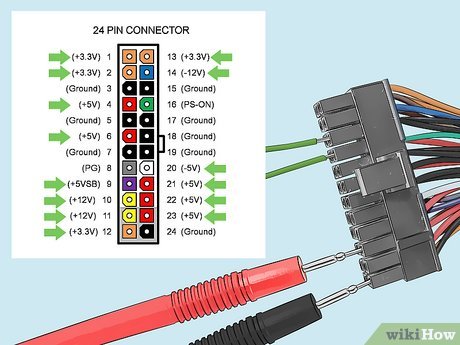
6. Touch the red probe to each of the connectors on the main power cable (the one that connects to the motherboard) one at a time. Note down the voltage readings for each of the connectors.

7. Compare the voltage readings you obtained to the specifications for your power supply (which can usually be found on a label on the side of the PSU). If the readings are within the specified range, then the power supply is functioning correctly. If the readings are significantly lower or higher than what is expected, then your power supply may be faulty.

Method 2: Using a Power Supply Tester

If you do not have a multimeter, you can also use a dedicated power supply tester to check the voltage output of your PSU. These testers are relatively inexpensive and can be found at most computer hardware stores. To use a power supply tester, follow these steps:

1. Unplug your computer from the wall socket and open the case.

2. Locate the power supply unit (PSU), which is typically a large metal box with a fan and multiple cables coming out of it.

3. Disconnect all the cables from the power supply unit.

4. Plug the power cable back into the wall socket and turn on the power supply unit by flipping the switch on the back.

5. Connect the 24-pin or 20+4 pin power cable from your power supply to the tester.

6. Turn on the power supply tester and check the LED lights to ensure that each voltage rail is outputting the correct voltage.

7. Compare the voltage readings displayed on the power supply tester to the specifications for your power supply (which can usually be found on a label on the side of the PSU). If the readings are within the specified range, then the power supply is functioning correctly. If the readings are significantly lower or higher than what is expected, then your power supply may be faulty.

Conclusion:

Regularly testing your computer’s power supply is essential to ensure that it is functioning correctly and to prevent any potential damage to your other components. By using either a multimeter or a power supply tester, you can quickly and easily check the voltage output of your PSU and determine whether or not it needs to be replaced. Remember, a faulty power supply can cause a host of issues, so it’s always better to be safe than sorry.


Previous Article

Ficmax Ergonomic Gaming Chair Review

Next Article

How to Open, Edit, and Convert CSH ...

Matthew Lynch

Related articles More from author

  • Digital & Mobile Technology

    What Are All the New Emojis in iOS 15.4?

    June 8, 2023
    By Matthew Lynch
  • Digital & Mobile Technology

    String or Text String Definition and Use in Excel

    June 10, 2023
    By Matthew Lynch
  • Digital & Mobile Technology

    How to Uninstall and Reinstall Google Play Store on Android

    May 30, 2023
    By Matthew Lynch
  • Digital & Mobile Technology

    How to Fix a Computer That Won’t Turn On

    June 6, 2023
    By Matthew Lynch
  • Digital & Mobile Technology

    Awesome Road Trip Planners for Your Next Adventure

    June 14, 2023
    By Matthew Lynch
  • Digital & Mobile Technology

    Where Were the Windows 10 Lock Screen Photos Taken?

    August 5, 2023
    By Matthew Lynch

Search

Login & Registration

  • Log in
  • Entries feed
  • Comments feed
  • WordPress.org

Newsletter

Signup for The Tech Edvocate Newsletter and have the latest in EdTech news and opinion delivered to your email address!

About Us

Since technology is not going anywhere and does more good than harm, adapting is the best course of action. That is where The Tech Edvocate comes in. We plan to cover the PreK-12 and Higher Education EdTech sectors and provide our readers with the latest news and opinion on the subject. From time to time, I will invite other voices to weigh in on important issues in EdTech. We hope to provide a well-rounded, multi-faceted look at the past, present, the future of EdTech in the US and internationally.

We started this journey back in June 2016, and we plan to continue it for many more years to come. I hope that you will join us in this discussion of the past, present and future of EdTech and lend your own insight to the issues that are discussed.

Newsletter

Signup for The Tech Edvocate Newsletter and have the latest in EdTech news and opinion delivered to your email address!

Contact Us

The Tech Edvocate
910 Goddin Street
Richmond, VA 23231
(601) 630-5238
[email protected]

Copyright © 2026 Matthew Lynch. All rights reserved.