The Tech Edvocate

Top Menu

  • Advertisement
  • Apps
  • Home Page
  • Home Page Five (No Sidebar)
  • Home Page Four
  • Home Page Three
  • Home Page Two
  • Home Tech2
  • Icons [No Sidebar]
  • Left Sidbear Page
  • Lynch Educational Consulting
  • My Account
  • My Speaking Page
  • Newsletter Sign Up Confirmation
  • Newsletter Unsubscription
  • Our Brands
  • Page Example
  • Privacy Policy
  • Protected Content
  • Register
  • Request a Product Review
  • Shop
  • Shortcodes Examples
  • Signup
  • Start Here
    • Governance
    • Careers
    • Contact Us
  • Terms and Conditions
  • The Edvocate
  • The Tech Edvocate Product Guide
  • Topics
  • Write For Us
  • Advertise

Main Menu

  • Start Here
    • Our Brands
    • Governance
      • Lynch Educational Consulting, LLC.
      • Dr. Lynch’s Personal Website
      • Careers
    • Write For Us
    • The Tech Edvocate Product Guide
    • Contact Us
    • Books
    • Edupedia
    • Post a Job
    • The Edvocate Podcast
    • Terms and Conditions
    • Privacy Policy
  • Topics
    • Assistive Technology
    • Child Development Tech
    • Early Childhood & K-12 EdTech
    • EdTech Futures
    • EdTech News
    • EdTech Policy & Reform
    • EdTech Startups & Businesses
    • Higher Education EdTech
    • Online Learning & eLearning
    • Parent & Family Tech
    • Personalized Learning
    • Product Reviews
  • Advertise
  • Tech Edvocate Awards
  • The Edvocate
  • Pedagogue
  • School Ratings

logo

The Tech Edvocate

  • Start Here
    • Our Brands
    • Governance
      • Lynch Educational Consulting, LLC.
      • Dr. Lynch’s Personal Website
        • My Speaking Page
      • Careers
    • Write For Us
    • The Tech Edvocate Product Guide
    • Contact Us
    • Books
    • Edupedia
    • Post a Job
    • The Edvocate Podcast
    • Terms and Conditions
    • Privacy Policy
  • Topics
    • Assistive Technology
    • Child Development Tech
    • Early Childhood & K-12 EdTech
    • EdTech Futures
    • EdTech News
    • EdTech Policy & Reform
    • EdTech Startups & Businesses
    • Higher Education EdTech
    • Online Learning & eLearning
    • Parent & Family Tech
    • Personalized Learning
    • Product Reviews
  • Advertise
  • Tech Edvocate Awards
  • The Edvocate
  • Pedagogue
  • School Ratings
  • The Chew That Changed My Training: Why Nitraflex Pre-Workout Chews Deliver Unbelievable Pumps

  • The Brutal Truth: Why Your AI Skills Training Is Failing (And How to Fix It)

  • 8 Essential AI Upskilling Programs Your Business Needs to Thrive Now

  • One Critical Mistake Companies Make With AI Skills Training

  • The AI Career Showdown: Which Path Pays More And Fits You Best?

  • The Shocking Truth About the Highest Paying AI Jobs in 2026

  • The Staggering Truth About 5 AI Job Roles That Will Redefine Your Career by 2026

  • Crypto Crackdown: Is the FCA’s Iron Fist Crushing Innovation, or Just Protecting You?

  • 7 Critical Steps to Survive the Crypto Crackdown: How to Navigate FCA Regulations

  • This One Thing Is Quietly Reshaping Illegal Crypto Trading — And Regulators Are Panicking

Assistive Technology
Home›Assistive Technology›How to Change Alexa’s Language

How to Change Alexa’s Language
By Matthew Lynch
June 12, 2023
0
Spread the love

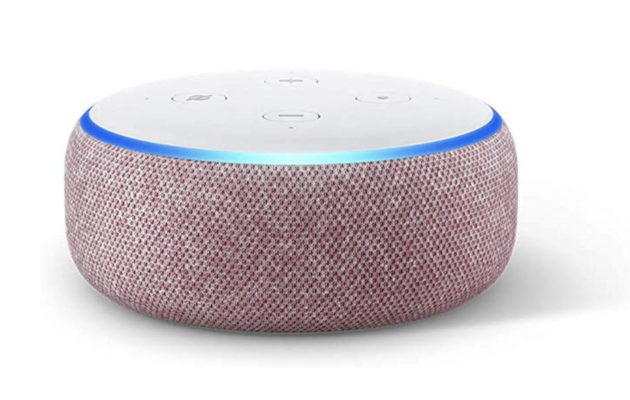
As an Alexa user, you may have found yourself in a situation where you need to switch the language on your Alexa-enabled device. Changing Alexa’s language could be helpful if you speak a different language or if you’re using Alexa in multiple countries. Fortunately, Amazon makes it easy to change Alexa’s language. In this article, we will walk you through the steps needed to change Alexa’s language.

Step 1: Launch the Alexa app

The first step to change Alexa’s language is to launch the Alexa app on your phone or tablet. You can find the app in your device’s app store, and then download and install it. Once the app is installed, open it and log in with your Amazon account.

Step 2: Open the Settings menu

After logging in to the Alexa app, navigate to the Settings menu. You can access the menu either by tapping the three horizontal lines in the upper left corner and selecting “Settings”, or by tapping the gear icon in the upper right corner.

Step 3: Select the device

The next step is to select the device for which you want to change the language. You will see a list of all your Alexa-enabled devices listed in the Settings menu. Choose the device for which you want to modify the language.

Step 4: Tap on Language

Once you have selected the device, scroll down to the “Device Settings” section and tap on the “Language” option. You will see a list of available languages for Alexa.

Step 5: Choose your preferred language

Finally, select your preferred language from the list available. Once you’ve chosen your language, your Alexa-enabled device will automatically switch to that language. You will begin to hear Alexa responses in your chosen language, and the app interface will also switch to the selected language.

Conclusion

Changing Alexa’s language is a straightforward process that can be done from the Alexa app. You don’t have to be tech-savvy to change the language; all you need to do is follow the simple steps outlined above. With Alexa, you can communicate with your device in any language you feel comfortable with, making it more accessible and user-friendly. 

Previous Article

How to Turn Off Low Data Mode ...

Next Article

Slide Layouts in PowerPoint

Matthew Lynch

Related articles More from author

  • Assistive TechnologyFeaturedFresh

    Assistive Technology to Help Students with Aphasia Succeed Academically

    November 12, 2018
    By Matthew Lynch
  • Assistive Technology

    How to Block YouTube on iPad

    June 10, 2023
    By Matthew Lynch
  • Assistive Technology

    How to Quickly Create Temporary Email Addresses With YOPmail

    June 12, 2023
    By Matthew Lynch
  • Assistive Technology

    How to Turn Off Google Assistant

    June 6, 2023
    By Matthew Lynch
  • Assistive Technology

    How to Connect Bose Headphones to a PC

    June 6, 2023
    By Matthew Lynch
  • Assistive Technology

    How to Save Text Messages on iPhone

    June 6, 2023
    By Matthew Lynch

Search

Login & Registration

  • Log in
  • Entries feed
  • Comments feed
  • WordPress.org

Newsletter

Signup for The Tech Edvocate Newsletter and have the latest in EdTech news and opinion delivered to your email address!

About Us

Since technology is not going anywhere and does more good than harm, adapting is the best course of action. That is where The Tech Edvocate comes in. We plan to cover the PreK-12 and Higher Education EdTech sectors and provide our readers with the latest news and opinion on the subject. From time to time, I will invite other voices to weigh in on important issues in EdTech. We hope to provide a well-rounded, multi-faceted look at the past, present, the future of EdTech in the US and internationally.

We started this journey back in June 2016, and we plan to continue it for many more years to come. I hope that you will join us in this discussion of the past, present and future of EdTech and lend your own insight to the issues that are discussed.

Newsletter

Signup for The Tech Edvocate Newsletter and have the latest in EdTech news and opinion delivered to your email address!

Contact Us

The Tech Edvocate
910 Goddin Street
Richmond, VA 23231
(601) 630-5238
[email protected]

Copyright © 2026 Matthew Lynch. All rights reserved.