How to optimize PC for performance
“`html
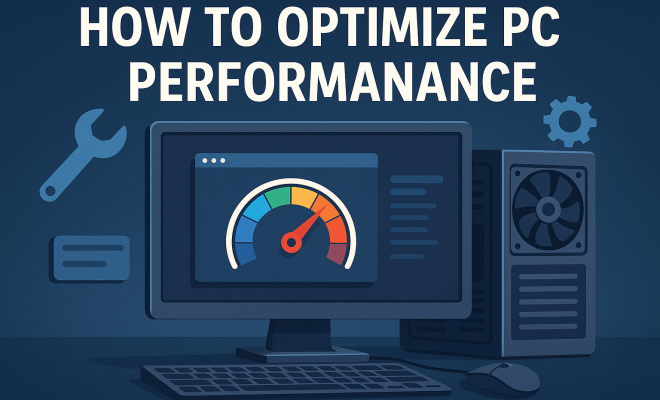
In our fast-paced digital age, having a PC that runs smoothly is essential. Whether you’re gaming, streaming, or working from home, slow performance can be a frustrating hurdle. Fortunately, there are several effective ways to optimize PC performance and enhance your computing experience. Below are nine proven strategies to get your PC running at its best.
1. Clean Up Your Hard Drive
The first step towards optimizing your PC performance is decluttering your hard drive. Over time, files accumulate, and unnecessary data can bog down your system. Begin by uninstalling unused programs and applications. Go through your ‘Programs and Features’ list in the Control Panel and remove anything that you no longer need.
Additionally, consider using built-in tools like Disk Cleanup on Windows. This tool can help you delete temporary files, system files, and empty the Recycle Bin. Don’t forget to defragment your hard drive if you’re using an HDD. Fragmentation can slow down file access speeds, while SSDs don’t require defragmentation, but they do benefit from periodic trimming.
2. Manage Startup Programs
Many applications launch during system startup, which can dramatically slow down your boot time and overall performance. To optimize PC performance, it’s vital to manage these startup programs. You can access the Task Manager on Windows by right-clicking the taskbar and selecting it. From there, navigate to the ‘Startup’ tab to view all the programs that launch on startup.
Disable any unnecessary applications by selecting them and clicking the ‘Disable’ button. Fewer startup programs mean a quicker boot time and more available resources for other tasks, ultimately enhancing your PC’s responsiveness.
3. Update Your Operating System and Software
Keeping your operating system and software updated is crucial for optimal performance. Updates often include bug fixes, performance improvements, and security patches. Windows users can check for updates in the ‘Settings’ menu under ‘Update & Security.’ Similarly, ensure that your software applications are also updated. Many programs have an auto-update feature, but it’s worth checking manually for the latest versions to ensure everything runs smoothly.
Outdated drivers can also hinder your PC’s performance. Use the Device Manager to check for driver updates. Right-click on any device, select ‘Update driver,’ and follow the prompts. You can also visit manufacturer websites for the latest drivers, especially for graphics cards and other critical components.
4. Optimize Visual Effects
Windows has numerous visual effects that enhance aesthetics but can hinder performance, particularly on older machines. To optimize PC performance, consider adjusting these effects. Go to ‘System Properties’ by right-clicking on ‘This PC’ and selecting ‘Properties.’ From there, navigate to ‘Advanced system settings’ and under the ‘Performance’ tab, choose ‘Settings.’
You can opt for ‘Adjust for best performance’ to disable all effects, or choose ‘Custom’ to keep certain features you enjoy. Reducing or turning off visual effects will free up system resources, making your PC run more efficiently.
5. Upgrade Hardware Components
Sometimes, software tweaks can only go so far in optimizing PC performance. An upgrade in hardware may be necessary for a significant boost. One of the most effective upgrades is increasing the RAM. If your PC struggles with multitasking, adding more RAM can vastly improve performance. (See: computer safety and performance tips.)
Additionally, consider switching to an SSD if you’re still using an HDD. SSDs provide significantly faster read and write speeds, dramatically reducing load times for applications and files. Lastly, ensure that your power supply can handle any new components you add, as insufficient power can lead to system instability.
6. Use Performance Monitoring Tools
Utilizing performance monitoring tools can help you keep track of your PC’s efficiency and troubleshoot issues. Applications like Windows Task Manager provide insights into CPU, memory, disk usage, and network activity. For more in-depth analysis, third-party tools like MSI Afterburner or HWMonitor can give you real-time stats on your system health.
Monitoring tools can help identify which processes are consuming unnecessary resources. If you notice a specific application is consistently high in CPU or memory usage, consider whether it’s essential or if there’s a more lightweight alternative available.
7. Regular Maintenance and Malware Scans
Regular maintenance is key in ensuring your PC runs smoothly over time. Schedule routine scans for malware and viruses, as these can significantly slow down your system. Utilize trusted antivirus software and consider incorporating tools like Malwarebytes for additional protection.
In addition to malware scans, clean your hardware periodically. Dust buildup can lead to overheating, which in turn may cause performance issues. Use compressed air to clean fans and vents, ensuring proper airflow and cooling for your components.
8. Optimize Power Settings
Windows offers several power settings that can impact performance. By default, many systems are set to Balanced mode, which saves power but may not harness the full capabilities of your hardware. Switch to the High-Performance power plan to maximize CPU and system performance. You can find this setting in the Control Panel under ‘Power Options.’
However, be mindful that high-performance settings can lead to increased power consumption. For laptops, consider adjusting settings to balance performance and battery life, especially when not plugged in. Customizing these power settings can significantly enhance your PC’s responsiveness during intensive tasks.
9. Consider a Fresh Install
If your PC continues to struggle with performance even after trying all the above tips, it may be time for a fresh install of your operating system. Over time, accumulated files, settings, and potential malware infections can create a sluggish experience. Back up your data and perform a clean installation of your OS, ensuring a fresh start without any lingering issues.
A fresh install can also provide the opportunity to reassess your software needs, avoiding the clutter that may have built up over time. This solution is particularly beneficial for older systems that have seen years of accumulated data.
10. Advanced Techniques for Optimizing PC Performance
While the previous methods are effective, there are advanced techniques that can take your PC performance to the next level. These methods may require a bit more technical knowledge, but they can yield significant results.
10.1 Overclocking Your Hardware
Overclocking is the process of increasing the clock rate of your CPU or GPU beyond the manufacturer’s specification. This can result in improved performance for gaming and intensive applications. However, it’s essential to proceed with caution. Overclocking can lead to overheating, which may damage components if not done correctly. Make sure to monitor temperatures closely and ensure you have adequate cooling solutions in place. (See: improving PC performance.)
10.2 Adjusting BIOS Settings
Your PC’s BIOS (Basic Input/Output System) plays a crucial role in how your hardware components communicate. Tweaking certain settings can help optimize performance. For instance, enabling XMP (Extreme Memory Profile) can allow your RAM to run at its rated speeds, rather than the default settings. Just remember that adjusting BIOS settings can be risky, so ensure you know what each change does before making it.
10.3 Using a Performance-Enhanced Operating System
Some operating systems are designed specifically for performance optimization. For instance, Linux distributions such as Ubuntu or Fedora can often run faster than Windows on the same hardware. Additionally, lightweight versions of Windows, like Windows 10 LTSC (Long Term Servicing Channel), can provide a more streamlined experience. If you’re open to switching your operating system, consider these alternatives as a way to boost performance.
11. Networking Considerations
Sometimes, slow performance can be attributed to network issues rather than your hardware. Optimizing your network setup can lead to a smoother online experience, especially for gaming and streaming. Here are a few tips:
11.1 Wired vs. Wireless Connections
Using a wired Ethernet connection is generally more stable and faster than a wireless connection. If you experience lag during online activities, consider connecting your PC directly to the router with an Ethernet cable. This can reduce latency and improve download speeds.
11.2 Optimal Router Placement
If you must use Wi-Fi, ensure your router is positioned optimally. Place it in a central location, away from walls and obstructions. Elevating the router can also help improve signal strength throughout your home. Additionally, consider using Wi-Fi extenders if you have a larger space or experience dead zones.
11.3 Bandwidth Management
Monitor your network usage, especially if you live with multiple users. Too many devices using bandwidth simultaneously can slow down your connection. You might want to set Quality of Service (QoS) rules in your router settings to prioritize certain devices or applications during heavy usage times.
12. Frequently Asked Questions (FAQ)
12.1 How often should I perform maintenance on my PC?
It’s recommended to perform basic maintenance, such as disk cleanup and malware scans, at least once a month. However, if you heavily use your PC, consider doing it more frequently.
12.2 Does overclocking void my warranty?
Yes, overclocking can void the warranty of your CPU or GPU. It’s essential to check the terms of your warranty before proceeding with any overclocking.
12.3 Can I optimize my PC performance without spending money?
Absolutely! Many optimization techniques, such as cleaning up your hard drive, managing startup programs, and adjusting visual effects, can be done for free. Investing time can yield significant performance improvements without monetary cost.
12.4 What tools are best for monitoring my PC’s performance?
Some popular tools include Windows Task Manager, MSI Afterburner, HWMonitor, and Speccy. These tools can provide detailed insights into your system’s performance and health.
12.5 Is it safe to disable Windows updates?
While disabling updates may seem appealing to avoid interruptions, it’s not advisable. Microsoft regularly releases patches that address security vulnerabilities and performance issues. Instead, consider scheduling updates for a time that suits you best.
12.6 What impact does RAM have on PC performance?
RAM (Random Access Memory) is crucial for your PC’s performance because it determines how much data can be processed at once. Insufficient RAM may lead to slower load times for applications and can hinder multitasking capabilities. Upgrading RAM can significantly enhance your PC’s ability to run multiple applications smoothly.
12.7 How can I tell if my PC is infected with malware?
Signs of malware infection include slow performance, frequent crashes, unexpected pop-ups, and programs starting or closing unexpectedly. Running regular malware scans with trusted software can help detect and remove any threats.
12.8 What are some common signs that my hard drive is failing?
Common signs of a failing hard drive include unusual noises (like clicking or grinding), slow file access times, frequent crashes, and missing files. If you suspect a failing hard drive, back up your data immediately and consider replacing the drive.
12.9 Can I use third-party defragmentation tools instead of the built-in options?
Yes, there are several third-party defragmentation tools available that may offer more features than the built-in Windows options. Tools like Defraggler or Smart Defrag provide additional functionality, like scheduled defragmentation and optimization for SSDs. Just ensure you choose reputable software to avoid further issues.
12.10 Is it worth investing in a new graphics card for gaming performance?
If gaming is a primary use case for your PC, upgrading to a better graphics card can vastly improve performance, particularly in graphically intensive games. A new GPU can enhance frame rates, resolution, and overall visual fidelity, creating a much better gaming experience.
By following these nine strategies, along with some advanced techniques and networking considerations, you can effectively optimize PC performance and create a smoother, more productive computing experience. Whether you’re looking for simple adjustments or considering hardware upgrades, implementing these tips will ensure your PC remains efficient for years to come.
“`
Trending Now
Frequently Asked Questions
How can I improve my PC performance?
To improve your PC performance, start by cleaning up your hard drive by uninstalling unused programs and using tools like Disk Cleanup. Manage startup programs to reduce boot time, and ensure your operating system and software are regularly updated to benefit from performance enhancements and security patches.
What programs should I disable at startup?
You should disable any unnecessary applications that automatically launch during startup. Access the Task Manager, go to the 'Startup' tab, and disable programs that you rarely use. This will help speed up boot time and free up system resources for other tasks.
Does defragmenting a hard drive help performance?
Yes, defragmenting a hard drive can improve performance, especially for HDDs. Fragmentation causes files to be scattered, which slows down access speeds. Regularly defragmenting helps consolidate files, allowing for quicker retrieval. However, SSDs do not require defragmentation but benefit from periodic trimming.
Why is it important to update my operating system?
Updating your operating system is essential for maintaining optimal performance. Updates provide bug fixes, enhance security, and often include performance improvements that can help your PC run smoother. Regular updates ensure you have the latest features and are protected against vulnerabilities.
What tools can I use to clean my PC?
You can use built-in tools like Disk Cleanup in Windows, which helps remove temporary files, system files, and empty the Recycle Bin. Additionally, third-party applications like CCleaner can assist in cleaning up unnecessary files and optimizing your PC’s performance.
Have you experienced this yourself? We’d love to hear your story in the comments.