How to undervolt GPU
“`html
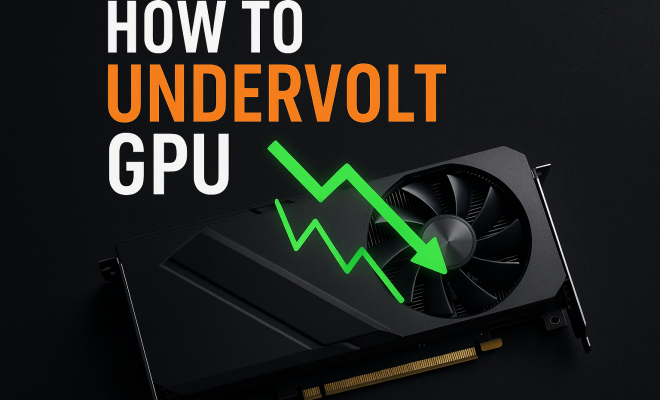
When it comes to maximizing your gaming rig or workstation performance, one strategy that has gained traction among enthusiasts is to undervolt GPU. This technique not only helps improve thermal performance but can also lead to greater energy efficiency, resulting in lower electricity bills and enhanced longevity for your hardware. In this article, we will delve into the essentials of undervolting your GPU, covering everything from background knowledge to practical steps and expert insights.
1. Understanding GPU Voltage and Power Consumption
Before diving into how to undervolt GPU, it’s crucial to understand what it means. The GPU (Graphics Processing Unit) relies on specific voltages to operate efficiently. When you undervolt, you reduce the voltage supplied to the GPU while maintaining performance levels. This can lead to a significant reduction in power consumption and heat generation, which is particularly beneficial in high-performance environments.
Typically, GPUs are designed to manage their voltage dynamically, adjusting it based on workload demands. However, many modern GPUs have a performance overhead that often results in higher voltages than necessary during less demanding tasks. By reducing this voltage, you can often achieve similar performance levels while consuming less power. This makes undervolting a popular choice among gamers and professionals alike, as it offers both performance and thermal benefits.
2. Benefits of Undervolting Your GPU
The advantages of undervolting your GPU extend beyond simple power savings. First and foremost, undervolting can significantly enhance thermal performance. By reducing the voltage, the GPU generates less heat, which is crucial for maintaining optimal performance, especially during extended gaming sessions or heavy graphical tasks.
Moreover, undervolting can lead to quieter operation since lower temperatures can reduce the need for aggressive fan profiles. This can result in a quieter PC environment, which is particularly appealing for audio production, streaming, or simply enjoying a quieter gaming experience. Finally, undervolting can improve the longevity of your components. Excessive heat is a primary factor in hardware degradation, so by implementing an undervolt, you can potentially extend the lifespan of your GPU.
3. Getting Started: Tools You’ll Need
Now that you understand the benefits, let’s talk about the tools you’ll need to successfully undervolt your GPU. You can use various software programs to tweak your GPU settings, each with its strengths and weaknesses. Popular options include MSI Afterburner, EVGA Precision X1, and AMD’s Radeon Software.
MSI Afterburner is a favorite among many GPU users due to its user-friendly interface and robust features. It allows you to adjust core voltage, core clock, memory clock, and fan speed among other settings. Make sure you’re using the latest version to access the most up-to-date features and optimizations.
4. Step-by-Step Guide to Undervolting
Here’s a comprehensive step-by-step guide on how to undervolt GPU using MSI Afterburner:
- Download and Install MSI Afterburner: Ensure you have the latest version installed, as this program is essential for tuning your GPU.
- Monitor Your GPU: Launch the application and keep an eye on your GPU’s temperature, usage, and voltage. This data will provide context for your adjustments.
- Lower the Voltage: Start by reducing the core voltage slider slightly (around -50mV is a good starting point). Click the checkmark to apply the changes.
- Test Stability: Use a benchmarking tool, such as Unigine Heaven or 3DMark, to stress test the GPU. Monitor for stability issues, crashes, or performance drops.
- Find the Sweet Spot: Gradually reduce the voltage further until you experience instability. Once you hit this point, backtrack to the last stable voltage.
- Save Your Profile: After finding a stable undervolt, save your settings in MSI Afterburner for future use.
5. Benchmarking and Testing for Stability
Once you’ve adjusted the voltage, it’s time to test your GPU’s performance to ensure that everything is stable and functioning correctly. Benchmarking tools like 3DMark, Heaven Benchmark, or FurMark can help you push your GPU to its limits. These tools simulate high-demand situations that will reveal any potential issues arising from your undervolt. (See: Understanding Graphics Processing Units.)
While testing, keep a close eye on both temperature and performance metrics. You’re looking for consistent frame rates and temperatures that are significantly lower than before. If you notice frequent crashes or performance drops, it may indicate that your undervolt is too aggressive, and you should consider increasing the voltage slightly.
6. Common Pitfalls to Avoid
While undervolting can be highly beneficial, it’s not without its challenges. One common pitfall is undervolting too aggressively. It’s tempting to push the voltage down as much as possible to maximize savings, but this can lead to instability. Always prioritize stability over extreme voltage reductions.
Another issue users may face is failing to monitor temperatures adequately. While undervolting generally leads to lower temperatures, it’s crucial to regularly check that your GPU isn’t experiencing spikes that could lead to thermal throttling. Finally, remember that each GPU model is unique. What works for one user may not be applicable to another, so don’t rely solely on guides or others’ experiences—test and tweak based on your specific setup.
7. Real-World Impact: Case Studies
To truly appreciate the effects of undervolting, let’s explore a few real-world cases where users have successfully implemented this technique. In one instance, a gamer reduced their GPU’s core voltage from 1.075V to 1.025V while maintaining the same clock speeds. This adjustment led to a 15°C drop in temperatures during heavy gaming sessions and a noticeable reduction in fan noise. Reports indicated that not only did the system run cooler, but the GPU’s lifespan was extended as a result of less thermal stress.
In another case, a content creator using an NVIDIA RTX 3080 successfully undervolted their GPU by -75mV, yielding similar performance levels but a significant drop in power draw. This user reported a decrease in wattage from around 350W to approximately 290W at full load, leading to less heat output and quieter operation. Such case studies highlight the tangible benefits of undervolting—lower temperatures, reduced noise, and better efficiency—all while retaining performance level.
8. Advanced Techniques for Undervolting
If you’re already familiar with the basics and want to explore more advanced techniques for undervolting your GPU, consider the following strategies:
- Curve Optimization: Instead of simply lowering the core voltage, you can create a voltage/frequency curve. This allows for more granular control over how your GPU behaves at different performance levels. Tools like MSI Afterburner let you create this curve, allowing for more efficiency tailored to your specific needs.
- Memory Undervolting: Just like the core voltage, you can also tweak the memory voltage settings. This might lead to additional power savings and lower temperatures. However, be cautious, as memory undervolting can affect performance in memory-intensive applications.
- Utilizing Custom Fan Curves: Pairing undervolting with optimized fan curves can maximize cooling efficiency at lower noise levels. By adjusting your fan speeds according to different temperature thresholds, you’ll ensure that your GPU stays cool without excessive noise.
9. Impact on Gaming Performance and Frame Rates
One of the most significant concerns when undervolting is how it might affect gaming performance and frame rates. Fortunately, many users report that they can maintain the same performance levels while enjoying the benefits of lower power consumption and heat generation.
Benchmark tests comparing stock voltages and undervolted configurations often show that frame rates remain consistent. For instance, users of the AMD RX 6800 XT have noted that their performance in titles like “Cyberpunk 2077” and “Call of Duty: Warzone” stays within a few frames per second after undervolting, even with a notable drop in temperatures and power consumption.
This means that undervolting is more about optimizing your system than sacrificing performance. With proper testing, you’ll likely find that the performance trade-off is minimal or nonexistent.
10. Myths and Misunderstandings About Undervolting
As with any technical topic, undervolting comes with its share of myths and misunderstandings. Here are a few that often pop up: (See: The Impact of Graphics Cards on Gaming.)
- Undervolting Will Always Lead to Performance Loss: Many assume that reducing voltage will automatically result in lower performance. However, as we’ve seen, many users can maintain or even improve their gaming experience with undervolting.
- Undervolting Is Only for Advanced Users: While it may have a technical aspect, basic undervolting techniques can be done by most users with minimal experience. The right tools and a willingness to experiment are often all it takes.
- All GPUs Can Be Undervolted Equally: Each GPU has its own characteristics and tolerances. What works for one model may not be applicable for another, making individual testing crucial.
11. FAQ: Common Questions About Undervolting GPUs
Q1: Is undervolting safe for my GPU?
A: Yes, undervolting is generally safe when done correctly. It can help reduce heat and power consumption while maintaining performance. Just ensure you monitor your GPU’s performance and stability during the process.
Q2: Will undervolting void my warranty?
A: It depends on the manufacturer. Many manufacturers do not void warranties for software tweaks like undervolting, but it’s always best to check the terms of your specific warranty.
Q3: Can I undervolt my laptop GPU as well?
A: Yes, many modern laptop GPUs can be undervolted using similar techniques. However, be aware that options may be more limited, and some laptops may have locked BIOS settings that restrict changes.
Q4: What tools can I use for undervolting?
A: Popular tools include MSI Afterburner, EVGA Precision X1, and AMD’s Radeon Software. Each has unique features and capabilities, so it’s worth exploring which one fits your needs best.
Q5: How much power can I save by undervolting?
A: The power savings can vary significantly based on your specific GPU model and how much you’re able to reduce the voltage. Users typically report power savings ranging from 10% to 30% under full load.
Q6: How do I know if my undervolt settings are stable?
A: Stability testing with benchmarking tools will help you determine the success of your undervolt. Look for consistent performance metrics and ensure you don’t experience crashes or artifacts during gameplay or rendering.
12. Environmental Impact of Undervolting
Undervolting isn’t just about performance and efficiency; it also carries significant environmental benefits. By reducing the power consumption of GPUs, you’re contributing to lower energy usage overall, which can be a small but meaningful step toward sustainability. For instance, if a gaming community collectively reduces their GPU power draw by 20%, this could lead to substantial decreases in overall electricity demand. Less power consumption means less strain on power plants, which can reduce carbon emissions associated with energy production.
In a world increasingly focused on reducing our carbon footprint, undervolting your GPU is a practical way to lessen one’s environmental impact while still enjoying top-tier gaming or content creation performance.
13. Comparing Undervolting with Overclocking
While undervolting has its advantages, it’s often compared to overclocking, another popular technique among gamers and PC builders. Both methods aim to enhance performance, but they do so in fundamentally different ways. Overclocking increases the voltage and clock speeds of the GPU to push its performance capabilities further, often leading to increased temperatures and power consumption. (See: Energy Efficiency in Graphics Processing.)
In contrast, undervolting focuses on reducing voltage to achieve lower temperatures and power draw without sacrificing performance. For users who prioritize stability, longevity, and energy efficiency, undervolting is often the preferred method. However, for those seeking maximum performance, particularly in competitive gaming scenarios, overclocking may seem more appealing.
Ultimately, the choice between undervolting and overclocking depends on individual priorities. Some users even adopt a hybrid approach, slightly overclocking while also undervolting, finding a balanced sweet spot that provides enhanced performance with reduced thermal output.
14. Future Trends in GPU Technology and Undervolting
As GPU technology continues to advance, trends indicate that undervolting will become more accessible and effective. Manufacturers are increasingly designing GPUs with thermal and power efficiency in mind. For example, NVIDIA’s latest architecture features enhanced capabilities for dynamic voltage adjustment, allowing for more effective undervolting out of the box.
Moreover, future GPUs may come with built-in undervolting profiles directly from the manufacturer, making it easier for users to achieve optimal performance without the need for extensive manual adjustments. As software continues to improve, the tools available for undervolting will also evolve, potentially incorporating machine learning algorithms that can automate the process and find ideal settings based on individual usage patterns.
These advancements in technology may lead to widespread adoption of undervolting across the gaming community, pushing for a more energy-efficient future in gaming and professional graphic workloads.
15. Conclusion: Enhancing Your Experience
Undervolting your GPU can be a game-changer in your computing experience, offering improved thermal performance, reduced noise levels, and lower energy consumption. By understanding the dynamics of voltage and power, utilizing the right tools, and carefully following the steps outlined above, you can unlock the full potential of your GPU without sacrificing performance. Remember to take it slow, benchmark your results, and adjust according to your specific hardware. With the right approach, undervolting can lead to a more efficient and enjoyable computing experience.
“`
Trending Now
Frequently Asked Questions
What is undervolting a GPU?
Undervolting a GPU involves reducing the voltage supplied to the graphics processing unit while maintaining its performance levels. This technique can lead to lower power consumption, reduced heat generation, and improved thermal performance, making it popular among gamers and professionals seeking efficiency.
How does undervolting improve GPU performance?
Undervolting improves GPU performance by decreasing the voltage, which results in less heat generation. This can enhance thermal performance, allowing the GPU to maintain optimal performance during demanding tasks without overheating, ultimately leading to quieter operation and potentially longer hardware lifespan.
Is undervolting safe for my GPU?
Yes, undervolting is generally safe for your GPU when done correctly. It reduces the voltage supplied to the GPU, which can lower temperatures and improve efficiency. However, it's essential to monitor performance and stability to ensure that your GPU operates within safe parameters.
What are the benefits of undervolting a GPU?
The benefits of undervolting a GPU include improved thermal performance, reduced power consumption, lower electricity bills, and quieter operation due to less heat generation. This technique can also enhance the longevity of your hardware by preventing overheating during intensive tasks.
How can I undervolt my GPU?
To undervolt your GPU, you'll typically use software tools designed for GPU management. These tools allow you to adjust voltage settings while monitoring performance and stability. It's important to test your settings thoroughly to ensure that your GPU maintains performance without crashing.
Have you experienced this yourself? We’d love to hear your story in the comments.