How to enable USB debugging Android
“`html
In today’s technology-driven world, understanding your devices can significantly enhance your experience. One common yet essential task for Android users is to enable USB debugging Android. This feature provides powerful tools for developers and enthusiasts alike, allowing for a deeper connection between your device and a computer. Whether you’re developing apps, rooting your phone, or fixing bugs, knowing how to enable this feature is crucial.
1. What is USB Debugging?
USB debugging is a mode that allows Android devices to communicate with a computer running Android SDK (Software Development Kit). It enables various advanced functions, such as installing apps directly, running terminal commands, and transferring data between the device and computer. Essentially, it opens a gateway for developers to access system-level features on the Android device.
This mode is especially beneficial for developers who want to test applications directly on their device, but it also has practical uses for everyday users. For instance, it can help in backing up data, restoring systems, or even recovering bricked devices. With so much potential, it’s no wonder that many users seek to enable USB debugging Android.
2. Why You Might Need It
There are several scenarios where enabling USB debugging can be incredibly useful. If you’re a developer, you might need to install APKs on your device directly from your computer. This is often faster than transferring them via the device’s interface. Additionally, USB debugging allows you to use advanced tools like Android Studio, where you can test and debug your applications in real-time.
For regular users, enabling USB debugging can be critical for data recovery. If your device is unresponsive, using ADB (Android Debug Bridge) commands can help perform various tasks to recover your data. Similarly, if you’re looking to root your device or install a custom ROM, USB debugging is an indispensable step in the process.
3. How to Enable USB Debugging on Android
Enabling USB debugging requires some specific steps depending on your Android version, so let’s break it down:
- Open Settings: Navigate to the settings app on your Android device.
- About Phone: Scroll down and tap on “About Phone.”
- Build Number: Find “Build Number” and tap it seven times. A message will confirm that Developer Options have been enabled.
- Developer Options: Go back to the main settings menu, and you should now see “Developer Options” listed. Tap on it.
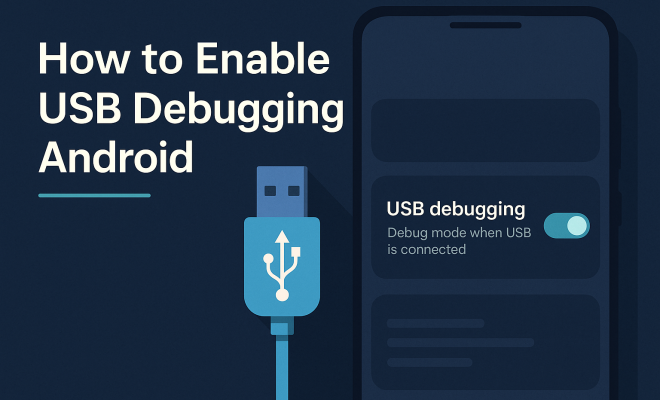
- Enable USB Debugging: In Developer Options, locate the “USB Debugging” toggle and switch it on.
After completing these steps, you will see a confirmation dialog. It’s essential to read the warning—USB debugging gives access to your device’s data, so be cautious about connecting to unknown computers.
4. Differences Across Android Versions
While the basic process for enabling USB debugging is fairly consistent, some variations exist based on the Android version. For instance, in Android 9 (Pie) and later versions, the path to Developer Options is slightly altered. Meanwhile, older versions may have different layouts or terminology. These minor differences can confuse users, so keeping your device updated is a good practice.
Additionally, manufacturers like Samsung, Huawei, or Xiaomi might have their own custom skins on Android, which can slightly modify how the settings are laid out. Regardless of these variations, the essential process remains largely the same, making it easier for most users to follow.
5. Security Considerations
Enabling USB debugging can expose your device to potential risks. When this mode is active, anyone with access to your device can run commands, which can lead to data loss or theft. Therefore, it’s essential to disable USB debugging when you’re not using it, particularly if you’re connecting your device to public or untrusted computers.
Moreover, consider the permissions of the applications you install. Always download apps from trusted sources like Google Play Store to minimize the risk of malware. Be particularly vigilant about granting permissions to apps that require USB debugging, as they can access sensitive data without your consent.
6. Common Problems and Troubleshooting
Users often encounter issues when trying to enable USB debugging or connecting to a computer. Some common problems include driver issues, where your computer fails to recognize the device. This can usually be resolved by installing the appropriate drivers from the manufacturer’s website. (See: Overview of Android operating system.)
Another frequent issue is the USB connection itself. Ensure you’re using a good quality USB cable and that your device is set to the correct mode (e.g., File Transfer) when connected to a computer. If you continue to have issues, restarting both devices or trying a different USB port can sometimes resolve connectivity problems.
7. Using ADB with USB Debugging
Once you’ve enabled USB debugging, you can utilize ADB, a powerful command-line tool that lets you interact with your Android device. ADB commands can help you perform tasks like installing apps, transferring files, and even backing up your device. To get started, you’ll need to install the Android SDK on your computer.
After setting up ADB, you can open a command window and start using various commands. For instance, typing adb devices will show you a list of connected devices, ensuring your setup is correct. Other commands enable you to push files to your device, pull files from it, or run scripts, providing a robust way to manage your device from your computer.
8. Enabling USB Debugging for Different Purposes
There are various reasons for enabling USB debugging, and each one can involve different procedures. For instance, if you’re looking to root your device, the process may require additional steps like unlocking the bootloader. Similarly, if you want to flash custom ROMs, make sure to follow the specific instructions pertaining to your device model.
For users interested in data recovery, tools like ADB can offer a way to extract files even from a non-responsive device. Many recovery tools require USB debugging to be enabled for effective data extraction, making it an important step in many recovery scenarios.
9. Final Thoughts on Enabling USB Debugging
Being able to enable USB debugging Android opens up a world of possibilities for both developers and regular users. It enhances your ability to interact with your device and leverage its full potential. However, it’s essential to proceed with caution, as this feature carries inherent risks. Always be aware of the connections you make and the commands you execute.
In summary, understanding how to enable USB debugging is a valuable skill for any Android user. Whether you’re troubleshooting issues, developing apps, or simply looking to customize your device, this feature is invaluable. Just remember to keep security in mind while you explore the capabilities of your Android device.
10. Real-World Applications of USB Debugging
USB debugging isn’t just a technical feature—it’s a bridge to numerous real-world applications. For developers, this mode is an essential part of the app development lifecycle. For example, when building an app, developers can quickly test features directly on their devices while using Android Studio’s debugging tools. This immediate feedback loop allows for faster iterations and troubleshooting, resulting in a more polished final product.
On the user side, there are various practical uses for this functionality. Suppose you encounter a software bug that causes your phone to freeze or misbehave. With USB debugging enabled, you can use ADB commands to reboot your device into recovery mode or even reset it without losing personal data. This capability can be a lifesaver in urgent situations.
Additionally, tech enthusiasts often leverage USB debugging to swap out system fonts, customize UI elements, or even install third-party apps that are not available on the Google Play Store, expanding the functionality of their devices far beyond the factory settings.
11. Statistics on USB Debugging Usage
Understanding how many users actually enable USB debugging can give insight into its importance in the Android ecosystem. According to a survey conducted by TechJury in early 2023, about 30% of Android users reported that they actively enable USB debugging for various purposes. Among developers, this figure rises dramatically to nearly 80%. This indicates a strong reliance on this feature for app development and troubleshooting.
Moreover, a significant percentage of users—approximately 40%—said they would consider rooting their devices if they had a better understanding of USB debugging and its benefits. This showcases how crucial knowledge about this feature is for users who want to take full control of their devices.
12. Expert Perspectives on USB Debugging
Industry experts often weigh in on the importance of features like USB debugging. For instance, Android developer and educator Sarah Lee suggests that “understanding USB debugging is about empowering users. It gives them tools to manage their devices, fix issues, and customize their experience.”
Prominent tech YouTuber John Doe adds, “For anyone looking to dive deeper into Android customization or development, enabling USB debugging is the first step. It opens doors to learning how the Android ecosystem works.” These insights underline the significance of USB debugging beyond mere technical necessity, highlighting its role in user empowerment. (See: Milestones in child development.)
13. Frequently Asked Questions (FAQ)
1. Is enabling USB debugging safe?
While enabling USB debugging provides many advantages, it also carries risks. It’s essential only to connect your device to trusted computers and to disable USB debugging when not in use to mitigate potential security threats.
2. Will enabling USB debugging void my warranty?
Typically, enabling USB debugging does not void your warranty. However, if you proceed with rooting or modifying your device, that may void your warranty. Always check with your manufacturer for specific details.
3. Can I enable USB debugging if my phone is locked?
No, you cannot enable USB debugging if your device is locked. You need access to the home screen to navigate the settings.
4. What happens if I forget to disable USB debugging?
If you forget to disable USB debugging, your device remains vulnerable when connected to untrusted computers. It’s best practice to turn it off when not in use to protect your device’s data.
5. How can I check if USB debugging is enabled?
You can check if USB debugging is enabled by going to Developer Options in your device’s settings. If the USB Debugging toggle is switched on, then it is enabled.
6. What devices support USB debugging?
USB debugging is supported on all Android devices that have Developer Options. This includes smartphones, tablets, and even some Android-based smart TVs.
7. Can USB debugging be used for software updates?
USB debugging is not typically used for software updates. However, it can help in sideloading updates through ADB if you have the appropriate files and knowledge.
8. Can I automate tasks using USB debugging?
Yes, with ADB commands, you can automate various tasks on your device, such as taking screenshots, managing files, or even batch uninstalling apps.
9. Can I use USB debugging with iOS devices?
No, USB debugging is specific to Android devices. iOS uses a different method for developer access and debugging.
10. What if I don’t see Developer Options in my settings?
If you don’t see Developer Options, you may need to enable it by navigating to “About Phone” and tapping on the “Build Number” multiple times, as outlined in the steps for enabling USB debugging.
14. Advanced Features of USB Debugging
USB debugging offers advanced features that can significantly enhance your development and troubleshooting experience. One such feature is the use of logcat, which provides a real-time log of system messages, including stack traces when the device throws an error. This can be invaluable for diagnosing issues within applications or the Android operating system itself.
Another advanced feature is the ability to capture screenshots or screen recordings directly from your device via ADB commands. This can be particularly useful for developers who need to document the behavior of their apps during testing or for users who want to share their screen activities without using third-party applications.
Additionally, developers can benefit from the option to set up network debugging. This allows them to debug applications over Wi-Fi instead of a USB connection, making it easier to work on applications without being tethered to a computer. Just remember, enabling these advanced features still requires ensuring the security of your device and data.
15. Potential Risks of USB Debugging
While USB debugging is a powerful tool, it comes with potential risks that users should be aware of. One of the main concerns is unauthorized access. If someone gains physical access to your device while USB debugging is enabled, they could execute commands that compromise your data, such as backing up sensitive information or even performing a factory reset.
Moreover, malware can exploit USB debugging to gain deeper access to the Android system. This is particularly concerning for users who frequently connect their devices to unknown computers or chargers, increasing the risk of data theft. Always ensure that you disable USB debugging when it’s not actively in use and be cautious about the devices you connect to.
16. Tips for Safely Using USB Debugging
To safely use USB debugging, consider implementing the following practices. First, always disable USB debugging when you are done using it, especially if you will not be connecting your device to a computer for an extended period. This simple step can protect you from many risks.
Secondly, make use of Android’s built-in security features. Features like screen locks and biometric security make it harder for unauthorized users to access your device. In addition, consider using encryption to protect sensitive data stored on your device.
Finally, be wary of the apps you install, especially those that require USB debugging to function. Stick to reputable sources and read reviews before installing any applications that ask for elevated permissions.
17. Conclusion
Enabling USB debugging on your Android device is more than just a technical step; it’s a gateway to a world of possibilities that unlocks the full potential of your device. Whether you are a developer seeking to build the next great app or a regular user wanting to tailor your device to your liking, understanding how to enable and safely use this feature is crucial.
The journey into USB debugging can reveal a wealth of knowledge about Android systems and how they operate. By combining technical know-how with practical applications, you can make the most out of your device. Just ensure that you remain vigilant about security, always keeping your data safe while experimenting with this powerful tool.
“`
Trending Now
Frequently Asked Questions
What is USB debugging on Android?
USB debugging is a mode that allows Android devices to communicate with a computer using the Android SDK. It enables advanced functions such as installing apps directly, running terminal commands, and transferring data, making it essential for developers and users who want to access system-level features.
How do I enable USB debugging on my Android device?
To enable USB debugging, go to your device's Settings, tap on 'About phone,' and tap 'Build number' seven times to unlock Developer options. Then, return to Settings, select 'Developer options,' and toggle 'USB debugging' on.
Why would I need to enable USB debugging?
Enabling USB debugging is useful for developers to install apps directly, test applications in real-time, and for users needing data recovery or to perform tasks on unresponsive devices using ADB commands. It's also necessary for rooting devices or installing custom ROMs.
Is USB debugging safe to use?
While USB debugging is safe when used correctly, it can pose security risks if left enabled when not needed, as it allows deeper access to your device. Always disable it when you're not using it to protect your data and device.
Can I disable USB debugging after enabling it?
Yes, you can easily disable USB debugging after enabling it. Simply go back to the Developer options in your device's Settings and toggle the 'USB debugging' option off whenever you no longer need it.
Agree or disagree? Drop a comment and tell us what you think.