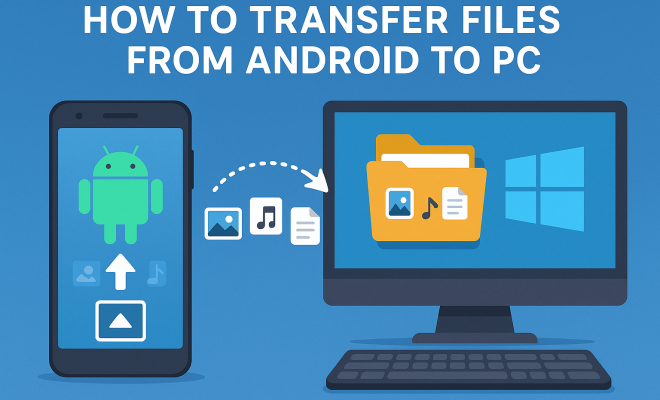
How to transfer files from Android to PC
“`html
Transferring files from Android to PC can often feel like an uphill battle. Whether you’re looking to back up photos, transfer music, or sync documents, the process can be daunting if you’re not familiar with the right techniques. This article will guide you through various methods to seamlessly transfer files from Android to PC, ensuring that your valuable data is transferred securely and efficiently.
1. Understanding the Basics
To effectively transfer files from Android to PC, it’s essential to understand the two devices’ compatibility and file systems. Android devices utilize the FAT32 file system for ease of accessibility and compatibility with other devices. On the other hand, PCs typically use NTFS or exFAT. This distinction plays a role in how you can transfer files and what methods work best.
When it comes to file sizes, the FAT32 file system has a maximum file size limit of 4GB, which might impact your ability to transfer larger files directly. Understanding these fundamentals prepares you for the methods you’ll encounter later in this guide.
2. Using USB Cable Connection
One of the most straightforward methods to transfer files from Android to PC is by using a USB cable. Here’s how to do it:
- Connect your Android device: Use the USB cable that came with your phone to connect it to your PC.
- Select USB mode: On your Android device, you might be prompted to select a connection type. Choose “File Transfer” or “MTP (Media Transfer Protocol)” to allow your PC to access files.
- Access files on PC: On your PC, open “This PC” or “File Explorer” and find your device listed under “Devices and drives.” You can now browse the files and folders on your Android device.
This method is quick and efficient, especially for transferring larger files. However, it requires a physical connection and may not be available if you don’t have a USB cable handy.
3. Utilizing Bluetooth for Wireless Transfer
If you’re looking for a wireless solution, Bluetooth is a great option for transferring files from Android to PC. Here’s how to set it up:
- Enable Bluetooth: Make sure Bluetooth is enabled on both your PC and Android device.
- Pair your devices: On your Android device, search for available devices in the Bluetooth settings and select your PC to pair. You may need to confirm a pairing code on both devices.
- Send files: Once paired, you can send files from your Android device by selecting the file, tapping the share icon, and choosing Bluetooth as the method.
While Bluetooth is convenient for smaller files, it can be slower for larger transfers. Depending on the file size, this method may take longer than a USB connection.
4. Using Cloud Storage Solutions
Cloud storage services like Google Drive, Dropbox, or OneDrive provide a great alternative for transferring files from Android to PC without needing a physical connection. Follow these steps:
- Upload to the cloud: Install the cloud storage app on your Android device, sign in, and upload the files you wish to transfer.
- Access on PC: Open the cloud storage website or app on your PC, log in, and download the files.
This method allows you to transfer files from anywhere with an internet connection and provides the added benefit of backing up your files in the cloud. However, keep in mind that large files may take time to upload and download based on your internet speed.
5. Using File Transfer Apps
There are several apps designed explicitly for transferring files between Android and PC. Applications like AirDroid, Pushbullet, and SHAREit are popular choices. Here’s how to use them: (See: File Transfer Protocol overview.)
- Install the app: Download the chosen app on your Android device and install the corresponding desktop client on your PC.
- Connect devices: Most of these apps facilitate a local Wi-Fi connection or require a QR code scan to connect your Android device to your PC.
- Transfer files: Use the app interface to select files and send them to your PC.
File transfer apps often provide faster transfer speeds compared to Bluetooth and come with additional features, such as the ability to access your Android device remotely. This can be particularly useful for managing files more efficiently.
6. Using Email for Small Files
If you only need to transfer a few small files, email can be a simple solution. Here’s the process:
- Compose an email: On your Android device, open your email app, and compose a new message.
- Attach files: Attach the files you want to transfer. Keep in mind most email services have attachment size limits (usually around 25MB).
- Send and download: Send the email to yourself, then open it on your PC and download the attachments.
Emailing files is straightforward, but due to attachment size limits, it’s not ideal for transferring larger files or folders.
7. Using FTP Server Apps
For those who are tech-savvy, using FTP (File Transfer Protocol) server applications can be an efficient way to transfer files from Android to PC. Here’s how it works:
- Set up an FTP server: Download an FTP server app like FTP Server or WiFi FTP Server on your Android device and start the server.
- Connect via PC: On your PC, open an FTP client (like FileZilla) and enter the server address provided by the app.
- Transfer files: You can now browse the files on your Android device and transfer them to your PC.
This method allows for quick transfers and the ability to move multiple files at once. However, it requires some technical knowledge, and users will need to ensure both devices are on the same network.
8. Using Network Sharing
If your Android device and PC are on the same Wi-Fi network, you can use network sharing to transfer files seamlessly. Here’s a step-by-step guide:
- Enable network sharing: On your Android device, enable file sharing in settings. This may vary by device but typically can be found under “Storage” or “Network & Internet.”
- Access shared folder: On your PC, open File Explorer and navigate to the shared folder on your Android device, usually found under the “Network” section.
This method can be particularly useful for transferring multiple files at once, but it requires correct network settings and permissions to work properly.
9. Tips for a Smooth Transfer Experience
To ensure a successful file transfer from Android to PC, consider the following tips:
- Check your connections: Ensure your USB cable is in good condition and properly connected if using a wired method. For wireless methods, confirm that both devices are on the same network.
- Manage file sizes: Be mindful of file size limits on your chosen method. For larger files, consider using a USB connection or cloud storage.
- Regular backups: Make it a habit to back up files regularly to avoid data loss and ensure that you can quickly transfer files when needed.
By following these guidelines, you’ll be well-equipped to transfer files from Android to PC without a hitch, ensuring your data is always accessible and secure.
10. Comparing Transfer Methods
Each file transfer method has its unique advantages and limitations. To help you choose the best option for your needs, let’s compare the methods discussed:
| Method | Speed | Ease of Use | File Size Limit |
|---|---|---|---|
| USB Cable | Fast | Very Easy | No Limit (up to device storage) |
| Bluetooth | Slow | Easy | 25MB (varies by device) |
| Cloud Storage | Moderate | Very Easy | Depends on service (e.g., 15GB for Google Drive) |
| File Transfer Apps | Fast | Easy | No Limit (up to device storage) |
| Slow | Very Easy | 25MB (most services) | |
| FTP Server | Fast | Moderate | No Limit (up to device storage) |
| Network Sharing | Fast | Moderate | No Limit (up to device storage) |
As you can see, if speed and file size are crucial for your transfer, USB and FTP server methods are your best bet. For casual users or smaller files, Bluetooth and email can suffice, while cloud storage provides flexibility and back-up options for those on the go.
11. Common Troubleshooting Tips
If you’re encountering issues while trying to transfer files from Android to PC, here are some troubleshooting tips: (See: CDC resources on electronic health data transfer.)
- Check USB settings: Ensure that the USB mode on your Android device is set to “File Transfer” or “MTP.” Sometimes, it defaults to “Charging only,” which won’t allow file access.
- Restart devices: A simple restart can often resolve connectivity issues. Try restarting both your Android device and your PC.
- Update drivers: Ensure that your PC’s USB drivers are up to date. Device management tools can help you check for the latest drivers.
- Clear app cache: If using file transfer apps, clearing the app cache can help resolve performance issues. Navigate to your app settings on Android and clear the cache.
- Check for interference: For wireless methods, ensure there’s no interference from other devices, especially for Bluetooth connections.
Troubleshooting these common issues can save you time and frustration, getting you back to transferring files smoothly.
12. Frequently Asked Questions (FAQ)
What types of files can I transfer from Android to PC?
You can transfer a wide range of file types, including photos, videos, music, documents, and any other files stored on your Android device. However, be aware of the size restrictions of the method you choose.
Is it safe to transfer files over public Wi-Fi?
While transferring files over public Wi-Fi is convenient, it can pose security risks. Always use a VPN when transferring sensitive data over unsecured networks to protect your information.
Why is my PC not recognizing my Android device?
This issue can occur due to several reasons, including incorrect USB settings, faulty USB cables, or outdated drivers. Ensure all settings are correct, and try using a different USB port or cable.
Can I transfer files without a USB cable?
Yes, you can use Bluetooth, cloud storage, email, file transfer apps, FTP servers, or network sharing to transfer files without a USB cable.
What is the fastest way to transfer large files from Android to PC?
Using a USB cable connection is typically the fastest method for transferring large files, as it bypasses the potential slowdowns associated with wireless methods.
Are there any good free file transfer apps?
Yes, many file transfer apps offer free versions. Popular options include SHAREit, AirDroid, and Send Anywhere. Each has unique features, so you might want to explore a couple to see which fits your needs best.
13. Advanced Techniques for File Transfers
Beyond the standard methods outlined above, there are a few advanced techniques you can leverage to make file transfers even smoother and more efficient. These can be especially useful for users who frequently transfer large files or have specific requirements.
Using PowerShell for Windows Users
For those comfortable with command line interfaces, using Windows PowerShell can facilitate fast file transfers. Here’s a quick guide:
- Connect your device: Make sure your Android device is connected to your PC and is set to “File Transfer” mode.
- Open PowerShell: Search for PowerShell in the Windows search bar and launch it.
- Use the command: Input a command like
Copy-Item -Path "C:\Users\YourUsername\Documents\*" -Destination "\\to copy files directly.\Internal Storage\Documents"
This method allows you to transfer a batch of files without navigating through folders, making it quicker for tech-savvy users. (See: New York Times guide on file transfers.)
Leveraging Third-party Syncing Software
If you regularly need to keep files synchronized between your Android device and PC, you might consider using third-party syncing software like SyncBack or GoodSync. These applications can automate the process of keeping specific folders synchronized across devices.
- Install the software: Download and install your chosen syncing software on both devices.
- Setup synchronization: Follow the software’s instructions to select which folders you want to keep in sync.
- Schedule transfers: Many of these tools allow you to set up automated schedules for file transfers, so you don’t have to remember to do it manually.
This is a great way to ensure that you always have the latest versions of your files available on both your Android device and PC.
14. Best Practices for Secure File Transfers
When transferring files, especially sensitive data, it’s crucial to prioritize security. Here are some best practices to follow:
- Use encrypted connections: Whether using cloud storage or FTP servers, opt for encrypted connections (like SFTP or HTTPS) to protect your data during transfer.
- Regularly update software: Ensure that your Android device, PC, and any file transfer apps are up-to-date to mitigate vulnerabilities.
- Password-protect sensitive files: Before transferring sensitive files, consider password-protecting them, especially if you’re using cloud services or sending them via email.
By implementing these best practices, you can significantly reduce the risk of data breaches or loss during file transfers.
15. Real-life Scenarios
Understanding how to transfer files can be beneficial in various real-life scenarios. Here are a few examples of when you might find yourself needing this skill:
- Backing up vacation photos: After a long trip, you may want to transfer thousands of photos from your Android phone to your PC to free up space and keep those memories safe.
- Sharing a project with colleagues: If you’ve been working on a presentation or report on your phone, transferring it to your PC can make editing and finalizing much easier.
- Transferring music playlists: Many users want to move their favorite songs and playlists from their Android devices to PC for better sound quality and easier management.
These scenarios highlight the importance of being equipped with various methods to transfer files, ensuring you can handle any situation that arises.
Transferring files from Android to PC doesn’t have to be a hassle. With a variety of methods available, you can choose the one that fits your needs, whether you prefer wired or wireless options. By understanding the strengths and weaknesses of each method, you’ll be able to manage your data with ease. Whether you’re a casual user or someone who regularly needs to move large files, there’s a solution that works for you.
“`
Trending Now
Frequently Asked Questions
How can I transfer files from Android to PC using a USB cable?
To transfer files from Android to PC using a USB cable, connect your device to the PC with the USB cable, select 'File Transfer' or 'MTP' mode on your Android, then access your device in 'This PC' or 'File Explorer' to browse and transfer files.
What is the easiest way to transfer files from Android to PC?
The easiest way to transfer files from Android to PC is by using a USB cable for a direct connection. This method allows you to quickly access and transfer large files without the need for additional software.
Can I transfer files from Android to PC without a USB cable?
Yes, you can transfer files from Android to PC without a USB cable by using Bluetooth or cloud storage services like Google Drive or Dropbox. These methods allow for wireless transfer but may be slower than a USB connection.
What is MTP mode on Android?
MTP stands for Media Transfer Protocol. It allows your Android device to communicate with a PC, enabling file transfers. When you select MTP mode, your PC can access and manage files on your Android device effectively.
Is there a file size limit when transferring from Android to PC?
Yes, when transferring files using the FAT32 file system, which is common for Android devices, there is a maximum file size limit of 4GB. For larger files, consider using alternative methods like cloud storage.
What did we miss? Let us know in the comments and join the conversation.