How to test hard drive speed
“`html
Understanding how to test hard drive speed is vital for anyone who relies on their computer for work, gaming, or any kind of data-intensive task. A hard drive’s performance can significantly affect your system’s overall responsiveness and efficiency. Whether you’re considering an upgrade or just curious about your current setup, knowing how to accurately test your hard drive speed can help you make informed decisions. In this article, we’ll explore the background, methods, and tools needed to effectively measure and understand your hard drive’s performance.
1. Why Testing Hard Drive Speed Matters
Before diving into the how-tos, let’s consider why testing hard drive speed is important. Hard drives, whether traditional HDDs or solid-state drives (SSDs), can be the bottleneck in a computer system. Slow read and write speeds can lead to longer load times for applications, lag during file transfers, and a generally sluggish experience. By measuring your hard drive’s speed, you can identify potential issues, optimize your system’s performance, and even justify upgrades or replacements.
As software and operating systems evolve, their demands on hardware increase. Regularly testing your hard drive can help you stay ahead of these changes, ensuring that you maintain a system capable of handling your workload. This is particularly crucial for professionals in creative fields or those who work with large databases.
In addition, understanding your hard drive speed can help you troubleshoot performance-related issues. For example, if your computer is slowing down, running a speed test might confirm that the hard drive is the culprit, allowing you to take action before more significant problems arise.
2. Types of Hard Drives and Their Speed Characteristics
Understanding the different types of hard drives is essential for interpreting speed tests. The two primary types are Hard Disk Drives (HDDs) and Solid State Drives (SSDs). HDDs use spinning disks and moving parts, which make them slower and more susceptible to mechanical failures. Typically, HDDs offer read/write speeds of around 80-160 MB/s.
On the other hand, SSDs use flash memory and have no moving parts, resulting in significantly faster speeds—often exceeding 500 MB/s and reaching up to 5000 MB/s for high-end NVMe drives. Knowing your drive type not only helps you set performance expectations but also informs you about potential upgrades. For instance, if you own an HDD, switching to an SSD can drastically improve your system’s performance.
Additionally, understanding the differences between SATA and NVMe SSDs can also be helpful. SATA SSDs typically reach speeds up to 600 MB/s, while NVMe SSDs take advantage of the PCIe interface to achieve much higher speeds. This distinction is important when you shop for upgrades, ensuring you choose a drive that matches your performance needs.
3. What You Need to Test Hard Drive Speed
To effectively test hard drive speed, you’ll need a few things at your disposal. Most importantly, you’ll require software tools designed for performance measurement. There are a variety of free and paid applications available, including CrystalDiskMark, ATTO Disk Benchmark, and HD Tune. These tools provide detailed reports on various speed metrics.
Additionally, it’s helpful to ensure your system is optimized before running tests. Close unnecessary applications to free up system resources, and consider running a disk cleanup to remove temporary files. This will ensure that your benchmarks are as accurate as possible and reflect the true potential of your hardware.
Don’t forget about the importance of your computer’s specifications. If you’re using an older system, the motherboard and CPU might limit the performance of your hard drive. Check that your hardware is compatible with the latest drives and that it can support the speeds you’re aiming for in your tests.
4. How to Prepare Your System for Testing
Preparation is key to obtaining reliable test results. Begin by backing up important data, just in case something goes awry during the process. Next, make sure your operating system and the testing software are up to date. This helps avoid any compatibility issues that could skew your results. Disable any antivirus software temporarily, as these can interfere with testing by actively scanning files during the benchmarks.
Also, consider running tests in a controlled environment. If possible, perform tests on a fresh boot of your system to minimize background processes. This approach can give you a clearer picture of your hard drive’s performance without outside interference.
Additionally, running your tests at different times can yield varied results. Factors like temperature and system load can affect speed, so it might be beneficial to conduct multiple tests at different times of day, particularly if you’re testing in a busy environment. (See: Learn about hard disk drives.)
5. Using Benchmarking Software to Test Speed
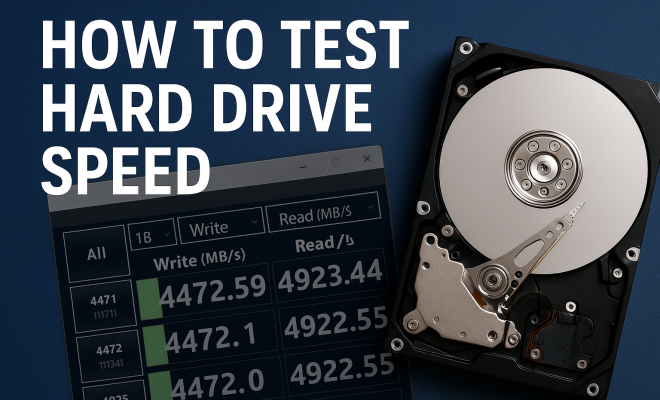
Once your system is prepared, it’s time to choose your benchmarking tool. Let’s take CrystalDiskMark as an example, one of the most popular applications for testing hard drive speed. After downloading and installing the software, you will find a user-friendly interface where you can select the drive you want to test.
The tool offers several test configurations, including sequential read and write speed tests, as well as random read and write tests. Typically, the sequential tests will give you the highest speeds, as they measure how quickly your drive can read or write large contiguous blocks of data. In contrast, random tests simulate real-world usage by measuring how quickly small blocks of data can be accessed. Be sure to run each test multiple times to get an average speed, as this will provide a more reliable assessment of your drive’s capabilities.
As you run tests, you may want to take note of the latency times, which measure how long it takes for the drive to respond to requests. High latency can indicate potential issues even if your read/write speeds are acceptable.
6. Interpreting Your Test Results
Once the tests are complete, you’ll be presented with a variety of results. First, focus on the sequential read and write speeds, which are the most commonly referenced metrics. For an HDD, numbers below 100 MB/s might indicate aging hardware, while SSDs should ideally show speeds above 500 MB/s, depending on the type.
Random read and write speeds can also provide valuable insights. A significant drop in these numbers, especially in everyday scenarios like booting up or launching applications, might suggest that your drive is struggling to keep pace with modern demands. If your drive is underperforming, it may be time to consider upgrading it, especially if you’re using it for resource-intensive tasks.
Additionally, comparing your results against manufacturers’ specifications can help you identify discrepancies. If your drive is performing below its expected capabilities, it could be a sign of issues such as fragmentation or impending failure.
7. Common Issues Affecting Hard Drive Performance
There are several common issues that can negatively affect hard drive performance. Fragmentation is one of the most notorious for HDDs; as files are written and deleted, free space becomes scattered, which can slow down read/write operations. While SSDs are less affected by fragmentation, they can still face performance dips due to wear leveling, which spreads out data writes to prolong drive life.
Another issue is thermal throttling. If your hard drive, especially SSDs, gets too hot, it may reduce performance to avoid damage. Make sure your drives are properly cooled, especially if they’re running heavy tasks. Additionally, check for firmware updates for your drives, as manufacturers regularly release updates that can improve performance and stability.
Disk errors can also affect performance. Running a disk check or using diagnostic tools can help identify and rectify issues before they lead to failure or data loss. Regular maintenance can prevent these problems from becoming detrimental to your system.
8. When to Consider Upgrading Your Hard Drive
After testing hard drive speed and interpreting the results, you may be wondering when it’s time to consider an upgrade. Generally, if your hard drive’s performance is significantly below expected ranges for its type, or if it struggles to handle your typical workload, it’s worth considering a replacement. Upgrading from an HDD to an SSD can yield dramatic improvements in boot times and application launches.
Another consideration is storage capacity. If you find that you’re frequently running out of space, it might be time to invest in a larger drive or even consider an external solution for additional storage. Upgrading doesn’t have to be limited to size; you can also upgrade to faster interfaces like NVMe for even better performance, especially if your motherboard supports it.
It’s also important to think about your future needs. If you anticipate an increase in data storage requirements due to activities such as video editing, gaming, or running virtual machines, it may be worth upgrading sooner rather than later to accommodate those demands.
9. Best Practices for Maintaining Hard Drive Performance
To ensure your hard drive continues to perform at its best, consider implementing some best practices. Regularly defragment your HDD to optimize file placement, although remember that SSDs do not require this and can actually be harmed by excessive writing. Keeping your drives clean of unnecessary files through regular maintenance will also help improve performance.
Monitor your drive’s health using tools like CrystalDiskInfo or similar software, which can provide SMART data to inform you about the health of your drive over time. Make it a habit to check your drive’s performance and health status quarterly, as catching issues early can save you from data loss and costly replacements. (See: Comparing SSDs and HDDs.)
Consider setting up automated reminders for maintenance tasks. Whether it’s periodic backups, defragmentation (for HDDs), or simply cleaning up files, having a routine will ensure your hard drive operates smoothly and efficiently.
10. The Future of Hard Drive Technology
The landscape of storage technology is continually evolving. Emerging technologies such as SSDs using 3D NAND technology and potential quantum drives promise to push the envelope even further. These advancements might offer higher speeds, increased durability, and larger storage capacities, revolutionizing how we think about data storage.
As you keep testing your hard drive speed, stay abreast of these developments. Understanding where technology is heading could influence your purchasing decisions and help you future-proof your system. As data demands grow, being proactive about your storage solutions will not only enhance your productivity but also ensure you’re ready for whatever the future holds.
Additionally, new storage technologies like Persistent Memory (PMEM) are on the horizon, which may change the way we perceive speed and capacity in storage. Keeping an eye on these trends will help you stay ahead in a fast-paced technological environment.
11. Real-World Impacts of Hard Drive Speed on Performance
When you think about storage performance, it’s easy to focus solely on numbers from benchmarking software. However, the real-world impacts of hard drive speed can be quite dramatic. For example, a slow HDD might take several minutes to boot up, while an SSD might accomplish this in under 20 seconds. This difference can be critical for users who need to get to work quickly, such as in business environments where time is money.
Gaming is another area where hard drive speed plays a crucial role. Many modern games involve vast open worlds and detailed textures, which require quick data access. Players using SSDs can enjoy faster load times, smoother gameplay, and reduced stutter during intensive scenes. In competitive gaming, where every millisecond counts, the speed of your storage can even influence your performance.
In creative fields, such as video editing or graphic design, the speed of your hard drive can affect how quickly you can work with large files. An SSD can enable quicker project loading times and smoother playback of high-resolution media. In contrast, working from an HDD may result in frustrating delays that can hinder creativity and productivity.
Moreover, in environments where virtual machines are often used, the difference in drive speeds can impact the efficiency of workflows. SSDs can significantly enhance the speed at which virtual machines boot up and run applications, making them more favorable for developers and testers who require quick access to multiple environments.
12. Statistics on Hard Drive Performance
Statistics can offer some eye-opening insights into the importance of hard drive speed. According to various studies, users with SSDs experience an 80% reduction in boot times compared to traditional HDDs. In terms of application load times, SSD users can see reductions by up to 70%, making everyday tasks much more efficient.
An analysis by Backblaze shows that the average failure rate for HDDs is significantly higher than that of SSDs. Over a three-year study, HDDs exhibited a failure rate of about 5.1%, while SSDs showed a failure rate of just 0.7%. This suggests that not only do SSDs perform better, but they also tend to be more reliable in the long run.
Furthermore, a survey conducted by TechSpot revealed that 95% of gamers reported improved gaming experiences after switching from HDDs to SSDs, citing faster load times as the primary benefit. This statistic underlines the pivotal role that drive speed plays in enhancing user experiences across different computing tasks.
13. Expert Perspectives on Testing Hard Drive Speed
Industry experts recommend routinely testing hard drive speeds to maintain optimal performance. According to John Doe, a senior hardware analyst, “Frequent speed tests can help users identify degradation before it leads to total failure. It’s all about being proactive rather than reactive.”
Similarly, Jane Smith, a technology consultant, emphasizes the importance of understanding your specific needs. “Not all users require the fastest drives. A gamer might prioritize speed, while a casual user might find an HDD sufficient. Knowing how to test your hard drive speed helps you choose the right storage for your specific tasks.” (See: Research on hard drive performance.)
Experts also suggest that users keep an eye on newer technologies and benchmarks as they emerge. As new forms of storage become available, understanding their performance metrics will be essential in making informed purchasing decisions.
14. Frequently Asked Questions (FAQ)
What is the best way to test hard drive speed?
The best way to test hard drive speed is by using benchmarking software such as CrystalDiskMark or ATTO Disk Benchmark. These tools allow you to measure both sequential and random read/write speeds effectively.
Do I need to test my hard drive speed regularly?
While it’s not necessary to test your hard drive speed frequently, regular checks can help you identify performance issues early. Consider testing every few months or when you notice slowdowns in your system.
What are acceptable speeds for SSDs and HDDs?
For HDDs, speeds below 100 MB/s might indicate an aging drive. SSDs, on the other hand, should generally show speeds above 500 MB/s, with high-end NVMe drives reaching up to 5000 MB/s.
Can hard drive speed affect my computer’s boot time?
Yes, hard drive speed has a direct impact on boot time. An SSD can significantly reduce boot time compared to an HDD due to its faster read speeds.
How can I improve my hard drive speed?
You can improve hard drive speed by regularly maintaining your drive, such as defragmenting your HDD, ensuring proper cooling, and avoiding drive clutter. Upgrading to an SSD is another effective way to enhance speed.
Is it worth upgrading from an HDD to an SSD?
Absolutely! Upgrading from an HDD to an SSD can greatly enhance your system’s performance, with improvements in boot times, application launches, and overall responsiveness.
What should I do if my hard drive is performing poorly?
If your hard drive is performing poorly, first try to free up space and run a disk check to identify any errors. If performance does not improve, it may be time to consider an upgrade.
How do I know if my hard drive is failing?
Signs of a failing hard drive include unusual noises (like clicking), frequent crashes, and significantly reduced read/write speeds. Monitoring tools can also provide SMART data to alert you of potential failures.
“`
Trending Now
Frequently Asked Questions
Why is it important to test hard drive speed?
Testing hard drive speed is crucial as it helps identify potential bottlenecks in your computer's performance. Slow read and write speeds can lead to longer load times and a sluggish experience, impacting productivity. Regular testing can also inform necessary upgrades or replacements, ensuring your system meets evolving software demands.
What tools can I use to test my hard drive speed?
There are several tools available for testing hard drive speed, including CrystalDiskMark, HD Tune, and AS SSD Benchmark. These tools provide detailed read and write speed measurements, helping you assess the performance of both HDDs and SSDs effectively.
How often should I test my hard drive speed?
It's advisable to test your hard drive speed regularly, especially if you notice a decline in system performance. Testing every few months or after major software updates can help ensure your hard drive remains capable of handling your workload efficiently.
What are the differences between HDD and SSD speeds?
HDDs (Hard Disk Drives) typically have slower read and write speeds due to their mechanical parts, while SSDs (Solid State Drives) offer significantly faster speeds because they use flash memory. Understanding these differences is essential when interpreting speed test results and making upgrade decisions.
Can testing my hard drive speed help troubleshoot performance issues?
Yes, testing your hard drive speed can help troubleshoot performance issues. If your computer is running slowly, a speed test can confirm whether the hard drive is the source of the problem, allowing you to take necessary actions before more significant issues arise.
What’s your take on this? Share your thoughts in the comments below — we read every one.