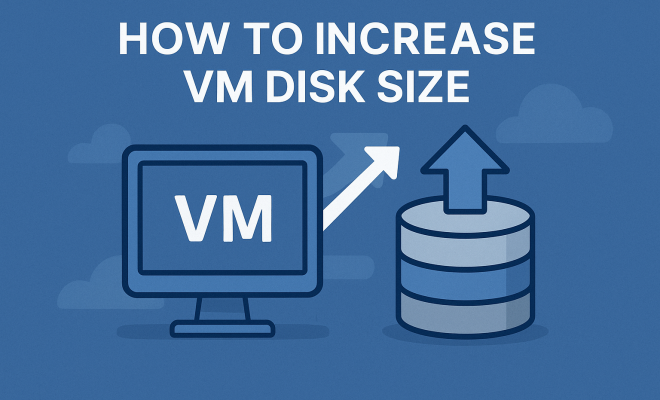
How to increase VM disk size
“`html
Managing virtual machines (VMs) efficiently is crucial for any IT professional or organization. One common issue that many users encounter is the need to increase VM disk size. This challenge can arise for various reasons, including the installation of additional applications, the accumulation of data, or simply the requirements for better performance. In this article, we’ll explore the essential steps to successfully increase the disk size of your VMs, along with practical insights, potential pitfalls, and best practices.
1. Understanding Virtual Disk Types
Before diving into the technical steps of increasing a VM’s disk size, it’s essential to understand the different types of virtual disks available. Most virtualization platforms, like VMware and Hyper-V, support various formats such as VMDK (VMware), VHD, and VHDX (Hyper-V). Each type has its specific characteristics regarding performance, features, and management.
For instance, VMDK files can be either fixed-size, which takes up space immediately, or thin-provisioned, which only uses the space required. Knowing the type of virtual disk your VM is using will help you understand the best approach for increasing its size. If your VM is running out of space, you should first verify the disk type before proceeding with the increase.
2. Preliminary Steps: Backup and Assessment
Before making any changes to your VM’s disk size, it’s critical to perform a backup. This precaution ensures that you can recover your data in case anything goes wrong during the resizing process. Most virtualization solutions offer built-in backup options, or you can use third-party tools to safely create a snapshot of your VM.
After securing your backup, assess the disk usage. Tools like VMware’s vSphere or the Hyper-V Manager can help you view current disk usage, which will guide you on how much space you need to allocate. Understanding your disk usage pattern will also help you make informed decisions about future storage needs.
3. Increasing Disk Size in VMware
If you’re using VMware, the process to increase VM disk size is relatively straightforward. First, power down the VM. Once it’s off, right-click the VM in the vSphere client and select “Edit Settings.” From there, locate the hard disk, and you’ll see an option to adjust the provisioned size. Enter the new size you require and save your changes.
After resizing the virtual disk, power on your VM. However, the operating system will not automatically recognize the new space. You must extend the partition using a disk management tool, such as Windows Disk Management or GParted for Linux systems. Ensure you allocate the newly added space effectively to maximize performance.
4. Adjusting Disk Size in Hyper-V
For users operating with Hyper-V, increasing the VM disk size follows a similar process. Open the Hyper-V Manager, right-click the respective VM, and select “Settings.” Navigate to the hard disk section, and you will find an option to increase the size.
Once you increase the disk size, remember that you’ll also need to manage the partition from within the operating system. Like VMware, you can use the Disk Management tool in Windows to extend the partition and utilize the additional space. For Linux users, GParted is an effective alternative.
5. Handling Dynamic Disks
Dynamic disks provide flexibility in managing storage, particularly for VMs. If your VM is using a dynamic disk, you can dynamically allocate space without needing to format or take additional steps. However, when increasing the disk size, it’s essential to monitor how that space is utilized. (See: Understanding virtual machines.)
Dynamic disks can sometimes lead to performance issues due to fragmentation. Thus, after increasing the VM disk size, consider defragmenting the disk to enhance performance and ensure that the data is efficiently stored. This maintenance step can help prolong the life of your VM’s storage and improve overall performance.
6. Post-Resize Disk Management
Once you’ve successfully expanded the VM disk size, managing it effectively is crucial. Regularly monitor disk usage and performance metrics to ensure that your VM is operating optimally. Tools like VMware vSphere or Hyper-V Manager can provide insightful analytics on disk performance and usage.
In addition, consider implementing a monitoring solution that alerts you when disk usage approaches critical thresholds. Proactive monitoring can help prevent issues before they escalate, ensuring that your VMs continue to run smoothly.
7. Best Practices for Increasing VM Disk Size
When increasing VM disk sizes, adhering to best practices can save you time and hassle down the road. First, always backup your data. As mentioned earlier, having a backup protects you against potential data loss during resizing.
Another best practice is to regularly assess your storage needs. Understanding the growth patterns of your applications can help you plan ahead and avoid emergency disk resizing. Additionally, consider implementing storage tiering to optimize performance and cost-efficiency. Using faster disks for critical applications while relegating less critical data to slower storage can be an excellent strategy.
8. Common Pitfalls to Avoid
When trying to increase VM disk size, several common pitfalls can derail your efforts. One of the most significant mistakes is neglecting to power down the VM before resizing the disk. This oversight can lead to data corruption or other significant issues.
Additionally, not extending the partition within the operating system after resizing is another frequent error. If you forget this step, your VM will not recognize the additional space you’ve just allocated, nullifying your efforts. Keeping these pitfalls in mind can streamline your resizing process and ensure a smoother experience.
9. Staying Updated with Virtualization Trends
The landscape of virtualization technology is constantly evolving. Staying updated with the latest advancements can help you manage your VMs more effectively. Follow industry blogs, participate in forums, and attend webinars to learn about new tools and best practices for managing VM disk sizes.
Additionally, many virtualization platforms are continually enhancing their features. Keeping your software up to date ensures you have access to the latest functionalities, including improved disk management options. By staying informed, you can harness new technologies and strategies to maintain optimal performance in your virtual environments.
10. Real-World Scenarios and Case Studies
Understanding the theoretical aspects of increasing VM disk size is essential, but seeing how it applies in real-world scenarios can provide valuable insights. Consider a business that relies heavily on data analytics. As the organization expands, so do its data requirements. Initially, the VM disk was allocated 100GB, but as more data processing applications were added, the space quickly filled up. By following a structured approach to increase the VM disk size to 500GB, the IT team was able to keep operations running smoothly without interruption.
Another example involves a software development company that frequently tests new applications. This company uses multiple VMs for testing environments. They regularly monitor disk usage and realized that one of their VMs was filling up faster than others due to logging practices. By reallocating additional disk space and cleaning up old logs, they not only improved performance but also reduced the time spent on troubleshooting related disk issues.
11. Statistics on Disk Usage and Management
According to a report from Statista, over 30% of companies surveyed experienced performance issues due to insufficient disk space in their virtual environments. Another study from Gartner indicated that a well-implemented VM management strategy could reduce downtime by up to 50%. These metrics highlight the importance of proactive disk management and the necessity of regular assessments to prevent potential bottlenecks in performance. (See: CDC on data management best practices.)
12. Frequently Asked Questions
What happens if I don’t increase my VM disk size?
If you don’t increase your VM disk size when it’s needed, you may experience performance issues, application crashes, or data loss. Insufficient disk space can hinder the installation of new applications or updates, which can affect productivity.
Is there a limit to how much I can increase my VM disk size?
Yes, there’s typically a limit based on the virtualization platform and the underlying hardware. VMware and Hyper-V have their own restrictions, and it’s essential to check the documentation for these platforms to understand the maximum disk sizes allowed.
How can I monitor disk space usage in my VM?
Most virtualization platforms include built-in tools for monitoring disk usage. For example, VMware has vSphere, while Hyper-V uses Hyper-V Manager. Additionally, third-party monitoring tools can provide more detailed analytics if needed.
Can I dynamically resize a VM disk while it’s running?
In most cases, you can increase the disk size while the VM is running, especially with dynamic disks. However, you’ll still need to extend the partition from within the operating system afterward. Always consult your virtualization platform’s documentation for specifics.
What tools do I need to increase VM disk size?
The primary tools you’ll need are your virtualization platform’s management interface (like vSphere or Hyper-V Manager) and, depending on the OS, tools such as Disk Management for Windows or GParted for Linux. Backup tools are also recommended for safeguarding your data before making changes.
What are the risks of increasing VM disk size?
Risks include potential data loss if steps are not followed correctly, data corruption if the VM is not powered down during the resizing process, and possible performance issues if the new disk space is not managed effectively. Careful planning and execution can minimize these risks.
13. Advanced Techniques for Disk Management
When it comes to managing disk space in virtual environments, advanced techniques can significantly enhance performance and efficiency. One such method is the implementation of thin provisioning. This technique allows you to allocate disk space as it’s needed rather than all at once. This not only conserves storage but also optimizes the use of available resources.
Another advanced technique is storage deduplication. By identifying and eliminating duplicate copies of data, organizations can free up significant amounts of storage space. This method is particularly useful in environments where multiple VMs might be running similar applications or operating systems.
Additionally, consider using snapshots judiciously. While snapshots are helpful for backups and restoring states, excessive use can lead to performance degradation. It’s best practice to manage snapshots carefully—keeping them for just as long as necessary and deleting them when they are no longer needed.
14. Storage Solutions for Virtual Machines
Choosing the appropriate storage solutions for your virtual machines is vital for performance and scalability. Traditional hard drives (HDDs) can be slower than Solid State Drives (SSDs), which can significantly enhance VM performance due to their faster read and write speeds. For high-performance applications, utilizing SSDs can lead to noticeable improvements in speed and responsiveness.
Another option to consider is Network Attached Storage (NAS) or Storage Area Networks (SAN). These solutions can provide greater scalability and flexibility compared to local storage, especially in environments where multiple VMs are accessed by various users or applications. Implementing NAS or SAN can also simplify backup and disaster recovery processes, making them more manageable.
15. Impact of Cloud Solutions
As more organizations move to the cloud, understanding how cloud solutions impact VM disk management becomes increasingly important. Cloud platforms like AWS, Azure, and Google Cloud offer scalable storage options that can automatically adjust based on your needs. You can dynamically increase disk sizes as your applications grow without the need for significant upfront hardware investments.
Additionally, the cloud often provides built-in monitoring tools and analytics that can help you keep track of disk usage and performance. These insights can enable organizations to make data-driven decisions about resource allocation and storage management, ensuring optimal performance across all virtual machines.
16. Future Trends in Virtual Disk Management
Looking ahead, several trends are shaping the future of VM disk management. One significant trend is the increasing use of artificial intelligence (AI) and machine learning (ML) in managing virtual environments. AI can analyze large amounts of data to predict storage needs, optimize resource allocation, and even automate routine management tasks.
Another trend is the rise of containerization and microservices architecture, which can influence how storage is managed. As applications become more modular, the need for flexible storage solutions that can accommodate these changes will be critical. This shift may lead to new methodologies and tools designed specifically for managing disk sizes and performance in containerized environments.
As these trends develop, IT professionals must stay informed and adaptable, ensuring that their disk management strategies are aligned with the evolving landscape of virtualization technologies.
17. Conclusion
Increasing the size of your VM disk is a vital skill for any IT professional. By following the outlined steps, best practices, and understanding common pitfalls, you can effectively manage your VM storage and ensure that your virtual machines continue to perform optimally. Staying informed about technological advancements and real-world applications will also enhance your ability to handle disk management challenges as they arise.
“`
Trending Now
Frequently Asked Questions
How do I increase the disk size of a VM?
To increase the disk size of a VM, first back up your data. Then, access your virtualization platform's management interface, like VMware vSphere or Hyper-V Manager. Locate the virtual disk settings, choose the disk you want to resize, and increase its allocated size. Finally, ensure to extend the partition within the VM's operating system to utilize the newly available space.
What are the types of virtual disks?
Virtual disks come in various types, including VMDK for VMware, and VHD or VHDX for Hyper-V. VMDK files can be fixed-size, which allocates all space immediately, or thin-provisioned, which uses only the necessary space. Understanding these types helps determine the best approach to resizing your VM's disk.
Why do I need to back up my VM before resizing the disk?
Backing up your VM before resizing the disk is crucial to prevent data loss. If any issues occur during the resizing process, such as corruption or failure, having a backup ensures you can restore your VM to its previous state without losing important data.
How can I assess my VM's disk usage before resizing?
To assess your VM's disk usage, use tools like VMware vSphere or Hyper-V Manager. These tools provide insights into current disk usage, helping you determine how much additional space you need. Understanding your disk usage patterns allows for more informed decisions regarding future allocations.
What potential pitfalls should I avoid when increasing VM disk size?
When increasing VM disk size, avoid skipping the backup step, as this can lead to data loss. Additionally, ensure that you understand the virtual disk type in use, as different types may require specific procedures. Lastly, be cautious when extending partitions within the VM, as incorrect steps can lead to system instability.
What did we miss? Let us know in the comments and join the conversation.