How to convert Apple Music to MP3
“`html
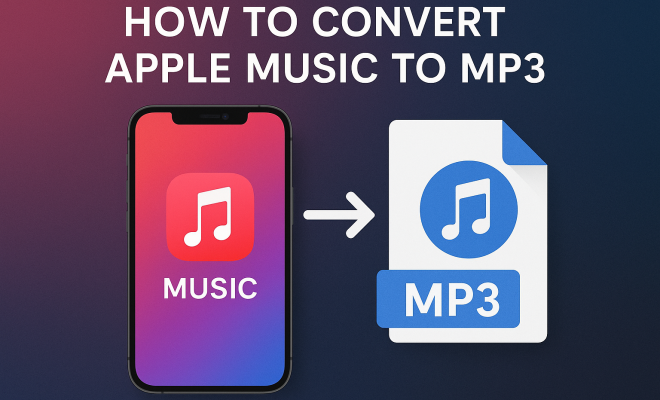
In a digital age where music streaming is king, users often find themselves confined to the limitations of their subscription services. Apple Music, a popular choice among music lovers, allows you to stream millions of songs but holds a significant restriction: you can’t download tracks for offline use in an MP3 format. So, how do you convert Apple Music to MP3, enabling you to enjoy your favorite tunes on any device? In this guide, we’ll explore effective methods and tools to help you achieve just that.
1. Understanding the Apple Music Format
Apple Music streams songs in a format known as AAC (Advanced Audio Codec), specifically at 256 kbps. This format is designed to provide high-quality audio while minimizing file size, making it ideal for streaming. However, the downside is that AAC files are protected by Digital Rights Management (DRM), which means you can’t play them on non-Apple devices or software without converting them first.
DRM restrictions can be frustrating, especially if you want to enjoy your music library on various platforms or devices. Understanding these limitations is the first step in taking control of your music experience. Converting Apple Music to MP3, which is universally compatible, offers a straightforward solution. MP3 files can be played on any device, from smartphones to car stereos, and they maintain decent audio quality at lower file sizes than many other formats.
2. Why Convert to MP3?
There are several compelling reasons to convert Apple Music tracks to MP3. Firstly, MP3 is one of the most widely supported audio formats, meaning you’ll encounter fewer compatibility issues with different devices and software. Whether you’re using a Windows PC, Android phone, or an older car audio system, MP3 is likely to be supported.
Secondly, converting your music allows you to create backups. If you’ve invested time in curating playlists on Apple Music, converting those tracks means you can preserve them even if your subscription lapses. You’ll have lifelong access to your favorite songs, independent of any service’s ongoing availability or changes in licensing agreements.
Lastly, many people prefer having their music stored locally. This can be beneficial for travel, when internet access may be limited, or simply for enjoyment without relying on a streaming service. When you’re on the go, having your favorite tracks readily available in MP3 format can enhance your listening experience significantly.
Also, MP3 files take up less space compared to higher-quality formats. This aspect is particularly relevant for users with limited storage capacity on their devices. For instance, if you have a device with just 16GB of storage, converting your Apple Music library to MP3 can maximize the number of songs you can store without sacrificing too much quality.
3. Legal Considerations
Before proceeding with conversion, it’s crucial to understand the legal implications. Converting Apple Music to MP3 for personal use usually falls within fair use laws. However, distributing files or using them commercially can lead to legal issues. Always ensure you’re complying with copyright laws to avoid potential fines.
Many users are unclear about this aspect and may assume that because they have a subscription, they can do anything with the music. Educating yourself about the copyright laws in your country is essential. It’s best to convert Apple Music to MP3 strictly for personal enjoyment and not for sharing or distributing it.
It’s worth noting that different countries have varying laws regarding digital music. For instance, in the United States, the concept of fair use is broader than in some European countries. Staying informed about these laws can save you from legal troubles down the line. (See: Understanding Advanced Audio Codec (AAC).)
Additionally, some artists and music companies have specific licensing agreements that might affect how their music can be used. Keeping an eye on announcements from your favorite artists can also help you stay within legal boundaries while enjoying their music.
4. Tools for Conversion
There are various tools available to convert Apple Music to MP3, ranging from software applications to online services. Each comes with its own set of features, pros, and cons. Here are some of the most popular options:
- Audacity: This free audio editing software allows you to record your music as it plays. While it requires a bit of setup, it provides a versatile way to convert tracks.
- TunesKit Audio Converter: A specialized tool designed for converting DRM-protected audio files, TunesKit is user-friendly and maintains high audio quality. It’s a paid tool but offers a trial version.
- NoteBurner Apple Music Converter: This software removes DRM protection and converts Apple Music tracks to MP3, AAC, or other formats. It’s easy to use and offers batch conversion.
- Online Converters: Websites like Online Audio Converter can convert audio directly in your browser. However, these may have file size limitations and may not support DRM-protected content.
Choosing the right tool depends on your needs. If you want a straightforward solution and are okay with purchasing software, TunesKit or NoteBurner offer excellent features. On the other hand, if you’re looking for a free option, Audacity can do the job, albeit with more complexity.
It’s also essential to read reviews and possibly watch tutorials before choosing a tool. Some users have reported issues with specific converters, such as slow processing times or poor audio quality. Ensuring that you select a reliable tool can save you time and frustration.
In addition to these tools, it’s worth considering the compatibility of the converter with your operating system. Some tools may only work on Windows or Mac, while others are cross-platform. Make sure to choose a tool that fits your specific setup to avoid unnecessary complications.
5. Step-by-Step Guide to Conversion
Now that you know the tools available, let’s go through a step-by-step guide on how to convert Apple Music to MP3 using TunesKit Audio Converter:
- Download and Install: First, download and install TunesKit Audio Converter on your computer.
- Add Apple Music Tracks: Open TunesKit and click on the “Add” button to import the Apple Music tracks you want to convert.
- Select Output Format: Click on the “Format” tab in the lower-left corner and select MP3 as the output format. You can also adjust the bitrate for better quality.
- Start Conversion: Press the “Convert” button to initiate the conversion process. TunesKit will remove the DRM and convert your files to MP3 format.
- Check Your Files: Once the conversion is complete, you can find your MP3 files in the destination folder you specified.
This method is efficient and preserves the quality of your music library while removing any restrictions.
After conversion, consider organizing your MP3 files into folders or using a media player that allows for easy access and playlist management. This can make it much simpler to find and enjoy your favorite tracks without hassle.
It’s also worth noting that after converting your tracks, you can create playlists based on different genres, moods, or occasions. This can enhance your music experience, making it easy to find the right track for any situation.
6. Alternative Methods for Conversion
If you prefer not to use specialized software, there are alternative methods to convert tracks. One approach is recording your music as it plays. Here’s how you can do this using Audacity:
- Install Audacity: Download and install Audacity, along with the LAME MP3 encoder.
- Set Up Audio Input: Open Audacity and select your audio input source, which should be set to your system audio.
- Record the Audio: Play the Apple Music track you want to convert and hit the record button in Audacity. Once the track ends, stop the recording.
- Export as MP3: Go to “File” > “Export” > “Export as MP3”. Choose your desired quality settings and save the file.
This method may take longer since it involves real-time playback and recording, but it’s an option if you want to avoid third-party software.
Another alternative is using a virtual audio cable, which allows you to route audio output directly to an audio recording program, providing a cleaner recording without external noise. This method can enhance your recorded audio quality significantly. (See: Digital Rights Management (DRM) Overview.)
In addition, consider using a high-quality microphone and setting up a quiet recording environment to capture the best possible sound. This can help if you’re recording in real-time, as it reduces background noise.
7. Maintaining Quality After Conversion
One of the biggest concerns when converting audio files is maintaining their quality. Here are some tips to ensure your converted MP3s sound as good as the original:
- Choose the Right Bitrate: A higher bitrate (such as 192 kbps or 320 kbps) generally means better sound quality. Consider your storage space and the balance you want between quality and file size.
- Avoid Repeated Conversion: Each time you convert a file, you risk degrading its quality. Try to keep original files intact and convert them only when necessary.
- Use Quality Software: Not all converters maintain audio fidelity. Using reputable software like TunesKit can ensure better quality compared to some free alternatives.
By being mindful of these factors, you can enjoy your converted MP3 files without compromising on sound quality.
Additionally, consider testing your converted files on various devices and speakers. Sometimes, audio quality can vary based on the playback equipment. This can give you a better understanding of how your MP3s sound in different environments.
Lastly, if you’re a serious audiophile, you might want to look into lossless formats as an alternative to MP3. While they take up more space, they can provide superior sound quality. It all boils down to your personal preferences and how you consume music.
8. Staying Updated with Music Trends
The music industry is always evolving, and staying updated with the latest trends can enhance your listening experience. Services like Apple Music frequently update their libraries, so understanding how to convert Apple Music to MP3 can help you adapt to changes. For example, new licensing agreements may change what songs are available on the platform, leading users to reconsider their music libraries.
Additionally, the rise of lossless audio formats and high-resolution streaming raises questions about how you want your music experience to feel. If you’re someone who values audio fidelity, keeping up with these trends and knowing how to convert tracks will prepare you for future changes in the industry.
Many audiophiles are now exploring formats like FLAC (Free Lossless Audio Codec) which offers higher quality than MP3. However, MP3 remains a favorite due to its compatibility across all devices. Evaluating what matters most to you—whether it’s sound quality or accessibility—can guide your music choices moving forward.
Another aspect to watch is the emergence of new artists and genres. Streaming services like Apple Music often promote indie artists and diverse genres, so following these trends can enrich your music collection. You might discover new favorites by exploring what’s trending.
9. Frequently Asked Questions (FAQ)
Can I convert Apple Music to MP3 on my phone?
Yes, there are apps available for iOS and Android that allow you to convert Apple Music tracks to MP3, although they may not be as comprehensive as desktop solutions. Always check the app reviews and ensure it meets your needs. (See: Apple Music's Streaming Limitations.)
Is it legal to convert Apple Music to MP3?
Converting Apple Music for personal use typically falls under fair use laws, but distributing the files is illegal. Always be cautious and informed about your local copyright laws.
What are the best settings for MP3 conversion?
A bitrate of 192 kbps is often a good balance between quality and file size for most users. However, for higher fidelity, you might opt for 256 kbps or even 320 kbps.
Can I convert my entire library at once?
Yes, many converters like TunesKit and NoteBurner offer batch conversion capabilities, allowing you to convert multiple tracks simultaneously, saving you time.
Will I lose quality when converting to MP3?
Yes, MP3 is a lossy format, meaning some audio quality is sacrificed for smaller file sizes. However, if you choose a higher bitrate, the quality loss can be minimal and often unnoticeable to casual listeners.
What if I encounter issues during conversion?
If you face issues, first check for software updates for your conversion tool. Sometimes, bugs are fixed in newer versions. Additionally, ensure that you have the correct settings configured for output. You can also search for troubleshooting guides on the software’s official website or forums.
Are there any risks associated with using online converters?
Yes, online converters may pose risks such as data privacy concerns and potential malware. It’s important to use reputable sites and be wary of providing too much personal information. Always read terms of service and privacy policies before using these tools.
10. Conclusion
Music is meant to be enjoyed freely and according to personal preferences. Whether you want to convert Apple Music to MP3 for compatibility, backup, or simply to enjoy your music without restrictions, the methods discussed here can help you reclaim control over your music library. Grab your favorite tracks today and enjoy your music like never before!
“`
Trending Now
Frequently Asked Questions
Can I convert Apple Music to MP3?
Yes, you can convert Apple Music to MP3. Since Apple Music streams songs in AAC format with DRM protection, you'll need to use specific tools or methods to remove the DRM and convert the files to MP3, which is compatible with a wider range of devices.
What format does Apple Music use?
Apple Music uses the AAC (Advanced Audio Codec) format, specifically at 256 kbps. This format is designed for high-quality streaming but is DRM protected, which restricts playback on non-Apple devices.
Why should I convert Apple Music to MP3?
Converting Apple Music to MP3 is beneficial because MP3 is one of the most widely supported audio formats. This allows you to play your music on various devices, create backups, and enjoy your playlists without the restrictions of Apple Music's subscription service.
Is it legal to convert Apple Music to MP3?
The legality of converting Apple Music to MP3 can vary depending on your location and the specific methods used. Generally, converting for personal use may be permissible, but distributing the converted files is likely against copyright laws.
What tools can I use to convert Apple Music to MP3?
There are several tools available for converting Apple Music to MP3, including specialized software that can remove DRM and convert the files. Researching reliable converters that comply with legal standards is essential for a successful conversion process.
Have you experienced this yourself? We’d love to hear your story in the comments.