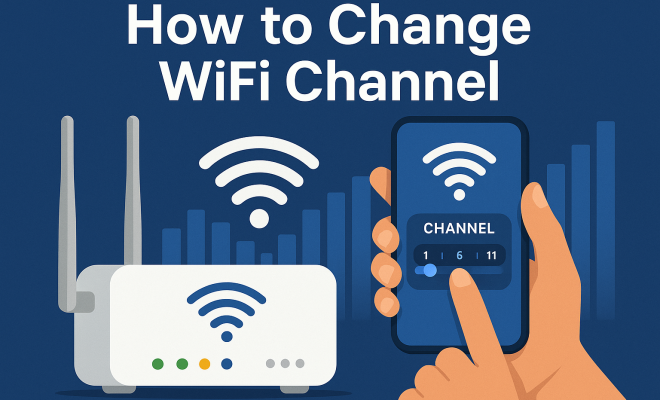
How to change WiFi channel
“`html
In our increasingly connected world, WiFi has become a lifeline for everything from remote work to streaming your favorite shows. Yet, many of us don’t realize that the speed and stability of our WiFi can be heavily influenced by the channel it operates on. If you’ve been experiencing sluggish internet speeds or frequent disconnections, it might be time to change your WiFi channel. In this guide, we’ll dive deep into what WiFi channels are, how they operate, and step-by-step instructions to optimize your network.
1. Understanding WiFi Channels
WiFi operates in the 2.4 GHz and 5 GHz bands, each of which is divided into multiple channels. In the 2.4 GHz band, there are 11 channels in North America, but only three of them (1, 6, and 11) don’t overlap, meaning they can operate simultaneously without interfering with each other. The 5 GHz band offers more channels, providing a greater variety of options, which can lead to improved performance.
When multiple networks are using the same channel or overlapping channels, it can result in interference, leading to slower speeds and connection issues. This is particularly common in densely populated areas where many WiFi networks coexist. Understanding how to change your WiFi channel can be crucial for enhancing your internet experience, especially in urban environments.
2. Why You Should Change Your WiFi Channel
There are several compelling reasons to consider changing your WiFi channel. The most significant benefit is reduced interference, which can lead to more stable and faster connections. If you’ve noticed that your WiFi signal drops or slows down during peak usage times, it’s likely due to congestion on your current channel.
Additionally, changing your WiFi channel can help improve coverage in your home. For instance, if you have a dual-band router, choosing the optimal channel on each band can minimize dead zones and enhance your overall experience. Moreover, as technology advances, certain channels might become more susceptible to interference from new devices or networks, making it essential to reassess your settings periodically.
3. How to Analyze Your Current WiFi Channel
Before you can change your WiFi channel, you need to analyze your current settings and see if there’s indeed a conflict or congestion. Tools like WiFi analyzers can help you visualize the network landscape. Applications such as NetSpot, Wi-Fi Analyzer (Android), or inSSIDer provide insights into which channels neighboring networks are using.
When using these tools, look for the channel with the least amount of traffic and interference. It’s also essential to consider the signal strength of your own network. Ideally, you want to choose a channel where your WiFi signal is strong and there’s minimal overlap with other networks.
4. Steps to Change Your WiFi Channel
Changing your WiFi channel is relatively straightforward. Here’s a step-by-step guide to help you through the process:
- Access your router settings: Open a web browser and type in your router’s IP address, usually something like 192.168.1.1 or 192.168.0.1. Log in with the administrator credentials (check your router’s manual if you don’t know them).
- Locate the wireless settings: Once logged in, navigate to the wireless settings section. The exact wording may vary by router model, but look for options like “Wireless,” “WiFi Settings,” or “Wireless Setup.”
- Change the channel: In the wireless settings, find the channel dropdown menu. Select the channel you found to be optimal based on your earlier analysis.
- Save your settings: After selecting the new channel, make sure to save your changes. The router may reboot to apply the new settings.
Once you’ve completed these steps, it’s a good idea to reconnect your devices to ensure they are operating on the new channel.
5. Best Practices for Choosing WiFi Channels
When it comes to choosing the best channel for your WiFi network, consider the following best practices:
- Use non-overlapping channels: Stick to channels 1, 6, and 11 for the 2.4 GHz band to avoid overlap and interference.
- Monitor your network: Regularly check your network performance and neighboring networks to see if you need to switch channels again.
- Experiment with 5 GHz: If your router supports 5 GHz, try using it. It has more channels and is less congested than the 2.4 GHz band.
By adhering to these best practices, you can ensure that your WiFi network remains fast and stable, even as the number of devices and networks around you increases.
6. Common Issues After Changing WiFi Channels
While changing your WiFi channel can lead to significant improvements, it’s not without potential issues. One common problem is that your devices may have difficulty reconnecting to the network after a channel change. If devices seem sluggish or unresponsive, resetting them can help. (See: impact of Wi-Fi on health.)
Another issue might arise from selecting a channel that, while less congested, may have a weaker signal due to physical obstructions in your home. Walls, floors, and even appliances can interfere with your WiFi signal. If you encounter this, consider repositioning your router or experimenting with other channels.
7. Advanced Techniques for WiFi Optimization
If you’re tech-savvy and want to take your WiFi performance even further, consider delving into advanced techniques, such as adjusting the transmit power of your router or implementing Quality of Service (QoS) settings. Adjusting the transmit power can help you control the range of your WiFi signal, which is particularly useful in crowded environments.
QoS settings allow you to prioritize bandwidth for specific applications or devices. For example, if you frequently stream movies or play online games, you can allocate more bandwidth to those activities, ensuring a smoother experience even when multiple devices are connected.
8. The Future of WiFi Technologies
As technology evolves, so do WiFi standards and capabilities. The introduction of WiFi 6 (802.11ax) promises faster speeds and improved performance in congested areas. It’s particularly designed to handle multiple devices without compromising on speed.
Additionally, newer technologies like WiFi 6E expand the capabilities into the 6 GHz band, providing even more channels to choose from and reducing congestion. As these technologies become more widely available, changing your WiFi channel will remain a relevant practice for optimizing your network.
9. Final Thoughts on Changing Your WiFi Channel
Changing your WiFi channel is a crucial step in ensuring a fast and reliable internet connection. Whether you’re experiencing slow speeds, interference, or dead zones, taking the time to analyze and adjust your settings can lead to a significant improvement in your online experience. By understanding how WiFi channels work and implementing best practices, you can create a more efficient home network.
Staying informed about new technologies and continually optimizing your WiFi settings will ensure that you’re getting the most out of your internet connection. So don’t hesitate — take control of your WiFi network today!
10. Real-World Examples of Changing WiFi Channels
To illustrate the impact of changing WiFi channels, let’s consider a few real-world scenarios. In a bustling apartment complex, one resident reported intermittent connectivity issues that were particularly noticeable during evenings. After running a WiFi analysis, they discovered that their network was sharing a channel with several neighbors. By switching to channel 6, which had less traffic, they noticed a substantial increase in both speed and reliability.
In another case, a family with multiple smart devices found that their streaming quality was suffering due to buffering. They were using the 2.4 GHz band, which was overcrowded. After switching to the 5 GHz band and selecting channel 36 — which had no competing networks — their streaming experience improved dramatically.
11. Statistics on WiFi Channel Congestion
According to a recent study by the WiFi Alliance, nearly 80% of home networks experience some form of congestion due to overlapping channels. This can result in speed reductions of anywhere from 20% to 50%, depending on the density of nearby networks. Additionally, the research indicated that users who regularly switch their WiFi channels report a 30% increase in overall satisfaction with their internet connection.
Another statistic from a consumer tech survey revealed that 65% of users have never changed their WiFi channel, highlighting a significant opportunity for enhancement in home network performance.
12. Expert Perspectives on WiFi Optimization
Experts in networking often stress the importance of periodically reviewing your WiFi configuration. Network engineer Sarah Johnson advises that “just like roads become congested during rush hour, your WiFi can become cluttered with traffic. Regularly changing your WiFi channel can lead to a smoother, uninterrupted experience.”
Dr. Alan Reed, a technology researcher, supports this viewpoint by noting, “The capabilities of modern routers and their ability to switch channels automatically is still no substitute for user awareness. Even with advanced technology, taking the time to optimize your setup is crucial.” (See: improving Wi-Fi signal.)
13. FAQ: Frequently Asked Questions About Changing WiFi Channels
Q: How often should I change my WiFi channel?
A: It’s a good practice to check your WiFi channel every few months, especially if you notice a drop in performance or if you’ve added new devices to your network.
Q: Can changing my WiFi channel affect my internet speed?
A: Absolutely! By selecting a less congested channel, you can significantly improve your internet speed and connection stability.
Q: What if I can’t find a channel that improves my WiFi?
A: If you’re unable to find an optimal channel, consider upgrading your router. Routers that support newer standards, such as WiFi 6, have better performance in crowded networks. Additionally, using the 5 GHz band can often resolve congestion issues.
Q: Is it safe to change my WiFi channel?
A: Yes, changing your WiFi channel is completely safe. It won’t cause any harm to your devices or network; it’s simply a matter of reconfiguring your settings to optimize performance.
Q: Can I set my router to automatically select a channel?
A: Many modern routers have an automatic channel selection feature that allows them to choose the best channel based on current network conditions. However, it’s still advisable to manually check and adjust if necessary.
Q: How do I know if the channel change worked?
A: After changing your WiFi channel, monitor your network performance. Look for improvements in speed, reliability, and overall user experience. Running a WiFi analysis tool again can help you determine if the new channel is more optimal.
14. How WiFi Channels Affect Different Devices
The choice of WiFi channel can impact various devices in your home differently. For instance, older devices may not support the 5 GHz band, making it essential to optimize the 2.4 GHz band for them. On the other hand, modern devices such as smartphones, laptops, and smart TVs can benefit significantly from the higher speeds and reduced congestion available on the 5 GHz band.
For example, a household with a mix of newer streaming devices and older laptops might find that keeping the 2.4 GHz band on channel 1 (for older devices) while switching the 5 GHz band to channel 36 maximizes performance across all devices. This tailored approach ensures that everyone in the household enjoys a stable connection regardless of the device they are using.
15. Impact of Physical Environment on WiFi Channel Performance
Your physical environment plays a crucial role in WiFi performance. Factors like walls, floors, and even furniture can obstruct WiFi signals, leading to significant differences in performance between channels. For instance, if you’re in a multi-story home, the WiFi signal might be stronger on the same floor as the router but weaker on the upper or lower floors.
In addition, interference from appliances such as microwaves, cordless phones, and Bluetooth devices can disrupt your WiFi signal. If you find that changing channels doesn’t improve performance, consider relocating your router to a more central location in your home or elevating it to reduce obstructions. This can often resolve issues without needing to change channels repeatedly.
16. Using Mesh Networks for Better Coverage
If you constantly face challenges with WiFi coverage in larger homes, investing in a mesh network might be a smart move. Mesh networks consist of multiple nodes that work together to blanket your home in WiFi. Each node communicates with others, providing a more robust and consistent signal throughout your space.
With a mesh system, you typically won’t have to worry as much about changing WiFi channels since the nodes automatically manage which channel to use based on current conditions. This not only simplifies your setup but can also enhance overall performance, especially in homes with multiple floors or tricky layouts.
17. Future-Proofing Your WiFi Network
As new devices and technologies emerge, future-proofing your WiFi network becomes increasingly important. This involves not only selecting the right channels but also investing in hardware that can support future advancements like WiFi 6 and beyond. Upgrading to a router that supports these newer standards can provide better performance, enhanced security, and the ability to handle more connected devices simultaneously.
Think about your current and future needs when choosing equipment. Consider the number of devices in your home, the types of activities you regularly engage in, and how often you upgrade your devices. By doing so, you’ll ensure that your network remains robust and efficient for years to come.
18. Expanded FAQ: More Questions on WiFi Channels
Q: Will changing the WiFi channel affect my home security?
A: No, changing your WiFi channel does not affect the security settings of your network. Your WPA2 or WPA3 encryption will remain intact regardless of which channel you select.
Q: Are there apps that can help me manage WiFi channels?
A: Yes, there are several apps designed for both iOS and Android that can help manage network performance. Apps like WiFi Analyzer and NetSpot can visualize channel usage and suggest optimal settings.
Q: Should I always use the highest channel number available?
A: Not necessarily. While higher channels in the 5 GHz band may have less congestion, the key is to choose a channel that offers the best performance based on your environment and neighboring networks. Analyzing the channel landscape is crucial.
Q: Can I change the WiFi channel from my smartphone?
A: Yes, most modern routers have mobile apps that allow you to change settings, including the WiFi channel, directly from your smartphone. Check your router’s app for specific options.
Q: What if my ISP provides a router?
A: If your Internet Service Provider (ISP) provides a router, you might have limited control over its settings. Check if they allow access to advanced settings; if not, you can connect your own router to their modem.
Q: How do I troubleshoot WiFi channel issues?
A: If you’re experiencing issues after changing your WiFi channel, first check the physical placement of your router, and ensure it isn’t obstructed. Run a WiFi analysis to see if the new channel is still congested, and consider trying different channels as a troubleshooting step.
“`
Trending Now
Frequently Asked Questions
What is a WiFi channel?
A WiFi channel is a specific frequency within the WiFi bands (2.4 GHz and 5 GHz) that your router uses to transmit data. The 2.4 GHz band has 11 channels, with only three non-overlapping options (1, 6, and 11), while the 5 GHz band offers more channels. Choosing the right channel can reduce interference and improve internet performance.
Why should I change my WiFi channel?
Changing your WiFi channel can significantly reduce interference from other networks, leading to faster and more stable connections. If you experience slow speeds or frequent disconnections, especially during peak times, switching to a less congested channel can enhance your overall internet experience.
How do I know which WiFi channel to use?
To determine the best WiFi channel, you can use network analysis tools or apps that scan for nearby networks and show which channels are most crowded. Ideally, choose a channel with the least interference, particularly in the 2.4 GHz band, where channels 1, 6, and 11 are recommended for optimal performance.
Can changing my WiFi channel improve internet speed?
Yes, changing your WiFi channel can improve internet speed by minimizing interference from nearby networks. If your current channel is congested, switching to a less crowded one can lead to a more stable connection and better overall performance, especially in environments with many competing WiFi signals.
How often should I change my WiFi channel?
There's no set rule for how often to change your WiFi channel; however, it's wise to reassess your channel choice if you experience connectivity issues or after significant changes in your environment, such as new neighbors or devices. Regularly checking for interference can help maintain optimal performance.
Have you experienced this yourself? We’d love to hear your story in the comments.