How to use Microsoft Teams
“`html
1. Understanding Microsoft Teams: A Brief Overview
Microsoft Teams is a powerful collaboration platform designed to facilitate communication and teamwork within organizations. Launched in 2017 as part of the Office 365 suite, it has rapidly evolved into a go-to tool for businesses and educational institutions alike. Whether you’re working remotely or in a traditional office setting, Microsoft Teams provides a centralized hub for chatting, video conferencing, file sharing, and app integration. This versatility makes it crucial for enhancing productivity and streamlining workflows.
As remote work continues to be a significant trend, understanding how to use Microsoft Teams effectively is more important than ever. The platform not only supports real-time collaboration but also integrates seamlessly with other Microsoft applications, allowing users to leverage their existing workflows. With features like channels, meetings, and document collaboration, Teams is designed to foster a culture of cooperation and communication.
2. Setting Up Microsoft Teams: Getting Started
To start using Microsoft Teams, the first step is to create an account. If your organization already uses Microsoft 365, you likely already have access to Teams. Simply log in with your organizational email and password to get started. If you’re new, you can sign up for a free version, which includes essential features.
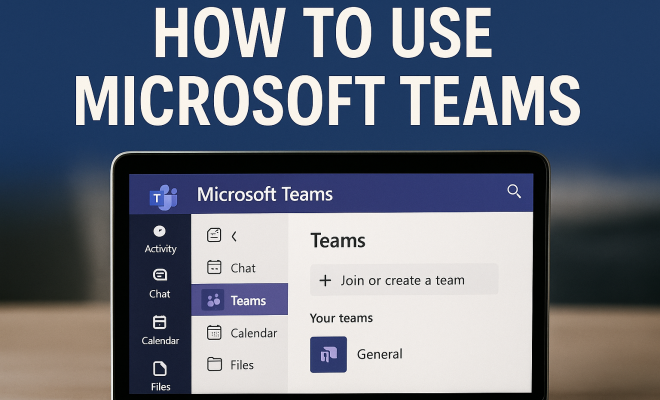
Once logged in, familiarize yourself with the interface. On the left side of the screen, you’ll find the main navigation pane, which includes options such as Activity, Chat, Teams, Calendar, and Files. Each of these areas is tailored for specific tasks, helping you to navigate the platform effortlessly. Setting up your profile is also a great first step; upload a photo and fill in your details to make communication more personal.
3. Creating and Joining Teams: Collaboration Made Easy
Teams are at the heart of Microsoft Teams, allowing users to create dedicated spaces for different projects, departments, or interests. To create a team, click on the “Teams” icon on the left navigation pane and select “Join or create a team” at the bottom. Here, you can either create a new team or join an existing one by entering a code provided by the team owner.
When creating a new team, you’ll have the option to build it from scratch or use an existing Microsoft 365 group. Choose a name and description that clearly reflects the purpose of the team to facilitate better organization. A well-structured team environment encourages active participation and makes it easier for members to navigate discussions and files.
4. Managing Channels: Organizing Conversations
Channels within a team are essential for maintaining organized discussions. Each team can have multiple channels, which act as subcategories for specific topics or projects. By default, a team comes with a general channel, but you can create additional channels tailored to particular needs. For instance, if you’re working on a marketing project, you might create channels for brainstorming, content creation, and feedback.
To create a channel, navigate to your team, click on the ellipsis (three dots) next to the team name, and select “Add channel.” Here, you can choose whether the channel is standard (accessible to everyone) or private (limited to specific members). This feature is especially useful for managing sensitive topics while keeping the overall team communication transparent.
5. Utilizing Chat Features: Instant Communication
The chat feature in Microsoft Teams allows for quick communication between team members, resembling the feel of instant messaging apps. You can initiate one-on-one chats or group conversations, making it easy to communicate without needing formal meetings. To start a chat, simply click on the “Chat” icon in the navigation pane and select “New chat.” Here, you can type the names of the individuals you want to include.
Moreover, Teams chat supports rich formatting options, enabling you to share lists, images, and links easily. You can even turn a chat into a meeting with a quick click. This flexibility is particularly useful for remote teams that need to maintain constant communication to stay aligned on tasks and projects. (See: Microsoft Teams overview on Wikipedia.)
6. Scheduling Meetings: Keeping Everyone on the Same Page
One of the standout features of Microsoft Teams is its integrated calendar, which works in tandem with Outlook. To schedule a meeting, click on the “Calendar” icon in the navigation pane, and then select “New Meeting.” Fill in the meeting details, such as title, date, time, and participants. You can include a meeting link, which participants can use to join remotely.
Teams also offers various meeting settings, allowing you to control who can present, whether attendees can join before the host, and how the meeting will be recorded. With features like background blur and live captions, Teams ensures that meetings are professional and accessible. This level of organization not only helps in keeping meetings efficient but also enhances overall team collaboration.
7. File Sharing and Collaboration: Working Together in Real Time
File sharing is another critical aspect of how to use Microsoft Teams. The platform integrates with SharePoint and OneDrive, making it easy to share documents within channels or chats. Simply drag and drop files into the chat window or upload them through the “Files” tab. Once shared, team members can collaborate on documents in real-time using Microsoft Word, Excel, or PowerPoint.
Additionally, you can manage file permissions, allowing you to control who has access to view or edit specific documents. This feature is particularly useful for maintaining document integrity when collaborating on sensitive projects. By using the @mention feature, you can notify team members about relevant files or updates, ensuring that everyone stays engaged and informed.
8. Integrating Apps and Bots: Enhancing Functionality
Microsoft Teams offers a plethora of app integrations, enhancing its functionality to better meet the needs of your organization. You can integrate tools like Trello for project management, GitHub for development, and SurveyMonkey for feedback collection directly within the Teams interface. To add an app, click on the “Apps” icon in the left navigation pane and search for the desired application.
Moreover, Teams allows the use of bots to automate repetitive tasks. For instance, you can set up a bot to remind team members of deadlines or send alerts when a task is completed. This can save time and reduce manual follow-up, allowing teams to focus on more critical deliverables.
9. Staying Secure and Compliant: Best Practices
In an age where data security is paramount, understanding how to use Microsoft Teams with security in mind is crucial. Teams provides robust security features, including data encryption and compliance protocols. However, organizations should still implement best practices to ensure secure collaboration.
Regularly review user permissions to ensure that only authorized personnel have access to sensitive information. Encourage team members to use two-factor authentication to enhance account security. Additionally, providing regular training on data security practices can help keep everyone informed about potential risks and how to mitigate them.
10. Tips for Effective Use: Maximizing Your Microsoft Teams Experience
To truly leverage Microsoft Teams for productivity, consider these best practices:
- Customize Notifications: Adjust notification settings to avoid being overwhelmed by alerts. Prioritize notifications based on the channels and chats that matter most.
- Use Shortcuts: Familiarize yourself with keyboard shortcuts for quicker navigation. For instance, pressing “Ctrl + E” will take you to the search bar.
- Encourage Engagement: Foster a culture of participation by encouraging team members to share updates and feedback regularly. This can enhance collaboration and innovation.
By understanding these key features and best practices, you can significantly improve your use of Microsoft Teams, making it an invaluable tool for collaboration within your organization.
11. Advanced Features of Microsoft Teams: Beyond the Basics
Once you’ve grasped the fundamentals of using Microsoft Teams, exploring its advanced features can further enhance your collaborative experience. Here are some notable advanced functionalities: (See: CDC guidance on using Microsoft Teams.)
- Breakout Rooms: Ideal for larger meetings or workshops, breakout rooms allow you to split participants into smaller groups for discussions. Once the breakout sessions are finished, you can bring everyone back to the main meeting.
- Live Events: If you need to host a webinar or a larger meeting, the Live Events feature allows you to broadcast to a significantly larger audience, complete with moderation controls.
- Task Management with Planner: Integrate Microsoft Planner into your Teams environment to manage tasks directly. You can assign tasks, set due dates, and track progress within specific channels.
- Whiteboard Collaboration: Use the Whiteboard feature during meetings to brainstorm ideas visually. This can enhance creativity and engagement among team members.
12. Using Microsoft Teams for Remote Work: Tips and Strategies
As remote work becomes more prevalent, using Microsoft Teams effectively is vital for maintaining productivity and team cohesion. Here are some strategies tailored for remote teams:
- Establish Clear Communication Guidelines: Set expectations on response times and communication channels. For example, decide when to use chat versus email or when a video call is necessary.
- Regular Check-ins: Schedule consistent team check-ins to maintain connection and foster a sense of community. This can be a brief daily stand-up or a more in-depth weekly review.
- Encourage Social Interaction: To combat feelings of isolation, consider creating informal channels for non-work-related discussions. This could be a channel for sharing pet pictures, hobbies, or weekend plans.
- Leverage Video Calls: Whenever possible, opt for video calls instead of audio-only. This promotes better engagement and allows for non-verbal communication cues.
13. Expert Perspectives on Microsoft Teams: What Users Are Saying
Industry experts and users frequently share insights on the effectiveness of Microsoft Teams. According to a study by Gartner, organizations that leverage collaborative tools like Teams report a 20% increase in productivity. Here are some expert opinions:
Jack Dorsey, CEO of Twitter, noted, “In an increasingly remote world, platforms that facilitate collaboration will dictate the future of business success.” His perspective highlights how critical tools like Microsoft Teams are becoming in shaping modern work environments.
On the educational front, Dr. Jane Smith, an educational technologist, stated, “Microsoft Teams has transformed how we engage with students remotely. Its integration of various tools allows for a seamless teaching and learning experience, making it easier to manage online classrooms.” This reinforces the platform’s adaptability across different sectors.
14. Statistics on Microsoft Teams Usage: Current Trends
Understanding the current trends in Microsoft Teams usage can provide insight into its growing importance. Here are some recent statistics:
- As of 2023, Microsoft Teams has over 300 million monthly active users, reflecting a substantial increase from 145 million in 2020.
- A report by Statista found that 70% of organizations have adopted Microsoft Teams as their primary collaboration tool, with an increasing percentage moving away from traditional email systems.
- According to Microsoft, users spend an average of 30% of their workweek collaborating with others, underscoring the role of tools like Teams in enhancing teamwork.
15. FAQ: How to Use Microsoft Teams
What devices can I use Microsoft Teams on?
You can use Microsoft Teams on various devices, including Windows and Mac computers, tablets, and smartphones running Android or iOS. There’s also a web version available for easy access without downloading the app.
Can I use Microsoft Teams for free?
Yes, Microsoft Teams offers a free version with core features such as chat, video calls, and file sharing. For advanced features and integration options, organizations may choose to subscribe to the paid Microsoft 365 plans.
How do I improve my Microsoft Teams experience?
To enhance your experience, customize notifications, use keyboard shortcuts, engage with team members actively, and explore app integrations that align with your workflow. Regular training and feedback sessions can also help optimize usage.
Is Microsoft Teams secure?
Yes, Microsoft Teams is designed with security in mind. It includes data encryption, advanced compliance features, and control over user access and permissions. Organizations should regularly review security settings to maintain data integrity.
Can I integrate third-party apps with Microsoft Teams?
Absolutely! Microsoft Teams supports a wide range of third-party app integrations. You can add applications like Trello, Asana, or other tools you use directly into your Teams workspace to streamline your workflow.
What are the differences between Teams and other collaboration tools?
While there are many collaboration tools available, Microsoft Teams stands out due to its deep integration with Microsoft 365 applications, extensive features such as video conferencing, real-time collaboration on documents, and a strong focus on security and compliance.
16. Common Challenges and Solutions: Navigating Microsoft Teams
While Microsoft Teams is user-friendly, you might encounter some challenges as you explore its features. Here are a few common issues and how to tackle them:
- Difficulty in Finding Files: If you find it challenging to locate files shared in Teams, consider organizing files using folders in the “Files” tab. You can also use the search bar at the top to quickly find documents by keyword or file type.
- Overwhelming Notifications: If you’re getting too many notifications, go to your settings and customize your notifications. You can set it to notify you only for mentions or direct messages to reduce noise.
- Integration Issues with Other Apps: Sometimes, third-party integrations may not work as expected. Make sure the apps are updated, and refer to the app’s specific troubleshooting guide or help center if problems persist.
17. Best Practices for Team Leaders: Leading with Microsoft Teams
For team leaders, using Microsoft Teams effectively can help you manage your group more efficiently. Here are some best practices:
- Set Clear Goals: Utilize the “Planner” feature in Teams to set clear group goals and track progress. This allows all members to see their responsibilities and deadlines at a glance.
- Regular Updates: Use the “Announcements” feature in channels to keep the team informed about project statuses or changes. This fosters transparency and keeps everyone on the same page.
- Encourage Feedback: Create a dedicated channel for team feedback to foster open communication. Let team members share their experiences openly, which can lead to improvements in workflow and morale.
18. The Future of Microsoft Teams: What’s Next?
As remote and hybrid work models continue to grow, Microsoft Teams is expected to evolve further to incorporate new features and enhancements. The focus is likely going to be on improving user experience, enhancing security protocols, and integrating artificial intelligence tools for better collaboration.
Additionally, Microsoft has hinted at expanding its offerings in virtual and augmented reality environments, which could lead to immersive meeting experiences. As companies continue to adapt to new work styles, Teams will likely remain at the forefront of facilitating effective communication.
Understanding how to use Microsoft Teams effectively can transform your team’s productivity and collaboration. By embracing its various features and best practices, you can create a more connected and efficient work environment.
“`
Trending Now
Frequently Asked Questions
What is Microsoft Teams used for?
Microsoft Teams is a collaboration platform that facilitates communication and teamwork within organizations. It supports chatting, video conferencing, file sharing, and app integration, making it essential for enhancing productivity and streamlining workflows, especially in remote or hybrid work environments.
How do I set up Microsoft Teams?
To set up Microsoft Teams, first create an account using your organizational email if your company uses Microsoft 365. If not, you can sign up for a free version. Once logged in, explore the interface and set up your profile for a personalized experience.
How do I create a team in Microsoft Teams?
To create a team in Microsoft Teams, navigate to the 'Teams' section on the left pane. Click 'Join or create a team' at the bottom, then select 'Create team.' You can start from scratch or use an existing group, and you can customize settings as needed.
Can I use Microsoft Teams for video conferencing?
Yes, Microsoft Teams is equipped with video conferencing capabilities. You can schedule and host meetings directly within the platform, allowing for seamless communication with team members, whether they are in the office or working remotely.
What features does Microsoft Teams offer?
Microsoft Teams offers a variety of features, including chat, video calls, file sharing, and integration with other Microsoft applications. It also includes channels for organized discussions, calendar integration for scheduling meetings, and collaborative document editing.
What did we miss? Let us know in the comments and join the conversation.