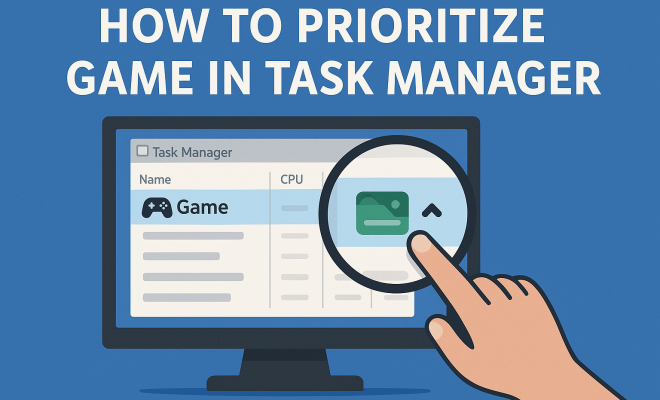
How to prioritize game in Task Manager
“`html
For avid gamers, ensuring your gameplay is as smooth as possible is essential. One of the often-overlooked tools that can help you achieve optimal performance is the Task Manager. Most people associate the Task Manager with basic performance monitoring or ending unresponsive applications, but it offers much more — including the ability to prioritize game in Task Manager. This guide will take you through everything you need to know about this feature, its importance, and how to effectively use it to enhance your gaming experience.
1. Understanding Task Manager
Task Manager is a built-in Windows utility that provides real-time insights into your computer’s performance. It allows you to monitor system resources, applications, and user activity. But beyond these functions, it also enables users to manage how their computer allocates resources to various processes. By learning how to prioritize your game in Task Manager, you can ensure that your gaming sessions are less likely to suffer from lag or stuttering.
Primarily, Task Manager provides details on CPU, memory, disk, and network usage. Each of these components plays a crucial role in gaming performance. For instance, a game may require a significant amount of CPU and RAM; if other applications are using these resources, your game might run poorly. Understanding how to prioritize these processes becomes essential for any serious gamer.
2. The Importance of Prioritizing Games
When you prioritize game in Task Manager, you instruct Windows to allocate more resources to your gaming application. This is especially important during intense gaming sessions when multiple applications might be running in the background. By doing this, you can reduce latency and improve frame rates dramatically.
For instance, if you’re playing a resource-intensive game like Call of Duty or Cyberpunk 2077, prioritizing the game ensures that the CPU and memory are focused on delivering the best possible performance. This can be the difference between a smooth gaming experience and one filled with frustrating lags and drops in frame rates.
3. How to Access Task Manager
Accessing Task Manager is straightforward. You can do so by right-clicking the taskbar at the bottom of your screen and selecting “Task Manager” from the context menu. Alternatively, you can press Ctrl + Shift + Esc or Ctrl + Alt + Delete and choose “Task Manager” from the options. Once opened, you’ll see a list of running applications and processes, as well as performance metrics.
Understanding the different tabs within Task Manager is crucial. The ‘Processes’ tab shows all active applications and processes, while the ‘Performance’ tab gives you insights into CPU, memory, disk, and network usage. Familiarizing yourself with these areas will help you effectively manage your resources and prioritize your gaming experience.
4. Identifying Your Game Process
Once you have Task Manager open, the next step is to identify the process associated with your game. This is often listed under the ‘Processes’ tab, where you’ll find applications grouped under their executable names. For instance, if you’re playing Fortnite, look for FortniteClient-Win64-Shipping_BE.exe or similar names.
Keep in mind that some games may have multiple processes. For example, if you are using a game launcher like Steam or Epic Games, those processes should also be considered when managing performance. Identifying the main game process is key to effectively prioritizing it within Task Manager.
5. How to Prioritize Your Game
Once you’ve identified the game process, the actual prioritization is quite simple. Right-click the game’s process in the Task Manager, hover over the “Set priority” option, and select “High” or “Real-time.” By choosing a higher priority, you instruct Windows to focus on that process first, allocating more CPU time and resources as needed.
However, it’s essential to use caution when setting a process to “Real-time.” This setting can be taxing on your system, especially if other critical processes are running simultaneously. For most users, setting the priority to “High” is sufficient and strikes a good balance between gaming performance and system stability.
6. Impact of Prioritizing on Performance
Prioritizing your game in Task Manager can have a notable impact on performance. For instance, many gamers report smoother gameplay and improved frame rates after adjusting the priority settings of their games. A higher priority allocation means that the CPU will focus on the game more, reducing the impact of background tasks.
Additionally, prioritizing can help manage common performance issues, such as lag spikes or stuttering during crucial gaming moments. This ensures a more immersive experience and can even lead to better performance in competitive gaming scenarios, where every frame counts.
7. Best Practices for Game Performance
While prioritizing your game in Task Manager is a powerful tool, it’s not the only strategy for optimizing gaming performance. Here are a few best practices to maintain a smooth gaming experience:
- Close Unnecessary Applications: Before gaming, close any unnecessary apps running in the background to free up resources.
- Adjust Graphics Settings: Sometimes, lowering in-game graphics settings can lead to better performance, especially if your hardware is not top-tier.
- Update Drivers: Keep your graphics and sound drivers updated to leverage performance enhancements from manufacturers.
- Check System Resources: Use the ‘Performance’ tab in Task Manager to ensure your system isn’t close to its limits before starting a game.
Incorporating these best practices along with prioritization can greatly enhance your overall gaming experience.
8. Dealing with Crashes and Glitches
Even when you prioritize your game in Task Manager, crashes and glitches can still happen. If you encounter these issues, there are other troubleshooting steps you can take. First, ensure that your system meets the game’s minimum requirements. Running a game on an underpowered machine can lead to frequent performance issues.
If your system meets the requirements but you still experience problems, consider checking for game updates or patches. Developers frequently release updates to fix bugs and improve performance. Additionally, verify the integrity of your game files, especially if you’re using a platform like Steam, as corrupted files can lead to significant performance issues.
9. Alternative Software Solutions
While Task Manager is a great tool, it’s not the only option available for managing gaming performance. Third-party software can offer additional functionality and features, such as game optimization and resource allocation. Programs like MSI Afterburner and RivaTuner Statistics Server allow for real-time monitoring and adjustments to your system’s performance on-the-fly.
Moreover, some gaming platforms, including Discord and GeForce Experience, offer performance-enhancing features. Discord, for example, allows gamers to communicate while enjoying their favorite titles without hogging system resources. Simultaneously, GeForce Experience can automatically optimize game settings based on your hardware specifications.
10. Future Trends in Gaming Optimization
As gaming technology continues to evolve, the methods for managing game performance are also changing. Innovations such as machine learning and AI are making their way into game optimization, enabling systems to adapt in real-time to the demands of modern gaming.
Moreover, cloud gaming platforms like Nvidia’s GeForce Now and Google Stadia are paving the way for a future where hardware limitations may become less of an issue for gamers. These advancements may lead to additional tools and features in Task Manager and similar utilities, allowing users to optimize gaming experiences even further.
Ultimately, understanding how to prioritize game in Task Manager is just one piece of the puzzle. By incorporating best practices, leveraging third-party tools, and keeping an eye on the future of gaming technology, you will be well-equipped to enjoy an optimized gaming experience.
11. FAQs About Prioritizing Games in Task Manager
What does it mean to prioritize a game in Task Manager?
Prioritizing a game in Task Manager means adjusting the resource allocation of your system to ensure that the game receives more CPU and memory usage than other applications. This can lead to smoother gameplay and reduced lag.
Is it safe to set a game’s priority to real-time?
While you can set a game’s priority to real-time, it’s generally not recommended unless you are sure your system can handle it. Real-time prioritization gives the game the highest level of CPU time but can lead to system instability, especially if other critical processes are running.
Can prioritizing improve my FPS?
Yes, prioritizing your game can lead to improved frames per second (FPS), particularly if background applications are consuming significant resources. By allocating more resources to the game, it can run more smoothly.
How often should I prioritize my game?
It’s not necessary to prioritize every time you game. If you find that you regularly experience performance issues, consider making prioritization a part of your gaming setup routine. However, if your system runs smoothly most of the time, you may not need to adjust priority settings frequently.
Are there any risks associated with using Task Manager?
Using Task Manager itself is generally safe. However, changing process priorities can lead to system instability if critical processes are deprioritized. Always ensure that essential system processes remain at their default priority levels.
Can I automate the prioritization process?
While Task Manager doesn’t offer automation features, third-party software solutions do allow you to create profiles that automatically prioritize specific games upon launch. This can save you the hassle of manually adjusting settings every time you start a game.
What other performance tweaks should I consider?
In addition to prioritizing games in Task Manager, you can consider disabling unnecessary startup programs, optimizing your hard drive, using performance modes provided by your operating system, or even upgrading hardware components like RAM or SSD storage for better overall performance.
12. Common Misconceptions About Task Manager and Game Prioritization
There are several misconceptions surrounding the use of Task Manager for prioritizing games. One common myth is that adjusting the priority will always lead to a significant performance boost. While it can help in many cases, it’s not a silver bullet. The effectiveness of prioritization can depend on various factors, including the game itself, the system specifications, and other running applications.
Another misconception is that prioritizing a game will always make it run smoother regardless of the hardware. In reality, if your hardware is outdated or underpowered, no amount of prioritization can compensate for inadequate specifications. This highlights the importance of ensuring your system meets or exceeds the game’s requirements before relying on software tweaks.
13. Real-World Examples of Game Prioritization Impact
Many gamers have shared their experiences regarding the impact of prioritizing games in Task Manager. For example, a competitive player in Valorant reported experiencing significant improvements in responsiveness and FPS after consistently setting the game to high priority. During high-stakes matches, this prioritization helped maintain a competitive edge by ensuring that every frame counted.
Conversely, some users have noticed little to no difference in performance. In these cases, they reported that their systems were already optimized, and background applications were already minimal. This highlights the need for each gamer to assess their individual setup and needs when considering the prioritization of their gaming experience.
14. Technical Limitations of Task Manager
While Task Manager is a powerful tool, it does have its limitations. One notable issue is that it does not allow for persistent prioritization. Every time you start a game, you’ll need to manually adjust the priority again. This can be cumbersome, especially for gamers who frequently switch between various titles.
Moreover, Task Manager does not provide advanced features such as automatic resource optimization based on real-time performance metrics. Some third-party applications can monitor system performance and adjust priorities and settings dynamically, providing a more seamless experience.
15. Exploring Hardware Upgrades for Enhanced Gaming
Sometimes, the best way to ensure optimal gaming performance is to invest in hardware upgrades. If you’re consistently facing performance issues despite prioritizing your games in Task Manager, it may be time to consider upgrading your components. Here are some options to consider:
- RAM Upgrade: Increasing your RAM can significantly improve multitasking capabilities and overall system responsiveness during gaming.
- SSD Installation: Switching from an HDD to an SSD can drastically reduce load times and improve overall system performance, enhancing your gaming experience.
- Graphics Card Upgrade: Investing in a better graphics card can provide a noticeable boost in frame rates and graphical fidelity in modern games.
- Cooling Solutions: Effective cooling systems can help maintain optimal performance by preventing thermal throttling, ensuring that your components run at peak efficiency during intense gaming sessions.
16. Final Thoughts and Recommendations
Prioritizing your game in Task Manager can be a valuable tool in your gaming optimization arsenal, but it shouldn’t be the only one. Alongside prioritization, consider hardware upgrades, regular maintenance, and software optimizations to get the best gaming performance possible. With the right combination of tools and strategies, you can ensure that your gaming sessions are not only enjoyable but also highly competitive.
By understanding the nuances of Task Manager and implementing these tips, you can significantly enhance your gaming experience. So go ahead, prioritize your game in Task Manager, and enjoy gaming like never before!
“`
Trending Now
Frequently Asked Questions
How do I prioritize a game in Task Manager?
To prioritize a game in Task Manager, right-click on the game’s process in the 'Processes' tab, hover over 'Set priority', and select 'High' or 'Real-time'. This action allocates more system resources to the game, improving performance and reducing lag during intense gaming sessions.
Why is it important to prioritize games in Task Manager?
Prioritizing games in Task Manager is crucial because it directs Windows to allocate more CPU and memory resources to your game. This helps reduce latency, enhance frame rates, and ensure a smoother gaming experience, especially when multiple applications are running.
What does setting a game to high priority do?
Setting a game to high priority in Task Manager allows Windows to allocate more system resources, such as CPU and RAM, to that game. This can lead to improved performance, reduced stuttering, and a more enjoyable gaming experience.
Can prioritizing games in Task Manager fix lag?
Yes, prioritizing games in Task Manager can help fix lag by ensuring that more system resources are dedicated to the game. This is particularly effective when there are many background applications consuming resources, allowing for smoother gameplay.
What are the steps to open Task Manager?
To open Task Manager, you can right-click on the taskbar and select 'Task Manager', or press 'Ctrl + Shift + Esc' on your keyboard. Once open, you can view running applications and processes, including options to prioritize your game.
What’s your take on this? Share your thoughts in the comments below — we read every one.