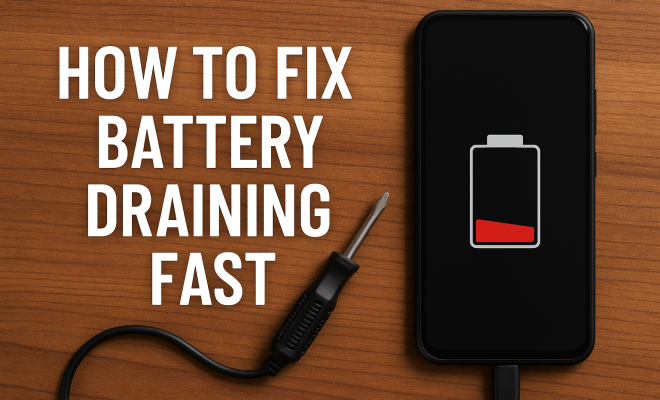
How to fix battery draining fast
“`html
In a world where smartphones, laptops, and tablets have become our constant companions, the frustration of a rapidly draining battery is all too common. Many users find themselves searching for ways to fix battery draining fast issues, often feeling at the mercy of their device’s power management. Fortunately, understanding the factors that contribute to battery depletion and knowing how to address them can significantly enhance your device’s longevity. Let’s explore nine effective strategies to help you keep your device charged when you need it most.
1. Check Background App Activity
One of the primary culprits behind fast battery drain is the activity of background apps. Many applications, while useful, can continue to run and consume battery power even when you’re not actively using them.
On Android devices, you can easily monitor which apps are draining your battery by navigating to Settings > Battery > Battery Usage. Here, you’ll see a list of apps sorted by their battery consumption. On iOS, go to Settings > Battery to view similar information. If you notice any apps that are particularly power-hungry, consider limiting their background activity or uninstalling them altogether.
2. Optimize Your Display Settings
Your display settings can have a significant impact on battery life. A bright screen not only consumes more power but can also contribute to a shorter overall battery lifespan. Adjusting your brightness settings to a lower level or enabling adaptive brightness can help you fix battery draining fast issues.
Additionally, consider using a dark mode if your device supports it. Dark mode can reduce battery consumption, especially on OLED screens, as these displays do not require power to show black pixels. Reducing screen timeout duration is another simple tweak that can save precious battery life.
3. Limit Location Services
Location services are incredibly useful for navigation and other location-based apps; however, they often run continuously in the background. This can lead to a significant battery drain. Most mobile operating systems allow you to manage how each app accesses your location.
On both Android and iOS, you can adjust location settings by going to Settings > Privacy > Location Services. Here, you can opt to use location services only while using the app, or even turn them off entirely for specific applications. Limiting location tracking can be one of the most effective ways to fix battery draining fast problems.
4. Disable Unnecessary Connectivity Features
Bluetooth, Wi-Fi, and mobile data are essential for connectivity, but they can also drain your battery if left on when not in use. If you’re not using Bluetooth devices or connected to Wi-Fi, consider turning those features off.
On many smartphones, you can quickly toggle these features on and off from the quick settings menu. Disabling features like NFC, AirDrop, or even 5G (if not needed) can also save battery life. Being mindful of your connectivity needs can significantly help you in your quest to fix battery draining fast issues.
5. Update Your Software Regularly
Software updates don’t just bring new features; they often include important bug fixes and performance improvements that can enhance battery life. Outdated software can lead to inefficiencies that drain your battery more quickly than necessary.
Make it a habit to check for updates regularly. Most devices will notify you of available updates, but you can also go to Settings > About Phone > Software Update to manually check. Keeping your operating system and apps up to date is a simple yet effective way to maintain optimal performance and battery health.
6. Limit Push Notifications and Syncing
Push notifications can keep you updated in real-time, but they also cause your device to wake up frequently, consuming battery life in the process. Consider limiting notifications or setting them to occur less frequently. (See: CDC on battery safety and health.)
Similarly, syncing your emails or social media accounts at shorter intervals can lead to faster battery drain. Instead, you might choose to sync manually or set longer intervals. Adjust these settings under the respective app settings or in your device’s main settings. Reducing the number of times your device checks for updates can be another effective way to fix battery draining fast concerns.
7. Use Battery Saver Mode
Most modern smartphones are equipped with a battery saver mode that automatically adjusts settings to extend battery life. This feature can significantly help you manage your device’s power consumption during critical times.
To activate battery saver mode, go to Settings > Battery and look for the option to enable this feature. While it may limit some functionalities, it’s a useful tool when your battery is running low. Engaging this mode can help you last longer between charges and is a practical solution to fix battery draining fast scenarios.
8. Remove Unnecessary Widgets and Live Wallpapers
Widgets and live wallpapers can make your device look appealing, but they often come with a hidden cost: battery drain. Live wallpapers require constant processing power to animate, while widgets continually update information, consuming battery even when you’re not actively using your phone.
Consider trimming down the number of widgets on your home screen and opting for static wallpapers instead. These small changes can lead to noticeable improvements in battery performance, aiding in your efforts to fix battery draining fast problems.
9. Consider Battery Replacement
If you’ve tried all the above methods and your device still struggles with battery drain, it might be time to consider the hardware itself. Over time, batteries naturally degrade and lose their ability to hold a charge. If your device is older, a battery replacement could be a practical solution.
Many manufacturers offer battery replacement services, or you can consult a trusted technician. Investing in a new battery can breathe new life into your device and help eliminate those frustrating battery drain issues once and for all.
10. Understanding Battery Health
Battery health is an important factor in determining how quickly your battery drains. Many newer devices come with built-in diagnostics that allow you to monitor your battery’s health. On iPhones, for instance, you can go to Settings > Battery > Battery Health to see the maximum capacity of your battery and whether performance management features are enabled.
For Android devices, there are various apps available on the Play Store that can provide insights into your battery’s health. Knowing your battery health can help you make informed decisions about whether it’s time for a replacement or if you just need to manage your settings better.
11. Using Power-Hungry Apps Wisely
It’s vital to be aware of the apps that consume the most power, especially if you frequently use power-intensive applications like gaming or video streaming apps. Games that involve high graphics processing or video apps that stream in high quality can drain your battery quickly.
Consider limiting your use of these apps when you’re low on battery or using them only when your device is plugged in. Additionally, many apps offer settings to reduce quality or limit features to save battery life while using them. Always check for these options to help fix battery draining fast issues.
12. Consider Third-Party Battery Management Apps
There are numerous third-party battery management apps designed to help you monitor and optimize battery usage. Apps like AccuBattery or GSam Battery Monitor can provide detailed insights about which apps or services are draining your battery the most. They can guide you in making adjustments to improve battery life.
However, it’s essential to choose reputable apps and read reviews before downloading, as some may not deliver on their promises or could even harm your device’s performance.
13. Battery Calibration
Sometimes, the battery’s reporting system can get out of sync after prolonged use. This might make your battery seem like it drains faster than it actually does. Calibrating your battery can help the system accurately report battery levels. To calibrate, fully charge your device to 100%, then let it drop to around 5% before charging it back up to 100% without interruption. This process helps recalibrate the battery’s reporting system. (See: New York Times on smartphone battery life.)
14. Common Misconceptions About Battery Drain
There are several myths surrounding battery drain. One common misconception is that leaving your phone plugged in overnight will harm the battery. Modern smartphones have systems in place to stop charging once the battery reaches capacity, so this is less of a concern than it used to be.
Another myth is that closing apps running in the background saves battery life. In many cases, reopening these apps uses more battery than simply leaving them running, as they have to reload into memory. Knowing these misconceptions can help you manage your device better.
15. Frequently Asked Questions
What causes my battery to drain quickly?
Several factors can contribute to fast battery drain, including background app activity, high screen brightness, active location services, and outdated software. Identifying the specific causes on your device can help you address them effectively.
How can I check which apps are draining my battery?
You can check battery usage by going to Settings > Battery on both Android and iOS devices. This will show you which apps consume the most power.
Is it bad to charge my phone overnight?
Generally, modern smartphones are equipped with technology that prevents overcharging, so charging overnight isn’t harmful. However, it’s still a good practice to unplug your device once it’s fully charged if you want to extend battery lifespan.
What should I do if my battery health is below 80%?
If your battery health is below 80%, it’s a good idea to consider replacing the battery, especially if you notice significant performance issues or rapid battery drain.
Can I use my phone while it’s charging?
Yes, you can use your phone while it’s charging. However, using power-intensive apps while charging may slow down the charging process and contribute to heat, which can negatively affect battery health over time.
What is battery saver mode, and how does it work?
Battery saver mode reduces background activity, dims the screen, limits location services, and restricts performance to extend battery life. It’s a useful option when you need to conserve battery power rapidly.
16. Understanding Battery Lifespan
It’s important to grasp the concept of battery lifespan. Lithium-ion batteries, which power most smartphones and laptops, have a finite number of charge cycles—typically between 300 to 500 cycles before they diminish in capacity significantly. A charge cycle refers to the process of charging a battery from 0% to 100%. If you frequently charge your device partially then discharge it, those partial charges still count towards your cycle limit.
To maximize battery lifespan, consider allowing your battery to discharge to around 20% before recharging it fully. Avoid letting your device continually charge overnight, as this can lead to unnecessary cycles and heat generation.
17. Environmental Factors Affecting Battery Life
Environmental conditions can also impact battery performance. Extreme temperatures, both hot and cold, can cause batteries to drain more quickly. For instance, exposure to high temperatures might cause the battery to swell and can ultimately lead to failure. Keeping your device in a temperature-controlled environment can help mitigate these effects.
If you’re in a particularly hot climate, consider using a simple phone case that provides insulation, or avoid leaving your device in direct sunlight for extended periods. Conversely, in colder climates, keep your device close to your body when outdoors to maintain warmth. (See: Scientific insights on battery technology.)
18. Utilizing Adaptive Battery Features
Many modern smartphones come equipped with adaptive battery features that learn your usage patterns over time. For instance, Android’s Adaptive Battery feature limits battery usage for apps you don’t frequently use, ensuring that the power is primarily reserved for the apps you rely on daily.
Be sure to enable any such features on your device. They can be a game-changer in prolonging battery life without requiring much effort on your part.
19. Investing in Quality Chargers
Using the correct charger for your device is crucial not just for charging speed but also for battery health. Cheap or incompatible chargers can deliver inconsistent power, which may lead to overheating and long-term damage to the battery.
Always opt for chargers and cables that are certified either by the device manufacturer or by accredited standards organizations. This small investment can save you from costly battery replacements down the road.
20. Keeping Your Device Clean
Over time, dust and debris can accumulate in the charging port, which can impede charging efficiency. Regularly cleaning your device, especially the charging port, can enhance battery charging and performance. Use a soft brush or compressed air to gently clean out the port without causing damage.
21. Behavioral Adjustments for Battery Preservation
Sometimes, it’s not just about the settings on your device but also about how you use it. For example, turning off notifications for less important apps can help reduce distractions and battery usage. Similarly, managing your screen-on time while using social media can significantly help your battery last longer.
Encouraging good charging habits, like unplugging your device when it reaches 100% and avoiding the use of your phone while it’s charging, can also contribute to improved battery health.
22. Exploring Device-Specific Options
Different manufacturers sometimes include specific features tailored to prolong battery life. For example, Samsung devices often include a feature called “App Power Management” that identifies apps that drain power and suggests limiting their background access. Check your device’s user manual or settings to discover unique options available for your specific model.
23. Conclusion
In summary, managing battery life challenges doesn’t have to feel overwhelming. By implementing these strategies, you can effectively fix battery draining fast problems. Whether it’s adjusting settings, keeping your software up to date, or even considering a battery replacement, these actionable steps can keep your devices ready when you need them most.
“`
Trending Now
Frequently Asked Questions
Why is my battery draining so fast?
Fast battery drain can be attributed to several factors, including background app activity, high display brightness, and location services. Monitoring which apps are consuming the most power and adjusting settings can help mitigate this issue.
How can I improve my phone's battery life?
To improve your phone's battery life, optimize your display settings by lowering brightness, limit background app activity, and disable unnecessary location services. Additionally, consider using dark mode if available, as it can help conserve battery on OLED screens.
What apps drain battery the most?
Apps that frequently run in the background, such as social media and navigation tools, are often the biggest battery drainers. You can check battery usage in your device's settings to identify which apps consume the most power.
Does dark mode save battery?
Yes, dark mode can save battery life, especially on devices with OLED screens. Since these screens do not require power to display black pixels, using dark mode reduces overall power consumption compared to a bright theme.
How do I check which apps are using my battery?
You can check battery usage by navigating to the settings on your device. For Android, go to Settings > Battery > Battery Usage, and for iOS, go to Settings > Battery. This will show you a list of apps sorted by their battery consumption.
What did we miss? Let us know in the comments and join the conversation.