DIY Laptop Battery Replacement: A Comprehensive Guide
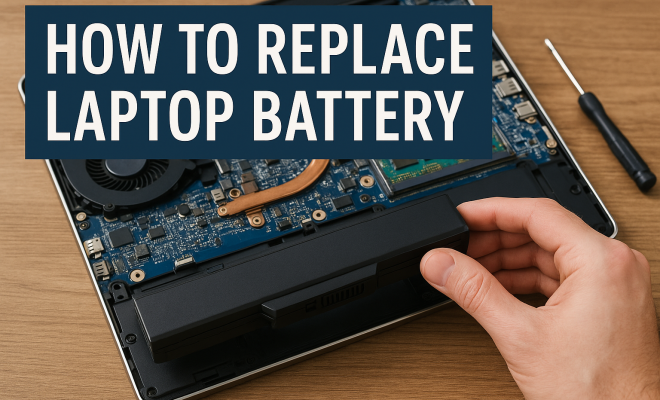
“`html
Replacing your laptop battery can seem daunting, but it’s often a necessary skill that can save you both time and money. As laptops age, battery performance declines, leading to shorter usage times and, in some cases, unexpected shutdowns. With the right knowledge and tools, you can easily tackle this task yourself. In this comprehensive guide, we’ll explore everything you need to know about replacing your laptop battery, from understanding battery types to step-by-step replacement instructions.
1. Understanding Laptop Batteries
Before diving into the replacement process, it’s crucial to understand the types of laptop batteries available. Most modern laptops use lithium-ion (Li-ion) batteries due to their lightweight nature and efficient performance. These batteries generally last for 2 to 4 years, depending on usage and care. As they age, you might notice a significant decrease in their ability to hold a charge. This degradation is natural, but recognizing when to replace your laptop battery can enhance your overall computing experience.
Older laptops might use nickel-metal hydride (NiMH) batteries. While these were more common in the past, they are now largely phased out in favor of lithium-ion due to their lower power density and greater self-discharge rates. Knowing the type of battery in your laptop is the first step in the replacement journey. Additionally, understanding battery chemistry can help you make informed choices about maintenance and replacement options.
2. Signs That You Need to Replace Your Laptop Battery
Recognizing the signs that your battery needs replacement is essential. Here are some common indicators:
- Drastic Reduction in Battery Life: If your laptop can no longer hold a charge for a reasonable amount of time, it’s a clear sign that you might need to replace the battery.
- Unexpected Shutdowns: If your laptop shuts down suddenly, especially when plugged in, the battery could be faulty.
- Swelling or Physical Damage: Any visible damage or swelling of the battery itself is a serious concern and indicates that you should replace it immediately.
- Overheating: An overheating laptop can also signify a problem with the battery, requiring further investigation.
- Battery Health Notifications: Many laptops have built-in software that monitors battery health and may notify you when it’s time to replace it.
3. Safety Precautions Before Replacing Your Battery
Safety should always be your top priority when replacing laptop batteries. Here are some precautions to consider:
- Power Down Your Laptop: Always ensure that your laptop is completely powered off before beginning any replacement work.
- Unplug from Power: Remove the charger to avoid any electrical hazards.
- Use the Right Tools: Ensure you have the necessary tools, such as a screwdriver set and an anti-static wrist strap, to prevent any damage to your laptop’s internal components.
- Work in a Clean Environment: A clean workspace helps prevent dust and other particles from entering your laptop.
- Dispose of Old Batteries Properly: Make sure you know how to dispose of the old battery according to local laws and regulations.
4. Tools Needed to Replace Your Laptop Battery
Gathering the right tools before you begin can make the replacement process smoother. Here’s a list of tools you might need:
- Screwdrivers: Most laptops require either Phillips or Torx screwdrivers. It’s best to have a multi-bit screwdriver set on hand.
- Plastic Pry Tools: These tools can help you gently pry open the laptop casing without damaging it.
- Anti-Static Wrist Strap: This helps prevent electrostatic discharge, which can harm internal components.
- Replacement Battery: Ensure you purchase a high-quality battery that is compatible with your laptop model.
- Flashlight: A flashlight can help illuminate the interior of your laptop, especially when working in tight spaces.
5. Finding the Right Replacement Battery
When it comes to finding the right battery, doing your research is key. You can often find replacement batteries from:
- Manufacturer Websites: This is usually the safest option, ensuring that you get a battery designed specifically for your laptop.
- Certified Retailers: Authorized retailers can also provide quality batteries that meet the manufacturer’s specifications.
- Online Marketplaces: Sites like Amazon or eBay can have competitive prices, but ensure the seller is reputable and check reviews before purchasing.
When choosing a battery, look for specifications such as voltage, capacity (mAh), and dimension compatibility. These factors will ensure that the new battery functions correctly in your laptop. Additionally, consider the warranty offered on the battery; a longer warranty can be a sign of quality and reliability.
6. Step-by-Step Process to Replace Your Laptop Battery
Now that you’re ready, let’s walk through the actual battery replacement process. Follow these steps carefully: (See: Lithium-ion battery overview.)
Step 1: Power Down and Unplug
Ensure your laptop is completely powered off and unplug it from any power source.
Step 2: Remove the Back Panel
Using your screwdriver, remove the screws holding the back panel in place. Some laptops have a dedicated compartment for the battery, while others may require you to remove the entire back cover.
Step 3: Disconnect the Old Battery
Locate the battery connector and gently disconnect it from the motherboard. Be cautious not to damage any surrounding components.
Step 4: Install the New Battery
Align the new battery with the connection socket and firmly connect it. Ensure it’s securely attached.
Step 5: Replace the Back Panel
Once the new battery is connected, reattach the back panel and screw it back into place.
Step 6: Power On
Reconnect your power source and turn on your laptop to ensure the new battery is functioning properly.
7. Troubleshooting Common Issues After Replacement
After replacing the battery, you might encounter some issues. Here are some common problems and their solutions:
- Battery Not Recognized: If your laptop does not recognize the new battery, try reseating it or checking the connection to the motherboard.
- Overheating: This could be due to a faulty battery or incorrect installation. Recheck your installation process.
- Short Battery Life: This might be a sign of a defective battery. If the issue persists, consider trying a different brand or model.
- Charging Issues: If the laptop shows that it’s charging but doesn’t hold the charge well, inspect the charger and the connection ports for any debris or damage.
8. Environmental Impact of Battery Disposal
When you replace your laptop battery, you must consider what to do with the old one. Batteries contain chemicals that can be harmful to the environment, so proper disposal is crucial. Many retailers offer recycling services for old batteries, and local waste management facilities often have specific guidelines for battery disposal.
Recycling your battery not only helps prevent environmental pollution but also allows valuable materials to be recovered and reused in manufacturing new batteries. Always check your local regulations regarding battery disposal to ensure you’re following best practices. In many areas, you can drop off old batteries at designated recycling locations or during special collection events.
9. Extending the Life of Your New Battery
Once you’ve successfully replaced your laptop battery, you’ll want to maximize its lifespan. Here are some effective tips to help extend your battery life: (See: Heart-healthy living information.)
- Avoid Extreme Temperatures: Keep your laptop in a moderate environment to prevent overheating and cold-related issues.
- Optimize Power Settings: Use battery saver modes, dim the screen, and close unnecessary applications to reduce power consumption.
- Regularly Calibrate: Occasionally, let your battery discharge completely before recharging to help maintain its capacity.
- Update Software: Keeping your operating system and drivers updated can ensure that your laptop runs efficiently and conserves battery life.
- Avoid Continuous Charging: If you tend to keep your laptop plugged in, consider unplugging it once it’s fully charged to avoid stress on the battery.
By following these guidelines, you can ensure that your new battery serves you well for years to come.
10. Frequently Asked Questions (FAQ)
Q1: How do I know if my laptop battery is removable?
A1: You can check your laptop’s user manual or the manufacturer’s website for specifications about your model. Many laptops have removable batteries, while others have internal batteries that require more complex replacement processes.
Q2: Can I replace my laptop battery with a higher capacity battery?
A2: While it’s possible to replace the battery with a higher capacity version, you should only do this if the new battery is specifically designed for your laptop model. Higher capacities can generate more heat and may affect your laptop’s performance or safety.
Q3: How long does it take to replace a laptop battery?
A3: Replacing a laptop battery typically takes about 15 to 30 minutes, depending on your familiarity with the process and the complexity of your laptop’s design.
Q4: What should I do if my laptop won’t charge after replacing the battery?
A4: If your laptop won’t charge after you’ve replaced the battery, ensure that it is correctly installed and that the charger is functioning properly. If the problem persists, you might need to update your laptop’s BIOS or check for any hardware issues.
Q5: Is it worth it to replace an old laptop battery?
A5: Yes, replacing an old laptop battery can significantly improve the performance and usability of your device, especially if the laptop still meets your needs in terms of performance and applications.
Q6: How can I tell if my new battery is functioning properly?
A6: After installation, you can check the battery status through your operating system’s battery settings. Look for any error messages, and monitor the charge time and discharge rates. A functioning battery should charge to full capacity and hold that charge for a reasonable duration.
11. The Cost of Laptop Battery Replacement
Replacing your laptop battery can be a cost-effective solution, especially when compared to purchasing a new laptop. Depending on the brand and model, replacement batteries typically range in price from $20 to $150. Here’s a breakdown of what you might expect: (See: Lithium-ion battery research articles.)
- OEM Batteries: Original Equipment Manufacturer batteries tend to be more expensive, often ranging from $80 to $150. These are recommended for ensuring compatibility and reliability.
- Third-party Batteries: Generic or third-party batteries can be significantly cheaper, typically costing between $20 and $60. However, they may not always meet the same quality standards, so it’s essential to check reviews and ratings before purchasing.
Consider also the cost of tools if you don’t already have them, but these are typically one-time investments that can save you money on future replacements. Additionally, if you’re unsure about the replacement process, you might factor in the potential cost of professional service.
12. Comparing Battery Lifespan Across Brands
Different laptop manufacturers use various battery technologies and designs, which can significantly impact battery lifespan. For instance, brands like Dell and Apple often utilize high-quality lithium-ion batteries that last longer than some budget brands. Here’s a quick comparison:
- Apple: Known for its top-notch lithium-ion batteries that often last up to 1000 charge cycles, offering great longevity and performance.
- Dell: Typically offers good-quality batteries with a lifespan of around 500 to 800 charge cycles, depending on the model.
- Acer: May have shorter battery lifespans, averaging 300 to 600 charge cycles, especially in more budget-friendly models.
- HP: Often provides balanced battery performance, with lifespans averaging around 500 to 700 charge cycles for most of their models.
- Lenovo: Known for their ThinkPad line, which often has robust batteries lasting between 500 and 800 charge cycles.
When choosing a laptop, always check reviews to see how well the battery performs over time, as this can save you from unexpected replacement costs down the line.
13. The Future of Laptop Batteries
As technology advances, so does battery technology. The future looks promising with developments in battery chemistry and design. Some innovations to look out for include:
- Solid-State Batteries: These batteries promise higher energy density and improved safety over traditional lithium-ion batteries, reducing the likelihood of fires and enhancing performance.
- Graphene Batteries: Graphene offers the potential of faster charging times and longer lifespans, revolutionizing how we think about power in laptops and other devices.
- Battery Management Systems: Enhanced software algorithms will better monitor battery health and optimize charging cycles, extending battery life and performance.
- Wireless Charging Technologies: Advances in wireless charging may soon allow laptops to charge without being plugged in, further enhancing convenience and usability.
These advancements could drastically change the way users interact with their laptops, potentially lowering replacement rates and increasing user satisfaction.
14. Conclusion: Empowering Yourself Through Knowledge
Learning how to replace your laptop battery empowers you to take control of your device’s performance. Not only can it save you money on repairs, but it also gives you a sense of accomplishment. With the right information and tools, replacing your laptop battery can be a straightforward task. Whether you’re trying to improve the life of your laptop or simply need a quick fix, knowing how to replace your laptop battery is a skill worth having. Remember to stay informed about your device, and don’t hesitate to reach out to professionals if you feel uncertain about the process.
“`
Trending Now
Frequently Asked Questions
How do I know if my laptop battery needs to be replaced?
You should consider replacing your laptop battery if you notice a drastic reduction in battery life, unexpected shutdowns while plugged in, or physical signs like swelling. These indicators suggest that the battery is failing and may no longer hold a charge effectively.
What types of batteries do laptops use?
Most modern laptops use lithium-ion (Li-ion) batteries due to their lightweight and efficient performance. Older laptops may have nickel-metal hydride (NiMH) batteries, which are less common now. Understanding the type of battery in your laptop is crucial for replacement.
Can I replace my laptop battery myself?
Yes, replacing your laptop battery yourself is possible with the right knowledge and tools. Following a step-by-step guide can help you successfully complete the task, saving you time and money compared to professional services.
How long do laptop batteries typically last?
Laptop batteries generally last between 2 to 4 years, depending on usage and care. Over time, you may notice a decline in battery performance, which is a natural part of the battery's lifecycle, signaling the need for replacement.
What should I do if my laptop shuts down unexpectedly?
If your laptop shuts down unexpectedly, especially while plugged in, it could indicate a faulty battery. Check for other issues, but if symptoms persist, it may be time to consider replacing the battery to avoid further disruptions.
What did we miss? Let us know in the comments and join the conversation.