How to fix USB device not recognized
“`html
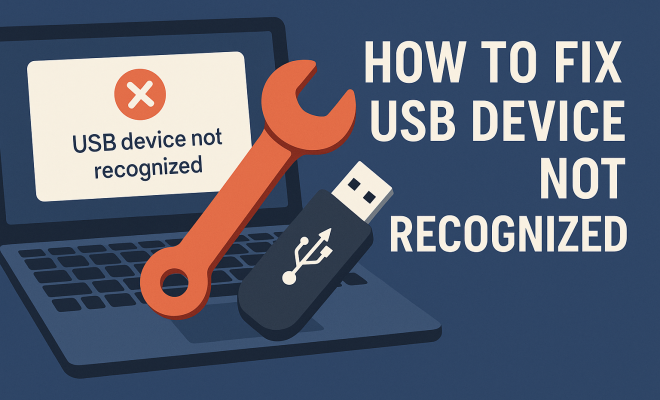
USB devices are an integral part of our digital lives, whether for transferring files, charging devices, or connecting peripherals. However, encountering a ‘USB device not recognized’ error can be frustrating and confusing. In this article, we’ll explore seven effective solutions to fix USB device not recognized problems, helping you troubleshoot and get back to your tasks with minimal hassle.
1. Check the USB Port and Cable
Before diving into software fixes, it’s wise to examine the physical components first. Oftentimes, the issue lies in the USB port or the cable itself. Try plugging the USB device into a different port on your computer. If you’re using a desktop, check both front and back ports. For laptops, ensure you test all available USB slots.
Next, inspect the USB cable for any visible damage. A frayed wire or bent connector can easily disrupt the connection and lead to a recognition error. If possible, try using a different cable to see if that resolves the issue. Sometimes, the simplest solutions are the most effective, and ensuring your hardware is in good condition can save you time.
2. Reboot Your Computer
It may sound cliché, but rebooting your computer can resolve many technical issues, including USB device malfunction. When you restart your computer, it clears temporary data and resets software processes that may be causing conflicts. This allows your system to reinitialize all connected devices, potentially resolving the recognition issue.
If your USB device was connected during the reboot, make sure to unplug it before you restart. Once your computer is back up and running, plug the device back in. This gives your operating system a fresh start to recognize the USB device correctly.
3. Update USB Drivers
Outdated or corrupt USB drivers can cause the infamous ‘USB device not recognized’ error. To resolve this, you’ll need to check if your USB drivers are up to date. Windows users can do this by going into the Device Manager, locating the Universal Serial Bus controllers section, and checking for any alerts or updates required.
To update your drivers, right-click on each USB controller and select ‘Update Driver’. You can either search automatically for an updated driver or select ‘Browse my computer for driver software’ if you have the drivers downloaded. Once you’ve updated the drivers, restart your computer and check if your USB device is recognized.
4. Uninstall and Reinstall USB Controllers
If updating the drivers does not yield results, the next step is to uninstall and then reinstall the USB controllers. In the Device Manager, right-click on the USB controllers and select ‘Uninstall device’. It’s a straightforward process that removes the USB devices from your system.
After uninstalling, reboot your computer. Windows will automatically reinstall the USB controllers upon startup, which can solve a multitude of issues related to device recognition. This method effectively resets the USB connection, often clearing any errors that were present before.
5. Check Power Management Settings
Windows has a feature to save power by turning off devices not in use, which can sometimes mistakenly disable USB devices. To check if this is causing your problem, go back to the Device Manager, right-click on your USB controller, and go to ‘Properties’. Under the ‘Power Management’ tab, uncheck the box that says ‘Allow the computer to turn off this device to save power’.
Apply the changes and restart your computer. This can often fix USB device not recognized errors, especially if you’ve connected multiple devices at once or if your device requires consistent power to function properly. (See: CDC on computer workstation ergonomics.)
6. Run the Hardware Troubleshooter
Windows includes a built-in troubleshooter that addresses hardware-related issues, including USB devices. Running this troubleshooter can help identify and fix problems automatically. To access it, go to ‘Settings’, then ‘Update & Security’, and select ‘Troubleshoot’.
Once in the troubleshooter section, choose ‘Additional troubleshooters’ and then select ‘Hardware and Devices’. Follow the on-screen instructions, and Windows will scan for any errors and attempt to resolve them. This is a helpful step for those who may not have extensive technical knowledge and prefer a guided approach.
7. Test the Device on Another Computer
If none of the above solutions work, it’s time to test the USB device on another computer. This can help determine whether the issue lies with the device itself or your original computer. If the device is recognized on another machine, the problem may be with your computer’s settings or hardware.
Conversely, if the device is still not recognized on a different computer, it might indicate that the USB device is faulty. In such cases, you may have to consider repair options or replacing the device entirely. Testing on multiple systems offers a broader perspective for troubleshooting USB device not recognized errors.
8. Check for Hardware Malfunctions
Sometimes, the issue might not stem from your USB device or your computer, but rather from a hardware malfunction. Issues like faulty USB ports, a damaged motherboard, or internal hardware conflicts can result in USB devices not being recognized. For example, a failing power supply can impact the power output to the USB ports, causing recognition issues.
To diagnose hardware issues, you can try running a hardware diagnostic tool. Many computers come with built-in diagnostic utilities, or you can obtain third-party tools to scan for hardware problems. If the tests reveal issues, you may need to consult a professional technician for repairs.
9. Update Operating System
Keeping your operating system up to date is crucial for overall performance and compatibility with external devices. Microsoft frequently releases updates that include fixes for bugs and security vulnerabilities, which can also impact USB functionality.
To check for updates on Windows, go to ‘Settings’, then ‘Update & Security’, and select ‘Windows Update’. Click on ‘Check for updates’ to ensure your system is current. Installing updates may resolve conflicts that prevent USB devices from being recognized. Regularly updating your operating system is a good practice to enhance compatibility and security.
10. Use a Different USB Drive Format
If the USB device is formatted in a way that your computer doesn’t recognize, you may encounter issues. Common formats include FAT32, NTFS, and exFAT. If the drive was previously used on another operating system (like macOS), it might be formatted in a way that Windows can’t recognize.
You can reformat the USB drive to a compatible format; however, be aware that this will erase all data on the device. If you’re willing to proceed, you can connect the USB device, open ‘This PC’ or ‘My Computer’, right-click on the USB drive, and select ‘Format’. Choose a file system (FAT32 is widely compatible), and proceed with the formatting. This can resolve recognition issues due to format incompatibility.
11. Check for Malware
Sometimes, malware or viruses can interfere with device recognition and overall system performance. Running a comprehensive antivirus scan can help identify and remove malicious software that might be causing your USB recognition problems.
Ensure your antivirus software is updated and perform a full system scan. If any threats are detected, follow the appropriate steps to quarantine or remove them. After removing any malware, check if your USB device is recognized. Keeping your system secure is critical for maintaining proper function of hardware components.
12. Backup Important Data
If you suspect your USB device might be failing or if you’ve been experiencing intermittent recognition issues, it’s a good idea to back up any important data stored on it. You can do this by connecting the device to a reliable computer that can read it or using data recovery software if the device is partially functioning. (See: Impact of USB device errors on productivity.)
Backing up ensures that you won’t lose valuable files if the device completely fails. If you’re unable to access the data on the USB device and it contains critical information, consider consulting a data recovery service that specializes in retrieving data from malfunctioning drives. Acting promptly can often improve the chances of successful data recovery.
13. Common Myths About USB Devices
There are several misconceptions surrounding USB devices and their functionality. One common myth is that all USB ports are created equal. In reality, different USB ports (like USB 2.0, USB 3.0, or USB-C) have varying speeds and compatibility. Understanding these differences can help you troubleshoot issues more effectively.
Another myth is that you can’t use a USB device with a different operating system. While you may encounter format compatibility issues, many USB drives can indeed be used across different OS environments if formatted appropriately. Knowing these facts can improve your confidence in handling USB devices and troubleshooting errors.
14. FAQ: Fix USB Device Not Recognized
Q1: What should I do if my USB device is still not recognized after trying all solutions?
If you’ve tried all the recommended solutions and your USB device is still not recognized, it may be time to consider that the device itself is faulty. Testing it on another computer can confirm this. If it’s not working elsewhere, you may need to repair or replace it.
Q2: Can I fix a corrupted USB drive?
Yes! If your USB drive is corrupted, you might be able to fix it using built-in Windows tools. Connect the drive, open ‘This PC’, right-click on the drive, and choose ‘Properties’. In the ‘Tools’ tab, click ‘Check’ to scan for file system errors.
Q3: How can I safely remove a USB device?
To safely remove a USB device, click on the ‘Safely Remove Hardware’ icon in the system tray, select your device, and wait for the confirmation that it’s safe to unplug. This helps prevent data corruption.
Q4: What should I do if my computer doesn’t have any USB ports?
If your computer truly lacks USB ports, you may need to consider adding USB ports through a PCIe expansion card or using a USB hub with a power source. This can make your setup more versatile without needing to replace your computer.
Q5: Why does my USB device work on some computers but not others?
This can happen due to several reasons: one computer may have the required drivers or updates, while another may not. Additionally, hardware issues or settings specific to the operating system may impact functionality.
15. Understanding USB Standards and Compatibility
USB has evolved significantly since its inception, and understanding the various standards can help troubleshoot recognition issues. USB 1.1 was the first widely adopted version, followed by USB 2.0, which offered faster speeds and better compatibility. USB 3.0, often referred to as SuperSpeed USB, further increased data transfer rates up to 5 Gbps. And now we have USB 3.1 and USB 3.2, which can provide speeds up to 20 Gbps.
Compatibility can be an issue if you’re trying to connect a USB 3.0 device to a USB 2.0 port. While most devices are backward compatible, the performance may be limited to the lower standard’s speed. If you have a device that connects but doesn’t seem to work at full speed, check the specifications of both your device and the port.
16. The Role of Device Firmware
Sometimes, the issue may not be with the drivers but with the device’s firmware itself. Firmware is the software that runs on the device, and outdated firmware can lead to compatibility issues with newer systems. If your USB device has a firmware update available, it’s worth checking the manufacturer’s website for the latest version.
Updating device firmware can often resolve bugs or glitches that might cause the device to be unrecognized. Be careful while updating firmware; ensure you follow the manufacturer’s instructions to avoid bricking the device.
17. Insights from Experts
Experts recommend a systematic approach to troubleshooting USB device issues. “Many users overlook the simplest solutions,” says tech advisor James Connors. “Always start with checking the physical connections before going into software fixes.” He emphasizes the importance of understanding the device’s requirements and ensuring that all drivers and operating systems are up to date.
Additionally, cybersecurity expert Sarah Lee warns about the risks of using multiple USB devices on the same port. “Overloading a single USB hub can lead to power issues that might cause devices to malfunction,” she explains. Keeping devices to a minimum and using powered hubs can improve reliability and recognition rates.
18. Common Scenarios Leading to USB Recognition Issues
Recognition issues often arise in specific scenarios. For example, when connecting a new device, you might find that it’s not recognized due to driver incompatibilities, especially if the device is still relatively new. Similarly, users who frequently switch USB devices in and out might encounter errors if the system isn’t optimized to handle these changes.
Another common scenario occurs when using USB devices that require a significant power draw. External hard drives, for example, might need to be plugged into a powered USB port or require an external power source to be recognized properly.
19. Preventative Measures for USB Issues
To minimize future USB device not recognized errors, consider implementing preventative measures. Regularly update your operating system and drivers, as mentioned earlier. Additionally, keep your USB ports clean and free from dust, which can interfere with connections.
If you frequently use multiple USB devices, consider investing in a high-quality USB hub that provides adequate power for all connected devices. This can help ensure consistent recognition and performance.
20. Conclusion
Dealing with USB device not recognized errors can be irritating, but armed with these twenty strategies, you’re well-equipped to tackle the problem effectively. Always start with the simplest solutions, like checking your ports and cables, before moving on to software troubleshooting. By following these steps, you can restore proper functionality to your USB devices and get back to your work seamlessly. Just remember, technology can be unpredictable, and a little patience goes a long way in resolving issues related to USB devices.
“`
Trending Now
Frequently Asked Questions
Why is my USB device not recognized?
A USB device may not be recognized due to various reasons, including faulty USB ports, damaged cables, outdated drivers, or conflicts with software. It's essential to check these components first before diving into software solutions.
How do I fix a USB device that is not recognized?
To fix a USB device not recognized issue, start by checking the USB port and cable for damage. Reboot your computer, and if the problem persists, update your USB drivers. Testing the device on another computer can also help identify the issue.
What should I do if my USB device is not detected?
If your USB device is not detected, first try plugging it into a different USB port or using a different cable. Restart your computer with the device unplugged, then reconnect it. If it still doesn't work, check for driver updates.
Can a reboot fix USB device recognition issues?
Yes, rebooting your computer can resolve USB device recognition issues. It clears temporary data and resets processes that may be causing conflicts, allowing the operating system to reinitialize connected devices.
How can I update my USB drivers?
To update your USB drivers, go to the Device Manager on your computer, locate the USB controllers section, and check for any updates. Right-click on the USB driver and select 'Update driver' to ensure you have the latest version.
Agree or disagree? Drop a comment and tell us what you think.