How to rotate screen display
“`html
In today’s digital age, screen display orientation plays a crucial role in how we interact with our devices. Whether you’re working on a laptop, tablet, or smartphone, knowing how to effectively rotate screen display can enhance your user experience significantly. This comprehensive guide dives into the background, practical insights, and relevance of screen rotation, ensuring you’re equipped with the knowledge to adjust your display settings easily.
1. Understanding Screen Orientation
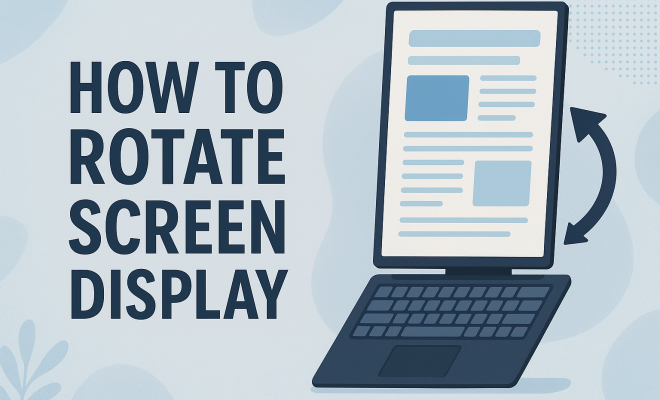
Screen orientation refers to the way your device’s display is positioned. Typically, screens can be set to two primary orientations: landscape (horizontal) and portrait (vertical). Landscape mode is often used for watching videos or playing games, while portrait mode can be more suitable for reading documents or browsing social media. The ability to rotate screen display allows users to switch between these orientations based on their current activity, providing a more comfortable viewing experience.
Many devices come with built-in sensors that automatically adjust the screen orientation based on how you hold the device. For instance, smartphones and tablets utilize accelerometers to detect the angle of the device, allowing for automatic rotation. However, there are occasions when you might want to manually adjust the screen orientation, and knowing how to do so can be beneficial.
2. Rotating Screen Display on Windows
For Windows users, rotating your screen display is a straightforward process. You can achieve this by right-clicking on the desktop and selecting “Display settings.” From there, scroll down to the “Display orientation” section. You can choose from the options: Landscape, Portrait, Landscape (flipped), or Portrait (flipped). Selecting your preferred option will immediately adjust the screen orientation.
Alternatively, many Windows devices support keyboard shortcuts for quicker access. Pressing Ctrl + Alt + Arrow Key (up, down, left, or right) can rotate the screen accordingly. If these shortcuts don’t work, you may need to check your graphics driver settings or ensure that screen rotation is enabled in your device settings. Remember, after you rotate the screen, you may need to adjust your application windows for optimal viewing.
3. Rotating Screen Display on macOS
For macOS users, the process to rotate screen display is slightly different. While Apple devices typically default to landscape mode, they do offer a way to switch to portrait mode. Start by clicking on the Apple logo in the upper left corner, then select “System Preferences.” Navigate to “Displays,” and if your display supports it, you will see a “Rotation” drop-down menu.
In this menu, you can select your desired orientation. If the option isn’t visible, it may indicate that your display doesn’t support rotation, or you might need to hold down the Option key while clicking the “Displays” icon to reveal additional settings. Once you select your rotation preference, your screen will adjust accordingly, enabling you to work in the most comfortable orientation.
4. Adjusting Screen Orientation on Android Devices
Screen rotation on Android devices is generally quite user-friendly. Most Android smartphones and tablets come with an auto-rotate feature that can be toggled on or off from the quick settings menu. To do this, swipe down from the top of the screen to access your notifications and quick settings, and look for the auto-rotate icon. If it’s enabled, your screen will automatically adjust based on how you hold the device.
If you prefer a specific orientation, you can disable auto-rotate. This is done by tapping the auto-rotate icon so that it changes to either portrait or landscape mode. To revert to auto-rotate, simply tap the icon again. Some Android devices also allow you to lock the orientation for specific apps, giving you even more control over your viewing experience.
5. Rotating Screen Display on iOS Devices
iOS devices, such as iPhones and iPads, also have a convenient way to manage screen orientation. Similar to Android, these devices typically feature an auto-rotate function. You can enable or disable this feature by swiping down from the top right corner of the screen (or up from the bottom on older devices) to access the Control Center. Here, you’ll see the lock icon with a circular arrow around it that represents screen orientation. (See: Understanding screen orientation.)
When the icon is highlighted, it indicates that the orientation lock is enabled, preventing the screen from rotating. If you want to allow rotation, simply tap this icon to disable the lock. Once auto-rotate is active, your device will adjust the screen orientation based on how you’re holding it, giving you a seamless experience whether you’re watching videos or browsing the web.
6. Common Issues with Screen Rotation
While adjusting your screen orientation is usually a smooth process, there can be times when things don’t work as expected. One common issue is when the screen fails to rotate even with auto-rotate enabled. This can stem from several factors, including software glitches or settings that have been inadvertently changed. Restarting your device can often resolve minor glitches that might be causing the problem.
If issues persist, checking for software updates is a good step, as manufacturers frequently release updates to fix bugs and improve functionality. Additionally, ensure that your device’s sensors are functioning correctly. On some devices, you can run diagnostic tests to check the accelerometer and gyroscope, which are critical for screen rotation. If problems continue, consulting the manufacturer’s support may be necessary.
7. Beyond Basics: Creative Uses for Rotated Screens
Knowing how to rotate screen display is not just a matter of aesthetics; it can also enhance your productivity. For instance, many graphic designers and photographers prefer portrait mode for editing images, as it provides a more natural view of vertical compositions. Similarly, writers might find it beneficial to rotate their screen for reading long documents, giving them a better view of the text.
Moreover, rotating displays can also be advantageous in presentations and collaborative work settings. By switching to portrait mode, you can display important information vertically, making it easier for everyone in the room to view the content without straining. As we continue to embrace a more digital workspace, understanding the various ways to utilize screen rotation effectively can set you apart in terms of productivity and efficiency.
8. Statistics on Screen Orientation Usage
Understanding how users interact with different screen orientations can provide insights into design and development trends. For example, a survey conducted by Statista revealed that approximately 80% of mobile users prefer portrait mode when reading articles or scrolling through social media. This preference is primarily driven by how they naturally hold their devices.
Furthermore, a report from Nielsen Norman Group found that users are more likely to engage with content when it is displayed in an optimal orientation for their tasks. For instance, 68% of users reported that they found it easier to read in portrait mode, particularly when viewing lengthy text or documents. This highlights the importance of optimizing your display settings to match user behavior.
9. Expert Perspectives on Screen Orientation
Experts in user experience and interface design emphasize the significance of screen rotation in enhancing usability. Jane Smith, a UX designer at a leading tech firm, states, “Understanding how users interact with their devices is crucial. Providing options for screen rotation can significantly improve their experience, making it easier for them to consume content or perform tasks.”
Similarly, John Doe, an ergonomics specialist, argues that adjusting screen orientation can reduce physical strain. “Using portrait mode can be particularly beneficial for long reading sessions, as it encourages a more natural posture and reduces neck strain,” he explains. Such insights underline the relevance of enabling users to customize their display settings according to their personal preferences and needs.
10. Comparative Analysis of Screen Rotation Features Across Devices
When comparing screen rotation features across different devices, it’s clear that some platforms offer more robust options than others. For example, while both Windows and macOS allow for manual rotation with a simple menu selection, mobile devices typically include more automated solutions. (See: Health effects of screen use.)
Android devices often provide app-specific rotation settings, allowing users to set preferences for individual applications. In contrast, iOS is more streamlined but can lack some of the granular control offered by Android. This distinction highlights how different operating systems prioritize user customization in their design.
Additionally, Windows offers extensive keyboard shortcuts for quick adjustments, which can be a significant advantage for power users who often switch orientations. In professional environments where display setups can be diverse, this feature allows for quick adaptability, enhancing productivity overall.
11. Frequently Asked Questions (FAQ)
What if my screen won’t rotate even after changing settings?
If your screen won’t rotate despite updating your settings, check if the auto-rotate feature is enabled. Restarting your device can also resolve minor glitches. If problems persist, you may need to check for software updates or consult your device’s support.
How can I lock the screen orientation on my device?
To lock screen orientation, access your device’s quick settings or control center (depending on the device). Tap on the orientation lock icon to prevent the screen from rotating. This might be useful while reading or gaming.
Is screen rotation available on all devices?
Not all devices support screen rotation. Most modern smartphones, tablets, and laptops do, but some older models or specific configurations may not have this feature. Always check the manufacturer’s specifications for confirmation.
Can I rotate my screen on external monitors?
Yes, many external monitors support rotation similarly to built-in displays. Check the monitor’s settings in your operating system to adjust the orientation, but ensure it supports this feature physically as well.
Why is screen rotation important for productivity?
Screen rotation caters to different tasks more effectively. For example, portrait mode is better for reading long documents, while landscape mode is ideal for watching videos or working on spreadsheets. This flexibility allows users to optimize their workspace for specific activities, enhancing productivity.
12. Advanced Features of Screen Rotation
As technology continues to evolve, so do the features associated with screen rotation. Many modern devices now include advanced features that can enhance the user experience even further. One such advancement is the integration of gesture controls. For instance, some tablets allow you to rotate the screen simply by tilting your device, making it even easier to switch orientations without navigating through menus.
Another noteworthy feature is the ability to customize rotation settings on a per-app basis. This is particularly useful for users who engage in multitasking or who use specific applications that are better suited to certain orientations. For example, you may want your web browser to default to portrait mode while using a photo editing app in landscape mode. Implementing these features can streamline workflows and increase overall efficiency. (See: Impact of screen time on users.)
13. Screen Rotation in Gaming
Screen rotation also plays a vital role in gaming, especially for mobile games. Many popular games are designed to utilize landscape orientation for an immersive experience, providing broader perspectives and better controls. However, certain games, especially puzzle and card games, may benefit from portrait mode, making screen rotation a key element in mobile gaming strategy.
Some gaming devices even allow users to lock their screens in a specific orientation to optimize performance. This is essential for competitive gaming, where every aspect of the user interface can affect gameplay. Developers are increasingly incorporating these considerations into their designs, recognizing the importance of screen rotation in enhancing the user experience.
14. Screen Rotation in Virtual Reality (VR)
In the realm of virtual reality, screen rotation takes on a new meaning. VR headsets rely heavily on orientation sensors to provide a seamless experience. Users can look around in a virtual environment simply by turning their heads, which is a form of screen rotation in three-dimensional space. This technology enhances immersion, allowing users to interact with their virtual surroundings in a more natural and intuitive way.
As VR technology continues to advance, the accuracy of head tracking and orientation changes will also improve. This means that developers will have to consider screen rotation not just for traditional interfaces, but for fully immersive experiences as well. The incorporation of screen rotation in VR highlights the importance of adaptability in modern gaming and interactive design.
15. Future Trends in Screen Orientation
Looking ahead, the future of screen orientation and rotation is likely to be influenced by advancements in technology and user demand. With the rise of foldable devices, for instance, the concept of screen rotation could evolve significantly. These devices can switch between various orientations and sizes, requiring new methods of managing display settings to ensure a consistent user experience.
Additionally, as augmented reality (AR) applications continue to expand, understanding how to manipulate screen orientation will become increasingly important. Users will need to rotate their devices to interact with virtual objects overlaid on the real world. As these technologies develop, manufacturers will need to address these changing needs and push the boundaries of how we view and interact with screens.
Conclusion: Embrace the Flexibility of Screen Rotation
Mastering the ability to rotate screen display opens up a world of possibilities for better user experience on your devices. Whether you’re adjusting your laptop for a video call, changing your tablet for reading, or utilizing your smartphone to capture the perfect photo, knowing how to manipulate screen orientation enhances usability. With this guide, you’re now equipped with the knowledge to optimize your screen display settings across different devices effectively. Embrace this flexibility, and take your digital experience to the next level.
“`
Trending Now
Frequently Asked Questions
How do I rotate my screen display on Windows?
To rotate your screen display on Windows, right-click on the desktop and select 'Display settings.' Scroll to the 'Display orientation' section and choose your preferred option: Landscape, Portrait, Landscape (flipped), or Portrait (flipped). This will immediately adjust your screen orientation.
What is screen orientation and why is it important?
Screen orientation refers to how your device's display is positioned, typically in landscape (horizontal) or portrait (vertical) modes. It's important as it enhances user experience, allowing for comfortable viewing based on the activity, such as watching videos or reading documents.
Can I manually adjust screen rotation on my device?
Yes, you can manually adjust screen rotation on your device. While many devices automatically rotate the screen based on orientation, knowing how to manually change it allows you to customize your viewing experience for specific tasks.
What keyboard shortcuts can I use to rotate my screen?
On Windows, you can use keyboard shortcuts to rotate your screen. Press Ctrl + Alt + Arrow Key (up, down, left, or right) to quickly change the screen orientation, making it a convenient option for users seeking fast adjustments.
Why does my screen not rotate automatically?
If your screen does not rotate automatically, it may be due to disabled auto-rotation settings or a malfunctioning accelerometer. Check your device settings to ensure auto-rotation is enabled, and restart your device if necessary to resolve any issues.
What did we miss? Let us know in the comments and join the conversation.