How to enable low power mode iPhone
“`html
In a world where we are increasingly reliant on our smartphones, battery life is a critical concern for iPhone users everywhere. Apple has responded to this need with features designed to help conserve energy, one of the most useful being the Low Power Mode. Understanding how to enable low power mode iPhone can significantly enhance your device’s performance, especially during those moments when you’re far from a charger. This guide will not only walk you through how to activate this feature but also explain why it matters, how it works, and some practical tips to maximize your battery life.
1. What is Low Power Mode?
Low Power Mode is a feature built into iOS that reduces the amount of battery your iPhone uses when the power is low. When activated, it temporarily disables or adjusts certain features to help extend your device’s battery life. This includes reducing background activity like downloads and mail fetch, as well as lowering screen brightness and minimizing visual effects.
This feature was first introduced in iOS 9, reflecting Apple’s recognition of battery concerns among users. Since then, it has remained a staple for anyone looking to prolong their device’s usability when the battery is nearing depletion.
2. Why Use Low Power Mode?
Using Low Power Mode can be a game-changer when your battery is running low. With the increasing number of apps we use and the data they consume, it’s easy to find yourself with a drained battery by midday. Enabling low power mode on your iPhone can provide you with extra hours of usage when you need it the most.
Additionally, this mode is particularly beneficial during travel, long workdays, or when you’re out and about with no access to a charger. By conserving battery, you ensure that essential functions like calls, texts, and navigation remain functional for longer.
3. How to Enable Low Power Mode on Your iPhone
Activating Low Power Mode on your iPhone is a straightforward process. Here’s how you can do it:
- Method 1: Using the Settings App
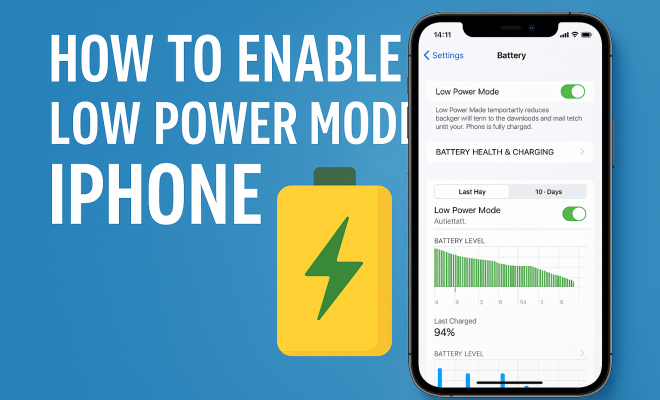
1. Open the Settings app on your iPhone.
2. Scroll down and select Battery.
3. Tap on Low Power Mode and toggle it on. - Method 2: Using Control Center
1. Swipe down from the upper-right corner of the screen (for iPhone X and later) or swipe up from the bottom (for older models) to access Control Center.
2. Look for the battery icon (it may be in the form of a yellow battery icon) and tap it to enable Low Power Mode.
Once activated, your iPhone will display a yellow battery icon in the status bar to indicate that Low Power Mode is active.
4. What Changes When You Enable Low Power Mode?
When you enable Low Power Mode, several key changes occur to help save battery life. For starters, mail fetch is disabled, which means your emails won’t constantly be checking for new messages. Background app refresh is also turned off, preventing apps from updating their content in the background.
Additionally, visual effects such as motion and animations are reduced, and your screen brightness may be lowered. These changes help to decrease the power consumption of your device significantly, allowing you to extend your phone’s usage time.
5. When to Use Low Power Mode
There are several scenarios where using Low Power Mode can be particularly advantageous. For instance, if you’re expecting an important phone call or need your phone for navigation but your battery is below 20%, activating Low Power Mode could be critical. It’s also a good idea to turn it on during long days away from home, especially if you anticipate using your device frequently.
Moreover, if you’re traveling and can’t charge your phone, Low Power Mode can be invaluable, allowing you to conserve battery for essential functions. Ultimately, knowing when to use this feature can make a significant difference in how effectively you manage your phone’s battery life. (See: New York Times on iPhone battery life.)
6. Limitations of Low Power Mode
While Low Power Mode is beneficial, it does come with limitations. For one, since background app refresh is disabled, any app that relies on continuous updates (like social media platforms) may not function optimally. You might find that notifications for certain apps are delayed or don’t come through until you turn off Low Power Mode.
Additionally, some features like AirDrop and visual effects will be limited, which might not be ideal for all users. However, these trade-offs are usually outweighed by the advantage of an extended battery life, especially when you’re in a pinch.
7. Battery Health and Low Power Mode
It’s worth noting that while Low Power Mode can help you save battery life, it’s not a substitute for good battery management practices. Regularly charging your iPhone and avoiding extreme temperatures can prolong your battery’s health. Apple recommends ensuring that your device runs on the latest software for optimal battery performance.
Additionally, if you’re frequently finding yourself in need of Low Power Mode, it may be time to consider a battery replacement. An iPhone’s battery is designed to retain up to 80% of its original capacity at 500 complete charge cycles, but after that, you may notice a significant decrease in performance.
8. Alternatives to Low Power Mode
While Low Power Mode is a fantastic option, there are other strategies you can employ to manage your iPhone’s battery life. For example, you might consider turning off location services for apps that don’t require it. Going a step further, you can adjust your screen brightness manually, limit or disable push notifications, and even set your phone to Airplane Mode when you don’t need connectivity.
Additionally, consider using battery saver apps, which can offer insights into battery usage and provide options for optimization. However, be cautious with third-party apps, as they can sometimes lead to further battery drain instead of relief.
9. Common Misconceptions About Low Power Mode
Many users have misconceptions about what Low Power Mode can and cannot do. One common myth is that enabling Low Power Mode will restrict all notifications. While it does limit some background processes, it won’t stop all notifications from coming through. Critical alerts, such as messages and calls, will still get through even when Low Power Mode is active.
Another misconception is that once Low Power Mode is enabled, it will remain on until you manually turn it off. In reality, Low Power Mode is designed to turn off automatically once your iPhone is charged to 80% or above. This ensures that you don’t forget to turn it off, which could lead to reduced performance.
10. Expert Perspectives on Battery Management
Battery management experts emphasize the importance of understanding how to use features like Low Power Mode effectively. They advise iPhone users to be proactive about their device’s battery health. For instance, Dr. Lisa Chen, a specialist in energy efficiency, suggests regularly monitoring battery usage statistics to identify apps that drain battery life the most. By doing this, you can be more strategic in your app usage and better utilize Low Power Mode when needed.
Experts also recommend that users keep their devices updated. Apple frequently includes battery optimizations in their iOS updates, so staying current ensures your device runs as efficiently as possible. Regular updates can help minimize battery drain and improve overall performance.
11. Statistics on Battery Life and Usage
Understanding battery life can help you make informed decisions about when to enable Low Power Mode. According to a 2023 survey conducted by Statista, nearly 70% of smartphone users reported that they find themselves needing to charge their devices at least once a day. Moreover, the average iPhone user spends over three hours on their device daily, leading to significant battery depletion.
Research shows that certain activities can consume battery life significantly faster. For example, video streaming can drain your battery up to 20% faster than standard app usage. Similarly, gaming and GPS navigation can also contribute greatly to battery drain, especially if Low Power Mode isn’t enabled during these activities. (See: Research on smartphone battery efficiency.)
12. Practical Tips for Maximizing Battery Life
In addition to enabling Low Power Mode, there are several practical tips that can help you maximize your iPhone’s battery life:
- Reduce Screen Brightness: Manually adjust your screen brightness to a lower level or enable Auto-Brightness in settings.
- Disable Unused Features: Turn off features such as Bluetooth and Wi-Fi when not in use.
- Manage App Notifications: Limit notifications for apps that you don’t need to hear from frequently.
- Limit Widgets: Reduce the number of widgets on your home screen, as they can drain battery life by constantly refreshing.
- Use Airplane Mode: When you’re in an area with poor reception, using Airplane Mode can prevent your phone from using excess battery seeking a signal.
13. FAQs About Low Power Mode
1. Can I keep Low Power Mode on all the time?
Yes, you can keep Low Power Mode enabled, but it may limit some functionality. It’s designed to automatically turn off when your battery is charged to 80% or higher.
2. Will my iPhone still receive calls and texts in Low Power Mode?
Absolutely! Low Power Mode won’t prevent you from receiving essential communication like calls and texts.
3. Does Low Power Mode affect app performance?
Yes, some apps may perform slower due to the restrictions imposed by Low Power Mode, especially those that rely on background refresh or frequent updates.
4. Can I still use my apps normally with Low Power Mode on?
Most apps will still function, but they may take longer to load or update since background activity is restricted.
5. How often should I use Low Power Mode?
Use Low Power Mode whenever your battery is running low, especially if you know you won’t have access to charging soon.
14. Making Low Power Mode Part of Your Routine
To get the most out of Low Power Mode, consider making it a part of your daily routine. For example, you could enable Low Power Mode during your morning commute if you know you won’t have time to charge your phone until you reach work. Additionally, make it a habit to check your battery percentage before engaging in activities that consume a lot of power, such as streaming or gaming.
Ultimately, integrating Low Power Mode into your smartphone habits can lead to a more seamless experience and less anxiety about battery life. With a little planning and awareness, you can ensure that your iPhone remains functional and ready for anything throughout the day.
15. Final Thoughts
Enabling Low Power Mode on your iPhone is a smart move for anyone wanting to squeeze out those extra hours of use when the battery is low. Understanding how to enable low power mode iPhone is just the beginning. By knowing when to activate it and what features it restricts, you can make informed decisions about your device usage. Combine this with a few other battery-saving strategies, and you’ll find that keeping your iPhone charged throughout the day is a lot easier.
In a digital age where our phones are integral to our daily routines, mastering features like Low Power Mode can transform your experience, ensuring that your iPhone stays powered throughout even the busiest of days.
16. Real-Life Scenarios for Using Low Power Mode
Understanding when to use Low Power Mode can be just as important as knowing how to enable it. Here are a few real-life scenarios where this feature can be particularly beneficial:
- Traveling: Whether you’re on a long flight or a road trip, battery life can dwindle quickly. Enabling Low Power Mode before your journey can help ensure your phone remains functional for navigation and emergency communication.
- During Meetings: If you’re in back-to-back meetings, activating Low Power Mode can help extend your phone’s life, ensuring you’re reachable in case of important calls or messages.
- Outdoors: If you’re hiking or spending the day outdoors where charging options are limited, Low Power Mode can help preserve your battery for essential functions like GPS and emergency contacts.
- Family Events or Gatherings: Family functions often involve taking numerous photos and videos. By enabling Low Power Mode, you can conserve enough battery for those moments while keeping your phone ready for important communication.
17. Comparing Battery Life Across iPhone Models
Battery life can vary significantly between different iPhone models, and knowing this can help you understand how crucial Low Power Mode may be for your specific device. For example, the iPhone 13 and iPhone 14 models offer impressive battery life compared to older versions like the iPhone 7 or 8.
The iPhone 14 Pro Max boasts up to 29 hours of talk time, whereas the iPhone 8 only supports about 14 hours. Thus, while Low Power Mode is beneficial on all devices, those with lesser battery capacity may find it to be a necessity rather than a luxury. Understanding your device’s battery capacity allows you to better plan your usage and when to activate Low Power Mode.
18. Battery Life Beyond Low Power Mode
While Low Power Mode is a powerful tool for managing battery life, there are additional methods to help extend the longevity of your iPhone’s battery. Here are some effective strategies:
- Optimize Battery Charging: This feature learns your daily charging routine and waits to finish charging past 80% until you need to use it. You can enable this in Settings > Battery > Battery Health.
- Limit Background App Refresh: Besides using Low Power Mode, consider going to Settings > General > Background App Refresh to choose which apps can update in the background. Disabling unnecessary apps can help conserve battery life.
- Regularly Check Battery Usage: By navigating to Settings > Battery, you can see which apps are consuming the most power. This insight can help you identify apps to limit or uninstall for better battery performance.
- Turn Off Dynamic Wallpapers: Static wallpapers can save battery life compared to dynamic or live wallpapers, which require more power to animate.
- Manage Streaming Usage: Streaming music or videos can be a major drain on your battery. When using these services, consider downloading content for offline use when possible.
19. Future of iPhone Battery Technology
The future of battery technology for smartphones is promising, with advancements aimed at extending battery life and reducing charging times. Current research is focused on solid-state batteries, which promise higher energy density and improved safety over traditional lithium-ion batteries. As these technologies become mainstream, users could potentially see longer-lasting batteries that require less frequent charging, making features like Low Power Mode less critical.
Moreover, integration of AI and machine learning in battery management systems may allow devices to predict usage patterns and intelligently manage battery resources, optimizing performance without user intervention. Keeping an eye on these developments could change the way we think about battery life and power management in the near future.
20. Conclusion
Battery management is evolving, but for now, understanding how to enable low power mode iPhone remains a key skill in maximizing your device’s performance. Whether you’re navigating through busy days or enjoying leisurely weekend trips, Low Power Mode is a reliable ally. Coupled with other battery-saving strategies, it enhances your iPhone experience, ensuring that you stay connected when it matters most. Embrace these tips and make Low Power Mode a regular part of your smartphone routine to enjoy seamless performance while on the go.
“`
Trending Now
Frequently Asked Questions
How do I turn on low power mode on my iPhone?
To enable Low Power Mode on your iPhone, go to Settings, then select Battery. From there, you will see the option for Low Power Mode. Simply toggle the switch to turn it on. This feature helps to extend battery life by reducing background activity and visual effects.
What does low power mode do on an iPhone?
Low Power Mode reduces the amount of battery your iPhone uses by disabling or adjusting certain features. This includes lowering screen brightness, minimizing visual effects, and reducing background activity such as downloads and mail fetching, helping to extend your device's battery life.
When should I use low power mode on my iPhone?
You should use Low Power Mode when your iPhone battery is running low, especially during travel, long workdays, or when you don't have immediate access to a charger. It can provide you with extra usage time for essential functions like calls, texts, and navigation.
Can I schedule low power mode on my iPhone?
Currently, iOS does not offer a built-in feature to schedule Low Power Mode. However, you can manually enable it whenever you need to conserve battery life. Keeping an eye on your battery percentage can help you activate it at the right times.
Does low power mode affect app performance on my iPhone?
Yes, enabling Low Power Mode can affect app performance by limiting background activity and reducing visual effects. While it helps to conserve battery life, some apps may take longer to refresh or update, but essential functions will still remain operational.
What’s your take on this? Share your thoughts in the comments below — we read every one.