How to change screen resolution Windows
“`html
Adjusting your screen resolution can make a significant difference in your overall computing experience. Whether you want to increase clarity for graphics work or reduce strain on your eyes, knowing how to change screen resolution in Windows is a critical skill. In this guide, we’ll walk through the essentials of adjusting screen resolution, its importance, and practical tips to get the best out of your display settings.
1. Understanding Screen Resolution
Screen resolution refers to the number of pixels displayed on your screen, typically denoted in width x height format (e.g., 1920 x 1080). The higher the resolution, the more detail you can see on your display. However, a higher resolution requires more processing power. It’s essential to strike a balance between clarity and performance based on your needs.
Common resolutions include:
- 1280 x 720 (HD)
- 1920 x 1080 (Full HD)
- 2560 x 1440 (QHD)
- 3840 x 2160 (4K Ultra HD)
Each resolution has its advantages. For instance, while 4K provides incredible detail for video editing, it might be unnecessary for standard office tasks. Understanding these differences will help you make informed decisions when you change screen resolution in Windows.
2. Why Change Screen Resolution?
There are several reasons you might want to change your screen resolution. Perhaps you’re trying to enhance your gaming experience, adjust your display for better readability, or configure your monitor for professional tasks like graphic design or video editing. Adjusting the resolution can also help with scaling issues in applications that don’t display correctly at your native resolution.
For users with visual impairments, lowering the resolution can make text and images larger and easier to read. On the other hand, if you’re a gamer, you might want to maximize performance by lowering the resolution during resource-intensive scenes.
3. How to Check Your Current Resolution
Before changing your screen resolution, you’ll want to verify what your current settings are. Here’s how to do it:
- Right-click on your desktop.
- Select Display settings from the context menu.
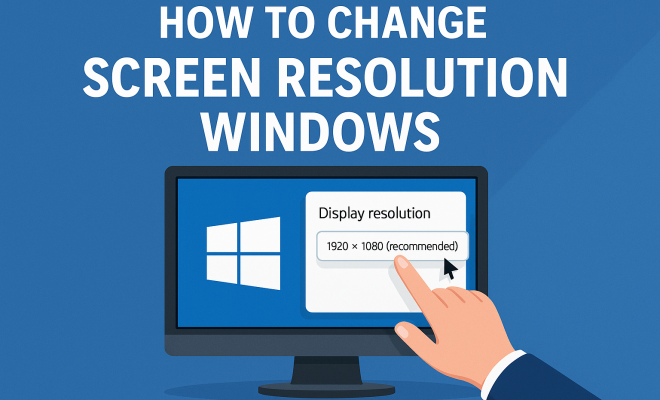
- Scroll down to the Display resolution section.
- Your current resolution will be displayed as the recommended setting.
Knowing your current resolution is crucial, especially if you’re experimenting with new settings. If something doesn’t look right, you can easily revert to your original resolution.
4. Steps to Change Screen Resolution in Windows
Changing your screen resolution in Windows is a straightforward process. Here’s a step-by-step guide:
- Right-click on your desktop and choose Display settings.
- In the Display settings window, scroll to the Resolution dropdown menu.
- Select your preferred resolution from the list.
- Click Keep changes if you’re happy with the new setting. Otherwise, choose Revert.
Windows typically provides you with a range of options, but it’s important to select one that is supported by your monitor. If you select a resolution that your display cannot handle, it may lead to a black screen or distorted images. (See: Understanding screen resolution.)
5. Advanced Display Settings
For more advanced configurations, such as customizing refresh rates or multiple displays, you can access the Advanced display settings option in the same Display settings menu. Here, you can:
- Choose your monitor from the list if you have multiple displays.
- Adjust the refresh rate to ensure a smoother visual experience, especially in gaming or video playback.
- Enable settings like HDR if your monitor supports it, enhancing color and brightness.
These advanced settings allow you to fine-tune your display to your preferences, whether you’re a casual user or a professional requiring precise visual performance.
6. Troubleshooting Common Resolution Issues
Sometimes, adjusting screen resolution can lead to unexpected issues. If you find that your screen is displaying incorrectly after making changes, here’s how to troubleshoot:
- If you encounter a black screen or no signal, wait for about 15 seconds. Windows should revert to the previous resolution automatically.
- Ensure your graphics drivers are up to date, as outdated drivers can cause compatibility issues with certain resolutions.
- Try connecting to a different display or monitor; this can help determine if the issue lies with the monitor or the system.
Additionally, you may want to check your graphics card settings through third-party software provided by manufacturers like NVIDIA or AMD, which can offer more detailed control over resolution settings.
7. Scaling for High-DPI Displays
If you’re using a high-DPI (dots per inch) display, changing your screen resolution might not be enough to ensure readable text and images. Windows allows you to adjust scaling settings, which can be crucial for devices such as 4K monitors. To adjust scaling:
- Go back to Display settings.
- Find the Scale and layout section.
- Choose a scaling percentage that makes text and apps easier to see, typically 125% or 150% on high-DPI displays.
Scaling adjusts the size of text, apps, and other items without changing the resolution, providing a clearer viewing experience without compromising image quality.
8. Utilizing Third-Party Applications
While Windows provides built-in options for adjusting screen resolution, various third-party applications can enhance your experience. Programs like DisplayFusion or Hotkey Resolution Changer allow for quicker resolution switching, especially beneficial for users who frequently change settings. These applications often come with additional features, such as:
- Customizable hotkeys for instant resolution changes.
- Multi-monitor management options.
- Enhanced control over display settings like brightness and contrast.
These tools can be particularly useful for professionals managing multiple displays or gamers wanting to quickly adjust settings on the fly.
9. Staying Informed on Windows Updates
As with any technology, Windows continues to evolve, introducing new features and settings over time. Keeping your operating system updated ensures you have access to the latest display options and improvements. Regularly check for Windows updates by:
- Going to Settings and selecting Update & Security.
- Clicking on Check for updates.
Additionally, following tech blogs or forums can provide insights into common issues or innovative solutions related to screen resolution adjustments. Staying connected with the community can also help you learn from others’ experiences and best practices. (See: Reducing eye strain and ergonomics.)
10. Impact of Resolution on Gaming Performance
For gamers, resolution plays a crucial role in how their experience unfolds. A higher resolution, like 4K, delivers breathtaking visuals, but it can also stress your graphics card, leading to lower frame rates. In competitive gaming, a lower resolution (like 1080p) might be preferable as it often results in smoother gameplay. Here’s a quick look at how resolution affects gaming:
- Visual Fidelity: Higher resolutions offer sharper images, making it easier to spot enemies and details in expansive environments.
- Performance: Lowering the resolution can significantly enhance frame rates, especially in fast-paced games where every millisecond counts.
- Aspect Ratios: Some games allow for custom aspect ratios, which can impact gameplay. Understanding how to change your screen resolution can help you select the optimal setting.
It’s not uncommon for gamers to experiment with different resolutions to find the perfect balance between visual quality and performance. This trial-and-error approach can lead to a surprisingly enhanced gaming experience.
11. Screen Resolution and Multimedia Content
When it comes to watching videos or editing photos, resolution has a significant impact on the quality of the content you’re engaging with. For instance, most streaming services like Netflix and YouTube offer content in various resolutions. Here’s how resolution can affect your multimedia experience:
- Streaming Quality: Services often auto-adjust the resolution based on your bandwidth, which can be frustrating if you want to enjoy higher-quality imagery. Knowing how to change your screen resolution in Windows can help you optimize your viewing settings.
- Video Editing: When working with video content, higher resolutions can provide better detail when editing, but they also demand more from your system. Understanding your hardware limitations helps you select the most effective resolution for your projects.
- Photo Editing: For photographers, working on high-resolution images is critical. A higher resolution allows for more detailed edits, but if your display doesn’t support it, you might not see the true quality of your images.
Being aware of how screen resolution can affect playback and editing can help you make better decisions for your multimedia projects.
12. Frequently Asked Questions (FAQ)
What is the best screen resolution for gaming?
The best screen resolution for gaming typically depends on your hardware capabilities. For most gamers, 1920 x 1080 (Full HD) is a popular choice for a balance between performance and visuals. However, if you have a powerful graphics card, you might opt for 2560 x 1440 (QHD) or even 3840 x 2160 (4K) to enjoy scenic graphics.
How do I change the screen resolution in Windows 10?
To change the screen resolution in Windows 10, right-click on your desktop, select Display settings, scroll to the Resolution dropdown, choose your desired resolution, and click Keep changes.
Can changing the resolution affect my computer’s performance?
Yes, changing the resolution can affect performance. A higher resolution requires more processing power from your GPU, which might result in lower frame rates in games. Conversely, lowering the resolution can lead to improved performance, especially in graphics-intensive applications.
What resolution should I use for a 27-inch monitor?
For a 27-inch monitor, 2560 x 1440 (QHD) is often recommended for optimal clarity and detail. Some users may opt for 1920 x 1080 (Full HD) for better performance, particularly in gaming, while others may prefer 3840 x 2160 (4K) if the monitor supports it and their hardware can handle it.
Is it safe to use a non-native resolution?
Using a non-native resolution can lead to a blurry or distorted image quality. It’s generally safe, but for the best visual experience, it’s advisable to stick to your monitor’s native resolution. (See: Importance of screen resolution.)
How can I adjust scaling for a high-DPI display?
To adjust scaling for a high-DPI display, go to Display settings in Windows, find the Scale and layout section, and select a scaling percentage that improves readability, typically 125% or 150%.
13. Choosing the Right Monitor for Your Needs
When you’re considering how to change screen resolution in Windows, it’s also essential to think about the monitor you’re using. Different types of monitors suit various tasks, and understanding the specifications can greatly enhance your experience. Here’s what to consider:
- Panel Type: Monitors typically use one of three panel types: IPS (In-Plane Switching), TN (Twisted Nematic), or VA (Vertical Alignment). IPS panels offer better color reproduction and viewing angles, making them ideal for creative work. TN panels are cheaper and have faster response times, making them popular among gamers. VA panels provide better contrast ratios, suitable for watching movies.
- Refresh Rate: This is crucial for gaming. A higher refresh rate (like 144Hz or 240Hz) gives smoother gameplay compared to the standard 60Hz. If you’re a serious gamer, investing in a monitor with a higher refresh rate can significantly enhance your gaming experience.
- Aspect Ratio: While the standard aspect ratio is 16:9, ultrawide monitors (21:9 or 32:9) offer immersive experiences for gaming and productivity by providing more screen real estate.
- Response Time: Measured in milliseconds, lower response times reduce motion blur during fast-moving visuals. If you’re into fast-paced gaming, look for monitors with a response time of 5ms or lower.
14. Understanding Different Display Connections
The way you connect your monitor to your computer can influence the maximum resolution and refresh rate available. Here are some common connection types:
- HDMI: Commonly used for TVs and monitors, HDMI connections can support 4K resolution at 60Hz, but compatibility may depend on the HDMI version (HDMI 2.0 or higher is recommended for 4K).
- DisplayPort: Often used for gaming monitors, DisplayPort can carry a higher bandwidth than HDMI, supporting 8K resolution at 60Hz or higher refresh rates at lower resolutions.
- DVI: Digital Visual Interface (DVI) can support high resolutions, but it’s becoming less common. DVI-D is digital only, while DVI-I supports both digital and analog signals.
- VGA: An older analog connection that’s less common today, VGA supports lower resolutions and is not recommended for modern displays.
Choosing the right connection can help you get the best display quality. Always check your monitor’s and computer’s connection types to ensure compatibility.
15. Future Trends in Display Technology
The field of display technology is rapidly evolving, with several trends shaping the future of screen resolution and performance. Here are some exciting developments to keep an eye on:
- 8K Resolution: As technology progresses, we’re seeing 8K displays becoming more available, providing four times the pixels of 4K. While content for 8K is still limited, it promises exceptional detail for specific applications like professional video production and high-end gaming.
- OLED Technology: Organic Light Emitting Diode (OLED) displays are gaining popularity due to their superior contrast ratios and vibrant colors. These displays can produce true blacks, enhancing the overall visual experience.
- Adaptive Sync Technologies: Technologies like NVIDIA G-SYNC and AMD FreeSync help eliminate screen tearing and improve responsiveness during gaming. These technologies synchronize the monitor’s refresh rate with the GPU’s output, providing smoother gameplay.
- Curved Monitors: These monitors are designed to provide a more immersive viewing experience by reducing the distortion that can occur on flat screens. They’re especially beneficial for gaming and cinematic experiences.
- Augmented and Virtual Reality: As AR and VR technologies advance, they require high resolutions and refresh rates to provide seamless experiences. Understanding how to change screen resolution in Windows will be crucial for optimizing settings in these applications.
16. Tips for Optimal Display Settings
Getting the most out of your display involves more than just changing the resolution. Here are some expert tips for optimizing your settings:
- Calibrate Your Monitor: Proper calibration can significantly enhance color accuracy and brightness. Use built-in calibration tools in Windows or third-party software for fine-tuning.
- Adjust Brightness and Contrast: Finding the right balance for brightness and contrast based on your environment can reduce eye strain and improve image quality.
- Utilize Night Mode: If you work late or in low-light conditions, enabling Night Light in Windows can reduce blue light exposure, helping to decrease eye fatigue.
- Keep Your Drivers Updated: Regularly checking for updates to your graphics drivers can enhance performance and compatibility with new resolutions and refresh rates.
- Test Different Resolutions: Experimenting with different resolutions can help you find the ideal setting for your specific tasks, whether it’s gaming, design work, or everyday usage.
In essence, understanding how to change screen resolution in Windows opens up a world of customization options for your display, greatly enhancing your computing experience. Whether you’re working, gaming, or simply browsing, the right resolution can make all the difference. So, dive in and start customizing!
“`
Trending Now
Frequently Asked Questions
How do I change the screen resolution in Windows?
To change the screen resolution in Windows, right-click on the desktop and select 'Display settings.' In the Display section, scroll down to 'Resolution' and choose your desired resolution from the dropdown menu. Click 'Keep changes' to apply the new setting.
What is the best screen resolution for gaming?
The best screen resolution for gaming often depends on your hardware and personal preference. Common choices include 1920 x 1080 for a balance of performance and detail, while 2560 x 1440 or 3840 x 2160 (4K) offer higher detail, but may require more powerful graphics cards.
Why would I need to change my screen resolution?
You might need to change your screen resolution to enhance visual clarity for graphics work, improve readability, or optimize performance for gaming. Adjusting resolution can also resolve scaling issues in applications that do not display correctly at your current settings.
What does screen resolution mean?
Screen resolution refers to the number of pixels displayed on your screen, typically expressed in width x height format (e.g., 1920 x 1080). It determines the clarity and detail of images and text, with higher resolutions providing more detail but requiring more processing power.
How can I check my current screen resolution?
To check your current screen resolution, right-click on the desktop and select 'Display settings.' In the Display section, your current resolution will be displayed under the 'Resolution' dropdown menu. This allows you to see and adjust your settings as needed.
Agree or disagree? Drop a comment and tell us what you think.