How to show hidden files Windows
“`html
Many users often wonder how to show hidden files in Windows, especially when they’re trying to troubleshoot issues or manage their files more effectively. Hidden files can contain essential system data or personal information, and knowing how to access them can lead to a better understanding of your operating system and data management. In this article, we’ll explore various methods to reveal these elusive files, along with some context and practical advice to enhance your Windows experience.
1. Understanding Hidden Files
Before diving into the methods for showing hidden files, it’s vital to understand what these files are and why they exist. Hidden files in Windows are files that the operating system has designated as not visible in the typical file browsing interface. This feature is particularly useful for system files or configuration files that users typically shouldn’t edit or interact with regularly. By default, Windows hides these files to prevent accidental deletion or modification, which could lead to system instability.
In many cases, hidden files may include important system configuration settings, user preferences, or even application data. For instance, files associated with installed applications such as cache or settings files often fall into this category. Recognizing the potential importance of these files is essential, especially if you’re encountering issues with software or need to free up disk space by identifying junk files.
2. Using File Explorer Settings
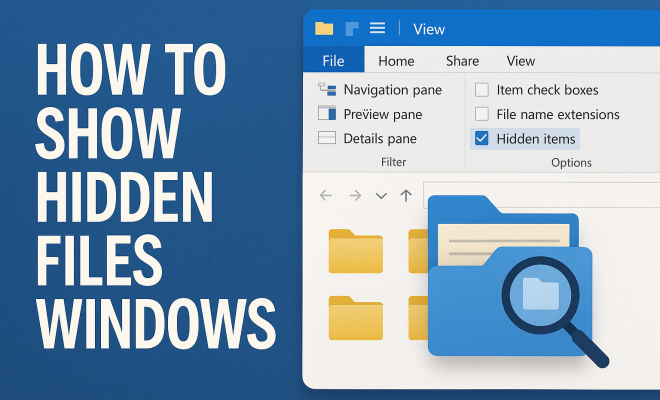
The most straightforward way to show hidden files in Windows is through the File Explorer settings. Here’s how to do this:
- Open File Explorer by clicking on the folder icon in your taskbar or pressing the Windows + E keys.
- In the top menu, click on the View option.
- From the dropdown menu, select Options and then click on Change folder and search options.
- In the Folder Options window, navigate to the View tab.
- Under Advanced settings, find the option that says Hidden files and folders. Choose Show hidden files, folders, and drives.
- Click OK to apply your changes.
Once you complete these steps, hidden files and folders should now be visible in File Explorer. This method is user-friendly and doesn’t require any advanced technical knowledge, making it ideal for most users.
3. Using the Command Prompt
If you’re more comfortable with command-line interfaces, using the Command Prompt can be another efficient way to show hidden files. Here’s how:
- Press Windows + R to open the Run dialog.
- Type cmd and press Enter to launch the Command Prompt.
- Navigate to the folder where you want to show hidden files by using the cd command (e.g., cd C:\YourFolderName).
- Once in the correct directory, type attrib -h -s * and press Enter.
This command removes the hidden and system attributes from all files in the specified directory, allowing you to see them. Keep in mind that using the Command Prompt requires caution, as improper commands can affect your files and system.
4. Using Windows PowerShell
Windows PowerShell is a powerful tool that can also be used to show hidden files. Similar to the Command Prompt, PowerShell allows for more advanced file management operations. Here’s how to use it:
- Press Windows + X and select Windows PowerShell (or Windows PowerShell (Admin) for elevated access).
- Use the cd command to navigate to the folder you want to inspect.
- Type Get-ChildItem -Force and hit Enter.
This command lists all files in the directory, including hidden ones. The -Force parameter is crucial here, as it instructs PowerShell to include hidden and system files in the output. It’s a quick and effective method for those who prefer using command-line interfaces. (See: Understanding hidden files in computing.)
5. Enabling Hidden Files through Disk Cleanup
Another practical way to manage hidden files is through the Disk Cleanup tool. Although primarily used for freeing up space, it can give insight into hidden files that you might want to access. Here’s how you can utilize this method:
- Press Windows + R and type cleanmgr, then press Enter.
- Select the drive you want to clean (typically the C: drive) and click OK.
- In the Disk Cleanup dialog, you’ll see a list of file categories. Hidden files like temporary files or system files may be listed here.
- Check the files you want to delete or manage and click OK.
This method doesn’t directly show hidden files in the traditional sense but provides an overview of files that are often hidden by default, allowing you to manage them effectively.
6. Using Third-Party Software
For those who prefer a graphical interface or need more advanced features, third-party software can be a great option. Programs like WinDirStat or TreeSize can help visualize file sizes and types, including hidden files. Here’s how to do it:
- Download and install the file management software of your choice.
- Launch the application and select the directory you want to scan.
- Configure the settings to include hidden files in your scan.
- Run the scan to generate a visual representation of your files.
Using third-party software can enhance your file management experience and provide additional insights that default Windows tools may not offer. This is particularly useful for users managing large volumes of data or dealing with complex directory structures.
7. Creating a Shortcut to Access Hidden Files
Creating a shortcut for folders that often contain hidden files can save you time in the long run. By setting a specific folder to always show hidden files, you can streamline your workflow. Here’s how to set it up:
- Navigate to the folder where you want to create a shortcut.
- Right-click the folder and select Create shortcut.
- Right-click the shortcut, select Properties, and under the Shortcut tab, click Advanced.
- Check the box for Run as administrator and hit OK.
By creating a shortcut with elevated permissions, you can quickly access hidden files without needing to adjust settings each time. It’s a simple yet effective way to improve your file management efficiency.
8. Understanding Risks and Best Practices
While accessing hidden files can be beneficial, it’s essential to understand the risks involved. Many hidden files are there for a reason; modifying or deleting them without knowledge can lead to software malfunctions or system instability. Here are some best practices to keep in mind:
- Always back up important data before making changes to hidden files.
- Use caution when modifying system files or configuration settings.
- Consider restoring your system to a previous state if you encounter issues after accessing or modifying hidden files.
Being mindful of these precautions will help ensure that you manage your files securely and effectively. Remember that hidden files often contain critical data, so exercise care when interacting with them.
9. Common Types of Hidden Files
It helps to know which types of hidden files you might encounter in Windows. Hidden files typically fall into several categories: (See: CDC's guidelines on data management.)
- System Files: These files are crucial for the functioning of Windows and include things like drivers and configuration files. Examples include
pagefile.sysandhiberfil.sys. - Application Data: Many applications store settings and data in hidden folders. For instance, configuration files for installed software might be stored in a hidden folder within your user profile, accessible via
C:\Users\YourUsername\AppData. - Temporary Files: These files are often created by applications during installation or use and might be hidden to keep your workspace uncluttered. You can find various temporary files in the
C:\Users\YourUsername\AppData\Local\Tempdirectory. - System Restore Points: Windows creates restore points to save the state of your system at specific times. These files are often hidden and can be crucial for troubleshooting system issues.
- Configuration Files: Many software applications use configuration files to store preferences and settings. These can often be found in hidden folders and can be essential for restoring application settings if needed.
Understanding these different types can help you navigate and manage them more effectively.
10. How Hidden Files Affect System Performance
Hidden files can impact system performance, and awareness of their management is essential. Here are some ways they might affect your system:
- Storage Space: Accumulated hidden files, especially temporary and cache files, can consume significant storage space over time. Regularly checking and managing these files can free up valuable disk space.
- System Clutter: Hidden files can lead to clutter in file directories, making it difficult to locate necessary files. This can slow down file access times and complicate file management.
- System Performance: Accessing too many hidden files might slow down your system if these files are fragmented over your hard drive. Regular maintenance, including cleanup and defragmentation, can improve overall system performance.
- Security Risks: Some hidden files can be malicious. Regularly scanning your system for hidden files can help you identify and remove any potential threats.
- Backup Complications: If hidden files are not considered during your backup processes, you might lose important settings or data. Ensure your backup solutions are configured to include hidden files.
Being proactive about managing hidden files can lead to a faster, more efficient system.
11. Frequently Asked Questions (FAQ)
Q1: Why are some files hidden in Windows?
Files are often hidden to protect critical system files from accidental deletion or modification, which could destabilize the operating system. Additionally, applications may hide configuration files to keep user interfaces cleaner.
Q2: Can I recover deleted hidden files?
Yes, if you have a backup system in place or if you use recovery software, you may be able to recover deleted hidden files. Always try to restore from a backup first, as this is usually the quickest way to recover lost files.
Q3: Are hidden files harmful to my system?
Not inherently. Hidden files are part of normal Windows operation, but if you encounter unknown hidden files, it’s good to be cautious. Always do your research before deleting or modifying them.
Q4: How do I show hidden files in Windows 10 and Windows 11?
The process is similar for both versions. You can use File Explorer settings as outlined earlier, or you can also use keyboard shortcuts like Ctrl + H while in File Explorer to toggle hidden files on and off.
Q5: Is there a risk in showing hidden files?
While showing hidden files is generally safe, it’s important to avoid making changes to system files unless you’re sure of their function. Modifying or deleting system or configuration files can lead to issues. (See: New York Times technology articles.)
Q6: Can I see hidden files on external drives?
Yes, you can show hidden files on external drives by following the same methods mentioned above. Just navigate to the external drive using File Explorer, and apply the same visibility settings.
Q7: What if hidden files still do not appear after following the steps?
If hidden files do not appear after you’ve enabled the settings, check if you have the correct permissions for the folder or files. Additionally, ensure that the files are not set to be both hidden and system files, as they require different approaches to view.
Q8: Do hidden files also include viruses?
Hidden files can include malicious software or viruses, especially if they are from untrusted sources. It’s important to run antivirus scans regularly and be cautious about which files you choose to reveal and interact with.
12. Best Software for Managing Hidden Files
Managing hidden files can be made easier with various software tools tailored for file management. Here are a few recommendations:
- WinDirStat: A free tool that provides a visual representation of your file storage, making it easier to spot hidden files and understand what is taking up space.
- TreeSize Free: This tool gives you a detailed tree view of your storage that includes hidden files. It’s ideal for identifying bloated directories.
- Everything: A powerful search tool that indexes all files on your computer, including hidden files, and allows you to find them quickly based on name or attributes.
- CCleaner: While primarily a cleaning tool, CCleaner can also help reveal hidden files and manage them effectively, giving you more control over what stays and what goes.
- Recuva: This file recovery tool also has the capability to scan for hidden files that may have been deleted, offering a chance to recover them.
These software options can enhance your file management experience, especially when dealing with a large number of files or when trying to reclaim storage space.
13. Final Thoughts on Managing Hidden Files
Knowing how to show hidden files in Windows is not just a technical skill; it empowers you to take control of your data. Whether you’re fixing problems, tidying up your file system, or simply exploring your operating system, these methods can enhance your Windows experience. With the right knowledge and tools, you can unlock a wealth of information tucked away just out of sight.
“`
Trending Now
Frequently Asked Questions
How do I show hidden files in Windows 10?
To show hidden files in Windows 10, open File Explorer and click on the 'View' tab. Then select 'Options' followed by 'Change folder and search options.' In the Folder Options window, go to the 'View' tab and select 'Show hidden files, folders, and drives.' Finally, click 'OK' to apply the changes.
What are hidden files in Windows?
Hidden files in Windows are files that the operating system has marked as not visible in the standard file browsing interface. These files often include system configuration settings, user preferences, and application data that should not be modified regularly to prevent system instability.
Why can't I see hidden files in Windows?
You may not see hidden files in Windows because they are set to remain invisible by default. This setting is designed to protect important system files from accidental deletion or modification. You can change this by adjusting the File Explorer settings to show hidden files.
How can I access hidden files on my computer?
To access hidden files on your computer, you need to change the File Explorer settings. Open File Explorer, go to the 'View' tab, and select 'Options.' In the Folder Options, navigate to the 'View' tab and choose 'Show hidden files, folders, and drives' to make them visible.
What happens if I delete hidden files?
Deleting hidden files can lead to system instability or loss of important data, especially if they are system files or application settings. It's crucial to understand the purpose of these files before making any modifications or deletions to avoid potential issues.
Have you experienced this yourself? We’d love to hear your story in the comments.