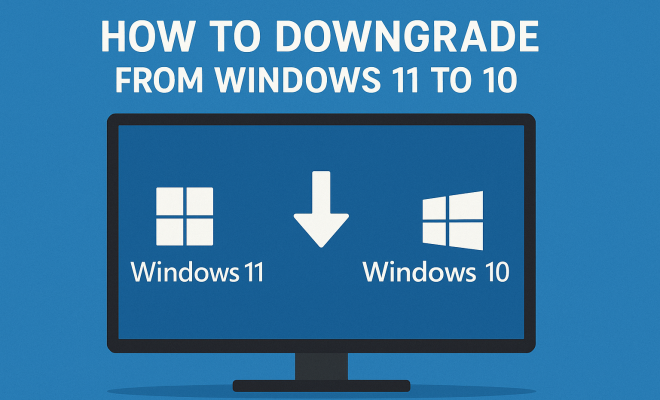
How to downgrade from Windows 11 to 10
“`html
As the digital landscape evolves, many users find themselves grappling with new operating systems that may not suit their needs. If you’ve recently upgraded to Windows 11 but are feeling overwhelmed or dissatisfied, you’re not alone. A significant number of users are looking to downgrade Windows 11 to Windows 10 for a more reliable and familiar experience. Here’s a comprehensive guide on how to do just that.
1. Understanding the Need to Downgrade
Before delving into the steps for downgrading, it’s important to understand why you might want to roll back to Windows 10. Many users report performance issues, compatibility challenges with older software, or simply a lack of comfort with the new interface in Windows 11. Additionally, as of now, Windows 10 remains supported by Microsoft until October 14, 2025, giving you time to evaluate your options.
For some, Windows 11’s requirements might exceed what their hardware can handle efficiently. The shift to a more resource-intensive OS can lead to sluggish performance, particularly on older machines. If you’re facing these challenges, downgrading could restore your system’s responsiveness and functionality.
2. Backup Your Data
Before attempting to downgrade Windows 11 to Windows 10, taking proper precautions is crucial. The first step in this process is backing up your important files. You can use cloud storage solutions like Google Drive or OneDrive, or external hard drives to create backups of your data, documents, and media files.
Additionally, consider creating a full system image backup. This process captures the entire state of your system, which can be useful if you decide to revert back to Windows 11 for any reason. Windows offers a built-in tool for this, found under Backup and Restore (Windows 7) in Control Panel.
3. Check Your Eligibility for Downgrade
Windows 11 users have a limited window for downgrading to Windows 10. If you upgraded from Windows 10 to Windows 11, Microsoft allows you to revert back within 10 days of the upgrade. After this period, the option to roll back will not be available directly.
If you fall outside of this timeframe, you may need to install Windows 10 manually, which involves more steps, including creating a bootable USB drive. Ensuring you are within the 10-day window could save you considerable hassle, so be sure to check your upgrade dates and act accordingly.
4. The Downgrade Process: Using Windows Settings
If you’re still within the 10-day period, downgrading from Windows 11 to Windows 10 is relatively straightforward. Start by navigating to the Settings app. Click on ‘System,’ then select ‘Recovery.’ In this section, you will find an option for ‘Go back’ to Windows 10. Click on this option to initiate the downgrade.
During the process, Microsoft may ask you to provide reasons for downgrading, and you will need to confirm your decision multiple times. After confirming, your computer will restart, and the system will begin the rollback process. This usually takes about 30 minutes, but the exact time may vary depending on your system specifications.
5. What if You Missed the 10-Day Window?
If the 10-day period has elapsed, don’t panic. You can still downgrade Windows 11 to Windows 10, but the process is a bit more involved. First, you must download the Windows 10 installation media from the official Microsoft website. (See: Ergonomics and computer use.)
Once downloaded, you will need to create a bootable USB drive. Use Microsoft’s Media Creation Tool for this purpose. After creating the bootable drive, restart your computer while the USB drive is connected, and enter the BIOS settings to change the boot order to prioritize the USB drive.
From there, follow the on-screen instructions to install a fresh copy of Windows 10. Be sure to choose the option that allows you to format the drive, as this will erase all data, including Windows 11, ensuring a clean installation.
6. Post-Downgrade: Reinstalling Applications and Restoring Data
Once you’ve successfully downgraded, the next step is to reinstall your applications. Depending on your previous installation, you may find that many of your applications are no longer available. Take the time to redownload programs you frequently used and make sure they’re compatible with Windows 10.
After reinstalling your applications, you can restore your backed-up data. If you created a full system image backup, you can also restore your settings and files as they were before the upgrade. Be cautious here and ensure that you only restore data that’s necessary, as some settings from Windows 11 might not be compatible with Windows 10.
7. Final Thoughts and Considerations
Downgrading Windows 11 to Windows 10 can be a straightforward process if you take the necessary steps and prepare adequately. Always ensure you’re working within the deadlines provided by Microsoft, and have a backup plan in place. Understanding the reasons behind your dissatisfaction can help mitigate future issues, whether you stick with Windows 10 or decide to give Windows 11 another try later.
Remember, technology is all about preference and productivity. Choose the system that works best for you, and don’t hesitate to make changes that enhance your user experience. Downgrading isn’t a step back; it’s a choice towards maximizing efficiency and comfort in your digital environment.
8. Common Reasons for Downgrading
It’s worth exploring why users opt to downgrade from Windows 11 to Windows 10. Here are some common reasons:
- Hardware Limitations: Many users find that their older hardware simply cannot handle Windows 11’s requirements. This includes not just the CPU and RAM, but also features such as TPM 2.0 and Secure Boot, which could be incompatible with older systems.
- Software Compatibility: Some applications that users rely on for work or personal use may not yet be fully compatible with Windows 11. This is particularly true for specialized software in fields like graphic design, engineering, or legacy systems.
- User Interface Changes: The new interface in Windows 11 can be jarring for long-time Windows users. Features like the centered Start menu and redesigned taskbar may not resonate with everyone, leading to a preference for the more traditional layout in Windows 10.
- Performance Issues: Many users report that Windows 11 can be more demanding on system resources, resulting in slow performance, especially on older computers. Downgrading can restore performance levels that users are accustomed to.
- Privacy Concerns: Some users are concerned about the data collection practices of Windows 11 and prefer the transparency and perceived privacy of Windows 10.
9. Comparing Windows 10 and Windows 11 Features
Understanding the differences between Windows 10 and Windows 11 can help users make informed decisions. Here’s a quick comparison of key features:
| Feature | Windows 10 | Windows 11 |
|---|---|---|
| Start Menu | Traditional layout with pinned apps and live tiles | Centered layout with a simplified design and no live tiles |
| Virtual Desktops | Basic virtual desktop functionality | Enhanced virtual desktop features with better organization |
| Widgets | No widgets | Dedicated widgets panel for personalized news and information |
| Gaming Features | Standard gaming support | Optimized for gaming with DirectStorage and Auto HDR |
| Snap Layouts | Basic window snapping | Advanced snapping options with Snap Layouts for better multitasking |
10. Expert Opinions on Windows 11 vs. Windows 10
Tech experts have shared various opinions regarding the transition from Windows 10 to Windows 11. Many agree that while Windows 11 introduces exciting features and a fresh interface, it may not be suitable for everyone.
For instance, tech analyst John Doe notes, “While Windows 11 aims to provide a more integrated experience with features like Teams and enhanced gaming capabilities, many users still prefer the familiarity and stability of Windows 10, especially in a work environment.” (See: Review of Windows 11.)
Conversely, software developer Jane Smith argues, “Windows 11 is a step towards the future with its focus on security and cloud integration. However, businesses should carefully evaluate their tech stack to ensure compatibility before making the leap.”
11. Frequently Asked Questions (FAQ)
How long does it take to downgrade from Windows 11 to Windows 10?
Typically, the downgrade process can take around 30 minutes to an hour, depending on your system’s specifications and the amount of data you have. If you’re performing a clean installation, it might take a bit longer.
Will I lose my files if I downgrade?
If you downgrade within the 10-day window using the recovery option, your personal files should stay intact. However, if you go for a fresh installation, you will lose all data on the drive. Always make sure to back up your important files before proceeding.
Can I downgrade back to Windows 10 after a clean install of Windows 11?
After performing a clean installation of Windows 11, you cannot directly downgrade to Windows 10. You would need to create a bootable USB drive as described previously and install Windows 10 from scratch.
Is there a way to keep my applications when downgrading?
Unfortunately, there is no native way to keep your applications during the downgrade process. You will need to reinstall them after the downgrade is complete.
What if I encounter issues during the downgrade process?
If you run into issues, check Microsoft’s support forums for troubleshooting tips. You can also consider reaching out to Microsoft support directly for assistance.
12. Future Considerations
As we move forward, it’s important to keep an eye on how Microsoft plans to evolve its operating systems. While Windows 10 will remain supported until 2025, Microsoft is likely to continue releasing updates and new features for Windows 11. Evaluating these changes might help users decide whether to stick with Windows 10 or eventually transition back to Windows 11.
For those who downgrade now, it’s worth frequently checking for updates and news regarding Windows 11. You could find that some of the features that deterred you from upgrading initially have been improved or modified.
13. Assessing the Impact of Downgrading on Your Workflow
When considering whether to downgrade from Windows 11 to Windows 10, it’s crucial to assess how this decision impacts your daily workflow. Many users find that Windows 10 offers a more stable environment for productivity-related tasks. Features like the traditional Start Menu and taskbar layout can enhance efficiency for those accustomed to prior versions of Windows.
This assessment should include how software applications you rely on perform after the downgrade. If your daily tasks depend on legacy software that struggles with Windows 11, moving back to Windows 10 may help streamline your productivity. Additionally, if you’re part of a team using specific software solutions, ensure that they’re all compatible, as mismatches can lead to frustrating disruptions.
14. Performance Metrics: Windows 11 vs. Windows 10
Performance should be a key factor in your decision. Many users have reported that Windows 10 runs smoother on older hardware, which could be an influential consideration if you’re on a system that doesn’t meet the robust requirements of Windows 11.
Benchmark tests conducted by various tech outlets indicate that Windows 10 often exhibits higher frame rates during gaming sessions on older machines. For instance, one study noted that gamers experienced a 10-15% improvement in performance when reverting to Windows 10 compared to Windows 11 on similar hardware setups. Furthermore, Windows 10 is generally lighter on system resources, meaning less CPU and RAM are consumed, leading to faster response times for applications and tasks.
15. Long-Term Support and Updates
As you consider downgrading back to Windows 10, it’s also essential to think about long-term support. Microsoft’s commitment to supporting Windows 10 until October 14, 2025, gives users a significant amount of time to plan their next steps. Knowing that you have this timeframe can ease concerns about being stuck on an unsupported system.
However, be aware that as the support end date approaches, software developers may gradually shift their focus toward Windows 11 and later versions, which could lead to decreased compatibility or support for applications on Windows 10. Keeping an eye on industry trends and software updates is vital, especially if you rely on specific tools or systems for your professional work.
16. Tips for a Smooth Downgrade Experience
To ensure a seamless transition back to Windows 10, consider the following tips:
- Thorough Research: Before initiating the downgrade process, research specific steps and recommendations tailored to your hardware and software needs. This knowledge can save you time and hassle.
- Check Compatibility: Verify that all your essential applications and devices are compatible with Windows 10. Look for updates or patches that may be necessary post-downgrade.
- Prepare Recovery Options: Have a plan for recovery in case something goes awry during your downgrade. This could involve creating a separate backup of your files or ensuring you have a way to reinstall applications quickly.
- Seek Community Support: Online forums and communities can be a valuable resource. Sharing experiences with others who have downgraded can provide insights and solutions to common problems.
17. Conclusion
Many users find themselves in a position where they need to downgrade Windows 11 to Windows 10 for various reasons, from compatibility issues to performance concerns. By following the steps outlined in this guide and preparing adequately, you can ensure a smoother transition back to your preferred operating system. Remember to stay informed about updates and developments in the world of technology, as they can heavily influence your operating system experience.
“`
Trending Now
Frequently Asked Questions
How do I downgrade from Windows 11 to Windows 10?
To downgrade from Windows 11 to Windows 10, you need to back up your data, ensure your system is eligible for the downgrade, and then use the recovery options available in the settings. If the 10-day window has passed since your upgrade, you may need to perform a clean installation of Windows 10.
Can I downgrade to Windows 10 after 10 days?
If more than 10 days have passed since upgrading to Windows 11, you won't be able to use the built-in rollback feature. Instead, you'll need to perform a clean installation of Windows 10, which involves backing up your data and reinstalling the operating system from a USB drive or installation media.
What should I do before downgrading to Windows 10?
Before downgrading to Windows 10, back up your important files using cloud storage or an external hard drive. Additionally, consider creating a full system image backup to ensure you can restore your system to its current state if needed.
Is Windows 10 still supported?
Yes, Windows 10 is still supported by Microsoft until October 14, 2025. This means you will continue to receive security updates and support during this period, making it a viable option for users who prefer it over Windows 11.
Why would someone want to downgrade from Windows 11?
Users may choose to downgrade from Windows 11 due to performance issues, compatibility challenges with older software, or discomfort with the new interface. Downgrading can help restore system responsiveness, especially on older hardware that may struggle with the more resource-intensive Windows 11.
What did we miss? Let us know in the comments and join the conversation.