How to sync Fitbit
“`html
For fitness enthusiasts and health-conscious individuals, Fitbits have become a staple device for tracking daily activity, heart rate, and sleep patterns. However, getting the most out of your Fitbit relies heavily on the ability to sync Fitbit data effectively. This comprehensive guide will walk you through everything you need to know about syncing your Fitbit, including background information, practical insights, troubleshooting tips, and much more.
1. Understanding Fitbit Syncing
The process of syncing your Fitbit involves transferring data from your Fitbit device to the Fitbit app on your smartphone or computer. This data includes your daily step count, heart rate, calories burned, and sleep patterns. Syncing is crucial because it allows you to track your progress over time, set goals, and receive insights based on your activity levels.
Fitbit uses Bluetooth technology for this synchronization. Each time you sync, your device uploads new data to the Fitbit server, which you can later access through the app or website. Regular syncing is highly recommended to ensure that your information is up to date and accurate.
2. How to Sync Fitbit with the Mobile App
Syncing your Fitbit with the mobile app is straightforward and can be accomplished in just a few steps. First, ensure that your Fitbit device is charged and within range of your smartphone. Download the Fitbit app from the Google Play Store or Apple App Store if you haven’t already, and log into your account.
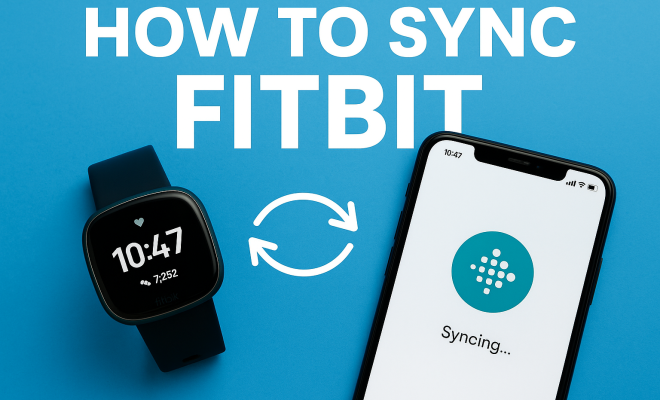
Once you’re in the app, tap on your profile picture in the top-left corner and select your device. From there, you can initiate a manual sync by pulling down on the screen. Your Fitbit will begin syncing immediately. If successful, you’ll see the sync icon indicating that the data has been updated.
3. Syncing Fitbit with Your Computer
If you prefer using a computer to manage your Fitbit data, you can sync it using a USB dongle. Begin by downloading the Fitbit app from the Fitbit website. Upon installation, log into your account and plug in the dongle to your computer.
For syncing, place your Fitbit device in close proximity to the dongle. The app should automatically detect your device and begin the syncing process. If you encounter any issues, ensure your device is charged and restart both your Fitbit and computer for troubleshooting.
4. Common Syncing Issues and Solutions
Despite the overall ease of syncing, you may run into some common issues. Problems often arise due to Bluetooth connectivity, device settings, or app glitches. If your Fitbit won’t sync, consider the following troubleshooting steps:
- Check Bluetooth Settings: Ensure that Bluetooth is activated on your smartphone or computer. If it’s on and syncing fails, try toggling it off and back on.
- Restart Your Devices: Sometimes, a simple restart of both your Fitbit and your phone can resolve syncing issues.
- Update the App: Outdated versions of the Fitbit app can create syncing problems. Make sure you have the latest version installed.
If these steps don’t resolve the issue, you may need to unpair your Fitbit and re-pair it with your device, which often clears up lingering syncing problems.
5. Sync Frequency: How Often Should You Sync Fitbit?
While Fitbit devices automatically sync throughout the day, users might wonder how frequently they should manually sync their device. Ideally, syncing should occur at least once a day to keep your data current. This is especially important if you’re tracking specific health metrics or participating in challenges with friends.
Moreover, keeping your device synced ensures that any changes to your goals or updates to your health metrics are reflected accurately in the app. If you’re actively working toward fitness goals, frequent syncing can help motivate you by providing real-time updates on your progress. (See: CDC on physical activity guidelines.)
6. Understanding Fitbit’s Data Management
When you sync Fitbit data, it automatically organizes your information into various metrics that help you understand your health better. The app tracks your steps, distance, calories burned, and sleep patterns, offering you a comprehensive view of your daily activity levels.
Additionally, the Fitbit app provides features like tailored insights, goal-setting options, and community challenges. For instance, you can set daily step goals or track your heart rate during workouts. The more you sync, the more personalized and relevant the insights become, empowering you to enhance your fitness journey.
7. Advanced Syncing Options and Features
Beyond basic syncing, Fitbit offers advanced features that can enhance your experience. One notable feature is the ability to sync with third-party apps and devices. For example, you can connect your Fitbit to MyFitnessPal or Apple Health to consolidate your health data in one place.
Moreover, Fitbit Premium subscribers gain access to additional features like advanced sleep insights and guided workouts, which require regular syncing. This premium service enhances your Fitbit experience, providing tailored recommendations based on your activity patterns.
8. Syncing Fitbit to Other Devices
Fitbit devices can sync not only with smartphones and computers but also with various other devices, including smartwatches and tablets. To sync Fitbit with other gadgets, simply ensure that the respective app is installed and that the devices are paired via Bluetooth.
If you’re using multiple devices, make sure to check the syncing status on each to prevent data discrepancies. For instance, if you track workouts on a smartwatch but forget to sync with your phone, some data may not be updated in the Fitbit app.
9. Keeping Your Fitbit Software Updated
Regularly updating your Fitbit software is vital for optimal performance and improved syncing capabilities. Fitbit frequently releases updates that enhance the functionality and security of devices. To check for updates, open the Fitbit app, tap on your profile, and select your device. If an update is available, follow the prompts to install it.
Keeping your device updated not only ensures a smoother syncing process but also provides access to new features and fixes that improve overall user experience. By staying current with software updates, you can make the most out of your Fitbit’s capabilities.
10. Understanding Sync Fitbit Data Privacy
As you sync Fitbit data, it’s essential to consider data privacy and security. Fitbit takes user privacy seriously and employs various measures to protect your information. Data is encrypted during transmission and stored securely on Fitbit servers. However, it’s always wise to be aware of what data you’re sharing.
When you sync Fitbit, you might be sharing information with third-party applications if you’ve granted access. Always review the permissions and consider whether you want those apps to access your data. Additionally, you can manage privacy settings within the Fitbit app to control who sees your data, especially if you’re part of public challenges or groups.
11. Wear and Tear: Maintaining Your Fitbit Device
Maintaining your Fitbit’s physical condition can also affect its syncing capabilities. Dust, moisture, and general wear can impact the device’s performance over time. Make sure to clean your Fitbit regularly according to the manufacturer’s guidelines. This not only keeps it looking fresh but can potentially improve connectivity and battery life.
It’s also helpful to periodically check the battery level. A low battery can hinder the syncing process. Replacing your Fitbit device or its battery when needed can ensure you’re always able to sync Fitbit data without interruptions. (See: NIH on the benefits of physical activity.)
12. Syncing Fitbit with Family Accounts
Fitbit allows you to create family accounts, which can be particularly beneficial for families aiming to promote health and fitness together. When you sync Fitbit devices across different accounts, you can track each family member’s progress and encourage each other towards common health goals.
To set up family accounts, you can invite family members through the Fitbit app. Once they accept your invitation and sync their devices, you’ll be able to view their stats on your dashboard, fostering a sense of community and shared motivation. This is especially useful for parents wishing to monitor their children’s activity levels in a fun and engaging way.
13. Frequently Asked Questions (FAQ)
What should I do if my Fitbit doesn’t sync after troubleshooting?
If you’ve tried all basic troubleshooting steps, consider reaching out to Fitbit support. They can provide advanced solutions based on your specific model and syncing issues.
Can I sync Fitbit without the app?
Syncing your Fitbit without the app is not possible. The app is essential for data transfer, and it’s the primary way you interact with your device’s data.
How long does it take to sync Fitbit data?
The syncing process typically only takes a few seconds, but this can vary depending on the amount of data being synced and your Bluetooth connection quality. Regular small syncs generally take less time than syncing large amounts of data all at once.
Is it safe to sync Fitbit with third-party apps?
While most third-party apps that sync with Fitbit are reputable, it’s crucial to review their privacy policies. Ensure that you’re comfortable with the data sharing practices before granting access to your Fitbit information.
What happens if I don’t sync my Fitbit regularly?
If you don’t sync your Fitbit regularly, you may miss out on valuable insights regarding your health and fitness progress. Additionally, your app won’t reflect the most accurate data, which can hinder goal-setting and tracking.
Can I sync multiple Fitbits to one account?
Yes, you can sync multiple Fitbit devices to one account, but you’ll want to ensure each device is properly set up within the app. This allows you to switch between devices while maintaining a single health log.
14. Tips for Effective Fitbit Syncing
To enhance your syncing experience, consider the following tips:
- Stay Close: Keep your Fitbit close to your smartphone or computer when syncing to ensure a strong Bluetooth connection.
- Turn Off Wi-Fi: Sometimes, turning off Wi-Fi on your smartphone can improve Bluetooth performance, especially if you’re experiencing slow syncing.
- Use Airplane Mode: If you’re having persistent issues, enabling Airplane Mode and then disabling it can reset the connection and solve syncing problems.
15. Exploring Fitbit Community Features
Fitbit goes beyond just tracking data; it also fosters community engagement through its app. Users can join groups, participate in challenges, and share their milestones with friends. This social aspect can be highly motivating, encouraging you to stay active. (See: WHO fact sheet on physical activity.)
For example, group challenges can create a sense of urgency and camaraderie among participants. It’s not just about the numbers; it’s about sharing your journey, competing in a friendly manner, and supporting each other. Regular syncing ensures that your achievements in these challenges are accurately represented, keeping you and your group members motivated.
16. Future of Fitbit and Syncing Technology
The landscape of fitness tracking is continually evolving. As technology advances, the future of Fitbit syncing will likely incorporate more sophisticated features. For instance, expect enhanced data analytics and personalized suggestions based on your fitness patterns. Innovations such as advanced machine learning algorithms could provide deeper insights into your health by analyzing trends over time.
Additionally, as wearables become more integrated with smart home technology, syncing your Fitbit may evolve into a more seamless experience. Imagine your fitness data influencing not just your health goals but also your daily routines, such as adjusting home heating during sleep based on your tracked sleep quality.
17. The Role of Wearables in Health Monitoring
Fitbit, as a prominent player in the wearables market, plays a significant role in health monitoring. The ability to sync Fitbit data contributes to a broader understanding of not just personal fitness, but public health trends as well. Researchers can analyze aggregated data to identify patterns in physical activity, sleep quality, and heart health among different populations.
This data can be invaluable in public health initiatives aimed at promoting fitness and wellness. Furthermore, as more people adopt wearables, the potential for large-scale health insights increases, potentially guiding future health policies and interventions.
18. Conclusion: Making the Most of Your Syncing Experience
Syncing your Fitbit is an essential part of maximizing its functionality and tracking your health and fitness progress effectively. Armed with the insights and tips from this guide, you can ensure a seamless syncing experience, troubleshoot common problems, and utilize advanced features that can help elevate your fitness journey.
Ultimately, the more consistently you sync Fitbit, the better you can understand your health patterns and make informed decisions on your fitness path. So, whether you’re using it for weight loss, health monitoring, or just staying active, keeping your Fitbit synced will help you stay on track. Happy syncing!
“`
Trending Now
Frequently Asked Questions
How do I sync my Fitbit with my phone?
To sync your Fitbit with your phone, ensure your device is charged and within Bluetooth range. Open the Fitbit app, log into your account, tap your profile picture, select your device, and pull down on the screen to initiate a manual sync. You'll see a sync icon once the data has updated.
Why is my Fitbit not syncing?
If your Fitbit isn't syncing, check if Bluetooth is enabled on your smartphone. Ensure your device is charged and within range. Restart both your Fitbit and phone, and make sure the Fitbit app is updated. If problems persist, try reinstalling the app.
What data does my Fitbit sync?
Your Fitbit syncs various data including daily step count, heart rate, calories burned, and sleep patterns. This information is transferred to the Fitbit app or website, allowing you to track your progress and receive insights based on your activity levels.
Can I sync my Fitbit with a computer?
Yes, you can sync your Fitbit with a computer using a USB dongle. Download the Fitbit app for your computer, connect the dongle, and follow the prompts to sync your device. This allows you to manage your Fitbit data from your desktop.
How often should I sync my Fitbit?
It's recommended to sync your Fitbit regularly to ensure your data is up to date and accurate. Frequent syncing allows you to track your progress over time, set goals, and receive insights based on your activity levels.
Agree or disagree? Drop a comment and tell us what you think.