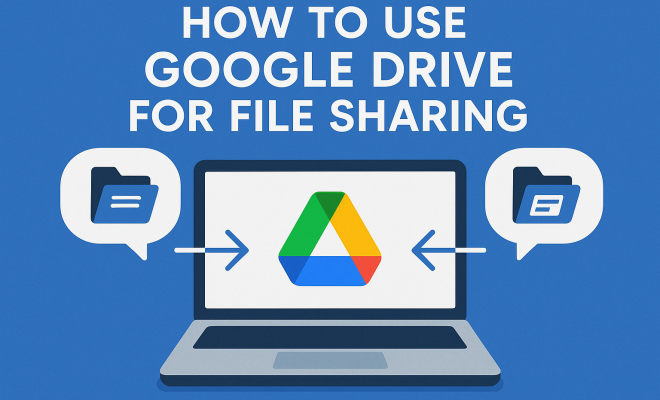
How to use Google Drive for file sharing
“`html
Google Drive has revolutionized the way we handle documents, photos, and files, making Google Drive file sharing an essential skill in today’s digital landscape. Whether you’re collaborating on a project at work, sharing vacation photos with family, or just wanting to back up important documents, knowing how to effectively use Google Drive can save you time and hassle. In this article, we’ll explore seven crucial aspects of Google Drive file sharing that will streamline your workflow and enhance your user experience.
1. Understanding Google Drive
Launched in April 2012, Google Drive quickly became one of the most popular cloud storage services available. It offers users a place to store files online, making them accessible from any device with an internet connection. With an initial free storage limit of 15 GB, Google Drive allows users to store documents, spreadsheets, presentations, and even videos or photos. What sets Google Drive apart is its seamless integration with other Google services like Google Docs, Sheets, and Slides, enabling real-time collaboration.
When it comes to file sharing, Google Drive provides various options. You can share a single file, a folder, or even an entire drive with others. Understanding how to manage these sharing options effectively can help you control who sees your files and how they can interact with them. From private sharing to public links, Google Drive offers flexibility that suits both personal and professional needs.
2. Setting Up Your Google Drive Account
To get started with Google Drive file sharing, you’ll need a Google account. If you don’t have one, signing up is free and straightforward. Simply visit the Google account creation page, provide your details, and verify your email address. Once your account is created, you can access Google Drive by navigating to drive.google.com.
After logging in, you’ll find a clean interface where you can create folders, upload files, and organize your content. Familiarizing yourself with this layout will make sharing files much easier. Google Drive also allows you to download the app on your smartphone or tablet, giving you access to your files on the go. Always make sure to keep your account secure by using two-factor authentication, especially if you’re sharing sensitive information.
3. Sharing Files and Folders
Once you’re set up, sharing files and folders is a breeze. To share a file, simply right-click on the item in Google Drive and select “Share.” A dialog box will appear, allowing you to enter the email addresses of those you want to share with. This feature is particularly useful for team projects or when you want to gather feedback from multiple people.
When you share a file, you have the option to control the access level. Users can either view, comment, or edit the file, depending on the permissions you set. If you want to share a folder, the process is similar. Right-click on the folder, select “Share,” and choose your sharing settings. You can also create a shareable link that allows anyone with the link to access the folder or file, which can be handy for larger groups or less formal sharing.
4. Using Shareable Links
Create shareable links for quick access to your files. To generate a shareable link, go through the same process as before by clicking on “Share,” but this time click on “Get Link.” You can choose whether the link will allow people to view, comment, or edit the file. By default, the link is restricted to users you specify, but changing this to “Anyone with the link” can make sharing much easier for larger groups or public distributions.
However, be cautious when sharing links publicly. Anyone with the link will have access based on the permissions you set, which can pose a risk if sensitive information is included. Always review the contents of your files and folders before generating shareable links to ensure you’re not unintentionally exposing confidential information.
5. Collaborating in Real-Time
One of the standout features of Google Drive is its real-time collaboration capabilities. When multiple users have access to a document, you can see edits and comments live, which is a game-changer for teamwork. To start collaborating, simply share the document and set the permission to “Can edit.” (See: Wikipedia page on Google Drive.)
As collaborators make changes, you’ll see their cursors in real-time, and changes will appear instantly. This feature is invaluable for brainstorming sessions, document revisions, and group projects. Google Docs, Sheets, and Slides even allow for chatting within the document, making it easy to communicate without leaving the workspace.
6. Managing Permissions and Access
Managing permissions in Google Drive is crucial, especially in collaborative environments. You can add specific users to grant them access to your files and determine their level of engagement—whether they can view, comment, or edit. You can also set expiration dates on access for temporary collaborations, ensuring that users cannot access your files indefinitely.
If you need to revoke access at any time, return to the sharing settings for that file or folder, and adjust permissions as necessary. This feature is especially important in professional settings where sensitive data may be involved. By regularly reviewing and updating permissions, you can maintain control over who has access to your information.
7. Integrating Google Drive with Other Tools
Google Drive also plays nicely with various third-party applications, further enhancing its functionality. Services like Slack, Trello, and Asana allow you to integrate your Google Drive files into their platforms, making it easier to manage projects. For instance, you can directly attach Google Drive files to Slack conversations, ensuring that all team members have access to the necessary documents without having to switch between apps.
Additionally, utilizing Google Workspace (formerly G Suite) can significantly improve your team’s productivity. Workspace combines Gmail, Google Calendar, Google Drive, and other apps, creating an efficient ecosystem for collaboration and communication. By taking advantage of these integrations, you can optimize your workflow and make Google Drive file sharing that much more effective.
8. Advanced Features of Google Drive File Sharing
Beyond the basics of sharing and collaboration, Google Drive offers several advanced features that can enhance your file sharing experience. For instance, the ability to leave comments on files allows users to provide feedback without altering the content itself. This is particularly useful in collaborative projects where multiple people may need to review a document before finalization. Comments can be resolved or assigned to specific users, creating a more organized approach to managing feedback.
Additionally, Google Drive’s version history feature lets you track changes made to a file over time. If multiple users are editing a document, you can easily revert to a previous version if needed. This provides a safety net against unwanted changes and ensures that past ideas and contributions are preserved. The version history can be accessed through the “File” menu, where you can see all edits along with timestamps and the names of contributors.
9. Google Drive File Sharing Best Practices
To make the most of Google Drive file sharing, a few best practices can help you avoid common pitfalls. First, always double-check the permissions you are granting before sharing files. It’s easy to set permissions to “Can edit” by mistake, potentially allowing others to change your important documents. Always share with intention, and if you’re unsure, opt for “Can view” to start.
Another best practice is to use folders wisely. Organizing files into relevant folders not only helps you keep your workspace tidy but also makes it easier for collaborators to find what they need. If you’re working with multiple groups, consider creating separate folders for each team to minimize confusion.
Also, maintain a consistent naming convention for your files. This can significantly enhance your ability to locate documents and avoid duplicates. For example, you could include the project name and date in the file name, making it easier for everyone involved to identify the document quickly. (See: CDC on ergonomics and technology use.)
10. Statistics on Google Drive Usage
Understanding how widely adopted Google Drive is can give you insights into its effectiveness. As of 2023, Google Drive boasts over 1.5 billion active users worldwide. This significant user base reflects its popularity and indicates the trust users place in the platform for file storage and sharing. According to a recent survey, approximately 80% of businesses utilize Google Drive for cloud storage and collaboration due to its user-friendly interface and extensive features.
In terms of file sharing, about 70% of Google Drive users reported that they regularly share files with colleagues or friends, highlighting its effectiveness as a collaborative tool. Additionally, the integration of Google Drive with various productivity tools has increased the efficiency of users by an average of 20% as they can access and share files directly within the applications they are using.
11. Expert Perspectives on Google Drive File Sharing
Industry experts often highlight the importance of mastering Google Drive for both personal and professional use. “In today’s remote work environment, knowing how to share files effectively can make or break a team’s collaboration efforts,” states tech consultant Jane Doe. “Google Drive not only simplifies file sharing but also enhances communication among team members, which is essential for any project’s success.”
Another perspective comes from IT specialist John Smith, who emphasizes security. “While Google Drive is user-friendly, users need to be aware of the potential risks involved in file sharing. Understanding how to manage permissions and utilize security features can protect sensitive information,” he advises. This highlights the dual importance of usability and security when it comes to sharing files online.
12. Frequently Asked Questions about Google Drive File Sharing
How do I share a Google Drive file with someone who doesn’t have a Google account?
You can share a Google Drive file with anyone, even if they don’t have a Google account. When you generate a shareable link, select the option “Anyone with the link” can view, comment, or edit, depending on the permissions you want to set.
Can I stop sharing a file after I’ve shared it?
Yes, you can stop sharing a file at any time. Simply go to the sharing settings of the file, find the person’s email address you want to remove, and click on “Remove.” Alternatively, you can change their access level to “No access.”
What happens if I delete a file that I shared with others?
If you delete a file that you’ve shared, it will no longer be available to those you’ve shared it with. They will receive a notification that the file is no longer accessible. However, you can recover deleted files from the Trash in Google Drive for a limited time, usually about 30 days.
Is Google Drive secure for sharing sensitive information?
Google Drive has robust security protocols, including encryption during data transmission and at rest. However, it’s crucial to manage sharing permissions carefully. Use features like two-factor authentication and regularly review access permissions to enhance security when sharing sensitive information.
Can I share files directly from Google Docs or Sheets?
Absolutely! You can share files directly from Google Docs, Sheets, or Slides by clicking the “Share” button located in the upper right corner of the document. This allows for immediate sharing without needing to navigate back to Google Drive. (See: New York Times article on Google Drive.)
13. Challenges in Google Drive File Sharing
While Google Drive file sharing offers many advantages, it’s not without challenges. Users sometimes encounter issues related to file access and permission settings, leading to confusion or frustration. For example, if a team member tries to access a file but finds they don’t have the right permissions, it can delay collaboration. To address this, clear communication about access levels and expectations is key.
Another challenge is managing file organization, especially for those who handle multiple projects simultaneously. Without a clear structure, files can quickly become disorganized. Creating a standardized naming system and folder hierarchy can help mitigate this issue, making it easier for all team members to find what they need.
14. Comparing Google Drive with Other File Sharing Services
With many cloud storage options available, it’s helpful to compare Google Drive with competitors like Dropbox, OneDrive, and Box. While Dropbox is known for its simplicity and file synchronization, Google Drive excels in collaboration features, making it a favorite for teams. OneDrive integrates seamlessly with Microsoft Office, which is beneficial for users already using those tools. Box offers strong security features, making it a top choice for businesses with sensitive data requirements.
Ultimately, the best service depends on your specific needs. If you prioritize collaboration and integration with Google services, Google Drive is likely your best bet. However, if security is your main concern or if you’re embedded in the Microsoft ecosystem, you might find other platforms more suitable.
15. Future Trends in File Sharing
The landscape of file sharing is evolving rapidly, and Google Drive is likely to keep pace with trends that emphasize collaboration, security, and user experience. As remote work becomes more entrenched, features that facilitate seamless collaboration and effective communication will be increasingly important. For instance, advancements in artificial intelligence may help automate file organization and improve search functionalities, making it easier to find relevant documents.
Moreover, with rising concerns about data privacy, companies are likely to focus more on security enhancements within their platforms. Google Drive’s integration of advanced security measures, like enhanced encryption and user authentication options, will remain a priority. Staying on top of these trends and updates will ensure that you make the most of your Google Drive experience.
Conclusion
Mastering Google Drive file sharing is a vital skill in our increasingly digital world. By understanding how to set up your account, share files and folders, collaborate in real-time, manage permissions, and leverage integrations, you can make the most of this powerful tool. Furthermore, knowing the advanced features, best practices, and the perspectives of experts can further enhance your efficiency. As cloud technology continues to evolve, staying informed about the latest features and best practices will ensure you maintain a competitive edge, whether you’re working in a team or simply sharing files with friends and family.
“`
Trending Now
Frequently Asked Questions
How do I share files on Google Drive?
To share files on Google Drive, right-click the file or folder you want to share, select 'Share,' then enter the email addresses of the people you want to share with. You can adjust their permissions to view, comment, or edit the file before clicking 'Send.'
What are the benefits of using Google Drive for file sharing?
Google Drive allows easy access to files from any device with an internet connection, offers 15 GB of free storage, and integrates seamlessly with Google Docs, Sheets, and Slides. It also supports real-time collaboration, making it ideal for teamwork.
Can I share Google Drive files without a Google account?
Yes, you can share Google Drive files with users who don't have a Google account by creating a public link. Simply set the sharing settings to 'Anyone with the link' and choose their access level before sharing the link.
How do I manage sharing settings in Google Drive?
To manage sharing settings in Google Drive, right-click on the file or folder, select 'Share,' and adjust the settings under 'Share with people and groups.' You can modify permissions, remove access, or change link sharing options here.
Is Google Drive secure for sharing files?
Google Drive uses strong encryption to protect files during upload and storage, and offers options for sharing files privately or publicly. However, it's essential to manage sharing settings carefully to ensure only intended recipients have access.
What did we miss? Let us know in the comments and join the conversation.