Master Unity: Essential Tips for Game Development Success
“`html
In the ever-evolving world of game development, Unity stands out as one of the leading platforms for creating interactive experiences. Whether you’re a novice eager to dive into game design or a seasoned developer aiming to refine your skills, understanding how to use Unity effectively can set you apart. This article will walk you through essential tips and techniques to help you harness the full potential of Unity, covering everything from installation to advanced features.
1. Getting Started with Unity
Before you can explore how to use Unity, you’ll need to install it on your machine. The first step is to visit the official Unity website and download the Unity Hub, which serves as a central hub for managing your Unity projects and installations. Unity offers different versions, including the Personal, Plus, and Pro licenses, catering to various user needs. For beginners, the Personal plan is free and allows access to most features.
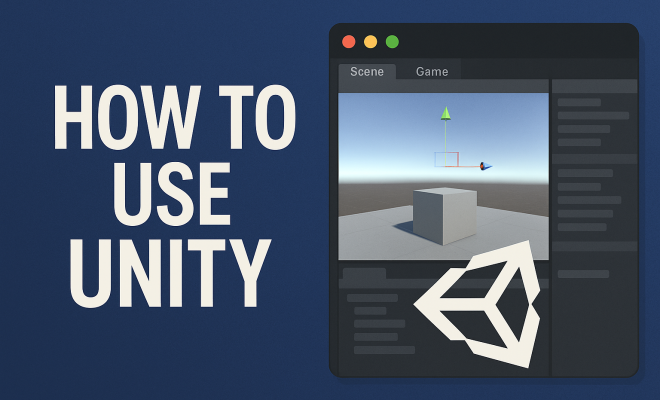
Once installed, you’ll be greeted by a user-friendly interface that includes options to create a new project or open an existing one. Familiarizing yourself with the layout is crucial. The Scene view allows you to visualize your game, while the Game view lets you see how the game will look when played. Spend some time exploring the various panels, including the Hierarchy, Inspector, and Project panels, as these are essential for navigating and managing your assets.
2. Understanding the Basics of Unity’s Interface
The Unity interface may seem overwhelming at first, but breaking it down into segments can simplify the learning process. The Scene view is where most of the magic happens; it’s your canvas for building levels, placing objects, and adjusting lighting. The Hierarchy panel shows all the objects in the current scene and allows you to manage them easily. Organizing your objects effectively, perhaps by grouping related items into folders, can save you time when you revisit your project.
The Inspector panel is where you can modify properties and settings of selected game objects. Understanding how components work is key—each object in Unity can have various components that define its behavior and appearance. For instance, a 3D model might have a Mesh Renderer for its visual representation and a Rigidbody for physics interactions. Mastering the Inspector will empower you to customize objects exactly how you envision.
3. Mastering Game Objects and Components
At the heart of Unity’s functionality are Game Objects and Components. A Game Object can be anything from a player character to an environmental element, while Components are the building blocks that define the Game Object’s functionality. To effectively learn how to use Unity, it’s crucial to grasp how to create and manipulate these elements.
To create a Game Object, you can right-click in the Hierarchy panel and choose options like Create Empty, or select from 3D Object, 2D Object, and more. Once you have a Game Object, you can add Components to it through the Inspector. For example, if you’re building a character, you might add a Capsule Collider to define its physical shape and a Character Controller for movement. Experimenting with different components will give you a deeper understanding of how to bring your ideas to life.
4. Scripting in Unity: Bringing Your Game to Life
One of the most powerful aspects of Unity is its support for scripting, which allows you to add interactivity and control game logic. Unity primarily uses C# as its scripting language, and getting comfortable with it is essential for your development journey. You can create scripts directly in Unity by right-clicking in the Project panel and selecting Create > C# Script.
Once created, you can open your script in an integrated development environment (IDE) like Visual Studio or JetBrains Rider. Familiarize yourself with key concepts such as variables, functions, and classes. For instance, to make a character jump, you might write a simple script that listens for player input and applies a force using the Rigidbody component. As you practice, explore Unity’s extensive API documentation, which provides examples and references to help you along the way.
5. Utilizing the Asset Store for Resources
Creating a game from scratch can be daunting, especially if you’re working solo or on a tight timeline. This is where the Unity Asset Store comes into play. It’s a treasure trove of resources where you can find everything from 3D models and animations to sound effects and complete project templates. Learning how to use Unity effectively involves leveraging these assets to enhance your projects.
When browsing the Asset Store, look for free and paid assets that align with your game’s theme and style. Free assets can be a great way to prototype quickly without spending money, while paid assets often come with higher quality and support. Remember to check the licensing agreements for any assets you download, especially if you plan to publish your game commercially. Using the Asset Store can significantly speed up your development process and allow you to focus on the creative aspects of your game.
6. Creating Engaging User Interfaces (UIs)
A successful game is not just about graphics and gameplay; an engaging user interface (UI) is crucial for player experience. Unity offers a robust UI system that allows you to create menus, HUDs, and other interactive elements. Understanding how to use Unity’s UI tools can elevate your project and improve user engagement. (See: Unity game engine overview.)
To start, you can navigate to the GameObject menu and select UI to create elements like Panels, Buttons, and Text objects. Each UI element can be customized through the Inspector. For instance, setting up a Start button involves adding an OnClick event that triggers a specific action when clicked. Unity also allows for animations and transitions, which can enhance the dynamism of your UI. Take time to experiment with these features to create a polished and user-friendly interface.
7. Testing and Publishing Your Game
Once you’ve built your game, testing and publishing it is the final step in your development journey. Understanding how to use Unity for testing involves setting up playtesting sessions and debugging any issues that arise. Unity’s built-in play mode allows you to test your game in real-time, enabling you to identify bugs and make adjustments on the fly. Always encourage feedback from playtesters—it can provide invaluable insights that you might overlook.
When you’re ready to share your creation with the world, Unity makes publishing straightforward. You can build your game for multiple platforms, including PC, console, and mobile. Simply go to File > Build Settings and select your desired platform. Unity will guide you through the necessary steps, ensuring your game is optimized for performance on your chosen device. Make sure to follow platform-specific guidelines, especially for mobile releases, to meet app store requirements.
8. Resources for Continuous Learning
The learning never stops when it comes to game development. Fortunately, there are numerous resources available to help you deepen your understanding of how to use Unity. Official documentation is a great starting point, providing detailed insights into features, scripting, and best practices.
Online courses and tutorials can also be very beneficial. Platforms like Udemy, Coursera, and YouTube have comprehensive content that covers everything from basics to advanced techniques. Additionally, joining forums and communities such as Unity’s own community forums, Reddit, or Discord groups can provide support and inspiration from fellow developers. Engaging with these resources will not only enhance your technical skills but also keep you connected with the vibrant Unity development community.
9. Staying Updated with Unity’s Evolution
Unity is constantly evolving, with regular updates introducing new features and improvements. Keeping abreast of these changes is crucial for any developer looking to maximize their potential. Subscribe to Unity’s official blog or follow their social media channels to stay informed about the latest developments, including new tools, asset packs, and important announcements.
Moreover, participating in Unity conferences and webinars can provide insights directly from the developers behind the technology. These events not only showcase new features but also offer invaluable networking opportunities. By staying informed about Unity’s evolution, you can ensure that your development skills remain sharp and relevant in a competitive landscape.
10. Understanding Game Design Principles
Knowing how to use Unity is about more than just mastering the tools; it’s about grasping the underlying principles of game design. Strong game design creates engaging gameplay that keeps players coming back. Start by defining your core gameplay mechanics—what makes your game fun? Consider how players will interact with the game world, what challenges they’ll face, and how they will progress through your game’s narrative. A well-thought-out design document can help you clarify your vision and keep your development on track.
Look to successful games for inspiration. Analyze what works in games you enjoy and try to understand why they resonate with players. Pay attention to pacing, the balance of difficulty, and how narrative elements unfold. You can also use user experience (UX) principles to craft mechanics that feel intuitive and satisfying. Gathering feedback during playtesting will aid in refining these elements, ensuring they align with player expectations.
11. Version Control for Project Management
As your project grows, managing changes becomes vital. Version control systems like Git can help you keep track of your project’s history, manage collaborations, and avoid overwriting valuable work. Unity integrates well with Git, allowing you to commit changes, revert to previous versions, and branch out for new features or experiments without disrupting the main project.
Setting up a version control system may seem daunting, but it can save you countless headaches down the line. Consider creating a repository for each new project, or use branches for features you’re testing. Many developers find hosting their repositories on platforms like GitHub or Bitbucket beneficial, as it enables easy collaboration and project sharing. Even if you’re working solo, version control ensures you have backups and a clear history of your work.
12. Optimizing Game Performance
Performance is critical in game development. A game that lags or crashes can frustrate players and drive them away. Understanding how to use Unity to optimize your game’s performance can lead to a smoother experience and happier players. Start by profiling your game to identify bottlenecks in CPU and GPU performance. Unity provides built-in profiling tools that can help you monitor frame rates, memory usage, and rendering times.
Implementing techniques like object pooling can reduce overhead when creating and destroying objects frequently. Consider simplifying your geometry, reducing texture sizes, and using efficient shaders. The quality settings in Unity allow you to scale back details on lower-end devices without compromising the experience for players with more powerful hardware. Testing on various devices ensures that you reach a broad audience. (See: CDC on interactive experiences.)
13. Monetization Strategies for Your Game
If you’re planning to publish your game, understanding monetization strategies is crucial. There’s a variety of ways to monetize a game developed in Unity, from premium sales to in-game advertisements and microtransactions. If you opt for a free-to-play model, ensure that your monetization methods are fair and don’t detract from the player’s enjoyment. For example, players might appreciate cosmetic items that enhance their experience without giving an unfair advantage.
Research successful games in your genre to see how they approach monetization. Look for creative ways to balance profitability with player satisfaction. You might even consider offering a demo version to entice players to try before they buy. Whichever strategy you choose, make sure to communicate clearly with your players about what they can expect to gain from their purchases.
14. Frequently Asked Questions (FAQ)
What is Unity, and why should I use it?
Unity is a powerful game engine used for developing both 2D and 3D games across multiple platforms. Its user-friendly interface, extensive asset store, and community support make it an excellent choice for both beginners and experienced developers.
Can I use Unity for mobile game development?
Absolutely! Unity supports deployment to both iOS and Android platforms, making it a popular choice for mobile developers. The engine includes tools to optimize performance and user interfaces for mobile devices.
Is Unity suitable for beginners?
Yes, Unity is very beginner-friendly. The engine provides ample resources, including tutorials, documentation, and community forums, to help newcomers get started with game development.
What programming language does Unity use?
Unity primarily uses C# for scripting. If you’re not familiar with C#, plenty of resources are available to help you learn this programming language, which is also widely used in other development fields.
Can I collaborate with others on a Unity project?
Yes! Unity supports collaboration through various tools such as Unity Collaborate and version control systems like Git, allowing multiple developers to work on projects simultaneously without overwriting each other’s work.
How do I export my game for different platforms?
Exporting your game to different platforms is straightforward in Unity. You can go to File > Build Settings, select your target platform (PC, mobile, console), and follow the prompts to configure the settings for that platform.
Are there any costs associated with using Unity?
Unity offers several licensing options, including a free version known as Unity Personal, which is suitable for individuals and small businesses. If your revenue exceeds a certain threshold, you may need to consider Unity Plus or Pro subscriptions for additional features.
How do I get help if I run into issues while using Unity?
If you encounter issues, the Unity community is a fantastic resource. You can search the Unity forums, check documentation, or explore platforms like Stack Overflow for answers. Additionally, many YouTube channels and online courses provide solutions to common problems.
15. Common Challenges When Learning Unity
Learning how to use Unity can be a rewarding experience, but it also comes with its fair share of challenges. As with any complex software, you may find yourself facing hurdles. It’s essential to recognize these challenges and develop strategies to overcome them. (See: New York Times on Unity's impact.)
One common issue is feeling overwhelmed by the sheer number of tools and features available within Unity. It’s easy to get lost in the many possibilities. To combat this, consider focusing on small, manageable projects. Build simple games or prototypes that incorporate only a few mechanics at a time. This approach allows you to learn gradually without becoming overwhelmed.
Another challenge many new developers encounter is debugging their scripts. Working with C# can sometimes lead to frustrating errors that can halt progress. To tackle this, familiarize yourself with debugging tools in Unity. Use breakpoints in your IDE to inspect the flow of your code and identify issues. Additionally, learning to write clean and organized code will make it easier to spot mistakes.
16. Best Practices for Game Development in Unity
To truly master how to use Unity, it’s helpful to adopt best practices that can enhance your development process. These practices can streamline your workflow and improve your game’s quality. For instance, maintain a consistent naming convention for your Game Objects and scripts. This habit will make it easier to find and manage assets as your project scales.
Using prefabs is another best practice in Unity. Prefabs allow you to create reusable Game Objects with predefined components and properties. This feature is especially useful when you need to instantiate multiple instances of an object, such as enemies or power-ups, without having to create each one from scratch.
Regularly back up your projects, especially when you’re making significant changes. Using services like Unity Collaborate can assist with this, but manual backups can also be effective. Keeping previous versions of your game ensures you can revert to a stable state if something goes wrong.
17. A Glimpse into Unity’s Future
The future of Unity looks promising, with ongoing developments aimed at enhancing both performance and user experience. As technology progresses, Unity continues to integrate more advanced features like real-time ray tracing and machine learning capabilities. These innovations allow developers to create even more immersive and visually stunning games.
Moreover, Unity’s commitment to community feedback ensures that user needs are prioritized in updates. Continuous enhancements to the Asset Store mean more accessible resources for developers of all skill levels. By staying engaged with Unity’s future developments, you can better position yourself as a developer and utilize the latest tools in your projects.
18. Conclusion
As you embark on your journey of learning how to use Unity, remember that practice and persistence are key. With the vast resources available and a supportive community, you have all the tools you need to succeed. Whether you want to create a simple 2D game or a complex 3D experience, Unity offers the flexibility and power to make your vision a reality. Keep experimenting, keep learning, and most importantly, have fun creating!
“`
Trending Now
Frequently Asked Questions
How do I get started with Unity?
To get started with Unity, first download the Unity Hub from the official Unity website. Install it on your machine and choose the appropriate version based on your needs. Once installed, familiarize yourself with the user interface, including the Scene view, Game view, and essential panels like Hierarchy and Inspector to manage your projects effectively.
What are the different versions of Unity?
Unity offers several versions including Personal, Plus, and Pro licenses. The Personal plan is free and ideal for beginners, providing access to most features. The Plus and Pro licenses cater to advanced users and larger teams, offering additional services and tools to enhance the game development experience.
What is the Unity interface like?
The Unity interface consists of several key components such as the Scene view for building levels, the Game view for testing gameplay, and panels like Hierarchy and Inspector for managing objects and assets. While it may seem complex initially, breaking it down into segments can help simplify the learning process.
How can I organize my projects in Unity?
To organize your projects in Unity, use the Hierarchy panel to manage your scene objects effectively. Group related items into folders and label them clearly to streamline navigation. This organization will help you save time when revisiting projects and improve your workflow as you develop your game.
What is the Scene view in Unity?
The Scene view in Unity is a visual workspace where you can build your game levels. It allows you to place objects, adjust lighting, and see how your game environment will look. Understanding how to navigate and utilize the Scene view is crucial for effective game design in Unity.
Have you experienced this yourself? We’d love to hear your story in the comments.