How to enable live captions Teams
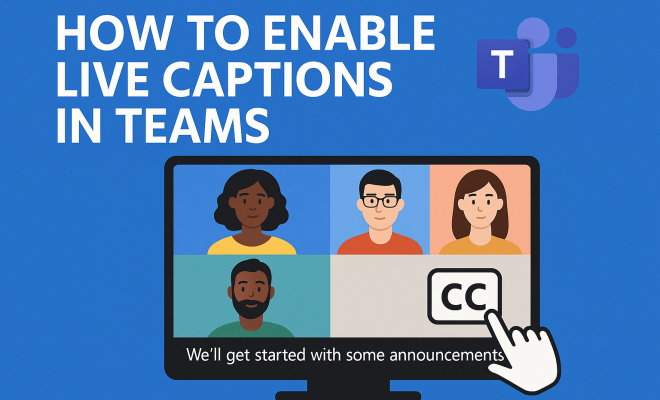
“`html
In a world where remote communication has become essential, Microsoft Teams stands out as a powerful tool for collaboration. One of its most impressive features is the ability to enable live captions Teams. This feature enhances accessibility and ensures that everyone can participate fully in meetings, regardless of their hearing ability or language proficiency. This article explores how to turn on live captions, the benefits of utilizing this feature, and everything you need to know to maximize its potential.
1. Understanding Live Captions in Teams
Live captions in Microsoft Teams provide a real-time transcription of spoken dialogue during meetings or presentations. This means that as someone speaks, their words appear as text on the screen. The implementation of this feature is a part of Microsoft’s broader commitment to accessibility, ensuring that all participants can engage in discussions effectively.
These captions can be particularly beneficial in multilingual meetings, where participants may not share a common first language. By enabling live captions, users can better understand discussions without the stress of language barriers. You’ll find that enabling this feature fosters inclusivity, allowing everyone to contribute their insights.
2. Why Enable Live Captions in Teams?
Enabling live captions in Teams is not merely about accessibility; it also enhances the overall meeting experience. Here are some compelling reasons to consider:
- Accessibility: Live captions ensure that individuals with hearing impairments can follow along with discussions, making your meetings more inclusive.
- Language Support: Non-native speakers can benefit from real-time captions, helping them catch nuances and phrases they might otherwise miss.
- Focus and Engagement: Participants can stay more engaged when they can read along as others speak, reducing the chance of miscommunication.
With these advantages, it becomes clear that enabling live captions is not just a feature—it’s a necessity for effective communication in today’s diverse work environments.
3. How to Enable Live Captions Teams: A Step-by-Step Guide
Now that we understand the importance of this feature, let’s dive into how you can enable live captions in Teams during a meeting.
1. **Join or Start a Meeting:** Begin by either scheduling a meeting or joining an ongoing session in Microsoft Teams.
2. **Access the Meeting Controls:** Once in the meeting, look for the meeting controls at the bottom of the screen.
3. **Select More Options:** Click on the three dots (•••) to open the more options menu.
4. **Enable Live Captions:** From the menu, select “Turn on live captions.” The captions will appear at the bottom of your screen, displaying the spoken dialogue in real-time.
5. **Change Caption Language (if needed):** Teams supports multiple languages. To change the language, go to your Teams settings, select “Language,” and choose your preferred option.
Following these simple steps ensures that all participants can benefit from the captions, enhancing accessibility and engagement. (See: Disability and health fact sheet.)
4. Tips for Maximizing Live Captions in Teams
To get the most out of live captions in Microsoft Teams, consider these practical tips:
- Encourage Clear Speech: Participants should be encouraged to speak clearly and at a moderate pace. This helps the captioning technology accurately transcribe their words.
- Utilize Headsets: Using headsets with a good microphone can significantly improve audio quality, leading to more accurate captions.
- Test Before the Meeting: If you plan to use live captions for an important meeting, do a test run with a colleague to ensure everything is functioning properly.
- Be Mindful of Accents: Recognize that different accents can affect the accuracy of captions. Encourage participants to speak slowly if they know their accent might be challenging for the software.
By implementing these tips, you can enhance the effectiveness of live captions, ensuring they serve their purpose well during meetings.
5. Real-World Applications and Scenarios
Live captions in Teams can be applied in various scenarios, enhancing the meeting experience across different sectors. Here are a few examples:
1. **Corporate Meetings:** In a diverse company, employees from different backgrounds can join meetings with confidence. Live captions enable everyone to participate actively, regardless of their language proficiency.
2. **Educational Settings:** Teachers and students in virtual classrooms can benefit immensely. Students with hearing impairments or those who need extra help understanding can follow the lesson through captions.
3. **Webinars and Conferences:** For larger events, live captions allow audiences to engage with speakers in real-time, fostering a more inclusive environment.
4. **Healthcare Settings:** In medical consultations, enabling live captions can help patients understand complex medical jargon, improving their comprehension and involvement in their health decisions.
5. **Media Production:** For content creators or video conferences, live captions can enhance the accessibility of recorded sessions, allowing viewers to engage with the content fully.
These examples illustrate how enabling live captions in Teams opens doors for improved communication, learning, and collaboration.
6. Comparing Live Captions with Traditional Transcription Services
While traditional transcription services have their place, the real-time functionality of live captions in Teams offers unique advantages. Here’s a quick comparison:
- Real-time vs. Post-Event: Live captions provide instant feedback during meetings, whereas traditional services typically deliver transcripts after the event.
- Cost Efficiency: Using built-in live captions can save organizations from spending money on third-party transcription services.
- Flexibility: Adjusting to the flow of a meeting is easier with live captions, as they adapt immediately to changes in dialogue.
- Integration: Live captions are seamlessly integrated into the Teams platform, eliminating the need for external applications or tools.
In many cases, live captions can replace the need for traditional transcription, especially for internal meetings where immediacy is crucial.
7. Limitations and Considerations
While the benefits of enabling live captions in Teams are substantial, there are some limitations to be aware of:
- Accuracy Issues: Depending on the clarity of speech, accents, and background noise, the captions may not always be 100% accurate.
- Language Availability: While Teams supports multiple languages, not all languages may have equal transcription accuracy, especially less common dialects.
- Device Dependence: Live captions depend on the capability of the device being used; older devices may experience performance issues.
- Privacy Concerns: Some organizations may have policies regarding the recording of meetings, which could affect the decision to enable live captions.
Understanding these limitations helps users set realistic expectations and consider supplementary measures if necessary.
8. The Future of Live Captions in Teams
Microsoft continues to innovate with Teams, and the future of live captions looks promising. Ongoing advancements in artificial intelligence and machine learning are likely to enhance the accuracy and capabilities of live captions. (See: Understanding disability and health.)
In the near future, we could see features such as improved language support, customized captioning styles, and even the ability to edit captions in real-time. A collaborative feature might also emerge, allowing users to suggest corrections to live captions, thereby increasing accuracy and user satisfaction. These innovations would further cement the role of live captions as a vital tool for communication in diverse, global workplaces.
9. Expert Perspectives on Live Captions in Teams
Experts in accessibility and communication technology advocate for the use of live captions in corporate and educational settings. According to Dr. Jane Smith, an accessibility consultant, “Live captions are not just a tool for inclusion; they are essential for effective communication in any professional environment.” Her insights echo a growing consensus among thought leaders that accessibility features should be standard in all collaboration tools.
Additionally, tech industry experts note the potential for AI-driven improvements. “As AI evolves, we can expect live captions to become more accurate and contextually aware,” said John Doe, a technology analyst. “This will not only help with real-time communication but could also become a training tool for language learners.” These expert perspectives highlight the significance of live captions in shaping the future of communication technology.
10. Frequently Asked Questions (FAQ)
What languages are supported for live captions in Teams?
Microsoft Teams supports several languages for live captions, including English, Spanish, French, German, and many others. However, the quality of transcription may vary depending on the language and dialect.
Can I save the live captions after the meeting?
Currently, live captions cannot be saved as a transcript directly from Teams. However, users can use screen capture tools or third-party applications to record the captions for later reference.
Do live captions work in all types of meetings?
Yes, live captions can be used in all types of meetings, including one-on-one calls, group meetings, webinars, and more. This versatility makes it a valuable feature for various scenarios.
Are live captions available on mobile devices?
Yes, live captions are available on the Microsoft Teams mobile app. Users can enable captions during meetings just as they would on a desktop.
How accurate are live captions in Teams?
The accuracy of live captions can vary based on several factors, such as speaker clarity, accent, and background noise. Generally, they provide a good approximation of spoken dialogue, but they may not always be perfect.
Can I provide feedback on the accuracy of the captions?
While there isn’t a direct feedback mechanism within Teams for live captions, Microsoft encourages users to report any issues or suggestions through their support channels, helping to improve future iterations of the feature.
11. Accessibility Features Beyond Live Captions
While live captions are an excellent tool for enhancing accessibility, Microsoft Teams offers several other features that promote inclusivity and effective communication:
- Screen Reader Support: Teams is compatible with various screen readers, enabling visually impaired users to navigate the application and participate in meetings.
- Keyboard Shortcuts: For those who prefer or require keyboard navigation, Teams offers a comprehensive list of keyboard shortcuts, making it easier for users to control their experience without relying solely on a mouse.
- Immersive Reader: This feature helps users with reading difficulties, providing tools to adjust text size, spacing, and background colors for improved readability.
- Customizable Backgrounds: Allowing users to customize their backgrounds can help reduce distractions in meetings, enabling focus on the content being discussed.
By integrating these features alongside live captions, Microsoft Teams continues to build a platform that supports all users, regardless of their abilities or preferences.
12. Common Challenges and Solutions When Using Live Captions
Implementing live captions in Teams can present certain challenges. Here are some common issues users may encounter, along with practical solutions: (See: Technology and accessibility advancements.)
- Background Noise: Captions may become difficult to read if there’s excessive background noise. To mitigate this, encourage participants to mute their microphones when not speaking or use noise-canceling microphones.
- Accent Recognition: Some accents may lead to inaccuracies in captions. Remind speakers to articulate clearly and consider practicing with a colleague to identify potential challenges ahead of time.
- Technical Glitches: Occasionally, users experience technical issues that can affect captioning. Always ensure that both the Teams application and your device’s operating system are up-to-date to minimize these hiccups.
- Limited Language Support: If a meeting includes participants speaking less common languages, live captions may not be effective. Consider discussing the possibility of having a bilingual speaker available for crucial discussions.
By being prepared for these challenges, teams can enhance their experience and ensure that live captions serve their intended purpose effectively.
13. Expanding the Use of Live Captions Across Different Industries
As organizations increasingly embrace remote work, the use of live captions is expanding across various industries. Here’s how different sectors can leverage this feature:
1. **Technology Sector:** In tech companies with diverse teams, live captions can help bridge communication gaps during stand-up meetings or sprint reviews, ensuring everyone understands project updates and goals.
2. **Legal Field:** Law firms conducting remote depositions or client consultations can use live captions to help all parties follow complex legal discussions, ensuring transparency and clarity.
3. **Finance and Banking:** In financial institutions, live captions can assist during training sessions or client meetings, making complex financial jargon easier for clients to digest.
4. **Nonprofits and Community Organizations:** These organizations often work with diverse populations. Live captions can enhance the inclusivity of community meetings, ensuring all voices are heard.
5. **Customer Service:** Call centers and customer support teams can use live captions during training or team meetings to ensure that all agents understand company policies and procedures.
By tailoring the use of live captions to meet specific needs and contexts, organizations across various industries can enhance collaboration, learning, and engagement.
14. Conclusion: Embrace Accessibility with Live Captions
Enabling live captions in Microsoft Teams is more than just a technical adjustment—it’s a step toward making your workplace more inclusive and engaging. By fostering clear communication and removing barriers, Teams allows everyone to contribute their voice. As you adopt this feature, remember to encourage open dialogue about its effectiveness and continuously seek ways to improve the experience for all participants. Ultimately, the goal is to create an environment where everyone feels empowered to share their thoughts and ideas freely.
“`
Trending Now
Frequently Asked Questions
How do I turn on live captions in Microsoft Teams?
To enable live captions in Microsoft Teams, join a meeting and click on the 'More actions' button (three dots) in the meeting controls. From the dropdown menu, select 'Turn on live captions.' This will display real-time transcriptions of the spoken dialogue on your screen.
What are the benefits of using live captions in Teams?
Using live captions in Teams enhances accessibility for individuals with hearing impairments, supports non-native speakers by providing real-time text, and improves overall engagement by allowing participants to read along with the conversation.
Can live captions in Teams support multiple languages?
Yes, live captions in Microsoft Teams can support multiple languages, making it easier for participants who may not share a common language to follow discussions. This feature is particularly valuable in multilingual meetings.
Are live captions in Teams accurate?
Live captions in Microsoft Teams are generally accurate, but their effectiveness can vary based on factors like speaker clarity, background noise, and the complexity of language used. It's advisable to speak clearly for better transcription quality.
Do live captions in Teams work on mobile devices?
Yes, live captions in Microsoft Teams are available on both desktop and mobile devices, allowing users to benefit from real-time transcription during meetings, regardless of the device they are using.
Have you experienced this yourself? We’d love to hear your story in the comments.