The Tech Edvocate

Top Menu

  • Advertisement
  • Apps
  • Home Page
  • Home Page Five (No Sidebar)
  • Home Page Four
  • Home Page Three
  • Home Page Two
  • Home Tech2
  • Icons [No Sidebar]
  • Left Sidbear Page
  • Lynch Educational Consulting
  • My Account
  • My Speaking Page
  • Newsletter Sign Up Confirmation
  • Newsletter Unsubscription
  • Our Brands
  • Page Example
  • Privacy Policy
  • Protected Content
  • Register
  • Request a Product Review
  • Shop
  • Shortcodes Examples
  • Signup
  • Start Here
    • Governance
    • Careers
    • Contact Us
  • Terms and Conditions
  • The Edvocate
  • The Tech Edvocate Product Guide
  • Topics
  • Write For Us
  • Advertise

Main Menu

  • Start Here
    • Our Brands
    • Governance
      • Lynch Educational Consulting, LLC.
      • Dr. Lynch’s Personal Website
      • Careers
    • Write For Us
    • The Tech Edvocate Product Guide
    • Contact Us
    • Books
    • Edupedia
    • Post a Job
    • The Edvocate Podcast
    • Terms and Conditions
    • Privacy Policy
  • Topics
    • Assistive Technology
    • Child Development Tech
    • Early Childhood & K-12 EdTech
    • EdTech Futures
    • EdTech News
    • EdTech Policy & Reform
    • EdTech Startups & Businesses
    • Higher Education EdTech
    • Online Learning & eLearning
    • Parent & Family Tech
    • Personalized Learning
    • Product Reviews
  • Advertise
  • Tech Edvocate Awards
  • The Edvocate
  • Pedagogue
  • School Ratings

logo

The Tech Edvocate

  • Start Here
    • Our Brands
    • Governance
      • Lynch Educational Consulting, LLC.
      • Dr. Lynch’s Personal Website
        • My Speaking Page
      • Careers
    • Write For Us
    • The Tech Edvocate Product Guide
    • Contact Us
    • Books
    • Edupedia
    • Post a Job
    • The Edvocate Podcast
    • Terms and Conditions
    • Privacy Policy
  • Topics
    • Assistive Technology
    • Child Development Tech
    • Early Childhood & K-12 EdTech
    • EdTech Futures
    • EdTech News
    • EdTech Policy & Reform
    • EdTech Startups & Businesses
    • Higher Education EdTech
    • Online Learning & eLearning
    • Parent & Family Tech
    • Personalized Learning
    • Product Reviews
  • Advertise
  • Tech Edvocate Awards
  • The Edvocate
  • Pedagogue
  • School Ratings
  • The Shocking Truth: ESG Training Programs Are Quietly Reshaping Your Career Path

  • Why Millions of People Are Switching to These Green Energy Certifications Right Now

  • The green skills gap in 2026: How to address this growing problem

  • The Shocking Truth: Your Degree Won’t Land You the Best IT Jobs in 2026

  • The Brutal Truth About Degrees: Why Micro-Credentials Are Quietly Dominating Careers by 2026

  • Why 96% of Employers Now Prefer Skills Over Degrees: The Micro-Credential Revolution

  • This Crucial Mistake With AI Is Stunting Student Minds: Here’s How to Fix It

  • The AI ‘Cognitive Surrender’ Crisis: 7 Tools Every Educator Needs NOW

  • This Crucial Mistake Is Quietly Killing Students’ Brains, Says MIT

  • The Sneaky Truth About RTO: How to Negotiate Flexible Work Without Losing Your Job

Online Learning & eLearning
Home›Online Learning & eLearning›Top 8 Ways to Fix Number Pad Not Working on Keyboard in Windows 11

Top 8 Ways to Fix Number Pad Not Working on Keyboard in Windows 11
By Matthew Lynch
May 28, 2023
0
Spread the love

The number pad on your keyboard is crucial for inputting numeric data, such as when working with spreadsheets or accounting software. But what do you do when it stops working? If you are experiencing issues with your number pad not working on Windows 11, don’t worry. You are not alone, and there are several possible solutions available. Here are eight ways to fix the number pad not working on your keyboard in Windows 11.

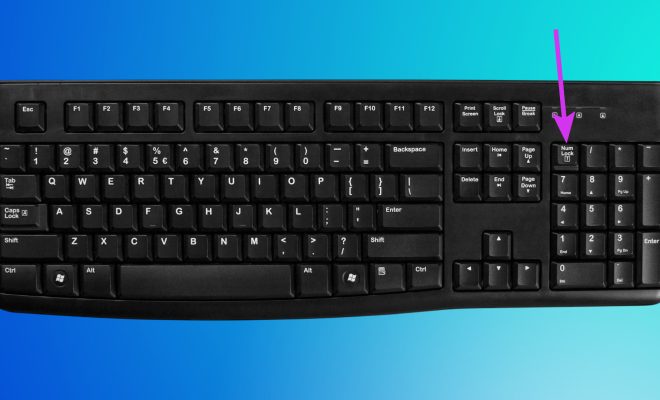
1. Check the Num Lock Key

First and foremost, check if the Num Lock key is enabled. Many keyboards have a Num Lock key that toggles the number pad on or off. Look for a key with “Num Lock” written on it, and press it to see if this solves the issue.

2. Check the Keyboard Connection

Ensure that your keyboard is properly connected to your computer. Check if the cable is securely plugged into the USB port. If you’re using a wireless keyboard, make sure it’s paired with your computer and has sufficient battery power.

3. Restart Your Computer

Sometimes, a simple restart can fix the number pad not working issue. Restarting your computer can refresh its settings and get the keyboard working again. Try restarting your computer and see if this resolves the problem.

4. Update Your Keyboard Driver

An outdated or corrupt keyboard driver can cause various issues, including a malfunctioning number pad. To update your keyboard driver, follow these steps:

1. Press the Windows key + X and select Device Manager.

2. Locate Keyboards and expand the category.

3. Right-click on the keyboard driver and select Update Driver.

4. Follow the on-screen instructions to complete the process.

5. Restart your computer and check if the number pad works correctly.

5. Run the Keyboard Troubleshooter

Windows has built-in troubleshooters that can diagnose and fix common hardware issues. To run the keyboard troubleshooter, follow these steps:

1. Press the Windows key + I to open the Settings app.

2. Click on Update & Security.

3. Select Troubleshoot from the left pane.

4. Scroll down and select Keyboard.

5. Click on Run the troubleshooter and follow the prompts.

6. Disable Filter Keys

Filter Keys is an accessibility feature that filters out repeated keystrokes, making typing more comfortable for some users. However, it can also cause issues with the number pad. To disable Filter Keys, follow these instructions:

1. Press the Windows key + I to open the Settings app.

2. Click on Ease of Access.

3. Select Keyboard from the left pane.

4. Toggle off the option for Filter Keys.

7. Check for Malware

Malware can affect your keyboard functions, so it’s essential to scan your computer for any viruses or malicious software. Use your preferred antivirus software to scan your computer and remove any threats.

8. Use an External Keyboard

If all else fails, you can connect an external keyboard with a working number pad to your computer. While not a perfect solution, it can help you continue working without much disruption.

Conclusion

A malfunctioning number pad can be frustrating, but there are several solutions available to fix the issue on Windows 11. Follow the steps outlined above, and you should be able to get your number pad working correctly in no time. If the issue persists, contact your keyboard manufacturer for further assistance.

Previous Article

Top 8 Ways to Fix Mobile Data ...

Next Article

Top 8 Ways to Fix Outlook App ...

Matthew Lynch

Related articles More from author

  • Online Learning & eLearning

    How To Train Managers To Achieve Employee Engagement In Corporate Online Learning

    March 24, 2023
    By Matthew Lynch
  • How to Use System Restore in Windows 11
    Elementary EducationOnline Learning & eLearning

    Learn How to Securely Delete Files in Windows

    March 28, 2023
    By Matthew Lynch
  • Elementary EducationOnline Learning & eLearning

    The Best Linux Desktops for a Touchscreen Monitor

    March 31, 2023
    By Matthew Lynch
  • Online Learning & eLearning

    iPhone Water Damage and Stuck in Headphone Mode

    March 27, 2023
    By Matthew Lynch
  • Online Learning & eLearning

    Signs You Aren’t Meant to Be a Programmer

    June 6, 2023
    By Matthew Lynch
  • Online Learning & eLearning

    Need Better Cell Phone Reception? Try These 10 Tips to Boost Your Weak Signal

    March 28, 2023
    By Matthew Lynch

Search

Login & Registration

  • Log in
  • Entries feed
  • Comments feed
  • WordPress.org

Newsletter

Signup for The Tech Edvocate Newsletter and have the latest in EdTech news and opinion delivered to your email address!

About Us

Since technology is not going anywhere and does more good than harm, adapting is the best course of action. That is where The Tech Edvocate comes in. We plan to cover the PreK-12 and Higher Education EdTech sectors and provide our readers with the latest news and opinion on the subject. From time to time, I will invite other voices to weigh in on important issues in EdTech. We hope to provide a well-rounded, multi-faceted look at the past, present, the future of EdTech in the US and internationally.

We started this journey back in June 2016, and we plan to continue it for many more years to come. I hope that you will join us in this discussion of the past, present and future of EdTech and lend your own insight to the issues that are discussed.

Newsletter

Signup for The Tech Edvocate Newsletter and have the latest in EdTech news and opinion delivered to your email address!

Contact Us

The Tech Edvocate
910 Goddin Street
Richmond, VA 23231
(601) 630-5238
[email protected]

Copyright © 2026 Matthew Lynch. All rights reserved.