The Tech Edvocate

Top Menu

  • Advertisement
  • Apps
  • Home Page
  • Home Page Five (No Sidebar)
  • Home Page Four
  • Home Page Three
  • Home Page Two
  • Home Tech2
  • Icons [No Sidebar]
  • Left Sidbear Page
  • Lynch Educational Consulting
  • My Account
  • My Speaking Page
  • Newsletter Sign Up Confirmation
  • Newsletter Unsubscription
  • Our Brands
  • Page Example
  • Privacy Policy
  • Protected Content
  • Register
  • Request a Product Review
  • Shop
  • Shortcodes Examples
  • Signup
  • Start Here
    • Governance
    • Careers
    • Contact Us
  • Terms and Conditions
  • The Edvocate
  • The Tech Edvocate Product Guide
  • Topics
  • Write For Us
  • Advertise

Main Menu

  • Start Here
    • Our Brands
    • Governance
      • Lynch Educational Consulting, LLC.
      • Dr. Lynch’s Personal Website
      • Careers
    • Write For Us
    • The Tech Edvocate Product Guide
    • Contact Us
    • Books
    • Edupedia
    • Post a Job
    • The Edvocate Podcast
    • Terms and Conditions
    • Privacy Policy
  • Topics
    • Assistive Technology
    • Child Development Tech
    • Early Childhood & K-12 EdTech
    • EdTech Futures
    • EdTech News
    • EdTech Policy & Reform
    • EdTech Startups & Businesses
    • Higher Education EdTech
    • Online Learning & eLearning
    • Parent & Family Tech
    • Personalized Learning
    • Product Reviews
  • Advertise
  • Tech Edvocate Awards
  • The Edvocate
  • Pedagogue
  • School Ratings

logo

The Tech Edvocate

  • Start Here
    • Our Brands
    • Governance
      • Lynch Educational Consulting, LLC.
      • Dr. Lynch’s Personal Website
        • My Speaking Page
      • Careers
    • Write For Us
    • The Tech Edvocate Product Guide
    • Contact Us
    • Books
    • Edupedia
    • Post a Job
    • The Edvocate Podcast
    • Terms and Conditions
    • Privacy Policy
  • Topics
    • Assistive Technology
    • Child Development Tech
    • Early Childhood & K-12 EdTech
    • EdTech Futures
    • EdTech News
    • EdTech Policy & Reform
    • EdTech Startups & Businesses
    • Higher Education EdTech
    • Online Learning & eLearning
    • Parent & Family Tech
    • Personalized Learning
    • Product Reviews
  • Advertise
  • Tech Edvocate Awards
  • The Edvocate
  • Pedagogue
  • School Ratings
  • Best GetYourGuide tours in Paris

  • Does Viator offer group discounts?

  • Hotels.com vs Airbnb features

  • What is Regus Business Lounge?

  • What is Couchsurfing verification?

  • How to use Viator gift cards?

  • Klook payment methods accepted

  • Best Notion templates for teams

  • WeWork vs traditional office cost

  • Klook vs GetYourGuide vs Viator

Digital & Mobile Technology
Home›Digital & Mobile Technology›Tips to Customize the Call Background on Samsung Galaxy Phones

Tips to Customize the Call Background on Samsung Galaxy Phones
By Matthew Lynch
April 10, 2023
0
Spread the love

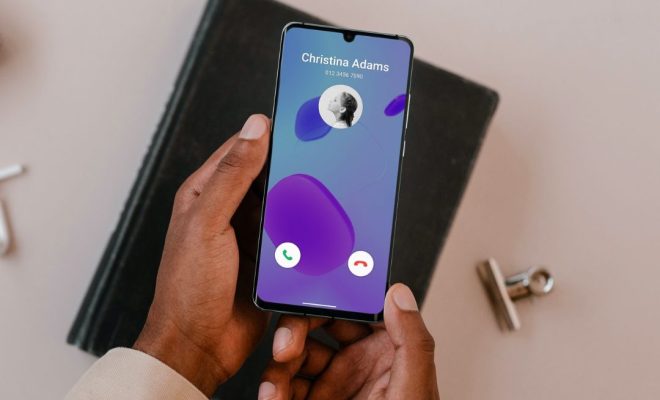
Samsung Galaxy phones are one of the most advanced and user-friendly smartphones available in the market. From high-quality camera features to seamless connectivity options, these devices have it all. Not only do they offer incredible features, but they also have a lot of customization options. One of the coolest features is the ability to customize the call background. Here are some tips to help you personalize your Samsung Galaxy phone’s call background.

1. Choose from Gallery Images

One easy way to customize your call background is by selecting a picture from the gallery on your Samsung Galaxy phone. You can use any image you want, but it’s suggested to use a picture that is of good quality and size. After choosing the image, go to the settings in the phone app and navigate to the “Call Background” option. From there, select “Gallery” and select the image you want to use as your call background.

2. Use a Video as Your Call Background

Another interesting option is to set a video as your call background. It’s a really cool way to show off your private collection or your favorite video moments. To customize your call background with a video, open up the phone app and go to “Call Background” settings. Select the option called “Video” and then select the video you want to use. Keep in mind the length of the video must be under 15 seconds.

3. Set Up a Custom Image with the Phone App

Many Samsung Galaxy phones come with their own pre-installed phone app, which makes it easy to customize your call background. Open the phone app and navigate to the settings, where you will find the “Call Background” option. Select “Custom Images” and then choose a picture from your gallery or take a new one. After choosing your picture, select the “set” option to apply it.

4. Use Call Screen Theme from Samsung Themes

Samsung Themes is a great resource for customizing various features on your Samsung Galaxy phone. It offers a variety of call screen themes to choose from, which includes beautiful graphic illustrations and animations. To use the call screen themes from Samsung Themes, open up the Themes app and search for “Call Screen Themes.” You can then scroll through a variety of themes and select the one you like.

5. Use Third-Party Apps

Last but not least, you can also use third-party apps to customize your call background. There are many free and paid apps available in the Google Play Store that offer a wide range of customization options. One of the most popular apps for this purpose is “Call Screen Themes and Color Phone” by Cool Launcher. Just search the Google Play Store for “Call Screen Themes” and download the app of your choice.

In conclusion, Samsung Galaxy phones offer many options for customizing call background. Whether it’s through the phone app or third-party apps, there’s no limit to the amount of personalization that can be done. Follow these tips and enjoy a seamless and personalized experience every time you make or receive a call on your Samsung Galaxy phone.


Previous Article

Things You Must Do When Running an ...

Next Article

Tools to View Large Files on Windows ...

Matthew Lynch

Related articles More from author

  • Digital & Mobile Technology

    How to Fix It When a Fire Stick Remote’s Volume Is Not Working

    June 2, 2023
    By Matthew Lynch
  • Digital & Mobile Technology

    How to Type Curly Quotes and Curly Apostrophes

    June 12, 2023
    By Matthew Lynch
  • Digital & Mobile Technology

    The 9 Best Docker Alternatives for Container Management

    July 22, 2023
    By Matthew Lynch
  • Digital & Mobile Technology

    How to Speed Test Your Internet From the Linux Command Line

    July 31, 2023
    By Matthew Lynch
  • Digital & Mobile Technology

    How to Connect a Printer to Your Computer with Windows 10

    July 30, 2023
    By Matthew Lynch
  • Digital & Mobile Technology

    Best Animation Apps for Android

    June 9, 2023
    By Matthew Lynch

Search

Login & Registration

  • Log in
  • Entries feed
  • Comments feed
  • WordPress.org

Newsletter

Signup for The Tech Edvocate Newsletter and have the latest in EdTech news and opinion delivered to your email address!

About Us

Since technology is not going anywhere and does more good than harm, adapting is the best course of action. That is where The Tech Edvocate comes in. We plan to cover the PreK-12 and Higher Education EdTech sectors and provide our readers with the latest news and opinion on the subject. From time to time, I will invite other voices to weigh in on important issues in EdTech. We hope to provide a well-rounded, multi-faceted look at the past, present, the future of EdTech in the US and internationally.

We started this journey back in June 2016, and we plan to continue it for many more years to come. I hope that you will join us in this discussion of the past, present and future of EdTech and lend your own insight to the issues that are discussed.

Newsletter

Signup for The Tech Edvocate Newsletter and have the latest in EdTech news and opinion delivered to your email address!

Contact Us

The Tech Edvocate
910 Goddin Street
Richmond, VA 23231
(601) 630-5238
[email protected]

Copyright © 2026 Matthew Lynch. All rights reserved.