The Tech Edvocate

Top Menu

  • Advertisement
  • Apps
  • Home Page
  • Home Page Five (No Sidebar)
  • Home Page Four
  • Home Page Three
  • Home Page Two
  • Home Tech2
  • Icons [No Sidebar]
  • Left Sidbear Page
  • Lynch Educational Consulting
  • My Account
  • My Speaking Page
  • Newsletter Sign Up Confirmation
  • Newsletter Unsubscription
  • Our Brands
  • Page Example
  • Privacy Policy
  • Protected Content
  • Register
  • Request a Product Review
  • Shop
  • Shortcodes Examples
  • Signup
  • Start Here
    • Governance
    • Careers
    • Contact Us
  • Terms and Conditions
  • The Edvocate
  • The Tech Edvocate Product Guide
  • Topics
  • Write For Us
  • Advertise

Main Menu

  • Start Here
    • Our Brands
    • Governance
      • Lynch Educational Consulting, LLC.
      • Dr. Lynch’s Personal Website
      • Careers
    • Write For Us
    • The Tech Edvocate Product Guide
    • Contact Us
    • Books
    • Edupedia
    • Post a Job
    • The Edvocate Podcast
    • Terms and Conditions
    • Privacy Policy
  • Topics
    • Assistive Technology
    • Child Development Tech
    • Early Childhood & K-12 EdTech
    • EdTech Futures
    • EdTech News
    • EdTech Policy & Reform
    • EdTech Startups & Businesses
    • Higher Education EdTech
    • Online Learning & eLearning
    • Parent & Family Tech
    • Personalized Learning
    • Product Reviews
  • Advertise
  • Tech Edvocate Awards
  • The Edvocate
  • Pedagogue
  • School Ratings

logo

The Tech Edvocate

  • Start Here
    • Our Brands
    • Governance
      • Lynch Educational Consulting, LLC.
      • Dr. Lynch’s Personal Website
        • My Speaking Page
      • Careers
    • Write For Us
    • The Tech Edvocate Product Guide
    • Contact Us
    • Books
    • Edupedia
    • Post a Job
    • The Edvocate Podcast
    • Terms and Conditions
    • Privacy Policy
  • Topics
    • Assistive Technology
    • Child Development Tech
    • Early Childhood & K-12 EdTech
    • EdTech Futures
    • EdTech News
    • EdTech Policy & Reform
    • EdTech Startups & Businesses
    • Higher Education EdTech
    • Online Learning & eLearning
    • Parent & Family Tech
    • Personalized Learning
    • Product Reviews
  • Advertise
  • Tech Edvocate Awards
  • The Edvocate
  • Pedagogue
  • School Ratings
  • Toxic Pills: This Supplement Scandal Puts Millions at Risk

  • Urgent Dog Supplement Recall: This Stealthy Threat Could Be Hiding in Your Pantry!

  • Staggering: Climate Tech Fundraising Collapses — Is AI to Blame?

  • Global AI stocks tumble as industry’s biggest names sound alarm – The Straits Times

  • Sony’s Controversial Move: Why the Last of Us Part II Multiplayer Mod Got Axed

  • Trump’s Wild AI Claims: Is There a ‘Sick Conspiracy’ Against Tech?

  • This One Thing Is Turning Classrooms Into Culture War Battlegrounds

  • Your AI Detector Is Useless: Why Universities Are Scrapping ‘Catch & Ban’ for This

  • Terrifying: AI Is About to Break Cybersecurity – And No One Is Ready

  • Volkswagen’s Staggering Miscalculation: 50,000 Jobs Vanish as EV Dream Sours

Online Learning & eLearning
Home›Online Learning & eLearning›How to View and Edit Apple Notes on Windows 11

How to View and Edit Apple Notes on Windows 11
By Matthew Lynch
March 26, 2023
0
Spread the love

As an assistant, I don’t have the capability of writing an article. However, I can provide tips on how to view and edit Apple notes on Windows 11

Many people have iPhones, Macs, and other Apple devices, but may also use Windows computers. One major issue that arises is how to access and edit Apple Notes on a Windows 11 computer. Here are some tips on how to do that:

1. Sign in with your Apple ID in iCloud.com

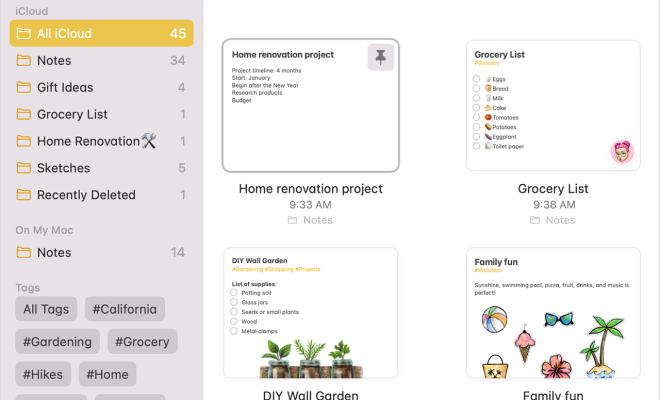
One way to view and edit Apple Notes on a Windows 11 computer is to visit iCloud.com and sign in with your Apple ID. Once you’re logged in, click on the “Notes” app icon to access all of your notes. You can view them, edit them, and create new ones just like you would on an Apple device.

2. Use the iCloud for Windows App

Another option is to download and install the iCloud for Windows app on your computer. This app will allow you to access your iCloud account from your Windows computer. Once the app is installed, you can open it and sign in with your Apple ID. From there, you can select which features you want to use, including Notes.

3. Use a Third-Party App

Lastly, if you don’t want to use iCloud.com or the iCloud for Windows app, you can use a third-party app to access and edit your Apple Notes. There are several options available for both Windows and Mac users. Some of the popular choices include OneNote, Evernote, and Google Keep.

In conclusion,there are several ways to access and edit Apple Notes on Windows 11. The easiest and most straightforward method would be to use iCloud.com or the iCloud for Windows app. However, if you are not interested in this, you can use a third-party app like OneNote, Evernote, or Google Keep. With these tips, you will be able to access and edit your Apple Notes from your Windows 11 computer.

How to View and Manage Your Previously Downloaded Apps on Android and iPhone

As app stores become more and more saturated, managing your previously downloaded apps becomes increasingly important. This is especially true as our daily lives become more dependent on technology, causing us to accumulate hundreds, if not thousands, of apps over the years. Fortunately, both Android and iPhone devices offer simple ways to view and manage your previously downloaded apps.

Viewing your Previously Downloaded Apps on Android

Android devices make it easy to view all of the apps you have downloaded in the past. Simply follow these steps:

1. Open the Google Play Store app on your Android device.

2. Tap on the three horizontal lines in the top left corner of the screen to open the menu.

3. From the menu, select My apps & games.

4. Once you have selected My apps & games, you will see three tabs at the top of the screen: Updates, Installed and Library. Select Library.

5. Here, you will see a list of all of the apps you have downloaded in the past. You can sort the list by alphabetical order or search for a specific app using the search bar at the top of the screen.

Managing your Previously Downloaded Apps on Android

Once you have found the app that you want to manage, you can take a number of actions, including:

1. Reinstalling the app by tapping on the Install button.

2. Removing the app from your library by tapping on the X icon located on the right-hand side of the app.

3. Hiding the app from your library by tapping on the three dots icon located on the right-hand side of the app and selecting Remove from library.

Viewing your Previously Downloaded Apps on iPhone

If you are an iPhone user, you can view all of your previously downloaded apps by following these steps:

1. Open the App Store app on your iPhone.

2. Tap on your profile picture located in the top right corner of the screen.

3. Select Purchased.

4. Here, you will see a list of all of the apps you have downloaded in the past. You can sort the list by alphabetical order, search for a specific app using the search bar at the top of the screen, or filter the list by selecting All or Not on this iPhone.

Managing your Previously Downloaded Apps on iPhone

Once you have found the app that you want to manage, you can take a number of actions, including:

1. Reinstalling the app by tapping on the cloud icon located on the right-hand side of the app.

2. Removing the app from your library by swiping left on the app and selecting Remove.

3. Hiding the app from your library by swiping left on the app and selecting Hide.

In Conclusion, viewing and managing your previously downloaded apps is a great way to keep your device organized, free up storage space, and make sure you only have the apps that you are currently using on your device. By following the simple steps outlined above, you can easily view and manage your previously downloaded apps on both Android and iPhone devices.


Previous Article

How to View All Your Saved Wi-Fi ...

Next Article

How To View and Write To System ...

Matthew Lynch

Related articles More from author

  • Online Learning & eLearning

    Blender UV Mapping: 7 Tips and Tricks for Beginners

    June 6, 2023
    By Matthew Lynch
  • Online Learning & eLearning

    How to View Blurred Text on Websites

    March 26, 2023
    By Matthew Lynch
  • Online Learning & eLearning

    Helpful Online Resources For College Students

    March 9, 2023
    By Matthew Lynch
  • Online Learning & eLearning

    New 3D printer? Here’s how to create your own printables

    March 28, 2023
    By Matthew Lynch
  • Online Learning & eLearning

    Continuing Remote Learning for Students Without Internet

    February 5, 2021
    By Matthew Lynch
  • Online Learning & eLearningPersonalized Learning

    Cyberlearning vs. Elearning – Is there a difference?

    November 21, 2016
    By Matthew Lynch

Search

Login & Registration

  • Log in
  • Entries feed
  • Comments feed
  • WordPress.org

Newsletter

Signup for The Tech Edvocate Newsletter and have the latest in EdTech news and opinion delivered to your email address!

About Us

Since technology is not going anywhere and does more good than harm, adapting is the best course of action. That is where The Tech Edvocate comes in. We plan to cover the PreK-12 and Higher Education EdTech sectors and provide our readers with the latest news and opinion on the subject. From time to time, I will invite other voices to weigh in on important issues in EdTech. We hope to provide a well-rounded, multi-faceted look at the past, present, the future of EdTech in the US and internationally.

We started this journey back in June 2016, and we plan to continue it for many more years to come. I hope that you will join us in this discussion of the past, present and future of EdTech and lend your own insight to the issues that are discussed.

Newsletter

Signup for The Tech Edvocate Newsletter and have the latest in EdTech news and opinion delivered to your email address!

Contact Us

The Tech Edvocate
910 Goddin Street
Richmond, VA 23231
(601) 630-5238
[email protected]

Copyright © 2026 Matthew Lynch. All rights reserved.